
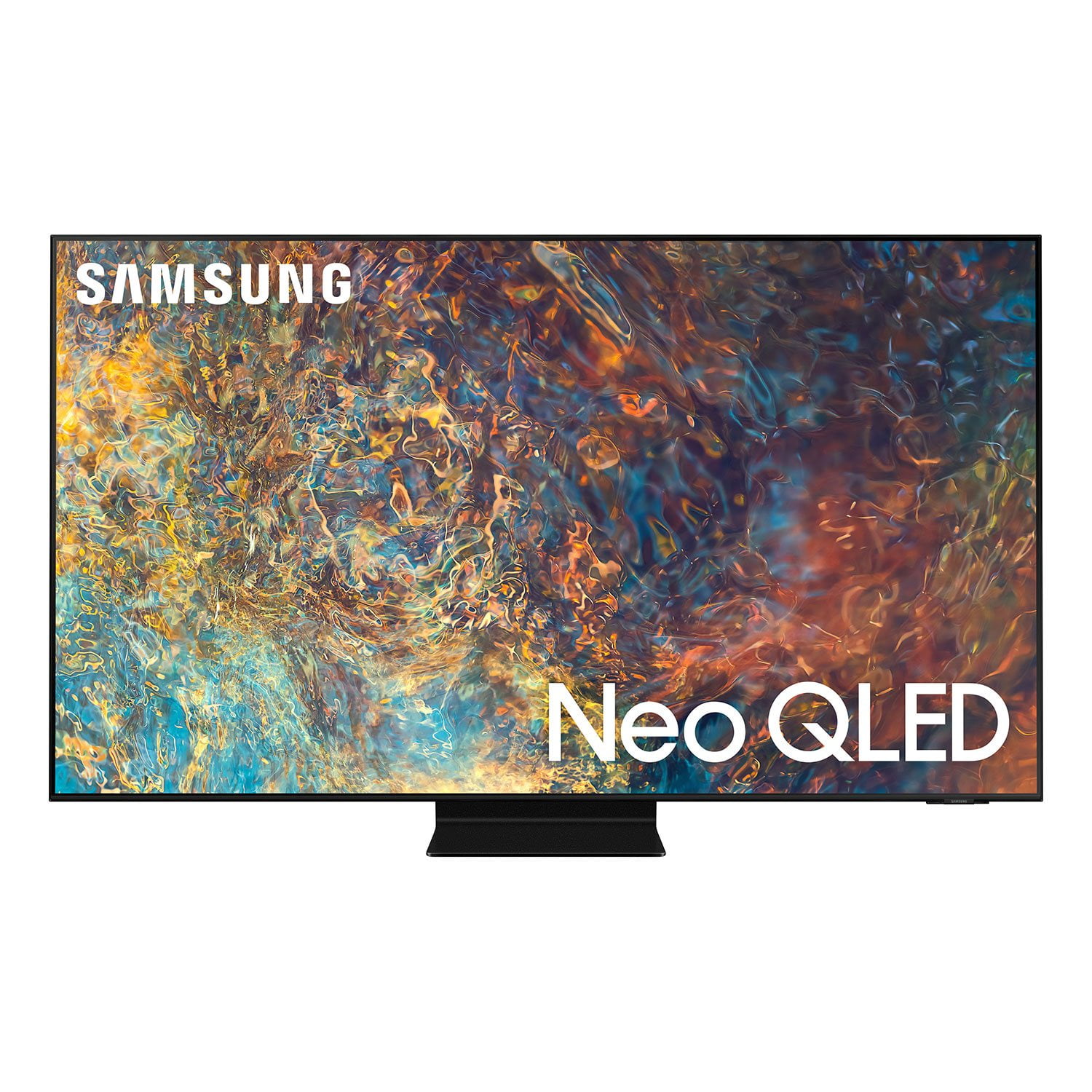
 Customer ratings & reviews for
It's always new experience
[This review was collected as part of a promotion.] Most reliable and affordable where you can entertain your family with minimum expenditures. Samsung has a user-friendly interface with regards to their products. They provide you quality of your spending money and you can feel the Samsung products are always up to date It's always new experience and energy to keep buying Samsung products where you can feel and enjoy the quality and realistic value of your spending... Most reliable and affordable where you can entertain your family with minimum expenditures. Samsung has a user-friendly interface with regards to their products. Quality of your spending money and you can feel the Samsung products are always up to date keep buying Samsung products where you can feel and enjoy the quality and realistic value of your spending. Most reliable and affordable where you can entertain your family with minimum expenditures. Samsung has a user-friendly. They provide you quality of your spending money and you can feel the Samsung products are always up to date New experience and energy to keep buying Samsung products where you can feel and enjoy the quality and of your spending... Most reliable and affordable where you can entertain your family with minimum expenditures. They have quality of your spending money and you can feel the Samsung products are always up to date It's always new experience and energy to keep buying Samsung products where you can feel and enjoy the quality and realistic value of your spending and get the max
Overall a good buy for the options
[This review was collected as part of a promotion.] I use the TV for gaming and movies I never saw colors so bright and detailed . It also provides nice response to to its menu and controls. I like it that I cam adjust a lot of parameters thru the TV menu.
Great picture and features but remote has issues
the picture is fantastic and the overall features are really nice. my problems with the tv has to do with the remote. first of all i hate the small little remote it came with and the fact that it has no numbers keypad. hopefully i can find a different one to use. second, there is a problem with the remote working properly with my bose sound system. i can change the volume up and down but it will not power on or off my bose system. then out of the blue even the volume control stopped working. i had to reset the tv and go thru the initial setup to get it work again. really annoying. i hope it doesn't happen again.
critter4511, Thank you for purchasing Samsung’s QN85A TV and for your review. We appreciate your feedback regarding the issues you are experiencing with your remote control. You may first want to reset your remote by pressing and holding Return and Enter (the center of the navigation pad) for more than 10 seconds. After performing this reset, you will need to pair the remote to the TV again. To pair, press the Return and Play/Pause buttons simultaneously for at least 5 seconds or until a message appears on your TV indicating that the remote is now connected. Please also check to see if your remote is charged. You can check remaining battery by going to: Settings > General > Power and Energy Saving > Available Remote Battery. Check if the remote is sending an IR signal. If it is sending an IR signal, you will see a red colored light coming from the remote control. If the remote still will not work, it may be faulty. Please ensure Anynet+ (HDMI-CEC) is enabled on your TV. With Anynet+, you can control external devices that are connected to your TV with HDMI using your TV remote. To turn on Anynet+ (HDMI-CEC), go to: Settings > General > External Device Manager > Anynet+ (HDMI-CEC). If your soundbar does not support HDMI-CEC, you will not be able to use Anynet+. If that is the case, you will simply need to enable the Universal Remote feature on your TV’s remote with these set-up steps: 1) Connect an external device to the HDMI port of the TV, and then power on the external device. Your TV will automatically recognize the device when connected through HDMI and will switch the output. If it doesn't automatically detect it, then keep following the steps to set up Universal Remote. 2) Press the Home button on your TV remote to access the Home Screen. Using the directional pad on the remote, navigate to Source. When the selector is placed over Source, the Source menu will appear. Press UP on the directional pad to access Universal Remote. 3) Select Universal Remote on the Source screen. Next, select Start and make sure the device you want to connect is turned on. When your desired device displays, select it. Follow the on-screen instructions to complete the setup and register the device. The instructions may vary, depending on the device type selected. 4) Your TV and the remote will memorize the external device and its connection port (HDMI 1, HDMI 2, etc.) to make controlling everything even easier. Occasionally, the device may not respond after it's registered. To make sure the connection is made, you need to re-register the device. I hope this helps. For further assistance, please contact Samsung Customer Support at 1-800-SAMSUNG (ask for TVs), available 8AM - 12AM EST, 7 days a week. For additional support resources, visit us on the Samsung website and click on the ‘Support’ link in the upper right corner of the homepage for: 1) Chat with Us/Product Help: To begin a chat or find solutions, choose ‘TVs & Home Theater’ and select your model & topic. 2) Manuals, Software, & Warranty Info ~ Samsung Specialist
The Best alternative to OLED
[This review was collected as part of a promotion.] This is my second Samsung tv purchase in the past two years. I also own the Q90R. My experience with the Q90 series over the past two years has been a great one. It shaped my decision for this new purchase. The new QN90A is amazing set. I was still worried about the burn-in factor with oled. The HDR is breathtaking and definitely something that cannot be achieved with the brightness levels on oled yet. It has a very thin thickness that works beautifully with the “Samsung No Gap Wall Mount. “ I have it paired the Samsung Q900A sound bar. The two work seamlessly together and also provide a nice clean, minimalist look. My only complaint so far is a bit of “dirty screen” effect. And thats pretty much the one negative I've heard from others too. But the positives far outweigh this. I really like the FilmMaker mode. It's a great addition. It has fantastic color accuracy out of the box. I haven't fully calibrated everything yet and am very impressed. The mini led back light is nice improvement from the Q90. I was impressed even In some darker scenes with fine details, the blooming effect wasn't too noticeable. I highly recommend this model. It's also the number one LED on a few very reliable review sites. The QN90A is the current king!
Hi ObsessedwithSettings, Thank you for choosing Samsung’s new 2021 QN90A Neo QLED 4K Smart TV. I am happy to hear that our Quantum Matrix Technology is delivering great black levels and superb color. The intense picture is powered by our exclusive Mini LED designed technology for hyper-focused brightness and dimming in all the right areas. To ensure that your TV’s picture is optimized, be sure that you are always running the latest firmware update. You can check this by going to Settings > Support > Software Update or you can enable Auto Update for convenience. To provide you with the best image quality, your new TV also features Expert Calibration when the Picture Mode is set to Movie (Home > Settings > Picture > Picture Mode > Movie). Expert Calibration gives you an accurate picture with professional-grade picture calibration that delivers true color. I hope these tips help! Should you ever have questions or need help, please call us at 1-800-SAMSUNG (ask for TVs), available 8AM -12AM EST M-F (9AM – 6PM EST Sat). Or text HELP to 62913. For additional support resources, visit us on the Samsung website and click on the ‘Support’ link in the upper right corner of the homepage for: 1) More ‘Contact Us’ options – LiveChat, Facebook, Twitter, Samsung Community, Samsung Members app 2) Manuals & Software 3) Warranty Info 4) Product Registration: For access to easy warranty support, convenient opt-in to special promos and offers, faster troubleshooting and service, and quick notification of system updates. Thank you for choosing Samsung TVs! ~ Samsung Specialist
Surprise
[This review was collected as part of a promotion.] We had high expectations for the color and depth of the screen. Location on wall is better than we had on stand. Surprised at the difference is black and white (old) movies. I didn't really shadows playing a big part in movies. Wife is big fan of the old movies. Also recommend sound bar. Conversations come out the middle; much easier to understand.
Satisfied Customer
[This review was collected as part of a promotion.] This review is based on two weeks viewing We use television for viewing cable television but exicted to begin using some of the streaming servics. Television set-up was an easy set-up using the Samsung app on my phone. Picture quality is awesome, especially watching sports. We would recommend this television to anyone.
Great 4K experience
[This review was collected as part of a promotion.] I've been using this as a monitor and so far I'm enjoying the experience. The only cons I can think of is that there is only one HDMI 2.1 port. The other con is blooming effects when in dark or black background with white texts. Other than that I really enjoyed this TV with all the features it comes with
Hello Tuanming, Thank you for purchasing the Samsung QN90A Neo QLED 4K Smart TV and for sharing details of your image quality. Quantum Matrix Technology is powered by exclusive Mini LED designed technology engineered to give you hyper-focused brightness and dimming in all the right areas. To optimize your picture quality, please be sure your firmware is up to date with version 1560.5 which includes picture quality updates. You can check this by going to: Settings > Support > Software Update. You may want to enable Auto Update for convenience. Should you need further assistance with image quality adjustments, please give us the opportunity to assist you. You can call us at 1-800-SAMSUNG (ask for TVs), available 8AM -12AM EST M-F (9AM – 6PM EST Sat). Or text HELP to 62913. For additional support resources, visit us on the Samsung website and click on the ‘Support’ link in the upper right corner of the homepage for: 1) More ‘Contact Us’ options – LiveChat, Facebook, Twitter, Samsung Community, Samsung Members app 2) Manuals & Software 3) Warranty Info 4) Product Registration: For access to easy warranty support, convenient opt-in to special promos and offers, faster troubleshooting and service, and quick notification of system updates. Thank you for choosing Samsung! ~ Samsung Specialist
Great picture but some blips
[This review was collected as part of a promotion.] Overall, a really nice product. But several things don't appear to work well. First, getting the TV to "see" my bluray DVD player on the home screen and being able to use the remote to control it doesn't appear to work. Second, I have figured out how to move app icons so they would be I. the order I want on the home screen but when I go back to the home screen the order isn't changed. I will seek help on these issues nut in 2021 these should be easy.
Hello sgsmile, Thank you for purchasing Samsung’s 55" QN90A Neo QLED 4K Smart TV and for your review. We appreciate your feedback regarding your experience. When you are connecting a device that supplies content to your TV such as a Blu-ray player, there is one very important step you need to do on your Samsung TV. You need to enable Input Signal Plus (UHD HDMI Color). - Navigate to Settings > General > External Device Manager. - Select Input Signal Plus (UHD HDMI Color). - You'll see a list of the HDMI ports on your TV. Select the HDMI port that you are going to connect (or have connected) a device to. This will turn the feature on for this port. Please also ensure Anynet+ (HDMI-CEC) is enabled on your TV. With Anynet+, you can control external devices that are connected to your TV with HDMI using your TV remote. To turn on Anynet+ (HDMI-CEC), go to: Settings > General > External Device Manager > Anynet+ (HDMI-CEC). If your external device does not support HDMI-CEC, you will not be able to use Anynet+ and will need to enable the Universal Remote feature on your TV’s remote with these set-up steps: 1) Connect an external device to the HDMI port of the TV, and then power on the external device. Your TV will automatically recognize the device when connected through HDMI and will switch the output. If it doesn't automatically detect it, then keep following the steps to set up Universal Remote. 2) Press the Home button on your TV remote to access the Home Screen. Using the directional pad on the remote, navigate to Source. When the selector is placed over Source, the Source menu will appear. Press UP on the directional pad to access Universal Remote. 3) Select Universal Remote on the Source screen. Next, select Start and make sure the device you want to connect is turned on. When your desired device displays, select it. Follow the on-screen instructions to complete the setup and register the device. The instructions may vary, depending on the device type selected. 4) Your TV and the remote will memorize the external device and its connection port (HDMI 1, HDMI 2, etc.) to make controlling everything even easier. Occasionally, the device may not respond after it's registered. To make sure the connection is made, you need to re-register the device. To successfully move an app on your TV’s SmartHub, please use the following steps: - Press the Home button on your Samsung remote control to bring up the SmartHub. - Navigate to the app you want to move. - Using the directional pad on your remote, press and hold the Select button on the remote control, and then select Move in option menu. - An arrow will appear on either side of the app icon. Press left or right on your remote’s directional pad to move the app. Please make sure you press enter on your remote to properly place the app in its new location. I hope these tips help resolve your concerns. Should you need further assistance, please contact Samsung Support at 1-800-SAMSUNG (ask for TVs), available 8AM -12AM EST M-F (9AM – 6PM EST Sat). Or text HELP to 62913. For additional support resources, visit us on the Samsung website and click on the ‘Support’ link in the upper right corner of the homepage for: 1) More ‘Contact Us’ options – LiveChat, Facebook, Twitter, Samsung Community, Samsung Members app 2) Manuals & Software 3) Warranty Info 4) Product Registration: For access to easy warranty support, convenient opt-in to special promos and offers, faster troubleshooting and service, and quick notification of system updates. ~ Samsung Specialist
Neo qled 4k
[This review was collected as part of a promotion.] TV has great contrast, beautiful clarity. There is zero motion blur and the upscalingbis terric. I've used to stream content on to and the layout and simplicity to start is excellent. I've also played console games on it and used gaming mode and it works great as well. All in all it is a fantastic purchase and tv. Highly recommended.
Awesome picture quality
[This review was collected as part of a promotion.] The TV arrived in a well package container with simple explanation on how to remove and mount to the wall or to the stand provided. Simple start menu and quick to operate, then very impressed with the color, picture, and sound quality. Note: we obtain the n90a sound at also. After serval days still loving the TV, I miss Roku on the set, but Samsung TV option is very good and learning the system every day. Thanks Samsung