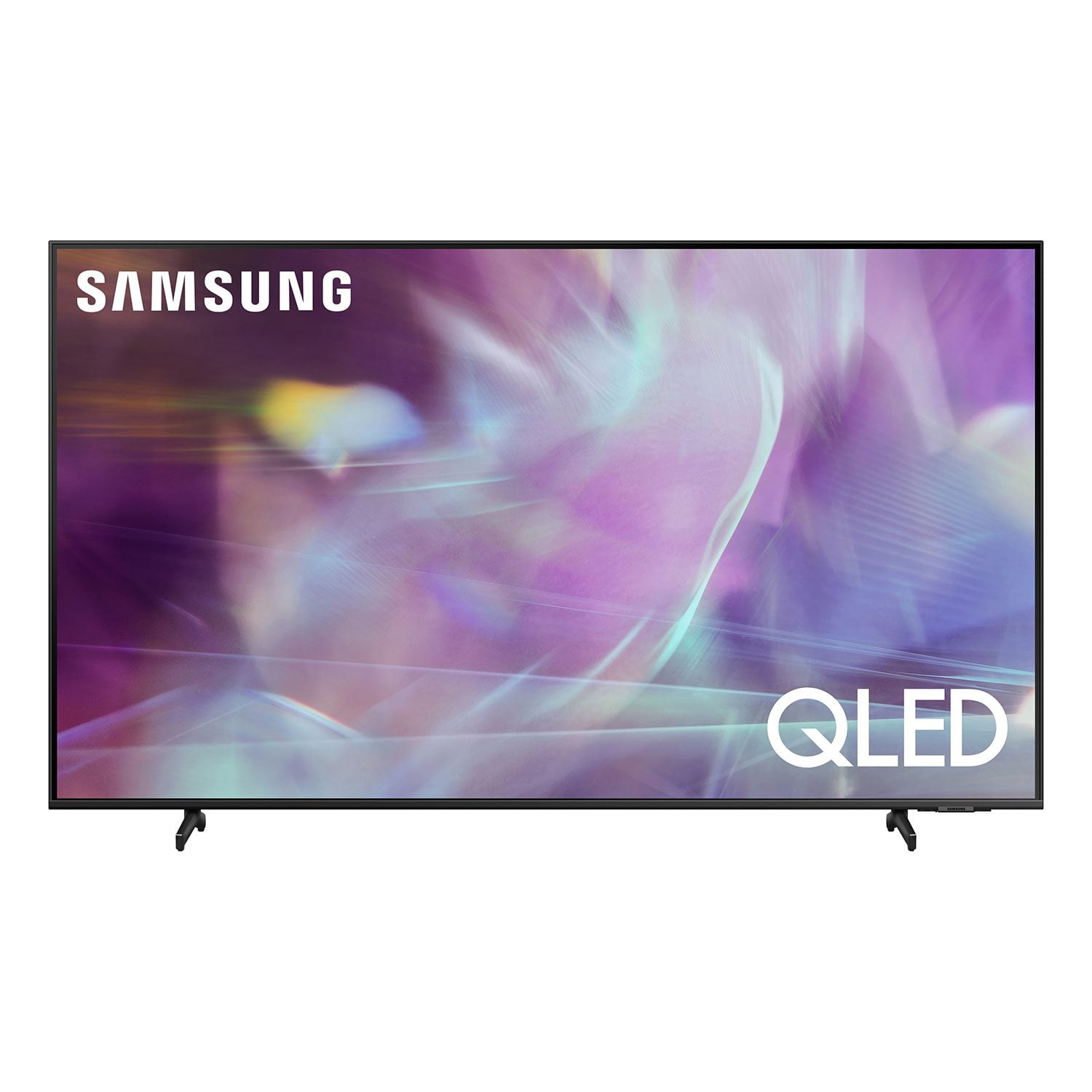
Amazing colors
[This review was collected as part of a promotion.] We love this QLED! It took me a month to do all my research to find what type of TV would suit my space, my eyes, and my media. We chose the Samsung QLED first and foremost bc the picture and colors are so clear, vibrant, and transitions are smooth. We especially love the apps and the overall layout of the system. Google assistant (or whichever smart assistant you choose) is convenient, voice searching on apps is great, and the sleekness of the tv complements my space. My only qualms are when using the apps they sometimes freeze when backing out of certain pages and it takes a good minute for the tv to recover. Second the tv is extremely low sitting on the stand provided, this maybe great for some but I have a cable box that sits in front of the tv since it's unable to fit underneath.
reply from Samsung Brand Ambassador
Hi Bettertogether,
Thank you purchasing Samsung’s Q60A TV and for your review. We value your feedback regarding the stand design of your TV. Please know your 65” Q60A TV’s stand is height adjustable for a total TV height of 34.3" (1.6" of clearance) or 35.3" (2.6" of clearance), giving you the flexibility to set your TV to your preference — raise it up to make room for a device or lower it to keep the TV close to your table.
We appreciate you sharing your experience with app functionality as well. This issue may be related to your network connection and quality. We suggest you try the following:
1. Use 5G Wi-Fi if possible
2. Try wired LAN if available
3. Try repositioning the router so there are no obstacles between your TV and the router
Please also be sure you are running the latest firmware. You can check to see what software version your TV is using and if there is an available update through the settings on your TV. Go to: Settings > Support > Software Update.
You may want to enable automatic updates for conveniences.
Go to Settings > Support > Software Update, then select Auto Update.
Additionally, to optimize the smart TV performance, please try Device Care option under the Support Menu. Go to Settings > Support> Device Care > Start Device Care.
This improves your apps performance as it frees up unused cached memory and closes background apps.
If your apps are still freezing or not properly loading, please try cold booting your TV by holding down the power button on your remote for 5+ sec until the TV turns off and on again, deleting and downloading the apps again, and completing full reset of Smart Hub to correct the issue.
I hope these tips help. Should you ever have questions or need help, please call us at 1-800-SAMSUNG (ask for TVs), available 8AM -12AM EST M-F (9AM – 6PM EST Sat). Or text HELP to 62913.
For additional support resources, visit us on the Samsung website and click on the ‘Support’ link in the upper right corner of the homepage for:
1) More ‘Contact Us’ options – LiveChat, Facebook, Twitter, Samsung Community, Samsung Members app
2) Manuals & Software
3) Warranty Info
4) Product Registration: For access to easy warranty support, convenient opt-in to special promos and offers, faster troubleshooting and service, and quick notification of system updates.
~ Samsung Specialist