
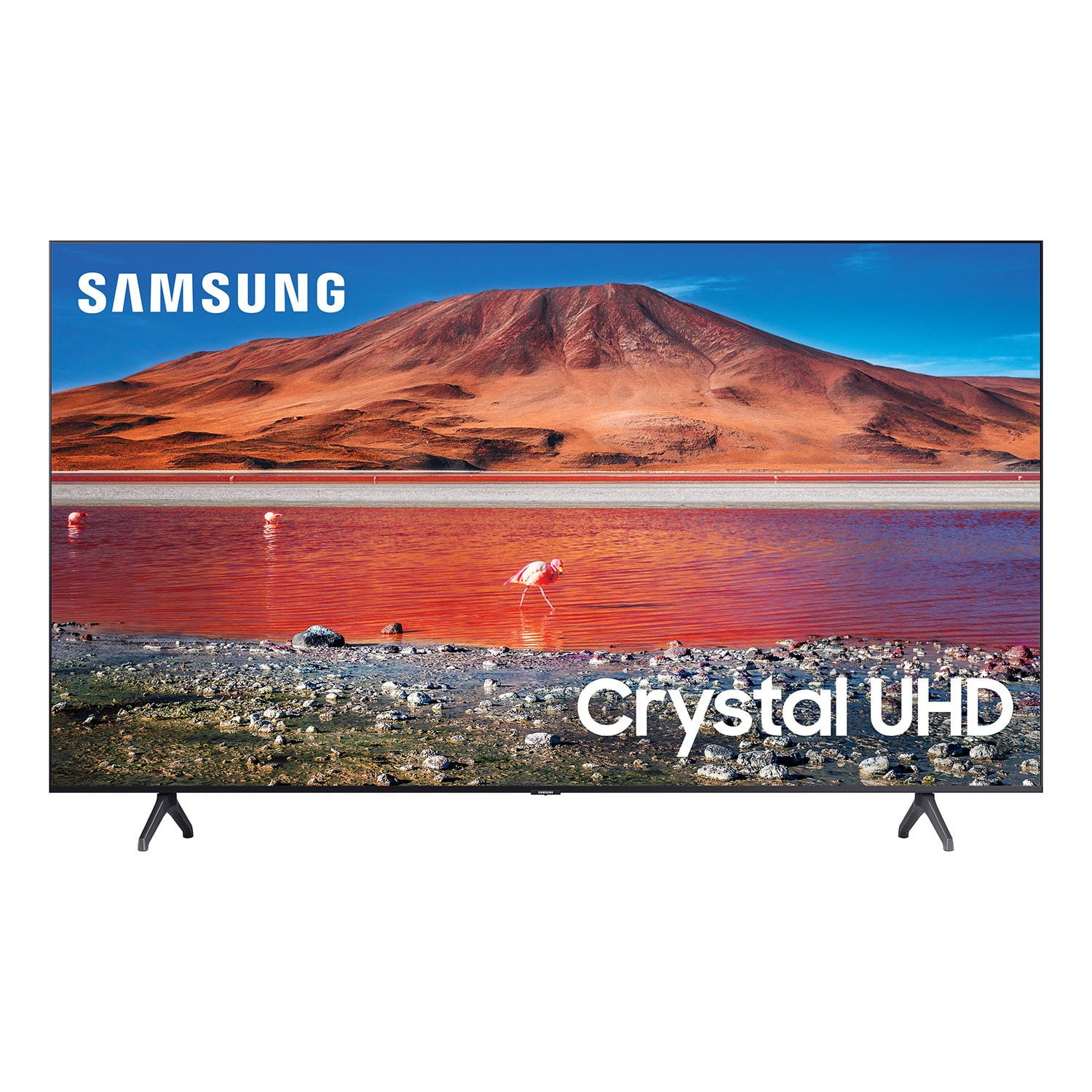
 Customer reviews for Samsung 55" Class TU700D-Series Crystal Ultra HD 4K Smart TV UN55TU700DFXZA for
Simply Awesome!
[This review was collected as part of a promotion.] Wow, hubby surprised me with this 58 inch crystal UHD Samsung TV and I was amazed by the trouble-free set-up and the clarity of the picture! Yes, it does live up to it's name of “crystal” clear! The unboxing was relatively easy to do, had to set the frame up first, then attach the TV to the brackets and that was it. Next up was to connect it to the wi-if and voila - 58 inches of eyegasmic pleasure! The remote was easy to use, and adding the apps on screen was effortless. I loved that Amazon prime video and Netflix had their separate buttons on the remote. Happy wife, happy life!
Great Smarts (and value) on an Alexa-controlled TV
[This review was collected as part of a promotion.] We installed this TV almost 3 months ago (replacing a dead 15-year-old flat panel) and it's been a great upgrade for our Maine cottage. The guided setup made installation very easy, the picture quality is great (especially for the price), and we love the fact that we can control it using Alexa (via our Echo Dot linked through Samsung's Smarthings app).One thing we *don"t* like; the remote buttons are not back-lit, so its hard to use in the dark -- a minor annoyance since we can use Alexa to turn it on/off, raise/lower the volume, change channels.Recommended it twice already and both friends are happy with theirs too!
Great TV
[This review was collected as part of a promotion.] The setup of the TV was easy and only took a few minutes. I did add a Roku player for streaming. The clarity of the TV was one of the reasons I made the purchase and the size is just right for the room.
This product has great features.
[This review was collected as part of a promotion.] I have had a great experience with this product so far. This is my first Smart TV, so I have really enjoyed the features that come with it, such as accessibility to streaming apps as well as the ability to control it with the Smart Things app. I am very glad I went with Samsung for the TV, because I know that it will last me a long time.
Worked Great For About 3 Years
[This review was collected as part of a promotion.] The first Samsung flat screen I purchased in 2007 was a workhorse. Not a problem over years of use. In 2018, I decided to upgrade and bought a new 50" Samsung. Worked great until last summer (2021). It started to get dark gray/black banding that moved to different locations across the screen until the banding finally settled on each edge of the screen. So now, I basically have a vertically letterboxed screen. If it's happening on the edges of the screen, I can't see it. How nice. And the thing is, it's not quite to the level of annoying to make me get rid of it, but some day I'll probably release it to the forces of gravity and chuck it from my 23rd floor window. (And if there's an easy fix I don't know about, I'd sure love to know it.) I doubt you'll publish this, but you did ask for a review. So here we are.
Hi Letterboxed, We are very sorry about your experience with the TU7000 not displaying correctly. Please know we are here to help you. Please try the following tips to help resolve your issue. First, let's make sure your firmware is up to date. To do so, head to Settings > Support > Software Update. From there, you can easily update if needed. 1. Run a Picture Test on the TV. Navigate to Settings, select Device Care, and then select Self Diagnosis. Select Picture Test, select OK and then view the test. You can choose Yes if the picture looks normal, No if there is a problem with the picture, or Show again to see the image a second time. 2. Determine if lines are appearing during the Picture Test. Look for a lines or screen abnormalities on the screen during the Picture Test. If there are no issues, this means your TV is working fine. To identify and fix the issue, try replacing the cable of the external device that is showing abnormalities. - If the abnormalities still appear after replacing the cable, troubleshoot the external device. - If abnormalities appear during the Picture Test, proceed to the next step. 3. Request service if abnormalities appear during the Picture Test. Please visit our Support Center to request service if you see lines during the Picture Test. You can contact us at 1-800-SAMSUNG, 8 AM - 12 AM EST, seven days a week. Or visit us on the Samsung website and click on the 'Support' link for: 1) LiveChat with an agent 2) Manuals, Software, & Warranty Info ~ Samsung Advisor
Good TV, Terrible Remote Control
Overall it a nice TV though I'm not impressed with the "Smartness" part. The web browser is both slow and quite awkward to use even with a wireless mouse and keyboard. It come installed with apps for Hulu, Netflix and Prime. I cant comment on Hulu and Netflix as I only have Prime but an Amazon Firestick with its own remote is far superior to the Samsung app which leads me to the Samsung remote control. There are dedicated buttons for Hulu, Netflix and Prime which take up real estate better used for something else if only for more spacing between other buttons. And Heaven forbid you unintentionally press one. Backing out is a frustrating three step process. There are two other menus available to access those apps. Why have dedicated buttons. The remote itself is too skinny, buttons on the small side and too close together. It's the only remote I've ever had that has the "power" button on the top left. It has a round back that prevents one handed operation when laying on a table or next to you on a sofa as it rocks side to side if you attempt to press a button. You must pick it up to use it or use a second hand to hold it steady. The buttons suffer from contact bouncing which is very annoying. Intermittently skips up or down channels and volume settings. Sometimes three of four increments. Bottom line: the worst remote I have ever had. BN59-01315A If you have cable and mostly use the cable remote, then it's not much of a problem. Otherwise ... I would only recommend this product to a friend after demonstrating the remote.
DavyJ: Thank you for purchasing the TU7000 TV and for your review. We appreciate your feedback regarding the remote control. There are several different models of IR remotes available on samsungparts.com which will work with your TV should you wish to replace it with a different model. Please see this article for further details: https://www.samsung.com/us/support/answer/ANS00079343/ If you should ever have concerns or questions regarding setup, function, features, please know that Samsung Customer Support is here to help. 1) Phone: 1-800-SAMSUNG, available 8AM - 9PM EST, Mon - Fri 2) LiveChat: https://www.samsung.com/us/support/#contact_us_for_support 3) Facebook Messenger: https://www.facebook.com/samsungsupport 4) Twitter: https://twitter.com/SamsungSupport 5) The Samsung Members Community is also a great resource for getting help from Samsung moderators and customers: https://us.community.samsung.com If you have not already done so, we invite you to register your new Samsung product at: https://www.samsung.com/us/account/signin/?redirect=https%3A%2F%2Fwww.samsung.com%2Fus%2Fsupport%2Fregister%2F Registering your product gives you access to easy warranty support, convenient opt-in to special promos and offers, faster troubleshooting and service, and quick notification of system updates. ~ Samsung Solutions
Samsung 55”
[This review was collected as part of a promotion.] Bought this 55” TV for my husband for Father's Day, he absolutely loves the clarity of the picture and the sound that this baby puts out! He recently had cataract surgery and on the day he came home, he said “I can see!!” That was a great feeling!
Phenomenal
[This review was collected as part of a promotion.] I've been wanting a Samsung for a few years. The picture is crisp, clean and it pops! Soooo happy with this purchase. It took a while for me to finally get a Samsung, but it's been well worth the wait! Highly highly recommend!
Great buy
[This review was collected as part of a promotion.] There's so much to enjoy wit my new tv. I am still getting to know it but set up very easy to do. The screen is so clear the sound is great and perfect for watching action movies too lol, it's like a theater event at home. Really worth every penny very pleased with this purchase.
so far so good, couple concerns
trying samsung after 10 yrs with vizio which i loved and still works amazingly, however, i tried samsung, my experience thus far is interface lags, skips and jumps a lot, kind of slow. picture is great after loading time even with direct ethernet connect. vizio was instant hd picture even on wifi. i expected some differences, but to me samsung could use a boast of speed and smoother navigation of the interface for the technology and price of the tv.
MATT: Thank you for purchasing the Samsung TU7000 TV and for your review. We appreciate you sharing your experience with the slow interface. Your feedback is important to us and will be shared with our teams. To address your lag issue, you may want to run the self-diagnosis tool. Go to Settings > Support> Device Care > Start Device Care This service checks memory and frees up unused cached memory and closes background apps. I hope this helps to solve your concerns. If the issues persist, please reach out to Samsung Customer Support: 1) Phone: 1-800-SAMSUNG, Available 8AM -12AM EST (7 Days a Week) 2) LiveChat: https://www.samsung.com/us/support/#contact_us_for_support 3) Facebook Messenger: https://www.facebook.com/samsungsupport 4) Twitter: https://twitter.com/SamsungSupport 5) The Samsung Members Community is also a great resource for getting help from Samsung moderators and customers: https://us.community.samsung.com If you have not already done so, we invite you to register your new Samsung product at: https://www.samsung.com/us/account/signin/?redirect=https%3A%2F%2Fwww.samsung.com%2Fus%2Fsupport%2Fregister%2F Registering your product gives you access to easy warranty support, convenient opt-in to special promos and offers, faster troubleshooting and service, and quick notification of system updates. ~ Samsung Solutions