Skip to Main Content
Sam's Club
Sam's Club
All Departments
All Services
Customer reviews for Samsung 55" Class TU700D-Series Crystal Ultra HD 4K Smart TV UN55TU700DFXZA for
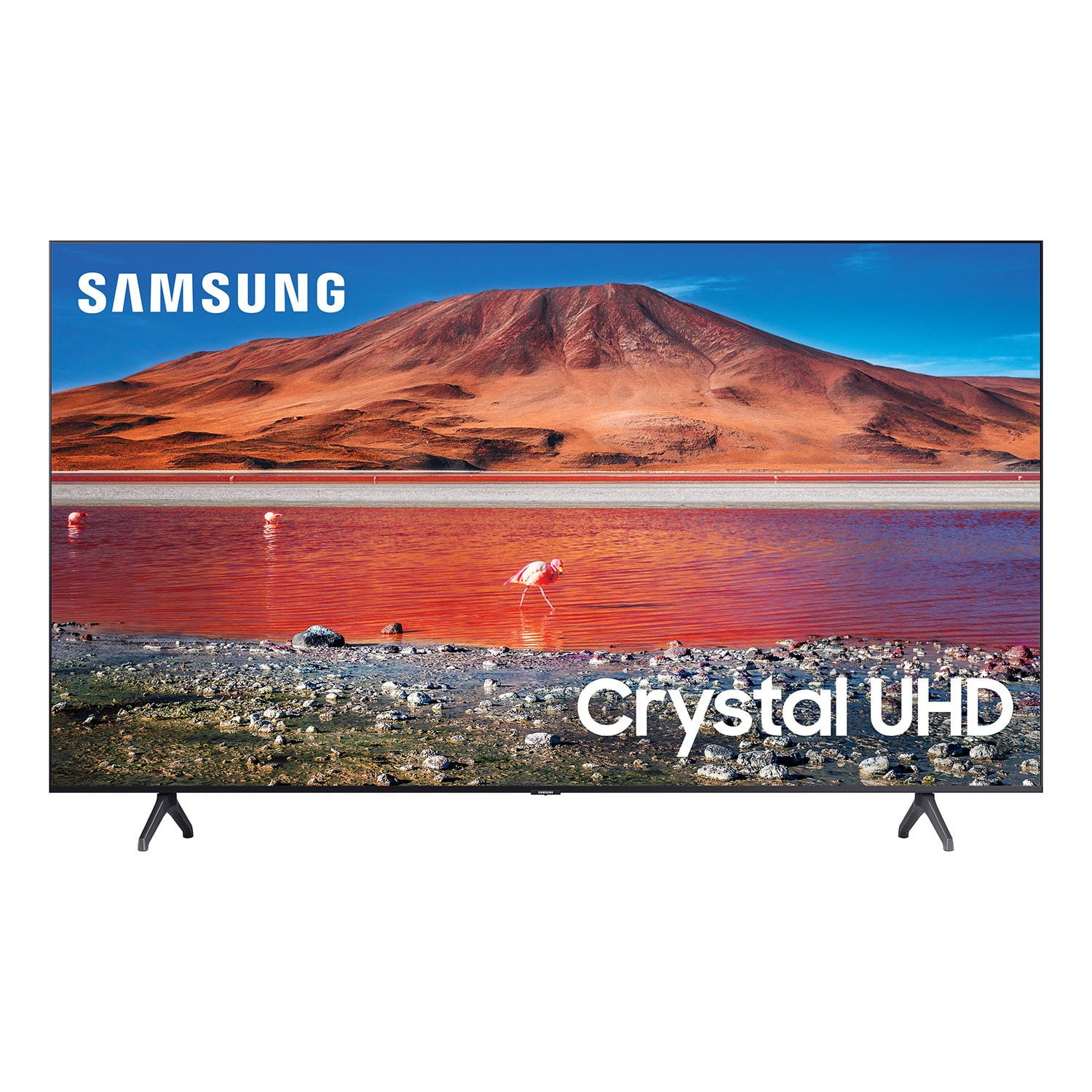
Samsung 55" Class TU700D-Series Crystal Ultra HD 4K Smart TV UN55TU700DFXZA
Sort by |
Showing 8,131-8,140 of 10,251 reviews
Aug 23, 2022
Tricia2762
5 out of 5 stars review

TV has an awesome picture!!

[This review was collected as part of a promotion.] Streaming apps are simple and easy to use. Bluetooth capability was a huge surprise and a definite plus!

Review from Samsung US
Helpful?6KHJPPFCOCQU13901857028
Aug 17, 2021
Abe1
1 out of 5 stars review

Not Happy at All

Not Happy with how the features are working especially for a brand like Samsung and would like someone to call or email me because I can't get through to customer service.

Review from Samsung Canada
Helpful?6KHJPPFCOCQU13901857028
reply from Operations

Hi Abe1, thank you for reaching out. We're sorry you're dissapointed, and we'd like to help. Please text to WE CARE (932273) for instant support. We look forward to hearing from you.

Oct 12, 2021
Kathy
5 out of 5 stars review

This product has great features its amazing TV

[This review was collected as part of a promotion.] I use my Samsung TV for gaming streaming its the best. High demand . Beautiful TV my family love it I wish to have one in all my rooms

Review from Samsung US
Helpful?6KHJPPFCOCQU13901857028
Jan 8, 2023
Chuck
3 out of 5 stars review

Defective optical cable

the optical cable did not work i only somewhat satisfied with my new tv. i was unable to pair my samsung sound bar using the optical cable. i use a blue tooth connection between my tv and sound bar.

Review from Samsung US
Helpful?6KHJPPFCOCQU13901857028
reply from Samsung Brand Ambassador

Hi Chuck, Thanks for reaching out and letting us know about the difficulties you are having when connecting your Samsung Soundbar to your TU7000 TV. Please make sure when connecting the Soundbar that you follow these directions: 1. With the TV and soundbar turned on, connect one end of a digital optical cable to the OPTICAL OUT port on the TV. 2. Then, connect the other end to the DIGITAL AUDIO IN (OPTICAL) port on the soundbar. 3. Press Source on the remote or soundbar, and then set the soundbar to the D.IN. Setting. 4. Finally, on the TV, you need to set the speaker output to external speakers. Navigate to Settings, and then press Up on the navigation arrows to highlight Quick settings. Press the right directional arrow to highlight the TV Speaker and press select to change it to Optical (external speakers). The TV's sound will now play from the soundbar. If you continue to have issues, please give us a call so we can better assist you. You can call us at 1-800-SAMSUNG, 8 AM - 12 AM EST, seven days a week. Our LiveChat agents are also available by clicking on the ‘Support’ link on our website. ~ Samsung Advisor

Sep 16, 2020
Jessro2448
5 out of 5 stars review

Great product

[This review was collected as part of a promotion.] This TV has great picture and sound. I have nothing negative to say about it, I am 100% satisfied with my purchase.

Review from Samsung US
Helpful?6KHJPPFCOCQU13901857028
Nov 8, 2022
Kevin H
1 out of 5 stars review

Samsung tv 85 inch TU7000

I just got Samsung 85 inch TU7000. Color is really bad. My old tv is better color. Remote control is so bad. Why they can't come up with better remote control? I wish should not buy it. Don't buy it . Waste of your money!

Review from Samsung US
Helpful?6KHJPPFCOCQU13901857028
reply from Samsung Brand Ambassador

Hi Kevin H, It’s unfortunate to hear you’re not fully satisfied with your TU7000 TV’s image quality. If the picture you’re seeing is not to your liking, there are several picture settings you may want to try adjusting. Go to Home > Settings > Picture > Picture Mode and select the mode that best fits your usage: 1) Standard: Default mode suitable for general viewing environments. 2) Natural: Reduces eye strain for a comfortable viewing experience. 3) Movie: Suitable for watching TV or movies in a dark room. 4) Dynamic: Makes the picture brighter and clearer in bright viewing environments. 5) Filmmaker Mode: You can watch the source content (e.g., movie) as it is. If the image is defined as Filmmaker Mode, it will automatically switch to Filmmaker Mode while watching. You can also go to Settings > Picture > Expert Settings > to manually fine-tune your image. If you need more help, Samsung is here for you. Call us at 1-800-SAMSUNG, 8 AM - 12 AM EST, seven days a week. Our LiveChat agents are also available by clicking on the ‘Support’ link on our website. ~ Samsung Advisor

Oct 22, 2020
Loveshack
4 out of 5 stars review

Great tv for price

[This review was collected as part of a promotion.] Great picture, great sound, easy to mount. Doesn't hold well to having sun shining right on it, but what tv does. Very happy for our use of it

Review from Samsung US
Helpful?6KHJPPFCOCQU13901857028
Jun 16, 2022
Civilize
5 out of 5 stars review

Super apps

[This review was collected as part of a promotion.] All the apps you want and needs. Beautiful crystal clear pictures. Able to plug all computers and game modules and cell phone in tv using plug in or Bluetooth. Wifi with no cables needed.

Review from Samsung US
Helpful?6KHJPPFCOCQU13901857028
Jul 27, 2022
Cruzinn350
5 out of 5 stars review

Happy guy

[This review was collected as part of a promotion.] I love my Samsung I stream everything and it's awsome to play call of duty on. No complaints here. The picture is so crisp it's the best in its class.

Review from Samsung US
Helpful?6KHJPPFCOCQU13901857028
Jun 16, 2022
Wiseguy99
3 out of 5 stars review

Great Sound and Display but slow

[This review was collected as part of a promotion.] The TV has great sound and display, but it tends to freeze when switching apps and the IR response is also slow to process. I'm usually 10ft max away from the screen. This shouldn't happen

Review from Samsung US
Helpful?6KHJPPFCOCQU13901857028
reply from Samsung Brand Ambassador

Wiseguy99: Thank you for your review of the TU7000 TV and sharing your experience with slow response time. To optimize the smart TV performance, please try Device Care option under the Support Menu. Go to Settings > Support> Device Care > Start Device Care This service checks memory and frees up unused cached memory and closes background apps. Please also be sure you are running the latest firmware. You can check to see what software version your TV is using and if there is an available update through the settings on your TV. Go to: Settings > Support > Software Update. Should you need further assistance, please contact Samsung Customer Support. Call us at 1-800-SAMSUNG (ask for TVs), available 8AM - 12AM EST, 7 days a week. For additional support resources, visit us on the Samsung website and click on the ‘Support’ link in the upper right corner of the homepage for: 1) Chat with Us/Product Help: To begin a chat or find solutions, choose ‘TVs & Home Theater’ and select your model & topic. 2) Manuals, Software, & Warranty Info Thank you for choosing Samsung. ~ Samsung Advisor