
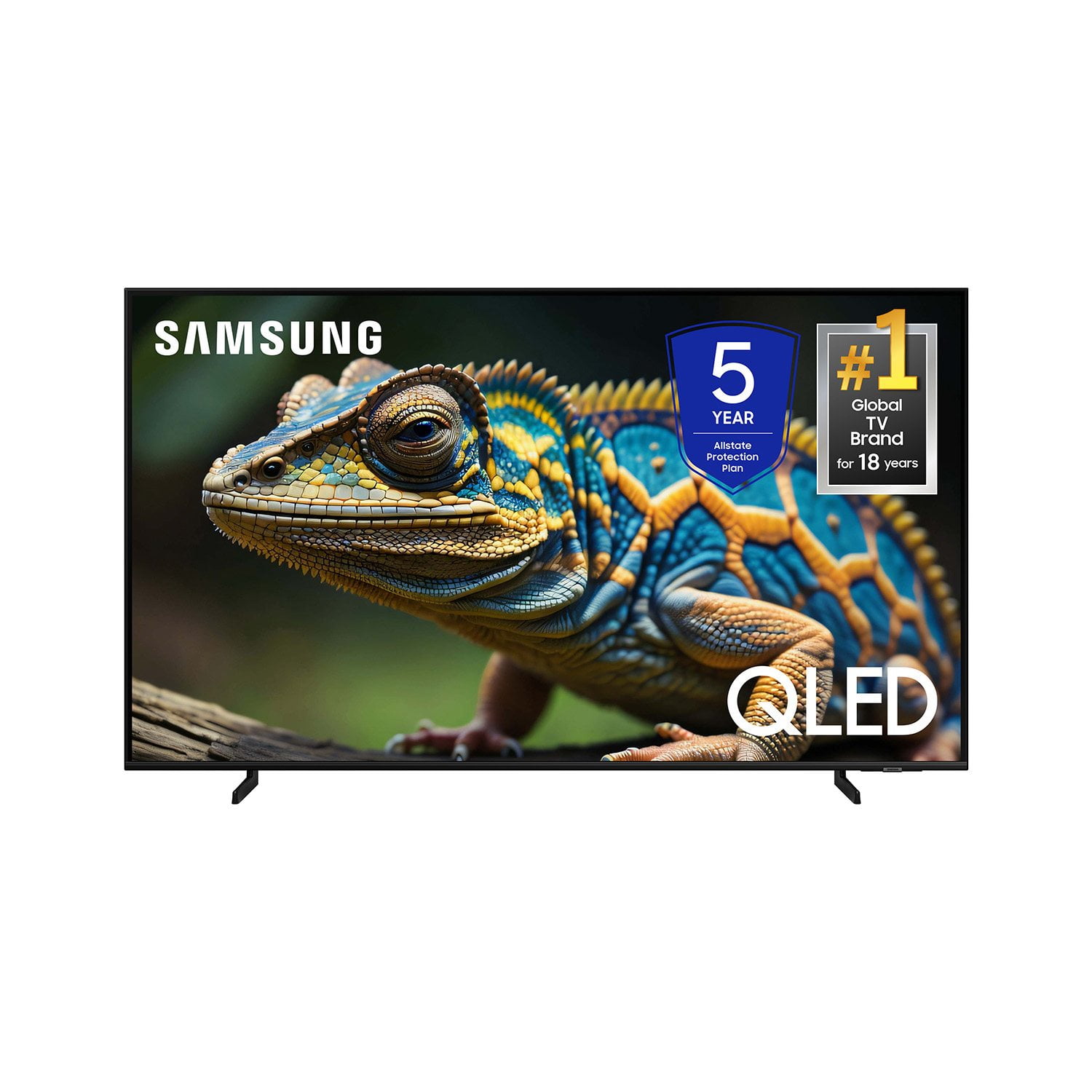
 Customer reviews for SAMSUNG 70” Class Q60D Series QLED Smart TV for
Member photos
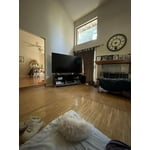

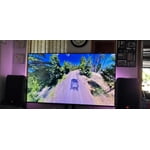
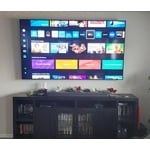

 +120 images
This Tv is great but the volume and stereo could u
[This review was collected as part of a promotion.] I love Samsung and all your products but my TV is lacking when the volume control comes in. You have to reach 45 for a normal sound. Stereo sucks. Also if you want to listen to your music you definitely don't want to use your TV. One you can't get it loud enough and two the stereo sucks. Just being honest.

Excellent
Completely satisfied. This purchase replaced an older flat screen tv which didn't have smart functionality. I was uncertain about the new remote being user friendly and had intended to buy the standard remote as an additional item. The new remote has a learning curve since each button has multiple functions depending on whether it is depressed or toggled. Also, bringing up the onscreen number pad isn't immediately available on a cold startup. The voice control has the same issue. Our tv signal is OTA with an attic antenna, and the setting allow the set to power up to the channel being watched when turned off, just like the old tv's.
Could things be darker?
I bought this TV about a month ago without any discount. It is the worst TV we’ve owned in fifty years. We bought it mainly to have access to several streaming services, like Apple TV. The streamed films are either dark gray or black! There are no settings adjustments to correct it. I’ve spent hours talking to Samsung, Apple, and Verizon, our internet provider. None could improve the dark situation. In addition, while just watching TV, the picture size is often distorted and cannot be altered through settings. The TV also generate an unsettling amount of heat. Need I say more?
Frankie, Thank you for sharing your thoughts on the picture quality of your Q60D TV. To ensure you’ve got the latest image quality updates, please confirm that your TV is up to date with the latest firmware version. You can check by going to: Home > Menu > Settings > Support > Software Update. If the picture you’re seeing is still not to your liking after updating firmware, there are several picture settings you may want to try adjusting. Go to Home > left direction button > Settings > All Settings > Picture > Picture Mode ...and select the mode that best fits your usage: 1. Standard: Is the default mode suitable for general viewing environments 2. Dynamic: Makes the picture brighter and clearer in bright viewing environments 3. Eco: Provided to save energy 4. Movie: Suitable for watching TV or movies in a dark room 5. Filmmaker Mode: Provides source content just as the creators intended. If the image is defined as Filmmaker Mode, it’ll automatically switch to Filmmaker Mode while watching. You can also fine-tune your picture with expert settings such as brightness, contrast, sharpness and more (All Settings > Picture > Expert Settings). For further assistance with settings adjustments, please contact Samsung Customer Support at 1-800-SAMSUNG, 8AM - 12AM EST, 7 days a week. Or visit us on the Samsung website and click on the ‘Support’ link for: • LiveChat • Manuals, Software, & Warranty Info ~ Samsung Specialist
Fantastic TV.
WOW! what a viewing experience. This is as close to sitting in my own private movie theater as I can imagine. Beautiful visuals and exceptional audio. I haven't even hooked up my sound bar. This set far exceeds my expectations. An excellent investment.

QLED
Bought this a few weeks ago, great price. Love the picture. While we do have all of the streaming services, Samsung offers their own TV programing. It all seems to be a bit outdated content but being old myself, I do find some programs on there to bring me back to days gone by.
Complex interface - not user friendly
Nice picture quality but the software/interface is horrible. it's definitely not user friendly. I'm not a tech genius but it shouldnt be that hard to figure out how to stream what i want and to do a slide show of my photos. I wouldn't buy Samsung again
Mike P, We appreciate you sharing your user experience. To assist in learning the various functions, please know you can download the Q60DD TV's User Manual, e-Manual, Remote Control Leaflet, and Quick Setup Guide on Samsung's website under Support > Manuals & Software > TVs & Home Theater. You can search for and select the Q60DD TV to download the guides you would like. The e-Manual and Remote Guide are both also embedded into your TV itself under Menu > Settings > Support > Open e-Manual. If you need more help, Samsung is here for you. Please call us at 1-800-SAMSUNG, 8AM - 12AM EST, 7 days a week. Our LiveChat agents are also available by clicking on the ‘Support’ link on our website. ~ Samsung Specialist
Horrible
WORST TV I've ever owned!!! Constant buffering, TV goes blank and have to get out and back in to make it work again. Terrible picture! Terrible Sound! Constant raising and lowering sound b/c ads are so much louder than program I am watching. TV's should have been able to fix that by now!. Constant re-boots, don't know if that is because of TV service but I never had to do so many reboots until I installed this TV on the same Service - Google TV!!! My other TV worked fine most of the time... I was told this was the latest tech in TV so I took their word for it and bought it, BIG MISTAKE! I'll never believe another one salesman. Every thing about it is awful!
Hi Beverly, We appreciate you taking the time to let us know about your experience with your TV. So that we can better troubleshoot these issues and provide steps towards a solution, please contact Samsung Support at 1-800-SAMSUNG, 8AM - 12AM EST, 7 days a week. Our LiveChat agents are also available by clicking on the ‘Support’ link on our website. ~ Samsung Specialist
I'm not 100% sure about this TV.
I have a 2014 model Samsung Smart TV that has just slowed down so I bought this as an upgrade and I am kind of disappointed. It doesn't have some of the settings or features my 10 year old TV does. The Cons: Limited picture settings, and sound settings, no turn screen off, remote is very basic and there are no number buttons, and is quite small and would be easy to lose, no way to check the battery level other than on the settings in the tv. The setup was way too involved, wanted more info than should be necessary. Can't delete channels you don't want. My old tv has that option. Pros: There are A LOT of cool new things to watch. Youtube videos load so fast and smoothly, even at higher resolutions, 1080p and 1440. It doesn't lag or need to buffer. My old tv I couldn't watch any video higher than in 480. So that is a nice change. The 4K resolution is really bright and vibrant. The sound is pretty good. Overall its a pretty nice tv.
Edward, We appreciate you sharing your experience, and we apologize for the confusion regarding specs. Please know the following settings and functions are indeed available on your 2024 Q60D TV: 1. Picture Settings: You can also fine-tune your picture with expert settings such as brightness, contrast, sharpness and more (All Settings > Picture > Expert Settings). 2. Sound Settings: There are several sound settings you can adjust to suit your personal preferences. • Sound Modes may better meet your personal preferences. Go to: Menu > Settings > All Settings > Sound > Sound Mode, or Expert Settings to fine-tune and customize your sound. • Adaptive Sound will also further optimize sound quality by analyzing the viewing space and the acoustic components of the content. Go to: Menu > Settings > All Settings > General & Privacy > Intelligent Mode Settings. 3. Picture Off: Allows you to listen to your TV with the screen goo. Go to: Menu > Settings > All Settings > General & Privacy > Accessibility 4. Remote: You can check your remote’s remaining battery by going to: Home > Menu > Settings > All Settings > General & Privacy > Power and Energy Saving > Available Remote Battery. • To assist you in the learning the various features, functions, and settings of the remote, you can take advantage of the Remote Guide that's directly embedded into your own TV under Settings > Support. 5. Apps: Please also know that you can customize your Media Home Screen by removing or adding your favorite apps to the Home Screen. • Here's how to remove apps from your Home Screen: 1. From Media Home, select List Edit (at the end of the APPS list) 2. Click the app you’d like to uninstall and press the down directional button on the remote. 3. From here, you can choose to Delete, Add to Home, Lock, Move, Reinstall, or View Details about the app selected. I hope we've resolved all issues you've initially explained. If you need more help, Samsung is here for you. Please call us at 1-800-SAMSUNG, 8AM - 12AM EST, 7 days a week. Our LiveChat agents are also available by clicking on the ‘Support’ link on our website. ~ Samsung Specialist
Quality abounds at Samsung TV
I needed a 50 inch TV because my eyesight is nowhere as good as it used to be and when I went to the electronics department I observed quite a few different brands and makes of TV's on display. After carefully looking at each one and examining the features I chose the Samsung QLED 4K Q60D because it was the clearest most brilliant picture of them all. Adding to the fact that it was a smart TV so the setup and features were a breeze. As good as the picture is the sound is on the same level, clear and the right balance of bass and treble with very good volume adjustment. I would highly recommend the Samsung brand TV's to anyone and everyone who wants quality at a decent price
Good bang for the buck
[This review was collected as part of a promotion.] Not a bad tv for the money. Works well with bright rooms and sun glare isn't really an issue. Sound is impressive for a TV. Great for cable network and movies. Not really for certain games however. If you're playing games against others it does lag a little bit. Otherwise it's a decent tv