
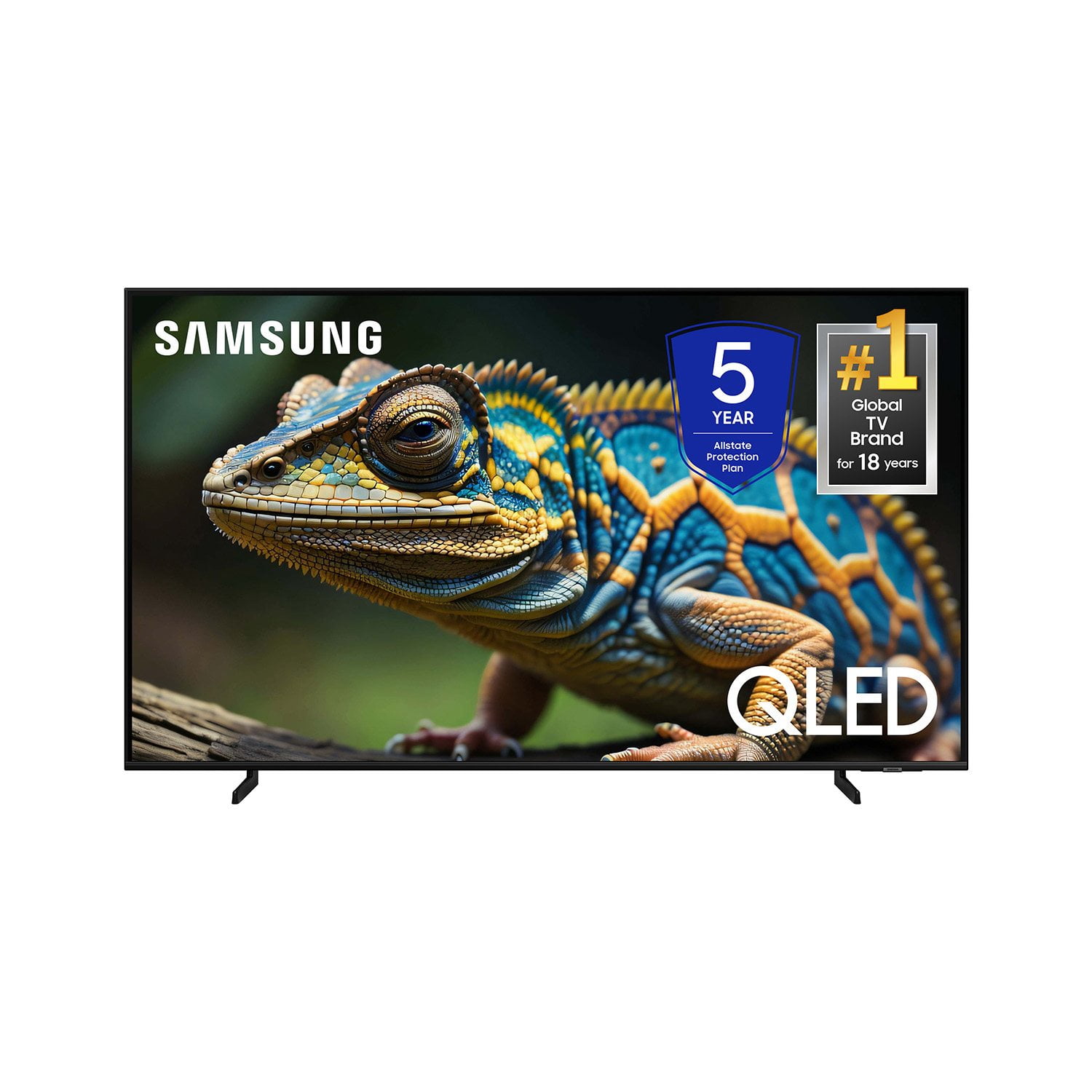
 Customer reviews for SAMSUNG 70” Class Q60D Series QLED Smart TV for
Member photos





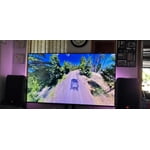 +120 images
Could things be darker?
I bought this TV about a month ago without any discount. It is the worst TV we’ve owned in fifty years. We bought it mainly to have access to several streaming services, like Apple TV. The streamed films are either dark gray or black! There are no settings adjustments to correct it. I’ve spent hours talking to Samsung, Apple, and Verizon, our internet provider. None could improve the dark situation. In addition, while just watching TV, the picture size is often distorted and cannot be altered through settings. The TV also generate an unsettling amount of heat. Need I say more?
Frankie, Thank you for sharing your thoughts on the picture quality of your Q60D TV. To ensure you’ve got the latest image quality updates, please confirm that your TV is up to date with the latest firmware version. You can check by going to: Home > Menu > Settings > Support > Software Update. If the picture you’re seeing is still not to your liking after updating firmware, there are several picture settings you may want to try adjusting. Go to Home > left direction button > Settings > All Settings > Picture > Picture Mode ...and select the mode that best fits your usage: 1. Standard: Is the default mode suitable for general viewing environments 2. Dynamic: Makes the picture brighter and clearer in bright viewing environments 3. Eco: Provided to save energy 4. Movie: Suitable for watching TV or movies in a dark room 5. Filmmaker Mode: Provides source content just as the creators intended. If the image is defined as Filmmaker Mode, it’ll automatically switch to Filmmaker Mode while watching. You can also fine-tune your picture with expert settings such as brightness, contrast, sharpness and more (All Settings > Picture > Expert Settings). For further assistance with settings adjustments, please contact Samsung Customer Support at 1-800-SAMSUNG, 8AM - 12AM EST, 7 days a week. Or visit us on the Samsung website and click on the ‘Support’ link for: • LiveChat • Manuals, Software, & Warranty Info ~ Samsung Specialist
Samsung continues to deliver!
I just purchased this tv on 5/30/24 and so far I have to admit that I didn't expect to like it as much as I do. It's always a coin toss seeing a television in-store versus when you get it home. However, the picture holds up in both environments. The colors are crisp and sharp, and the solar-powered remote is a definite plus from an eco-friendly point of view. Overall, I'm happy with my purchase, but I still have the box in case.....you know.
You have to buy a Samsung TV
Having a Samsung TV means saying goodbye to cable. Love the Samsung TV Plus that we had on a monitor so definitely knew our next TV would be Samsung. The QLED image is so good that we can’t even watch our Sharp Aquos living room set anymore. Only regret is not buying one sooner.
Expected more sound and picture quality
[This review was collected as part of a promotion.] Most of the use we give to our Samsung TV is for streaming movies and videos. As a fan of movies, I expected a much better image resolution including dark colors. Also the audio on this TV is horrible. My previews Samsung TV had a more immersion of audio. But not all is bad. The interface is actually smoother and sleek as my previous TV. Also love the integration of the notifications from the smarthings devices like washer and dryer. Also the refrigerator is integrated. Make sure to read reviews before purchasing.
Lrodz96, We appreciate your thoughts on the picture quality of Samsung’s Q60DD TV. If the image you’re seeing isn’t to your liking, there are several picture settings you may want to adjust. Go to Home > left direction button > Settings > All Settings > Picture > Picture Mode ...and select the mode that best fits your usage: 1. Standard: Is the default mode suitable for general viewing environments 2. Dynamic: Makes the picture brighter and clearer in bright viewing environments 3. Eco: Provided to save energy 4. Movie: Suitable for watching TV or movies in a dark room 5. Filmmaker Mode: Provides source content just as the creators intended. If the image is defined as Filmmaker Mode, it’ll automatically switch to Filmmaker Mode while watching. You can also fine-tune your picture with expert settings such as brightness, contrast, sharpness and more (All Settings > Picture > Expert Settings). Your TV also has several sound settings you can adjust to suit your personal preferences. • Sound Modes may better meet your personal preferences. Go to: Menu > Settings > All Settings > Sound > Sound Mode, or Expert Settings to fine-tune and customize your sound. • Adaptive Sound will also further optimize sound quality by analyzing the viewing space and the acoustic components of the content. Go to: Menu > Settings > All Settings > General & Privacy > Intelligent Mode Settings. Should you choose to add a Samsung Soundbar to your TV, please know that our Q-Series Soundbars (such as the HW-Q600C) feature Q-Symphony which will synchronize with the speakers of your TV for an immersive 3D sound experience. To assist you with possible sound settings adjustments for a better audio experience or choosing a Samsung Soundbar to complement your viewing enjoyment, please reach out to us at 1-800-SAMSUNG, 8 AM - 12 AM EST, seven days a week. ~ Samsung Specialist
I'm not 100% sure about this TV.
I have a 2014 model Samsung Smart TV that has just slowed down so I bought this as an upgrade and I am kind of disappointed. It doesn't have some of the settings or features my 10 year old TV does. The Cons: Limited picture settings, and sound settings, no turn screen off, remote is very basic and there are no number buttons, and is quite small and would be easy to lose, no way to check the battery level other than on the settings in the tv. The setup was way too involved, wanted more info than should be necessary. Can't delete channels you don't want. My old tv has that option. Pros: There are A LOT of cool new things to watch. Youtube videos load so fast and smoothly, even at higher resolutions, 1080p and 1440. It doesn't lag or need to buffer. My old tv I couldn't watch any video higher than in 480. So that is a nice change. The 4K resolution is really bright and vibrant. The sound is pretty good. Overall its a pretty nice tv.
Edward, We appreciate you sharing your experience, and we apologize for the confusion regarding specs. Please know the following settings and functions are indeed available on your 2024 Q60D TV: 1. Picture Settings: You can also fine-tune your picture with expert settings such as brightness, contrast, sharpness and more (All Settings > Picture > Expert Settings). 2. Sound Settings: There are several sound settings you can adjust to suit your personal preferences. • Sound Modes may better meet your personal preferences. Go to: Menu > Settings > All Settings > Sound > Sound Mode, or Expert Settings to fine-tune and customize your sound. • Adaptive Sound will also further optimize sound quality by analyzing the viewing space and the acoustic components of the content. Go to: Menu > Settings > All Settings > General & Privacy > Intelligent Mode Settings. 3. Picture Off: Allows you to listen to your TV with the screen goo. Go to: Menu > Settings > All Settings > General & Privacy > Accessibility 4. Remote: You can check your remote’s remaining battery by going to: Home > Menu > Settings > All Settings > General & Privacy > Power and Energy Saving > Available Remote Battery. • To assist you in the learning the various features, functions, and settings of the remote, you can take advantage of the Remote Guide that's directly embedded into your own TV under Settings > Support. 5. Apps: Please also know that you can customize your Media Home Screen by removing or adding your favorite apps to the Home Screen. • Here's how to remove apps from your Home Screen: 1. From Media Home, select List Edit (at the end of the APPS list) 2. Click the app you’d like to uninstall and press the down directional button on the remote. 3. From here, you can choose to Delete, Add to Home, Lock, Move, Reinstall, or View Details about the app selected. I hope we've resolved all issues you've initially explained. If you need more help, Samsung is here for you. Please call us at 1-800-SAMSUNG, 8AM - 12AM EST, 7 days a week. Our LiveChat agents are also available by clicking on the ‘Support’ link on our website. ~ Samsung Specialist
Beautiful color
I purchased my new QLED 70” to replace my nine year old Samsung. The changes in regards to the color and clarity are truly amazing. I compared the Samsung QLED to other top brands and dollar for dollar the Samsung was the best value. I really enjoy watching sports and movies and will recommend this set highly.
New Samsung QLED 55" TV Review
Having been a die-hard Sony customer since the 90's, when they launched the Sony Betamax TV/Video recorder, This time. I decided to give a Samsung a try. I think the picture quality of the Samsung QLED is superior to that of a Sony when both formats were shownin High Definition. Of course, modern electronic technology is far superior than the days of my heavy Sony Bravia Trinitron set that took two strong people to move around. The new TVs are so thin. The sole reason I did not g0ive the Samsung a 5 Star rating is because of the moderately opoor audio quality. Even after I adjusted the audio settings to "Amplify", the audio tracks is inconsistent and raises and lowers volume. I find this troublesome because I watch telivision quite often. I believe th0is high/low fade issue does not apply to live broadcasts. Provide us consumers with a enhanced audio without purchasing a sound bar. Perhaps the manufacturer recognize this shortfall already. Fix that and you have a 5 Star product. Another area of concern for me is the remote control device. While the device is rechargeable by USB or Solar, the device is so small and thin for my big hands, Noteworthy is the free access to the Samsung Smart TV app made available with purchase. I made upgrade to a OLED format at some point..
Great Picture, Sound... not so much.
We've had this TV for several months now and the picture is great. The sound, not so much. Well, the sound is okay when you can hear it, but if you can't and try to turn it up, there doesn't seem to be much difference between setting the volume at 19 or 63. It's weird. Looking into getting a soundbar (which i think should be unnecessary) to see if that helps.
Disappounting
Disappointing. Sharpness only exists if you are looking straight on. The blacks are grainy and multicolored. U have always enjoyed Samsung products, but this unit falls way under expectation. I would give this unit away if I could afford to replace it. As it sits. I have no choice but to accept it as is.
Frank, We appreciate your thoughts on the picture quality of Samsung’s Q60D TV. If the image you’re seeing isn’t to your liking, there are several picture settings you may want to adjust. Go to Home > left direction button > Settings > All Settings > Picture > Picture Mode ...and select the mode that best fits your usage: 1. Standard: Is the default mode suitable for general viewing environments 2. Dynamic: Makes the picture brighter and clearer in bright viewing environments 3. Eco: Provided to save energy 4. Movie: Suitable for watching TV or movies in a dark room 5. Filmmaker Mode: Provides source content just as the creators intended. If the image is defined as Filmmaker Mode, it’ll automatically switch to Filmmaker Mode while watching. You can also fine-tune your picture with expert settings such as brightness, contrast, sharpness and more (All Settings > Picture > Expert Settings). For further assistance with settings adjustments, please contact Samsung Customer Support at 1-800-SAMSUNG, 8AM - 12AM EST, 7 days a week. Or visit us on the Samsung website and click on the ‘Support’ link for: • LiveChat • Manuals, Software, & Warranty Info ~ Samsung Specialist
High Quality TV
[This review was collected as part of a promotion.] Using my Samsung TV is always a pleasure. The TV can handle anything I throw its way. I game, stream, and watch live sports om occasion. For each of those purposes this TV gives Excellent picture quality, brightness, and response rates. I highly recommend to anyone interested.