Skip to Main Content
Sam's Club
Sam's Club
All Departments
All Services
Customer reviews for SAMSUNG 75" Class QN85D Series 4K Neo QLED Smart TV for
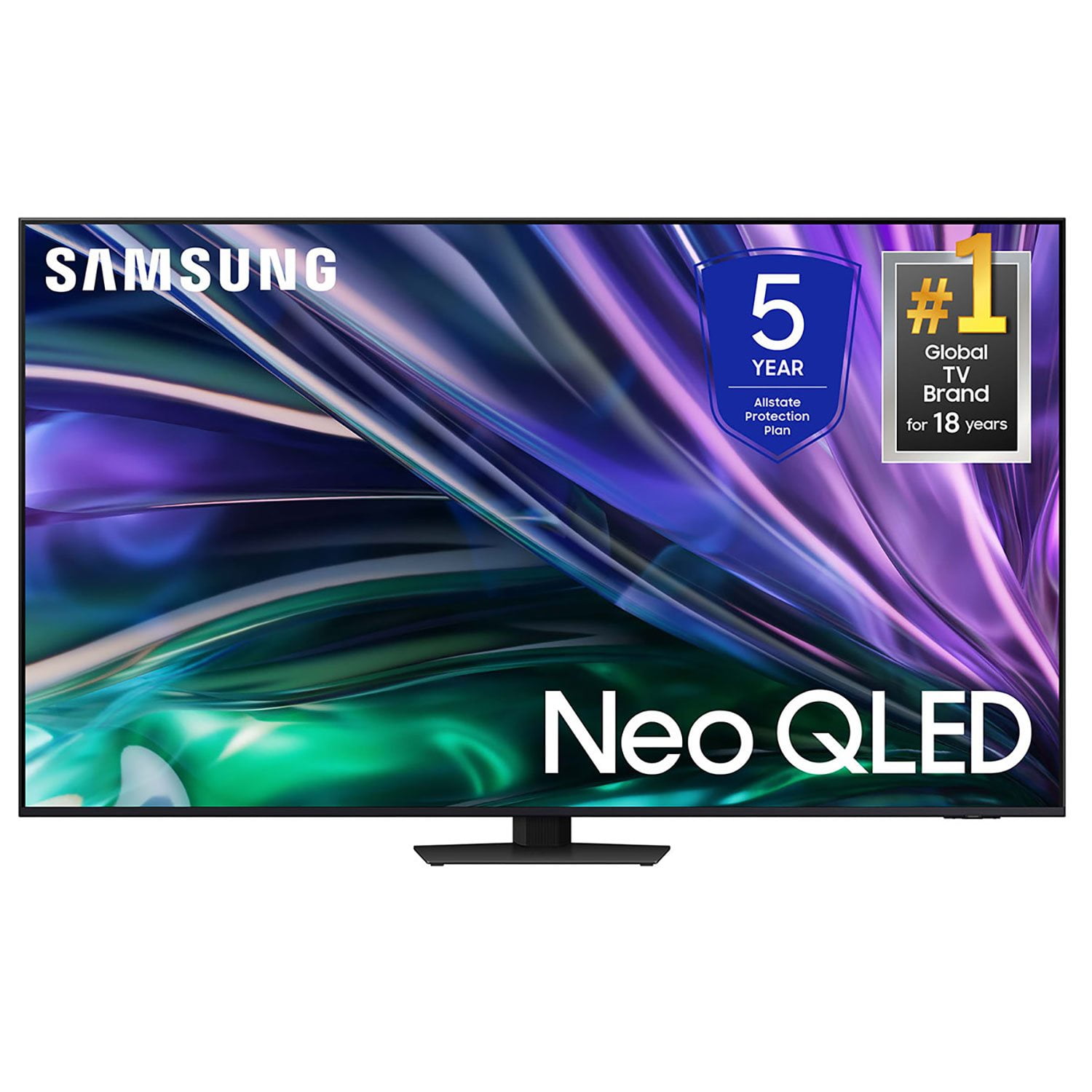
SAMSUNG 75" Class QN85D Series 4K Neo QLED Smart TV
4.7 out of 5 stars
stars
335 ratings330 reviews
  1. 5 stars82% (274)
  2. 4 stars13% (45)
  3. 3 stars2% (6)
  4. 2 stars2% (6)
  5. 1 star1% (4)

Member photos

  • +86 images
Sort by |
Showing 321-330 of 330 reviews
Feb 5, 2025
Reviewer name: PamC
5 out of 5 stars
5 out of 5 stars review

Great functions

I bought this larger TV and im very pleased with it. Great color and sound.

Review from Samsung US
Helpful?64MOPBNOBINA13888063684
Feb 20, 2025
Reviewer name: hicksy
5 out of 5 stars
5 out of 5 stars review

good picture

I bought this about 6 months ago and love it. Great picture

Review from Samsung US
Helpful?64MOPBNOBINA13888063684
Mar 16, 2025
Reviewer name: Jose Carlos
1 out of 5 stars
1 out of 5 stars review

Terrible. Can't download apps

The App section is trash. Can't download apps like Hulu and Peacock.

Review from Samsung US
Helpful?64MOPBNOBINA13888063684
reply from Samsung Specialist

Jose Carlos, We're sorry to hear you've found apps hard to install. Please know that you can customize your Home screen by installing, removing or adding your favorite apps to the Home screen. Here's how: Downloading Apps 1. From the Home screen, press left on the remote. 2. Navigate to and select Search. 3. Using the search bar, enter the content or app you’d like to find. 4. Navigate to and select the app you’d like to install, then select Install. Note: Previously installed apps can be accessed by selecting Apps on the Home screen. Adding & Managing Apps on Home Screen 1. Go to App Settings (these can be found at the bottom of the Apps screen). The following options will be available: a. Add to Home: Move the app to your desired location on the Home screen. b. Lock: Lock the app with a PIN so only you can use it. When the app is selected again, you will be prompted to enter the PIN to unlock it. c. Move: Move the app to another location d. Reinstall: Reinstall the app. e. View Details: View the app’s information and details. If you need more help, Samsung is here for you. Please call us at 1-800-SAMSUNG, 8AM - 12AM EST, 7 days a week. Our LiveChat agents are also available by clicking on the ‘Support’ link on our website. ~ Samsung Specialist

Mar 6, 2025
Reviewer name: Jim K
5 out of 5 stars
5 out of 5 stars review

Great picture and sound

Just installed and working great, picture quality and sound are as expected.

Review from Samsung US
Helpful?64MOPBNOBINA13888063684
Jul 16, 2024
Reviewer name: skybird
5 out of 5 stars
5 out of 5 stars review

Outstanding Picture

The picture on this TV is amazing. However I wish the stand was more sturdy.

Review from Samsung US
Helpful?64MOPBNOBINA13888063684
Mar 2, 2025
Reviewer name: abimahel80
5 out of 5 stars
5 out of 5 stars review

one of the best in the market

I love it the best in the market , I recommend it i will buy it again

Review from Samsung US
Helpful?64MOPBNOBINA13888063684
Mar 5, 2025
Reviewer name: Jgrinch
5 out of 5 stars
5 out of 5 stars review

Clean crisp image.

So far this has been an excellent choice for a TV. Easy to setup and up to speed in no time.

Review from Samsung US
Helpful?64MOPBNOBINA13888063684
Feb 5, 2025
Reviewer name: jeet
5 out of 5 stars
5 out of 5 stars review

refrigerator

I buy refrigerator last year and its working excellent.

Review from Samsung US
Helpful?64MOPBNOBINA13888063684
Mar 5, 2025
Reviewer name: Neo QLED
5 out of 5 stars
5 out of 5 stars review

Awesome features and easy to use

Loving my 75 inch Samsung Neo QLED. Still amazed…Smart. VERY SMART …

Review from Samsung US
Helpful?64MOPBNOBINA13888063684
Jan 22, 2025
Reviewer name: Ronnie
2 out of 5 stars
2 out of 5 stars review

Not understanding

Picture not sharp enough. Color kind of faint, Seen better on other television production.

Review from Samsung US
Helpful?64MOPBNOBINA13888063684
reply from Samsung Specialist

Ronnie, Thank you for sharing your thoughts on the picture quality of your QN85DD TV. To ensure you’ve got the latest image quality updates, please confirm that your TV is up to date with the latest firmware version. You can check by going to: Home > Menu > Settings > Support > Software Update. If the picture you’re seeing is still not to your liking after updating firmware, there are several picture settings you may want to try adjusting. Go to Home > left direction button > Settings > All Settings > Picture > Picture Mode ...and select the mode that best fits your usage: 1. Standard: Is the default mode suitable for general viewing environments 2. Dynamic: Makes the picture brighter and clearer in bright viewing environments 3. Eco: Provided to save energy 4. Movie: Suitable for watching TV or movies in a dark room 5. Filmmaker Mode: Provides source content just as the creators intended. If the image is defined as Filmmaker Mode, it’ll automatically switch to Filmmaker Mode while watching. You can also fine-tune your picture with expert settings such as brightness, contrast, sharpness and more (All Settings > Picture > Expert Settings). For further assistance with settings adjustments, please contact Samsung Customer Support at 1-800-SAMSUNG, 8AM - 12AM EST, 7 days a week. Or visit us on the Samsung website and click on the ‘Support’ link for: • LiveChat • Manuals, Software, & Warranty Info ~ Samsung Specialist