Skip to Main Content
Sam's Club
Sam's Club
All Departments
All Services
Customer reviews for SAMSUNG 75" Class TU700D-Series Crystal Ultra HD 4K Smart TV UN75TU700DFXZA for
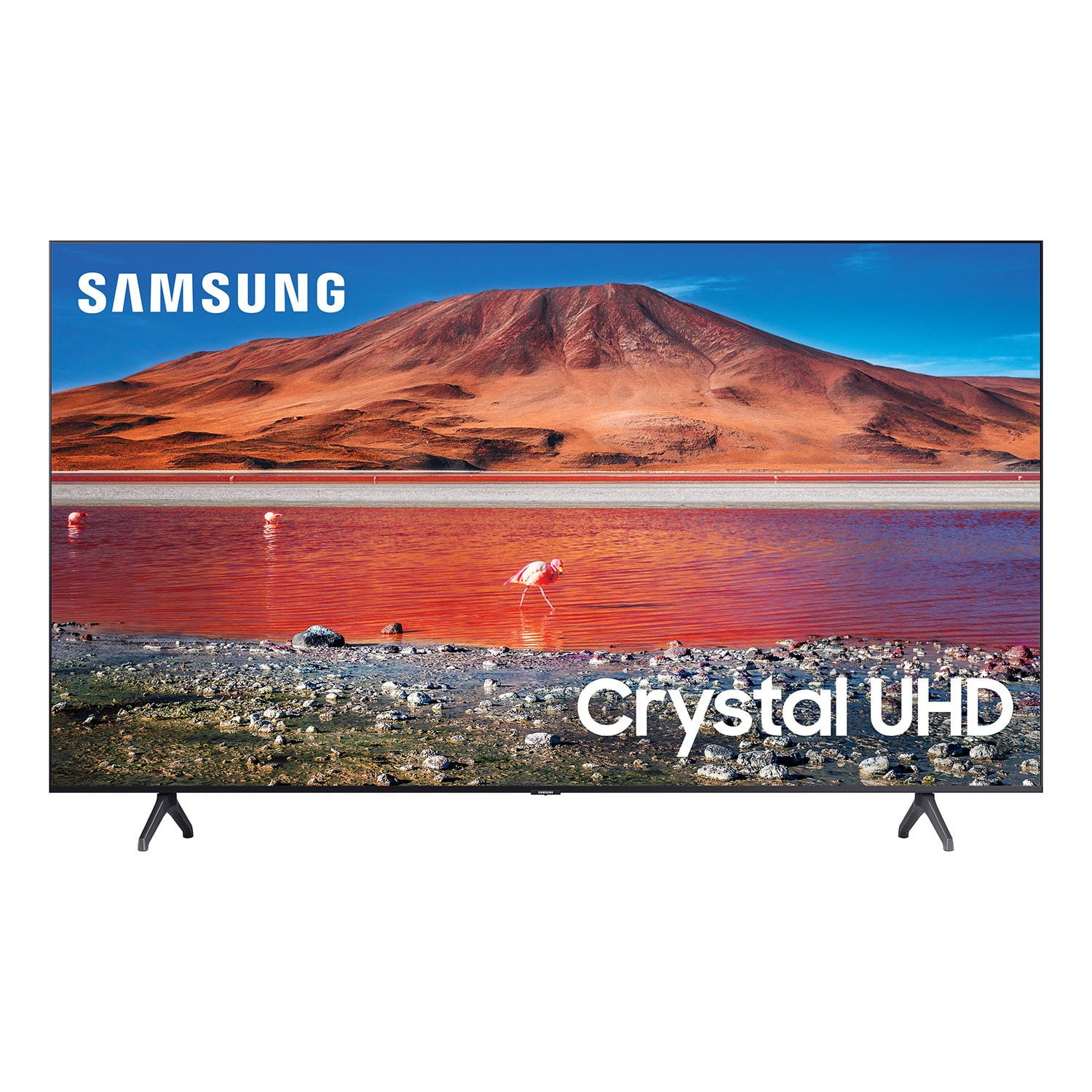
SAMSUNG 75" Class TU700D-Series Crystal Ultra HD 4K Smart TV UN75TU700DFXZA
4.4 out of 5 stars
stars
10.4K ratings10K reviews
  1. 5 stars69% (7,257)
  2. 4 stars18% (1,886)
  3. 3 stars5% (566)
  4. 2 stars3% (265)
  5. 1 star5% (499)

Member photos

  • +1523 images
Sort by |
Showing 5,801-5,810 of 10,064 reviews
Oct 25, 2022
Reviewer name: Love2gamble
5 out of 5 stars
5 out of 5 stars review

This product is great and shows excellent
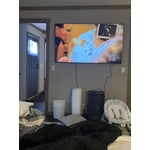
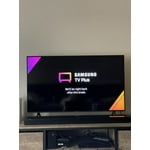
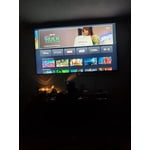
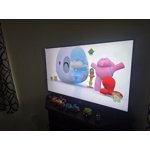
[This review was collected as part of a promotion.] I uploaded a picture to show the great feautures from the television. I watch shows, movies, and stream showsnon my samsung

Review from Samsung US
Helpful?3STAXRT0NDXF13883163940
Oct 25, 2022
Reviewer name: abacoguy
5 out of 5 stars
5 out of 5 stars review

Great picture crisp clear vivid color
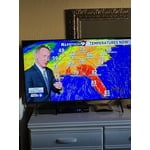
[This review was collected as part of a promotion.] bedroom use ..........................................................................................................................

Review from Samsung US
Helpful?3STAXRT0NDXF13883163940
Sep 15, 2020
Reviewer name: Idahopeeps
2 out of 5 stars
2 out of 5 stars review

Issues launching Hulu

[This review was collected as part of a promotion.] I have been having issues launching the Hulu app on my TV. All the tv wants to do is go to the Samsung channels. Pretty irritating

Review from Samsung US
Helpful?3STAXRT0NDXF13883163940
reply from OBA

Idahopeeps Thank you for choosing the TU7000 Smart 4K TV and taking the time to share your experience. I am very sorry to hear that your apps are not working properly. Please check your network connection. When the network speed is slow, the app may not work, or its image quality may be poor. If you have an app that is freezing, not loading, or crashing, you can try cold booting your TV, updating your TV's software, deleting and downloading the app again, and a completing full reset of Smart Hub to correct the issue with the app. You can search online for ‘Samsung Support TSG01003027’ for step-by-step instructions If you need further assistance, please know that Samsung Customer Support is here to help, and can be reached via any of the below options: 1-800-SAMSUNG (8AM -12AM EST, 7 days a week) On the Samsung website and click on the SUPPORT link in the upper right corner for: 1) Contact Us Options (LiveChat, Remote Support, Facebook, Twitter) 2) Product Support 3) Manuals and Downloads 4) Warranty Info 5) Product Registration: Registering your product gives you access to easy warranty support, convenient opt-in to special promos and offers, faster troubleshooting and service, and quick notification of system updates 6) Samsung Community: A great resource for getting help from Samsung moderators and customers and more 7) …and more product, repair, order, and care options ~ Samsung Solutions

Jan 12, 2023
Reviewer name: Eric A
2 out of 5 stars
2 out of 5 stars review

Affordable

not very bright in lighted areas. not bad for the price but it doesnt even wall mounting instructions nor a single screw. the website offers little help.

Review from Samsung US
Helpful?3STAXRT0NDXF13883163940
reply from Samsung Brand Ambassador

Hi Eric A, We appreciate you sharing your feedback on the TU7000 TV. Please know we are here to help. First, regarding the picture quality, I have a few suggestions that may improve your visual experience. Let’s ensure you are running the latest Firmware Update. Go to Settings> Support> Software Update. Next, If the colors on your TV are correct but just a little too dark or bright, you can try adjusting Picture Modes, Contrast, Brightness, or Sharpness settings. For darker scenes, I recommend Dynamic Picture Mode, which makes pictures brighter and clearer in bright viewing environments. Go to Settings > Picture > Picture Mode > Dynamic. Or you can manually adjust the Brightness by pressing the HOME button on your remote, then navigating to Settings > Picture > Expert Settings. You may also want to disable Power Saving Mode, which automatically adjusts the brightness to reduce the TV’s power consumption. Go to Settings > General > Eco Solution> Power Saving Mode. Next, regarding mounting instructions and hardware, please understand that we do not include wall mount screws or adapters because not every wall will require the same type of hardware. Each customer’s mounting situation can be very different, requiring specific hardware to ensure the best, most secure fit. A generic hardware type included in the box might be inappropriate for a customer’s wall; the result could be the customer inadvertently mounting their TV insecurely. To learn the various features, functions, and settings of the TV and Remote, you can download the User Manual and Remote Guide directly from Samsung’s website under ‘Support’ (top right corner) > Manuals & Software > TVs & Home Theater. From there, you can search for the TU7000 under Crystal UHD TVs > T Model Lineup. For the quick startup guide for your TV, please head here: https://downloadcenter.samsung.com/content/EM/202004/20200402135952772/BN68-10303C-00_QSG_UTU7000K-Bezel_ZC_ZX_SA_L04_200207.0.pdf If we can help with anything else, please call us at 1-800-SAMSUNG, 8 AM - 12 AM EST, seven days a week. LiveChat with an agent, as well as manuals, software, and warranty info, can be found at the ‘Support’ link on our Samsung website. ~ Samsung Advisor

Oct 25, 2022
Reviewer name: HS1234
4 out of 5 stars
4 out of 5 stars review

Awesome picture

[This review was collected as part of a promotion.] Love this tv get a good picture when I'm watching my movies and a even crispier picture when I'm playing my video games or just scrolling the web with the smart tv feature

Review from Samsung US
Helpful?3STAXRT0NDXF13883163940
Aug 23, 2022
Reviewer name: Mycash
4 out of 5 stars
4 out of 5 stars review

Great quality

[This review was collected as part of a promotion.] I'm enjoying watching movies,dramas,sports,news and so on It's pretty good so far I don't have complaints

Review from Samsung US
Helpful?3STAXRT0NDXF13883163940
Aug 21, 2022
Reviewer name: Sosita
5 out of 5 stars
5 out of 5 stars review

Really good TV
[This review was collected as part of a promotion.] Excellent image and clear picture, the TV is really thin and not bulky. The volume is mediocre but good enough to enjoy the programs.

Review from Samsung US
Helpful?3STAXRT0NDXF13883163940
Jun 16, 2022
Reviewer name: MySamsung
5 out of 5 stars
5 out of 5 stars review

This TV is great. Crystal clear

[This review was collected as part of a promotion.] This TV was a great purchase Not over price with great quality overall and a great picture *******************

Review from Samsung US
Helpful?3STAXRT0NDXF13883163940
Jun 16, 2022
Reviewer name: Ravensgyrl22
5 out of 5 stars
5 out of 5 stars review

Beautiful picture, easy to maneuver, great price
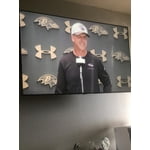
[This review was collected as part of a promotion.] We stream everything from YouTube tv, Disney plus, Netflix and lots of gaming. The whole family has favorite apps that are saved on the Home Screen. Great TV

Review from Samsung US
Helpful?3STAXRT0NDXF13883163940
Dec 29, 2020
Reviewer name: Jhjh
3 out of 5 stars
3 out of 5 stars review

Great picture

picture quality is great. apps dont work well. when an episode ends and new one begins picture settings change by themselves. dont plan on using as a smart tv. youll need a secondary device.

Review from Samsung US
Helpful?3STAXRT0NDXF13883163940
reply from OBA

Jhjh: Thank you for purchasing the Samsung TU7000 TV and for your review. To optimize the smart TV performance, please try Device Care option under the Support Menu. Go to Settings > Support> Device Care > Start Device Care. It improves your apps performance as it frees up unused cached memory and closes background apps. If Usage Mode is set to Retail Mode, the TV's audio and video settings are automatically reset every 5 minutes. Change Usage Mode to Home Mode. Go to: Settings > General > System Manager > Usage Mode I hope this helps to solve your concerns. Should you need further assistance, please contact Samsung Customer Support. 1-800-SAMSUNG (ask for TVs), available 8AM -12AM EST, 7 days a week Or visit us on the Samsung website and click on the ‘Support’ link in the upper right corner of the homepage for: 1) Contact Us Options (LiveChat, Remote Support, Facebook, Twitter) 2) Product Support 3) Manuals and Downloads 4) Warranty Info 5) Product Registration: Registering your product gives you access to easy warranty support, convenient opt-in to special promos and offers, faster troubleshooting and service, and quick notification of system updates 6) Samsung Community: A great resource for getting help from Samsung moderators and customers and more 7) …and more product, repair, order, and care options ~ Samsung Solutions