Skip to Main Content
Sam's Club
Sam's Club
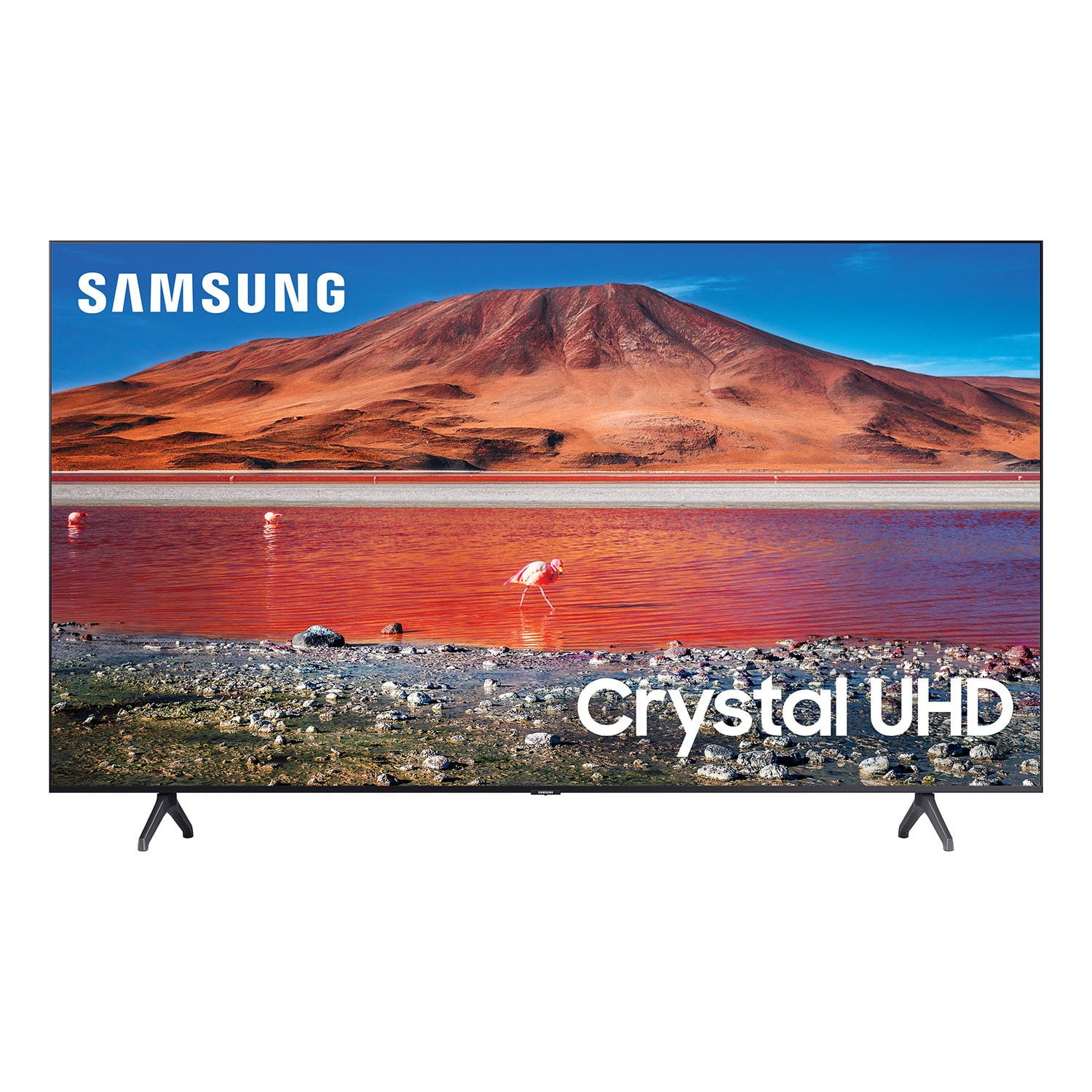
Customer reviews for SAMSUNG 75" Class TU700D-Series Crystal Ultra HD 4K Smart TV UN75TU700DFXZA for
SAMSUNG 75" Class TU700D-Series Crystal Ultra HD 4K Smart TV UN75TU700DFXZA

Member photos

  • +1513 images
Sort by |
Showing 1,851-1,860 of 10,059 reviews
Jul 26, 2022
Supertvguy
4 out of 5 stars review

Best budget TV period.

[This review was collected as part of a promotion.] Got this TV for my college room! It is a small space so the smaller size is just perfect! Bigger than a monitor but smaller than a 65in for example. It gets the job done with slim bezels and a nice modern look. It had BOTH chrome cast and Airplay built right in so it is very convenient! I use basically all the streaming apps and the OS works good if not a little laggy, but it is what I expected from a cheaper model. It is worth the compromise on a student budget like mine. The picture is great for a non OLED panel and gets the job done. Gaming is also enhanced with the built in game mode which works perfectly for me. All in all I do not regret going with this TV instead of a similarly priced Sony or TCL. Samsung does it best when it comes to budget televisions period.

Review from Samsung US
Helpful?3STAXRT0NDXF13883163940
Sep 15, 2020
YanksFan
4 out of 5 stars review

Great Picture, Obnoxious User Interface

[This review was collected as part of a promotion.] This was my first Smart TV purchase and I must say that the picture quality is stunning. The colors are vibrant and watching my favorite movies is now a new experience on this TV. The biggest drawback that takes some getting used to is the User Interface. I am not a fan. When you turn the TV on, the “homepage” takes some getting used to. I guess I had high expectations being an Amazon Firestick user as well. It would be nice if the homepage was cleaner.

Review from Samsung US
Helpful?3STAXRT0NDXF13883163940
Oct 26, 2022
BigTX65
5 out of 5 stars review

Great TV for the master bedroom

[This review was collected as part of a promotion.] We have bought as replacement for an old tube TV , Love the smart built in features and the free Samsung plus streaming TV , we have added a local HD coaxial HD antenna and added local channels to TV + lineup, great value and excellent quality picture

Review from Samsung US
Helpful?3STAXRT0NDXF13883163940
May 23, 2022
Stacyann
5 out of 5 stars review

Samsung is a good product

[This review was collected as part of a promotion.] I use my Samsung Tv for streaming, Movies, music and all that it have. First time owning a Samsung and I'm in love and yes I will purchasing another and I will definitely will recommend it to others.

Review from Samsung US
Helpful?3STAXRT0NDXF13883163940
Feb 5, 2021
Cindy
3 out of 5 stars review

Needs to be restarted often

just set up this tv three weeks ago and have had to restart 3 times because the apps stopped working. the error says "connection issue" but wifi is strong, and the tv is the only electronic having issues. so far the error has been resolved by restarting each time. i just watch streaming services, i.e netflix and hbo max, i don't use for more intense processing needs like gaming, but i think the picture is fine. i wish the remote had a talk to type function because the search interface is clumsy.

Review from Samsung US
Helpful?3STAXRT0NDXF13883163940
reply from Samsung Brand Ambassador

Cindy: Thank you for purchasing the Samsung TU7000 TV and for your review. I am very sorry that you are experiencing internet connection issues. You may want to go through these steps to check your network connection: 1) Check the distance between the TV and your modem or access point. The distance should not exceed 50 ft. (15.2 m). 2) Minimize interference by not using or turning off wireless devices. Also, verify that there are no obstacles between the TV and the modem or access point. (Wi-Fi strength can be decreased by appliances, cordless phones, stone walls/fireplaces, etc.) 3) Perform a network test to check if there is a network problem. Press the Home button on your remote. Navigate to Settings > Support > Device Care > Self Diagnosis> Smart Hub Connection Test 4) Try a cold reboot of your TV by pressing and holding the power button for 5+ seconds until the TV turns off and on again. 5) Please also be sure you have the latest firmware update. You may want to enable automatic updates for convenience. Select Settings > Support > Software Update, then select Auto Update. For further assistance or service, please contact us via any of the following options: 1-800-SAMSUNG (ask for TVs), available 8AM -12AM EST, 7 days a week Or visit us on the Samsung website and click on the ‘Support’ link in the upper right corner of the homepage for: 1) Contact Us Options (LiveChat, Remote Support, Facebook, Twitter) 2) Product Support 3) Manuals and Downloads 4) Warranty Info 5) Product Registration: Registering your product gives you access to easy warranty support, convenient opt-in to special promos and offers, faster troubleshooting and service, and quick notification of system updates 6) Samsung Community: A great resource for getting help from Samsung moderators and customers and more 7) …and more product, repair, order, and care options ~ Samsung Solutions

Sep 15, 2021
Lewie42
5 out of 5 stars review

Best TV ever

[This review was collected as part of a promotion.] Absolutely amazing, best TV picture and functionality I've ever owned. Watching movies, better than the theatern The best thing is watching any kind of sports, it looks and feels like you're there..

Review from Samsung US
Helpful?3STAXRT0NDXF13883163940
Jun 13, 2022
Simplepickens
5 out of 5 stars review

Best picture I've seen

[This review was collected as part of a promotion.] I usually use tvs to watch my shows and movies, and something for games. Before this Samsung TV, I never truly knew how crystal clear a picture could look. It renewed my enjoyment of my favorite shows, movies felt new when I watched them again, I replayed older games just to watch it anew on this TV.

Review from Samsung US
Helpful?3STAXRT0NDXF13883163940
Jun 16, 2022
Blue90
3 out of 5 stars review

Decent low-end 4K TV

[This review was collected as part of a promotion.] First off I use my TV for mostly gaming and multimedia streaming. 4K resolution at 60htz is solid for the most part but the HDR is barely noticeable if there are all. It's an LED the blacks are pretty bad at times during 4k movies and games also. The sound quality was surprisingly nice, crisp and can get pretty loud on the right setting. UI is pretty slow once you connect it to the internet so I highly advise against that and just use a gaming console or streaming device of choice. My last critique of this TV is how inconsistent it is with game mode for the PS5. Auto game mode just doesn't work. You have to switch back and fourth if you want to leave game mode while streaming anything, and you'd definitely want to do that with how bad the sound quality because when in game mode. This TV just gets the job done if you want to watch and play things at 4K with little latency. There are many annoyances that keep me from recommending this to other people.

Review from Samsung US
Helpful?3STAXRT0NDXF13883163940
reply from Samsung Brand Ambassador

Hi Blue90, We are sorry to hear about your internet and gaming issues with your TU7000 TV. Optimize performance and address your issue with gaming response time with the self-diagnostic tool. This service checks memory and frees up unused cached memory and closes background apps. Go to: Settings > Support > Device Care > Start Device Care If you are having issues with game mode, Game Mode is turned on automatically when the selected source is identified as a game console, like Xbox One X / S or Xbox Series X, but it must be turned on manually if the selected source is identified as PC. We recommend enabling Anynet+ as well as Input Signal Plus (HDMI UHD Color) on your TV. To enable Anynet+, go to: Settings > General > External Device Manager > Anynet+ (HDMI-CEC) = On. Next, connect your gaming console using an HDMI cable, and then turn it on - it will automatically connect to the TV. To enable Input Signal Plus, go to: Settings > General > External Device Manager > Input Signal Plus. From there, select the HDMI port that is connected to your gaming console. Also please be sure your TV is up to date with firmware version 2201.0, as this includes various performance updates. You can check this by going to: Settings > Support > Software Update. Should you ever have questions or need help, Samsung is here for you! Just give us a call at 1-800-SAMSUNG, 8 AM - 12 AM EST, 7 days a week. Our LiveChat agents are also available by clicking on the ‘Support’ link on our website. ~ Samsung Advisor

Sep 7, 2021
PNDMN
4 out of 5 stars review

This product is so versatile.

[This review was collected as part of a promotion.] I mainly use my tv for streaming sports, apps, and gaming. The picture is so clear and vibrant for anything I may watch on it. The most amazing features I enjoy is the smart view, quick share, and smart things. The ability to connect phone to TV or TV to phone is the greatest thing ever as well as the ability to use the phone as a remote is absolutely amazing.

Review from Samsung US
Helpful?3STAXRT0NDXF13883163940
Jun 17, 2022
Thenumber9
5 out of 5 stars review

Excellent product, it is exactly what I expected!

[This review was collected as part of a promotion.] I love that I can use my tv with my Bluetooth headphones and I can watch movies, series, tv shows and sports during the night without disturbing anyone, the quality is really good and the 50” size is perfect for my bedroom! It is a tv that I would recommend to my family and friends. I'm very happy with my purchase!

Review from Samsung US
Helpful?3STAXRT0NDXF13883163940