
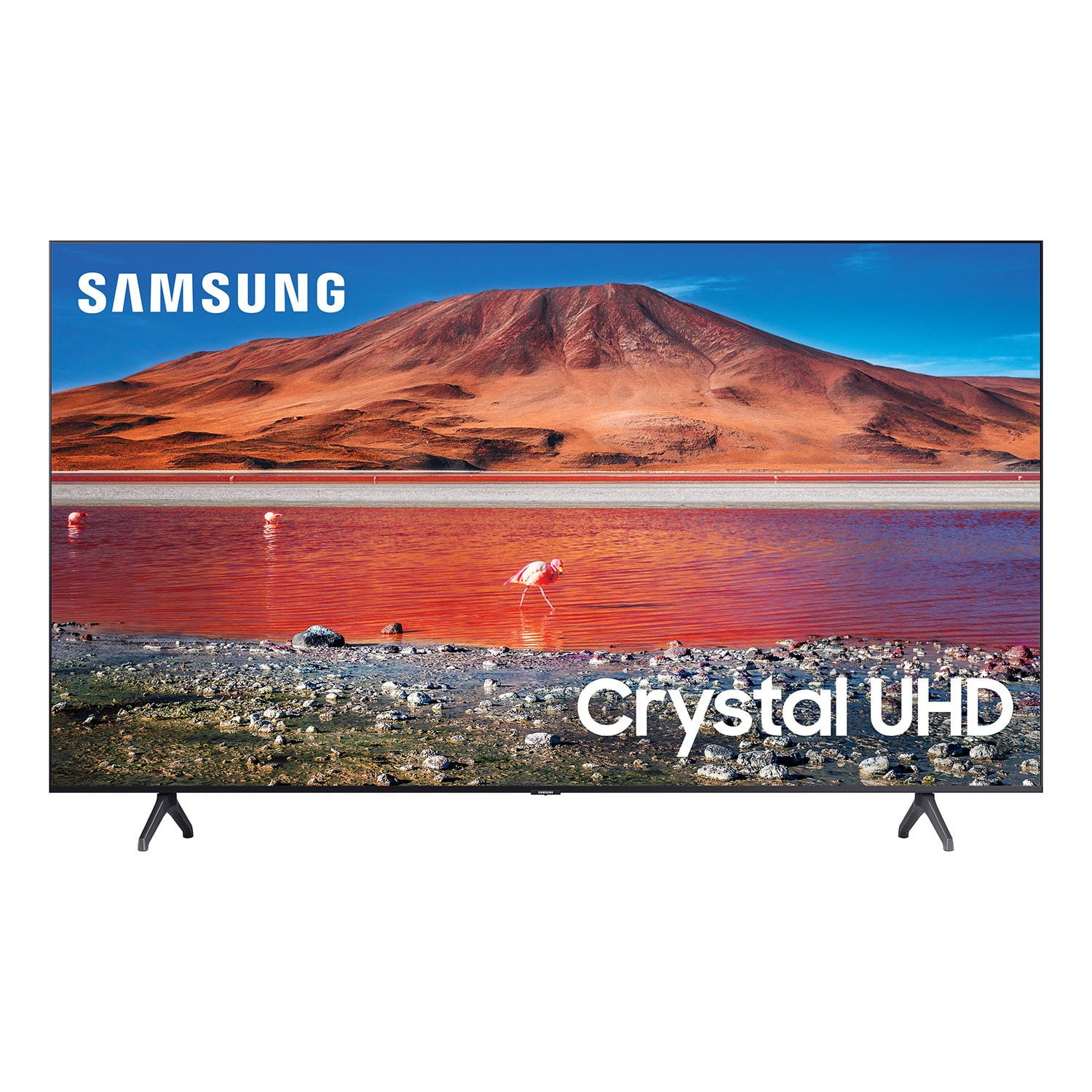
 Customer reviews for SAMSUNG 75" Class TU700D-Series Crystal Ultra HD 4K Smart TV UN75TU700DFXZA for
Member photos


 +1529 images
Blurry screen - Returned
the screen was always blurry and the tv never connected to the app they make you download. i returned it, along with the samsung soundbar i got as a bundle because the soundbar was always noticeably behind the picture. ended by sony products that i am very happy with.
Eric: Thank you for sharing your review of the Samsung TU7000. I am very sorry that your experience with this TV was less than perfect, and you have decided to return it. Should you ever decide to give Samsung TVs another try and have questions or need assistance with settings, setup, or features, please know we are always here to help. 1-800-SAMSUNG (available 8AM -12AM EST, 7 days a week) Or visit us on the Samsung website and click on the ‘Support’ link in the upper right corner of the homepage for: 1) Contact Us Options (LiveChat, Remote Support, Facebook, Twitter) 2) Product Support 3) Manuals and Downloads 4) Warranty Info 5) Product Registration: Registering your product gives you access to easy warranty support, convenient opt-in to special promos and offers, faster troubleshooting and service, and quick notification of system updates 6) Samsung Community: A great resource for getting help from Samsung moderators and customers and more 7) …and more product, repair, order, and care options - Samsung Solutions
Mounting bolts need to be longer than indicated
the set is nice. but the manual will indicat that the versa mount screws should be 20/22mm. this is not correct, and others have commented the same. when you add in the depth of the mounting plate you are using, the screws/bolts will need to be m8 25mm; otherwise, there will be no bite of the threads-guaranteed. i had called samsung tech support about this, and the agent truly had no clue. secondly, if you want to just set up your tv to start watching your cable and streaming services-not so fast....the initial set up is going to force you through a bewildering labyrinth of required steps, to compel you to set up a samsung account-which you may not want.,
Hi TraldAlex, Thank you for your purchase and review of the AU8000 TV. We appreciate your feedback and apologize for any confusion. Please know that the 20-22mm listed in the user manual is not the screw length. It’s the wall mount thread depth in the TV chassis. Make sure to add the wall mount bracket thickness to the thread depth for minimum screw length. If you are unable to find the correct screws, you could use washers (supplied with the wall mount) to adjust the length. Should you ever have questions or need help, Samsung is here for you! Just give us a call at 1-800-SAMSUNG, 8 AM - 12 AM EST, seven days a week. Our LiveChat agents are also available by clicking on the ‘Support’ link on our website. ~ Samsung Advisor
Did Not Last
i love samsung products love them. i have 2 g7 monitors for my pc, 3 other samsung tvs, phones, and my watch all samsung. im a fan boy. but this tv let me down. i bought it about 2 years ago when it was released, and its now dead. it was barely used, im at my computer the majority of the time. i would say it has less than 500 total hours over 2 years. and now no picture period. this was a major let down.
Hi CallMeCarl, We are sorry to hear that your Samsung TU7000 TV is no longer working after two years. Samsung prides itself on high-quality products and a great customer experience. Please know we are here to help you. If your TV has a black screen even when it's on, it's quite possible it could actually be your external device and not your TV. Please try these troubleshooting steps for your blank screen issue: 1. Press the Home button on the remote. If the menu appears, the TV is powered on but is either not on the correct source or not receiving a signal. If the menu does not appear, the TV may be having power issues. Check the red standby light, a little red light at the edge of the TV that you aim the remote at. In normal use, the red standby light is on when the TV is off (indicating the TV is on standby), and the red standby light is off when the TV is in use (or doesn't have power). 2. Confirm the TV is set to the same source as the external device. For instance, if your cable box is connected to HDMI 1, set the TV source to HDMI 1. If the TV is set to the correct source but there is still no image, unplug and reconnect the AV connections one cable at a time from both ends of each cable. If there's any damage to the cable, it will need to be replaced. After you've reconnected the external device, turn it off and then back on. 3. Test the HDMI cable. Some TVs have an HDMI cable test. Some models only have this test after a software update, and older models do not have it. If your model does not have this test or is not connected by HDMI, skip to the next step. The test is designed for HDMI cords less than 6 feet long and may not give accurate results on longer cords. To perform the test, make sure the TV's source is still on the HDMI setting for the cable you want to test, and then navigate to Settings > Support > Self Diagnosis > Signal Information > HDMI Cable Test > Start Test. If the test says, the cable is bad, replace the cable. Service is not required. 4. Test different external devices. The final thing to rule out is the external device you're using. Try connecting a different device or using a different source port. If you were unable to test the cable in the previous step, then try swapping the cable, too. If the TV can display a picture in any other setup, then you've ruled the TV out as the cause of the issue. Keep trying various setups until you identify the device or cable that is not working and troubleshoot or replace it. If you continue to have issues, please give us a call so we can troubleshoot further with you. Contact us at 1-800-SAMSUNG, 8 AM - 12 AM EST, seven days a week. Or visit us on the Samsung website and click on the ‘Support’ link for: 1) LiveChat with an agent 2) Manuals, Software, & Warranty Info ~ Samsung Advisor
CANNOT CHANGE APPS
so disappointed! bought this tv because it had apple tv and other apps. they didn't say the tv apps could not be changed. there is no room on the 1 gig of memory to add anything and you cannot remove the stock apps! literally the reason i bought the tv... i would choose anything else.
ROB108: Thank you for sharing your experience with your new TU7000 TV. Here are some things you can try: 1) Go to Settings > Support> Device Care > Start Device Care This service checks memory and frees up unused cached memory and closes background apps. 2) Remove apps you no longer need. From the Home screen, go to Apps > Settings > delete your apps from here 3) Turn automatic updates on. Select Settings > Support > Software Update, then select Auto Update. I hope these tips help. If you need further assistance or have any questions, please contact Samsung Customer Support. Available at 1-800-SAMSUNG (8AM -12AM EST, 7 days a week) Or visit us on the Samsung website and click on the SUPPORT link in the upper right corner for: 1) Contact Us Options (LiveChat, Remote Support, Facebook, Twitter) 2) Product Support 3) Manuals and Downloads 4) Warranty Info 5) Product Registration: Registering your product gives you access to easy warranty support, convenient opt-in to special promos and offers, faster troubleshooting and service, and quick notification of system updates 6) Samsung Community: A great resource for getting help from Samsung moderators and customers and more 7) …and more product, repair, order, and care options Again, thank you for taking the time to share your thoughts on this product. Your feedback helps us continuously deliver best-in-class products and service. ~ Samsung Solutions
Died after 1 year (and 22 days)
Picture went extremely dim (not just dark -- unwatchable) all of a sudden. Unfortunately this happened 22 days after the meager 1 year warranty expired. So, I now have a useless, expensive piece of techno-trash that Samsung is unwilling to do anything about. To their credit, designing a tv that dies 22 days after the warranty ends is really a pretty impressive con. Save yourself the heartache, don't buy this piece of garbage. Or if you do, think about it more like an annual rental.
Hi there, I'm sorry to hear that your Samsung TU7000 TV display is having issues. We appreciate your patience; there are a few troubleshooting steps that I will put below in case you have not yet tried them. First, you can manually adjust the Brightness by pressing the HOME button on your remote, then navigating to Settings > Picture > Expert Settings. Next, let's make sure that your Energy Saving Mode is not causing this issue. Go to Settings > General > Eco Solution> Power Saving Mode> Disable. You can also run a Picture Test. Go to Settings > Support > Device Care > Self Diagnosis > Picture Test. You also may want to ensure that your Firmware is up to date. Go to Settings> Support> Software Update. If you continue to have a dim screen, then your TV will need service. If your TV is out of the 1-year Manufacturer's Warranty, you can locate a service center in your area on Samsung's website. Go to Support (upper right corner) and select Schedule a Service Appointment. This will allow you to find a location nearest you to help you with your repair. Should you have additional questions or wish to troubleshoot the issue, please call us at 1-800-SAMSUNG, 8 AM - 12 AM EST, seven days a week. Our LiveChat agents are also available by clicking on the ‘Support’ link on our website. ~ Samsung Advisor
Samsung TV Always My First Choice
[This review was collected as part of a promotion.] I brought this tv to replace my previous Samsung TV which was at least 10 years old. It was still working fine just wanted a bigger one. Samsung offers their own TV service similar to cable which I love and free of charge. Can even get it on Samsung phones now. My TV is crystal clear and has a nice set of built in speakers with nice sound and base. Only thing is it only has 2 HDMI ports and I was used to have 3 or 4 but the two will suffice. The smart features allows me access to all my streaming services so that's a plus. Overall I've never been disappointed with Samsung products.
Dead after a year
Was a decent TV for the price when it worked. Unfortunately a year and 2 months after purchasing, it's essentially dead. It will not power on. I've tried every trick with no success. The little red light flashes, so it's receiving power. Just can't fully turn on, stays black screen. Happened out of the blue, nothing triggered it. Very frustrating, huge waste of money. A TV should last much longer than a year.
Stunning picture quality!
What are these reviews talking about??? This tv picture is absolutely gorgeous! I only buy Samsung tv's they are top notch. This one I bought for my covered lanai and the picture is stunning. Only complaint would be tat volume gets lost outside, but it's not an outside branded tv... My sonos took care of that! Highly recommended! And all of my apps work fine on this tv. lol
This tv sucks
i brought this tv 4 months ago and like a month in it started having issues like the screen going black i did all the little diagnostics and it started working again so rather than go thru the hassle of getting a new tv i hoped for the best now its turning on and off on its own while it still has black screen.... i should have returned it when it first started thanks for letting me down samsung
Mighty god: Thank you for purchasing the Samsung TU7000 TV. I am sorry to hear that you are experiencing a power cycling issue where your TV is turning itself on and off repeatedly. Please try a few trouble-shooting steps that may help solve the issue: 1) Check the power cable for damage and proper connection. 2) If the cable is bent, broken, kinked, pinched, pressed excessively (possibly by a heavy object on top of it) or damaged, this is likely the cause of the issue. Replace the cable. 3) Unplug the TV from the wall outlet for 30 seconds, and then plug it back in. 4) If the power cycling allows enough time in between powering on and off, try updating the TV to the latest firmware. There is a risk, however. If the TV turns off during the software update, it could damage the TV. Updates can take up to 30 minutes depending on network speed, so if the TV is not turning off too frequently, try updating the software which can be found on the Support page of your TV model. 5) TVs which can connect to SmartThings can be turned on using compatible devices, sometimes automatically. However, if abnormal "power on" signals are sent through the wireless network, they will trigger this function and make the TV turn on. If you do not want this function, navigate to Settings > General > Network > Expert Settings > Power On with Mobile, and turn the setting off. If the issue persists after these steps, then the TV will need service.Please contact us so that we can better investigate your issue and assist you towards a solution or replacement. 1-800-SAMSUNG (8AM -12AM EST, 7 days a week) Or visit us on the Samsung website and click on the SUPPORT link in the upper right corner for: 1) Contact Us Options (LiveChat, Remote Support, Facebook, Twitter) 2) Product Support 3) Manuals and Downloads 4) Warranty Info 5) Product Registration: Registering your product gives you access to easy warranty support, convenient opt-in to special promos and offers, faster troubleshooting and service, and quick notification of system updates 6) Samsung Community: A great resource for getting help from Samsung moderators and customers and more 7) …and more product, repair, order, and care options Again, thank you for taking the time to share your thoughts on this product. Your feedback helps us continuously deliver best-in-class products and service. ~ Samsung Solutions
Poor Picture
The picture quality on this TU7000 is not near the same quality as the 10 year old Samsung it replaced. After adjusting the brightness to max the brightness level is poor. The picture is not as clear as the the 10 year old tv it replaced. Very disappointed with the TU7000.
gkcc, I am very sorry to see that you were not happy with the picture quality of your TU7000 Crystal UHD TV. Please know that the TV will upscale as best as possible any content sent to it. The closer the signal is to 4K, the better it will look coming out. In addition, the quality of the image on your screen depends on the source and the connection. HDMI cables are recommended for optimal HD viewing; and when possible, 4K content will provide the best picture quality. Below is a link to advanced picture setting adjustment that may help solve your concern: https://www.samsung.com/us/support/answer/ANS00079295/ Our Customer Support Team is always happy to assist you with image quality adjustments tailored to your preferred viewing experience. You can reach us via any of the following options: 1) Phone: 1-800-SAMSUNG (ask for TVs) Available 8AM – 9PM EST (Mon-Fri) 2) LiveChat: https://www.samsung.com/us/support/#contact_us_for_support 3) Facebook Messenger: https://www.facebook.com/samsungsupport 4) Twitter: https://twitter.com/SamsungSupport Again, thank you for taking the time to share your thoughts on this product. Your invaluable feedback helps us continuously deliver exceptional products and service. - Samsung Ambassador