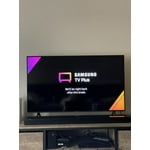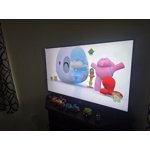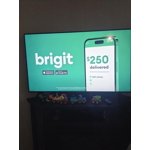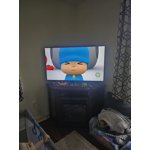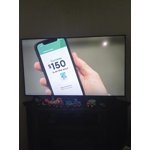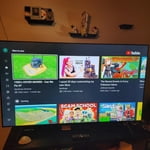
Beautiful picture, meh features
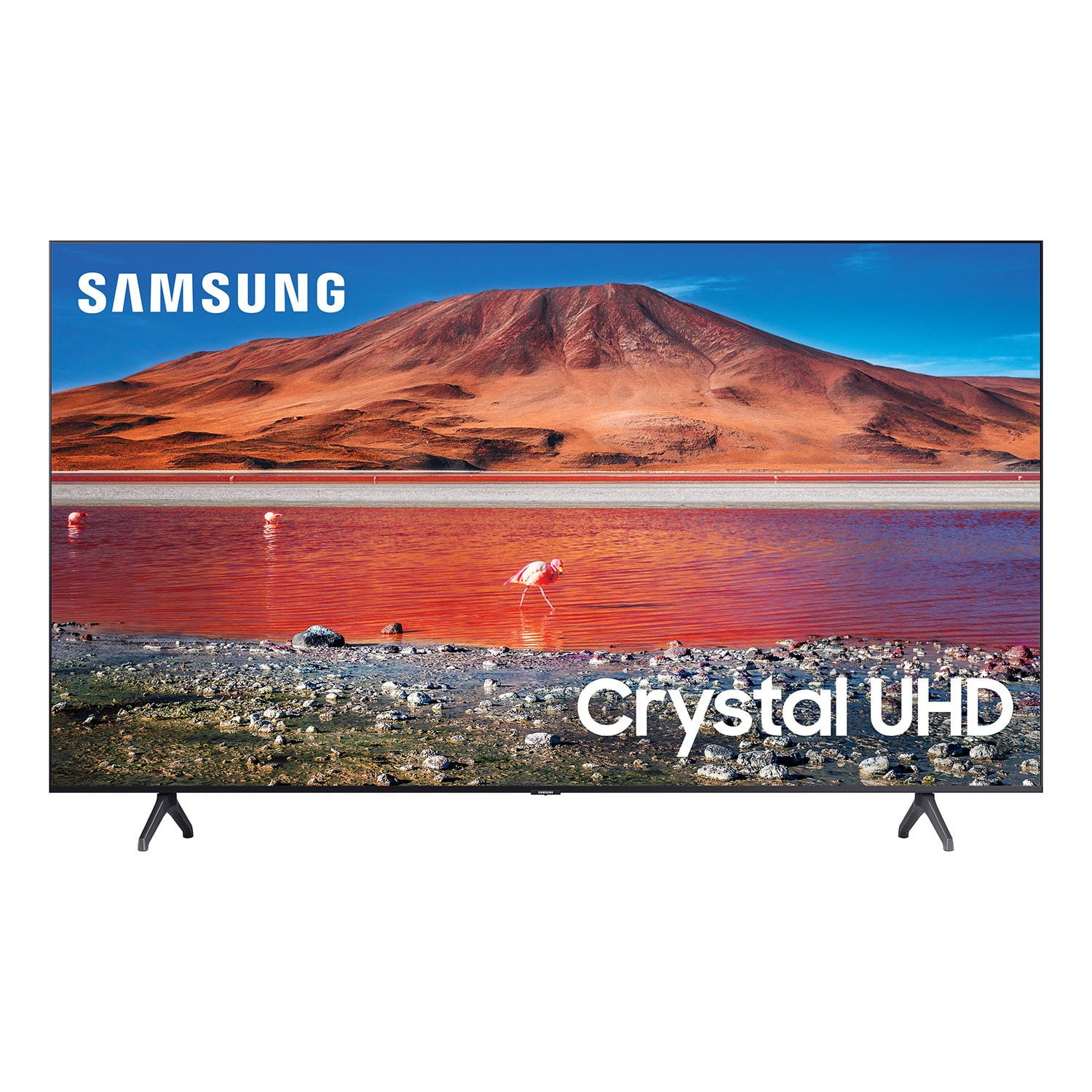
[This review was collected as part of a promotion.] I love how this TV looks and the picture is beautiful. If I had only bought it for the picture, I would be 100% satisfied. There is a significant lag when switching between apps on the Smart TV, which is annoying, but manageable. The reason my review is 3 stars instead of 5 lies solely in the fact that at least once a month, it will lose internet connection, which usually lasts until at least the next day, but has lasted as long as 3 days before. I use wifi instead of ethernet, but I can use the internet on all of my other devices and it's fine, but for some reason the TV will connect to the router, but then be unable to find internet to use any of the apps. I've tried looking for software updates once I can connect again, but there aren't ever any to install. Since I'm a cord cutter it means I am unable to use my TV at all without internet since I don't have cable. At some point I will run an ethernet line through the attic, but I bought this TV for it's wireless abilities. Since I cannot speak on the dependability of a wired internet connection I'm not 100% sure that will fix the problem, but I'm hopeful it will, because I do love this TV when I'm able to use it.
If you're looking for a sleek box with a wonderful picture, buy this in a heartbeat. If you're looking for reliable smart features, maybe look elsewhere.
reply from Samsung Brand Ambassador
Leebobo:
While it’s great to hear that you’re loving the image quality of your TU7000 TV, I’m very sorry to hear of the difficulties you experienced with internet connection.
You may want to go through these steps to check your connection:
1) Check the distance between the TV and your modem or access point. The distance should not exceed 50 ft. (15.2 m).
2) Minimize interference by not using or turning off wireless devices. Also, verify that there are no obstacles between the TV and the modem or access point. (Wi-Fi strength can be decreased by appliances, cordless phones, stone walls/fireplaces, etc.)
3) Perform a network test to check if there is a network problem. Press the Home button on your remote. Navigate to Settings > Support > Device Care > Self Diagnosis> Smart Hub Connection Test
4) Try a cold reboot of your TV by pressing and holding the power button for 5+ seconds until the TV turns off and on again.
5) Please also be sure you have the latest firmware update. You may want to enable automatic updates for convenience. Select Settings > Support > Software Update, then select Auto Update.
For further assistance or service, please contact us via any of the following options:
Call us at 1-800-SAMSUNG (ask for TVs), available 8AM - 12AM EST, 7 days a week.
For additional support resources, visit us on the Samsung website and click on the ‘Support’ link in the upper right corner of the homepage for:
1) Chat with Us/Product Help: To begin a chat or find solutions, choose ‘TVs & Home Theater’ and select your model & topic.
2) Manuals, Software, & Warranty Info
Samsung is committed to providing the best possible product experience, quality, and value, and we are always here to help with any of your questions or concerns.
~ Samsung Advisor