Skip to Main Content
Sam's Club
Sam's Club
Customer reviews for SAMSUNG 65" Class TU700D-Series Crystal Ultra HD 4K Smart TV UN65TU700DFXZA for
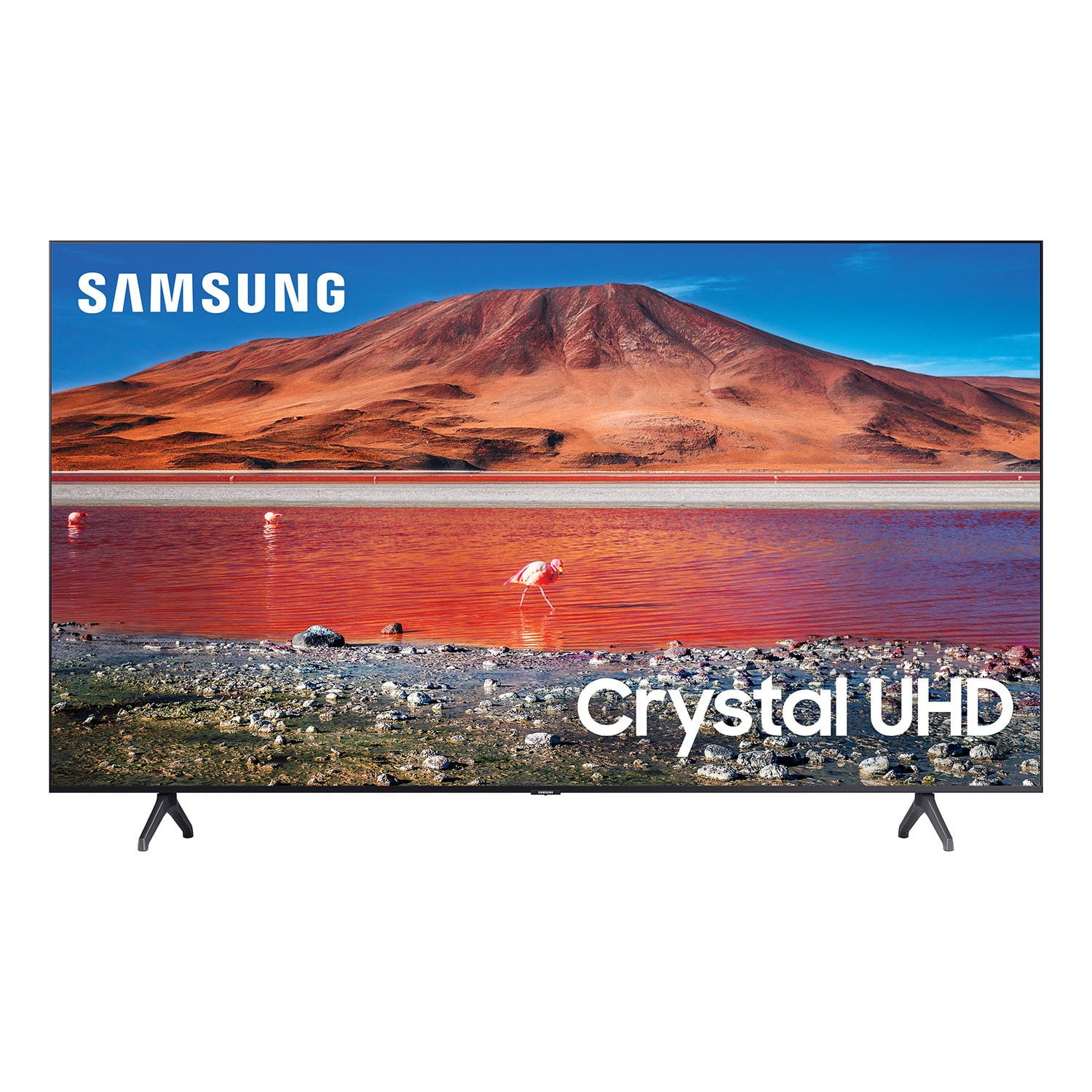
SAMSUNG 65" Class TU700D-Series Crystal Ultra HD 4K Smart TV UN65TU700DFXZA

Member photos

  • +1560 images
Sort by |
Showing 1,951-1,960 of 10,370 reviews
Jul 27, 2022
Love2watch
5 out of 5 stars review

Great buy!

[This review was collected as part of a promotion.] This is my first crystal UHD television. I have been very satisfied with both the picture quality and sound. The fact that you can make play sound through a Bluetooth speaker is a plus. Especially if you live in a small space and can't put a big sound system in. Easy to set up right out of the box. One surprise I had was the 200 built in free channels. You can still hook up a digital antenna and get more free channels. This is the best TV that I've ever owned. Thanks Samsung!

Review from Samsung US
Helpful?3V8BU16WBLTL13878902648
Feb 4, 2021
Fotog
5 out of 5 stars review

Great Retirement Gift

i retired a few months ago and my oldest daughter and her husband bought this for me as a retirement gift. it replaced a 48" samsung from 2007 that was working great. anyway, i love the new television. great picture and it looks great on the wall. i have a separate surround sound system and it matches well with the tv. it is a great retirement gift.

Review from Samsung US
Helpful?3V8BU16WBLTL13878902648
Oct 21, 2020
Movielover
5 out of 5 stars review

Easy set up

[This review was collected as part of a promotion.] This TV was easy to set up, add apps and connect to WiFi. The picture is very clear and the color is crisp and true. We like the variety of the smart TV for watching sports, streaming and regular channels.

Review from Samsung US
Helpful?3V8BU16WBLTL13878902648
Oct 22, 2020
Gill
5 out of 5 stars review

Awesome TV

[This review was collected as part of a promotion.] This Samsung TV's picture is so crystal clear you fill like you are live and in person no matter what show/video you watch. Sound quality is good too. Set-up took about 30 minutes but it was easy. The tv gave instructions each step of the way. Love Love this Samsung Smart TV:)

Review from Samsung US
Helpful?3V8BU16WBLTL13878902648
Sep 27, 2022
Mapcap
5 out of 5 stars review

Best TV I've ever purchased

[This review was collected as part of a promotion.] I use my TV for streaming mostly and that works flawlessly. The picture is amazing. I could not be happier with its performance. My husband does use it for gaming and he says there have been no lags in picture with it so I highly recommend this TV.

Review from Samsung US
Helpful?3V8BU16WBLTL13878902648
Sep 15, 2020
Lamonilj
4 out of 5 stars review

Great TV for the Price

[This review was collected as part of a promotion.] Aside from one problem, this TV is great! The picture looks great, navigation is easy, and the price can't be beat. The one issue we had was flickering, but after turning off the auto-brightness and adjusting a few other display settings, it hasn't been a problem.

Review from Samsung US
Helpful?3V8BU16WBLTL13878902648
Jul 27, 2022
Estela
4 out of 5 stars review

I really like this TV

[This review was collected as part of a promotion.] I love the picture quality of this TV. It is sharp and clear. It is great. I like the fact that I can control it with my galaxy phone. I wish it was louder but over all I love it. I also wish there were as many apps available as in a roku TV. I still haven't been able to download the NHL app on this TV.

Review from Samsung US
Helpful?3V8BU16WBLTL13878902648
Jun 27, 2020
Anthony
1 out of 5 stars review

It's big, it's cheap, but it's flaky

[This review was collected as part of a promotion.] pros: big & cheap - good value for size. one of only a few displays available @ 58". cons: flaky ui / interface with lagging and freezing. very picky hdmi connections, especially when using arc audio return channel. image is bright and 'crisp', but suffers from video 'noise' unless nr is turned on, which softens everything up. judder reduction feature caused 'soap opera effect' while turning it off gives a very poor viewing experience, especially for sports.

Review from Samsung US
Helpful?3V8BU16WBLTL13878902648
reply from OBA

Anthony: Thank you for sharing your experience with the TU7000 TV. I am sorry that your TV is lagging & freezing periodically. Have you tried Device Care option? Go to Settings > Support> Device Care > Start Device Care This service checks memory and frees up unused cached memory and closes background apps. You can try the following steps to eliminate the soap opera effect. Navigate to Settings > Picture > Expert Settings Navigate to and Select Picture Clarity Settings The default setting is Auto. This means the feature automatically turns on and off based on the type of program being watched. Change the setting to either Off or Custom. If you select Custom, three additional options are available for further customization to your viewing preference. -Blur Reduction: Use the directional keys on the remote to adjust the Blur setting. -Judder Reduction: Use the directional keys on the remote to adjust the Judder setting. -LED Clear Motion: This option allows you to configure the LED backlight to sharpen fast-moving images. Select to turn On or Off. I hope this helps. If your issue persists, please reach out to Samsung Customer Support, and a representative will gladly assist you. 1) Phone: 1-800-SAMSUNG, Available 8AM -12AM EST (7 Days a Week) 2) LiveChat: https://www.samsung.com/us/support/#contact_us_for_support 3) Facebook Messenger: https://www.facebook.com/samsungsupport 4) Twitter: https://twitter.com/SamsungSupport 5) The Samsung Members Community is also a great resource for getting help from Samsung moderators and customers: https://us.community.samsung.com If you have not already done so, we invite you to register your new Samsung product at: https://www.samsung.com/us/account/signin/?redirect=https%3A%2F%2Fwww.samsung.com%2Fus%2Fsupport%2Fregister%2F Registering your product gives you access to easy warranty support, convenient opt-in to special promos and offers, faster troubleshooting and service, and quick notification of system updates. ~ Samsung Solutions

Mar 15, 2023
Mrs D
4 out of 5 stars review

You will not be disappointed

I LOVE this television. I feel like the tv characters are right in my living room. The picture is so clear & crisp. We had a few Samsungs back in the day, and I have to admit, I miss the chime when you power on & off. The ONLY reason I didn't give 5 stars is because I had to play with the volume a bit. I'm kind of hard of hearing & was afraid I'd have to buy a sound bar, but after rebooting my cable box, the volume improved quite drastically. I do not know how the volume is for a cable-less tv, but the volume could be improved a bit.

Review from Samsung US
Helpful?3V8BU16WBLTL13878902648
May 24, 2022
Disappointed
2 out of 5 stars review

Not what I expected

[This review was collected as part of a promotion.] The picture is not very bright. The smart tuner loses app sign-in info or ability and the TV has to be unplugged and rebooted to make it right. I would not have expected this from, what is supposed to be, such a good brand. I am very disappointed and will probably go back to Insignia.

Review from Samsung US
Helpful?3V8BU16WBLTL13878902648
reply from Samsung Brand Ambassador

Disappointed: Thank you for purchasing the TU7000 TV and for your review. I am sorry to hear that you are not happy with the brightness levels of your picture. If the colors on your TV are correct but just a little too dark or bright you can try the different Picture Modes or manually adjust the Brightness settings to your liking. Dynamic Picture Mode will make pictures brighter and clearer in bright viewing environments. Go to: Settings > Picture > Picture Mode > Dynamic Or manually adjust the Brightness and other settings to your liking. Press the HOME button on your remote, then navigate to: Settings > Picture > Expert Settings You may also want to disable Power Saving Mode which automatically adjusts the brightness to reduce the TV’s power consumption. Go to Settings> General> Eco Solution> Power Saving Mode. Ambient Light Detection will also automatically adjust the brightness level of the TV, according to the ambient light level, to reduce power consumption. If Ambient Light Detection has adjusted the screen brightness to a too bright or dark level, you can select Minimum Brightness to manually adjust the minimum screen brightness. Go to Settings> General> Eco Solution> Ambient Light Detection Please also be sure you are running the latest firmware. You can check to see what software version your TV is using and if there is an available update through the settings on your TV. Go to: Settings>Support>Software Update. You may want to enable automatic updates for convenience. Select Settings > Support > Software Update, then select Auto Update. I hope this helps to improve your picture. Should you need further assistance, please contact Samsung Customer Support. Call us at 1-800-SAMSUNG (ask for TVs), available 8AM - 12AM EST, 7 days a week. For additional support resources, visit us on the Samsung website and click on the ‘Support’ link in the upper right corner of the homepage for: 1) Chat with Us/Product Help: To begin a chat or find solutions, choose ‘TVs & Home Theater’ and select your model & topic. 2) Register a Product: For access to easy warranty support, convenient opt-in to special promos and offers, faster troubleshooting and service, and quick notification of system updates. 3) Manuals & Software 4) Warranty Info 5) Contact Us ~ Samsung Advisor