
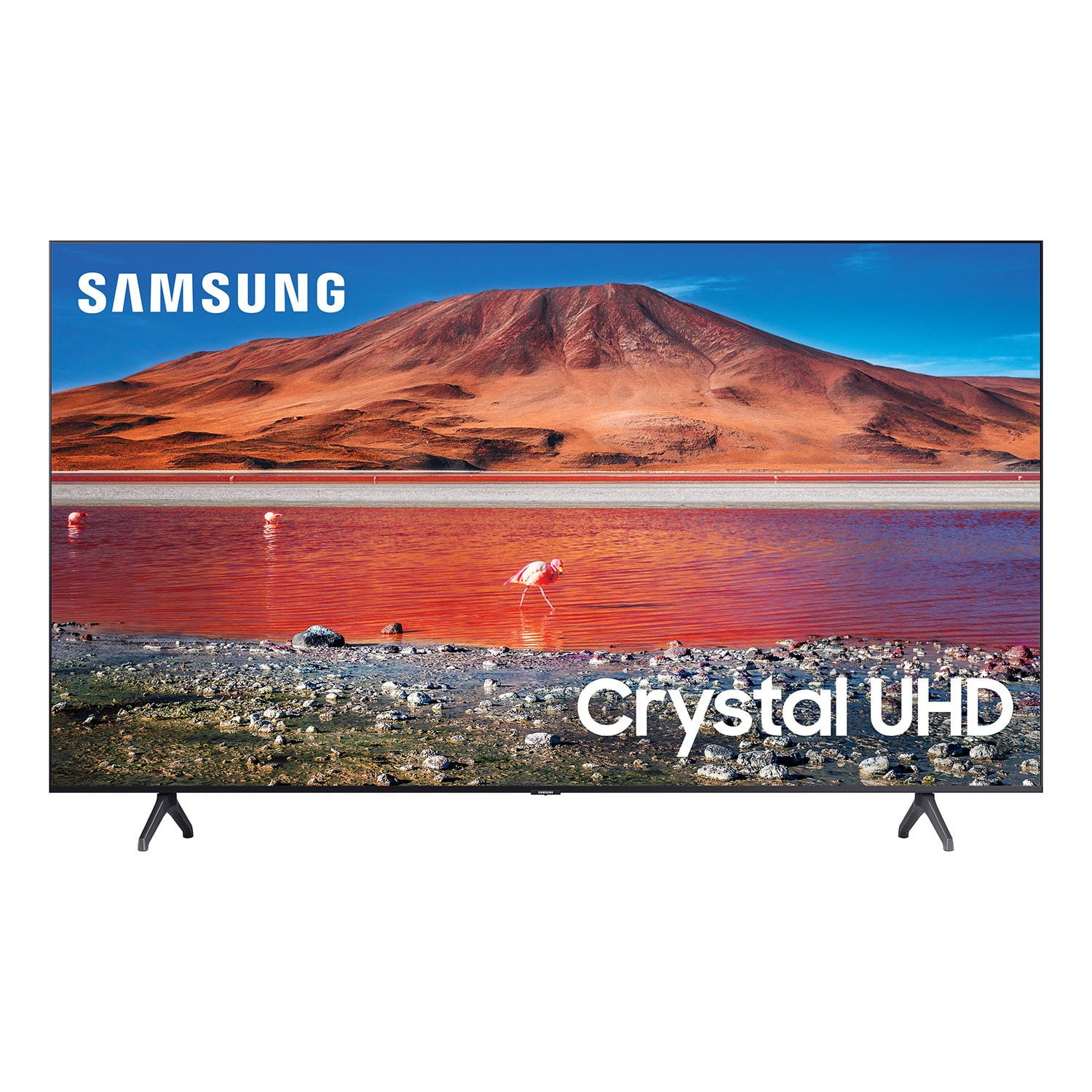
 Customer reviews for SAMSUNG 65" Class TU700D-Series Crystal Ultra HD 4K Smart TV UN65TU700DFXZA for
SAMSUNG 65" Class TU700D-Series Crystal Ultra HD 4K Smart TV UN65TU700DFXZA
4.5 out of 5 stars
stars
11.3K ratings10.3K reviews
Member photos
- +1563 images





Sort by |
Showing 1,491-1,500 of 10,373 reviews
Apr 14, 2022
Reviewer name: Pucci
4 out of 5 stars review
Nice TV
Review from Samsung US
Helpful?
Oct 21, 2020
Reviewer name: timefree
5 out of 5 stars review
The features of this tv satisfy my families needs
Review from Samsung US
Helpful?
Sep 15, 2020
Reviewer name: Girlfriend
5 out of 5 stars review
more extensive owner's manual!
Review from Samsung US
Helpful?
Aug 22, 2022
Reviewer name: Walkrr
5 out of 5 stars review
Amazing TV - love the smart functions it has
Review from Samsung US
Helpful?
Sep 2, 2020
Reviewer name: Anonymous
3 out of 5 stars review
Slow processor-BEWARE OF LAG
Review from Samsung US
Helpful?
reply from OBA
Oct 6, 2020
Reviewer name: Damii
5 out of 5 stars review
The resolution on this tv is great :)
Review from Samsung US
Helpful?
Jul 23, 2021
Reviewer name: Eric
5 out of 5 stars review
Samsung 82”
Review from Samsung US
Helpful?
Jun 29, 2021
Reviewer name: girldad4
4 out of 5 stars review
HUGE TV!
Review from Samsung US
Helpful?
Sep 27, 2022
Reviewer name: Momala
5 out of 5 stars review
It's all I ever wanted and needed
Review from Samsung US
Helpful?
Jun 17, 2022
Reviewer name: BuffaloForte
4 out of 5 stars review
Samsung makes a better TV than Sony
Review from Samsung US
Helpful?