
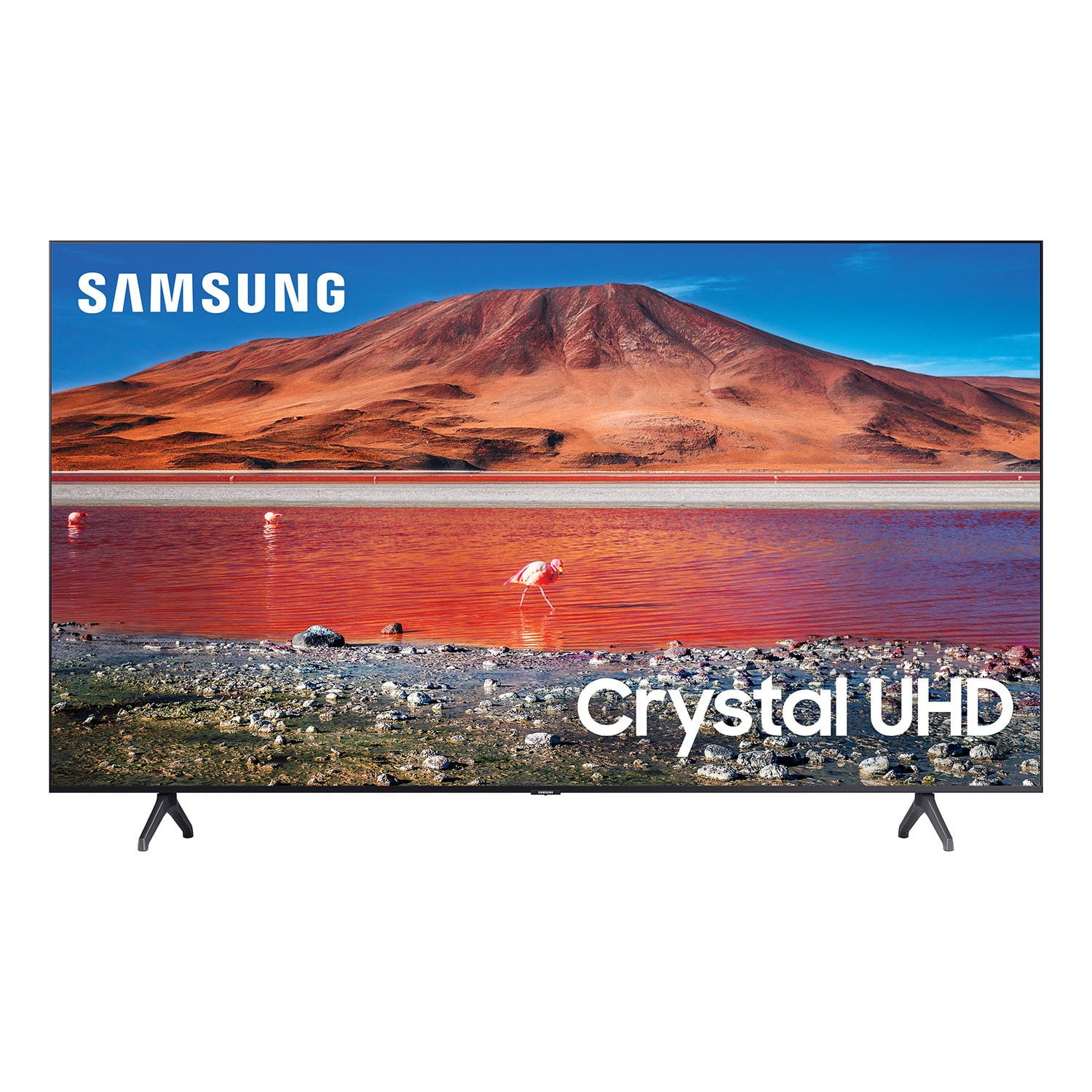
 Customer reviews for SAMSUNG 65" Class TU700D-Series Crystal Ultra HD 4K Smart TV UN65TU700DFXZA for
Member photos



 +1563 images
Backlight went out after six months
if you want your tv to act more like a radio, this is the tv for you. after 6-7 months the backlight has gone out so i can't see anything although at least the sound still works! still waiting on being serviced under the warranty but it has been about a week and counting with no tv.
Shame on you Samsung
i purchased a 65" ru71000 4k uhd tv and washer around 3 years ago together. shortly after 1 year, both quit working. my tv went to a black screen with occasional flash of light. highly disappointed in you samsung. who has the money for your products that just lead to more money within such a short span of time?

Hi jenndcook06, We are very sorry to hear about your experience with the TU7000 TV. Please know we are here to help you. If your TV has a black screen even when it's on, it's quite possible it could actually be your external device and not your TV. Please try these troubleshooting steps for your blank screen issue: 1. Press the Home button on the remote. If the menu appears, the TV is powered on but is either not on the correct source or not receiving a signal. If the menu does not appear, the TV may be having power issues. Check the red standby light, a little red light at the edge of the TV that you aim the remote at. In normal use, the red standby light is on when the TV is off (indicating the TV is on standby), and the red standby light is off when the TV is in use (or doesn't have power). 2. Confirm the TV is set to the same source as the external device. For instance, if your cable box is connected to HDMI 1, set the TV source to HDMI 1. If the TV is set to the correct source, but there is still no image, unplug and reconnect the AV connections one cable at a time from both ends of each cable. If there's any damage to the cable, it will need to be replaced. After you've reconnected the external device, turn it off and then back on. 3. Test the HDMI cable. Some TVs have an HDMI cable test. Some models only have this test after a software update, and older models do not have it. If your model does not have this test, or is not connected by HDMI, skip to the next step. The test is designed for HDMI cords less than 6 feet long and may not give accurate results on long cords. To perform the test, make sure the TV's source is still on the HDMI setting for the cable you want to test, and then navigate to Settings > Support > Self Diagnosis > Signal Information > HDMI Cable Test > Start Test. If the test says, the cable is bad, replace the cable. Service is not required. 4. Test different external devices. The final thing to rule out is the external device you're using. Try connecting to a different device or using a different source port. If you were unable to test the cable in the previous step, then try swapping the cable, too. If the TV can display a picture in any other setup, then you've ruled the TV out as the cause of the issue. Keep trying various setups until you identify the device or cable that is not working and troubleshoot or replace it. If your issue persists, please give us a call so we can troubleshoot with you. Please call us at 1-800-SAMSUNG, 8 AM - 12 AM EST, seven days a week. Our LiveChat agents are also available by clicking on the ‘Support’ link on our website. ~ Samsung Advisor
nothing
this was a replacement for an older 55ju6400fxza that was still fully operable but unable to access the youtube tv app. i was surprised to find that unlike the earlier model i could not access two sound outlets simultainiously . as a hearing impaired senior citizen watching at the same time as my acute hearing wife results in an unacceptable compromise. a major waste of money, and the last samsung product for us.
neba: I'm very sorry that you are unable to use your TU7000 like your previous model. However, you can still output audio from both your TV speakers and Bluetooth devices simultaneously. Go to Settings > General > Accessibility > Multi-output Audio. I hope this helps you and your wife enjoy watching TV together. For further assistance, please contact Samsung Customer Support. 1) Phone: 1-800-SAMSUNG, Available 8AM -12AM EST (7 Days a Week) 2) LiveChat: https://www.samsung.com/us/support/#contact_us_for_support 3) Facebook Messenger: https://www.facebook.com/samsungsupport 4) Twitter: https://twitter.com/SamsungSupport 5) The Samsung Members Community is also a great resource for getting help from Samsung moderators and customers: https://us.community.samsung.com If you have not already done so, we invite you to register your new Samsung product at: https://www.samsung.com/us/account/signin/?redirect=https%3A%2F%2Fwww.samsung.com%2Fus%2Fsupport%2Fregister%2F Registering your product gives you access to easy warranty support, convenient opt-in to special promos and offers, faster troubleshooting and service, and quick notification of system updates. ~ Samsung Solutions
Returned with 3 days
[This review was collected as part of a promotion.] This tv had horrible picture quality for regular cable use. No adjustments or changing hdmi cables helped. We returned the TV and went with a less expensive better quality brand. I would not recommend this TV to anyone.
Hi Nope247, We appreciate you taking the time to let us know about your experience with Samsung’s TU700D TV. Samsung is committed to providing the best possible product experience, quality, and value, and your feedback will be shared with our product teams. Should you ever decide to give Samsung TVs another try and have questions or need assistance with settings, setup, or features, please know that we are always here to help. Call us at 1-800-SAMSUNG, 8 AM - 12 AM EST, seven days a week. LiveChat with an agent, as well as manuals, software, and warranty info, can be found at the ‘Support’ link on our Samsung website. We hope to regain you as a customer in the future. ~ Samsung Advisor
Great picture quality but poor audio quality
[This review was collected as part of a promotion.] The smart tv has an excellent image quality and a good design, unfortunately the audio quality and the streaming cause disappointments very often. I have tried several ways (including calling the Samsung remote service) and I can't get my cell phone to send a signal to the TV through Wi-Fi In the case of audio, it is not much better, it has very few options to be able to configure a good sound, since the voice is not clear at all and there is a lot of background noise
Maualrods7: Thank you for purchasing the TU7000 TV and for sharing your feedback regarding the sound quality. There are several sound settings you can adjust to suit your personal sound preferences. Change the Sound Mode by going to: Settings > Sound > Sound Mode You can also customize the sound with Expert Settings by going to: Settings > Sound > Expert Settings To assist you with possible sound settings adjustments for a better audio experience, or choosing a Samsung Soundbar to complement your viewing enjoyment, please reach out to us at: 1-800-SAMSUNG (ask for TVs), available 8AM - 12AM EST, 7 days a week. For additional support resources, visit us on the Samsung website and click on the ‘Support’ link in the upper right corner of the homepage for: 1) Chat with Us/Product Help: To begin a chat or find solutions, choose ‘TVs & Home Theater’ and select your model & topic. 2) Manuals, Software, & Warranty Info We look forward to hearing from you. ~ Samsung Advisor
Fabulous Screen!
screen and picture are amazing! the only issue we have is the remote is so tiny for large fingers! if you hit the wrong button you are exited almost everytime and have to start all over where searching. we recommend a larger remote, or a consile such as ps4. will gladly purchase! please create!
Great TV but....
[This review was collected as part of a promotion.] The quality of the TV is amazing but it's lacking smart features such as a Google play store and other apps and the overall ui of the TV is not that nice but it's a great TV definitely recommend it to my friends and family
Perfect size and sound
[This review was collected as part of a promotion.] I mainly use the TV for streaming and occasionally for OTA programming. The wireless connection to my home WiFi is good. I like the sound. Even though I have external speakers, many times the TV's sound is better. The picture quality is good and the finish is as expected from a Samsung product. I don't like much The smart TV functions, the menu is not very intuitive and sometimes is slow. The remote control is one of the worst I've ever used. It's cluttered, confusing and the round design of the bottom makes it hard to grab and unstable in flat surfaces.
Nice picture, but...
[This review was collected as part of a promotion.] No issues with the picture, and it's side view image is great which I appreciate. The only issues I've had are with the Smart TV features and it's remote setup. The Smart TV is not user friendly at all. The way you have to type with it's “suggested next letter” concept is frustrating, and I'd rather a navigable menu as opposed to the in screen menu they offer. It's not a perfect substitute for a fire stick or Apple TV, but it could be with a few changes.
Tv is ok, remote is a challenge
[This review was collected as part of a promotion.] the overall tv for the price is tine. sound isn't great but not bad. the challenges are the remote control is a problem. and it does not integrate well with my cable (fios) so when you hit the guide, no information is given. and if you have any glare, forget it. you can not see anything. and it wil not allow you to change the size of your picture (no zoom etc). what you see is it and it will not change. again for the proce it is fine, but far from ideal.
Clay: I’m sorry for the difficulties with your TV remote. We understand your frustrations, and are here to help. Please know, With Anynet+, you can control external devices that are connected to your TV with HDMI using your TV remote. To turn on Anynet+ (HDMI-CEC), go to: Settings > General > External Device Manager > Anynet+ (HDMI-CEC). If your cable box does not support HDMI-CEC, you will not be able to use Anynet+. Additionally, you can use the Universal Remote feature to program your connected devices using your TV remote by following these set-up steps: 1) Connect an external device to the HDMI port of the TV, and then power on the external device. Your TV will automatically recognize the device when connected through HDMI and will switch the output. If it doesn't automatically detect it, then keep following the steps to set up Universal Remote. 2) Press the Home button on your TV remote to access the Home Screen. Using the directional pad on the remote, navigate to Source. When the selector is placed over Source, the Source menu will appear. Press UP on the directional pad to access Universal Remote. 3) Select Universal Remote on the Source screen. Next, select Start and make sure the device you want to connect is turned on. When your desired device displays, select it. Follow the on-screen instructions to complete the setup and register the device. The instructions may vary, depending on the device type selected. 4) Your TV and the remote will memorize the external device and its connection port (HDMI 1, HDMI 2, etc.) to make controlling everything even easier. I hope this tip helps. If there is anything we can do to further assist and improve your user experience, please do let us know by contacting Samsung Customer Support. Call us at 1-800-SAMSUNG (ask for TVs), available 8AM - 12AM EST, 7 days a week. For additional support resources, visit us on the Samsung website and click on the ‘Support’ link in the upper right corner of the homepage for: 1) Chat with Us/Product Help: To begin a chat or find solutions, choose ‘TVs & Home Theater’ and select your model & topic. 2) Manuals, Software, & Warranty Info Thank you for choosing Samsung, we hope to hear from you. - Samsung Advisor