
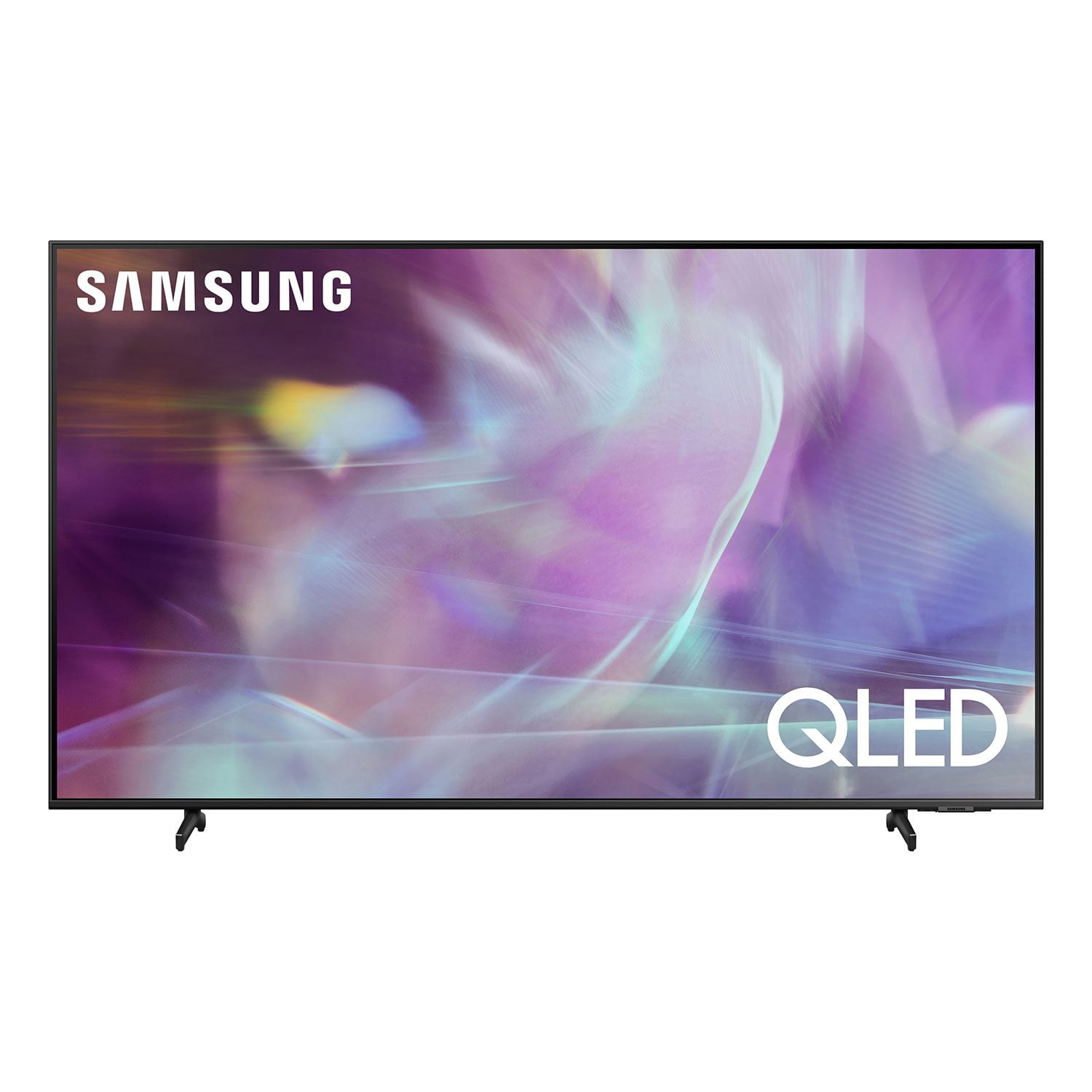
 Customer reviews for SAMSUNG 55" Class Q6-Series 4K Ultra HD Smart QLED TV QN55Q6DAAFXZA for
Member photos


 +20 images
Great TV
[This review was collected as part of a promotion.] We upgraded from a 42” and there is a huge difference. Not just with the size, but the colors on this tv are so vibrant. We love that Alexa can be linked to this tv. When seeing this tv next to others in the store this one by far had the better picture. It's amazing how clear and vibrant the picture is. We highly recommend this tv!!
Style over function
[This review was collected as part of a promotion.] The picture looks good, but got a dead pixel within days of getting the tv. The remote layout is not very functional. The os is not intuitive. There is no Home Screen, just the home menu. Tv tends to default to live tv.
Hi there, Thank you for choosing Samsung's Q60A TV and for sharing your experience. We appreciate your thoughts on the remote and interface of your new TV. To assist you in various functions and settings on your new TV, you can download the Q60A TV's User Manual, e-Manual, Remote Control Leaflet, and Quick Setup Guide on Samsung's website by clicking "Support" > "Manuals & Software" > "TVs & Home Theater" > "TVs". From there, you can select the Q60A TV under "4K QLED TVs” > “A Model Lineup" and download the guides you would like. The e-Manual is also embedded into the TV itself under Settings > Support > Open e-Manual. Please know that you can choose what your TV does when you turn it on by going to Settings > General > Smart Features 1) When you set Autorun Smart Hub to on, the TV displays the Home Screen automatically when you turn the TV on. 2) If Autorun Last App is set to on, the last used app is automatically run when you turn on the TV. Please know that the Last App Used function may not work with all apps. I hope these tips help. If there is anything we can do to further assist and improve your user experience, please do let us know by contacting Samsung Customer Support at 1-800-SAMSUNG (ask for TVs), available 8AM -12AM EST M-F (9AM – 6PM EST Sat). Or text HELP to 62913. For additional support resources, visit us on the Samsung website and click on the ‘Support’ link in the upper right corner of the homepage for: 1) More ‘Contact Us’ options – LiveChat, Facebook, Twitter, Samsung Community, Samsung Members app 2) Manuals & Software 3) Warranty Info 4) Product Registration: For access to easy warranty support, convenient opt-in to special promos and offers, faster troubleshooting and service, and quick notification of system updates. ~ Samsung Specialist
Excellent TV
[This review was collected as part of a promotion.] This SamsumgSmart TV has an awesome picture and all the necessary features. Has all the apps I need and it's easy to add more. Good speaker sound. Picture is very adjustable for personal preference and has worked flawlessly for me. Highly recommended!!!
Best TV I've owned
[This review was collected as part of a promotion.] I had a smart TV go bad on me and was in the market for a new one. I chose Samsung due to my satisfaction with the Galaxy S21, Soundbar, and Buds Pro. The screen is beautiful for being a low tier 4K QLED TV. The UI is clean and responsive. There are tons of customization features. My one complain is that the multi screen feature does not handle two TV apps in the Q60A model. Instead, I have one TV app and the other screen is the phone. That's the only option. Other than that, well worth the price.
Full feature TV with great picture quality
[This review was collected as part of a promotion.] Great color saturation, nice sound. Easy to navigate through channels and Apps. Single remote with built-in Apps for Netflix, Amazon Video and Samsung TV (Huge selection of Over the Air channels). Remote is solar powered so as long as you remember to leave near a light source, you will never have to change batteries.
Amazing picture
[This review was collected as part of a promotion.] We wanted to splurge and get a tv we knew was going to last and have great quality. The Samsung 75” in amazing. It's convenient because it's a smart TV and all the features on it make living easy because you can use your phone to control it! So if you lose the remote no biggie! Definitely 5/5 stars for this TV.
Good tv for 4k and next gen consoles.
[This review was collected as part of a promotion.] The Samsung Q60 is overall a good TV. The picture quality wasn't as good as I'd like it to have been but no where was it a horrible viewing experience. A while watching the unit over standard cable wasn't a great experience the unit really stood out while watching things in 4k and playing my PS5. Colors popped and stood out, the black was deep and dark and the fluidity of the movie was perfect from fast pace action to slow dark romantic screens. Overall this unit was good and worth the money spent.
Chaosmisfit, Thank you for purchasing the Samsung Q60A TV and for sharing details of your image quality. The TV will upscale as best as possible any content sent to it. The closer your content is to 4K, the better the image will look on the screen. Here are some tips to help improve the picture clarity: 1) HDMI cables are recommended for optimal HD viewing. 2) If you have an analog cable box or satellite box, upgrade to a digital cable box or satellite box. 3) Change the output resolution of your devices, such as digital broadcast receiver, IPTV, and set-top box to UHD or HD. 4) You can further adjust your sharpness, brightness, contrast, color, and more by going to Settings > Picture > Expert Settings 5) Choose a Picture Mode by going to Settings > Picture > Picture Mode and choose from Dynamic, Standard, Natural, Movie, or Filmmaker Mode. 6) Make sure you have the latest firmware update. You may want to enable automatic updates for convenience. Select Settings > Support > Software Update, then select Auto Update. Should you ever have questions or need help with TV features, specs, or operation, we are here to help. You can reach us at 1-800-SAMSUNG (ask for TVs), available 8AM - 12AM EST, 7 days a week. For additional support resources, visit us on the Samsung website and click on the ‘Support’ link in the upper right corner of the homepage for: 1) Contact Us: For additional Chat & Text options, choose ‘TVs & Home Theater’ and select your model & topic. 2) Manuals & Software 3) Warranty Info 4) Register a Product: For access to easy warranty support, convenient opt-in to special promos and offers, faster troubleshooting and service, and quick notification of system updates. ~ Samsung Specialist
Almost Perfect
[This review was collected as part of a promotion.] We use this TV in our bedroom for streaming movies, music, Smart Home and online alternative. We love this TV however there are a few issues I've had which is why it lost a star; connecting to my desktop so I can work from bed (long hauler issues from Covid) and it would be great if it returned to the station I had it on when I go to settings,etc. Also, it keeps making me add my phone as a device even though it was fine for weeks and when playing music, it disconnects every time I get a call or text and I have to manually reconnect each time. In regards to desktop, my PC recognizes the TV but I have tried all 3 ways to get the screen up on the TV and it still won't work.
SamsungLover, Thank you for purchasing the Q60A TV and for your review. Please know that you can choose what your TV does when you turn it on by going to Settings > General > Smart Features 1) When you set Autorun Smart Hub to on, the TV displays the Home Screen automatically when you turn the TV on. 2) If Autorun Last App is set to on, the last used app is automatically run when you turn on the TV. Please know that the Last App Used function may not work with all apps. You can use your TV to access your PC via Screen Sharing (Windows PC), AirPlay (Mac), Remote PC, or Easy Connection to Screen. Home > Source > PC on TV > Windows PC or Mac • Connection via Windows OS is available in Windows 10. • Connection via Mac OS is available in AirPlay. So we can gather additional information on the issue you are experiencing with your smartphone disconnecting and provide you with assistance, please contact Samsung Customer Support at 1-800-SAMSUNG (ask for TVs), available 8AM - 12AM EST, 7 days a week. For additional support resources, visit us on the Samsung website and click on the ‘Support’ link in the upper right corner of the homepage for: 1) Contact Us: For additional Chat & Text options, choose ‘TVs & Home Theater’ and select your model & topic. 2) Manuals & Software 3) Warranty Info 4) Register a Product: For access to easy warranty support, convenient opt-in to special promos and offers, faster troubleshooting and service, and quick notification of system updates. ~ Samsung Specialist
recommend
easy set up and I like the Samsung Tv plus feature, one reason why I bought this model. For those who don't have cable/satellite or OTA there is enough programming on the Samsung TV plus to satisfy basic tv watching needs from adult to children. The solar remote wasn't the best, I would recommend buying the USB cable to do a quick charge and in my opinion, it would be a bonus if one was supplied
Hi ditzy, thanks so much for your kind words! We sincerely appreciate your feedback and will share this with our team. We hope you enjoy many years of great entertainment with your Samsung TV!
Disappointed.
[This review was collected as part of a promotion.] For watching TV and streaming channels. .Disappointed, most color settings have to much red and the one that doesn't takes away the brightness which is why I bought the TV TV will change settings on it's own and it is to hard to figure out how to fix it.
ic23b, Thank you for sharing your thoughts on the picture quality of your new Q60A QLED TV. If the picture you are seeing out-of-the-box is not to your liking, there are several picture settings you may want to try adjusting. You can select the Picture Mode that provides the best viewing experience. Go to Home > Settings > Picture > Picture Mode 1) Standard: Is the default mode suitable for general viewing environments. 2) Natural: Reduces eye strain for a comfortable viewing experience. 3) Movie: Is suitable for watching TV or movies in a dark room. 4) Dynamic: Makes the picture brighter and clearer in bright viewing environments. 5) Filmmaker Mode: You can watch the source content (e.g., movie) as it is. If the image is defined as Filmmaker Mode, it will automatically switch to Filmmaker Mode while watching. You can also go to: Settings > Picture > Expert Settings > to manually fine tune your image with functions such as Brightness, Contrast, Sharpness, Color, Tint (G/R), Picture Clarity Settings, Local Dimming, Contrast Enhancer, and many more. To ensure that your TV’s picture is optimized, be sure that you are always running the latest firmware update. You can check this by going to Settings > Support > Software Update or you can enable Auto Update for convenience. For further assistance with settings adjustments, please contact Samsung Customer Support at 1-800-SAMSUNG (ask for TVs), available 8AM - 12AM EST, 7 days a week. For additional support resources, visit us on the Samsung website and click on the ‘Support’ link in the upper right corner of the homepage for: 1) Contact Us: For additional Chat & Text options, choose ‘TVs & Home Theater’ and select your model & topic. 2) Manuals & Software 3) Warranty Info 4) Register a Product: For access to easy warranty support, convenient opt-in to special promos and offers, faster troubleshooting and service, and quick notification of system updates. ~ Samsung Specialist