Skip to Main Content
Sam's Club
Sam's Club
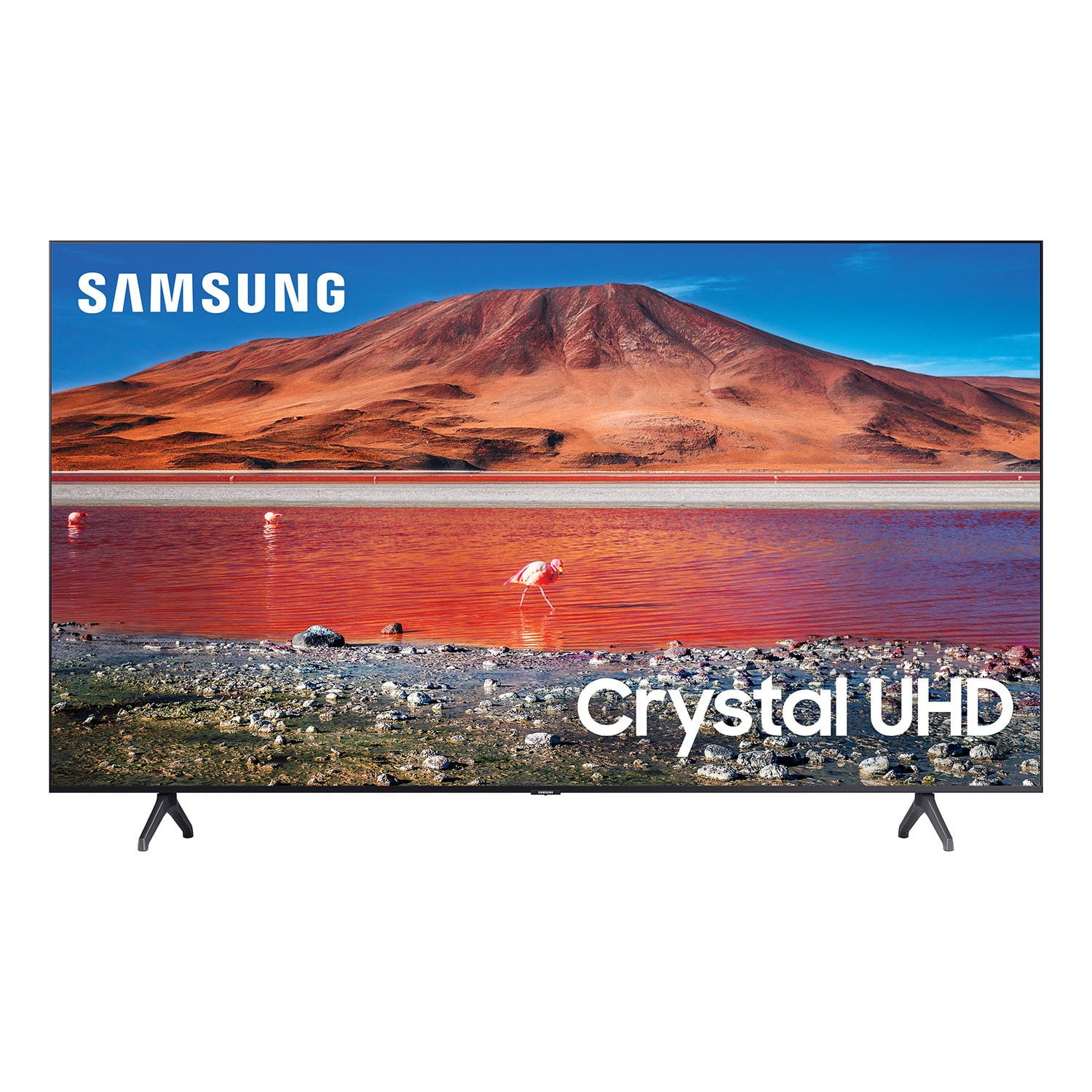
Customer reviews for SAMSUNG 60" Class TU700D-Series Crystal Ultra HD 4K Smart TV with HDR - UN60TU700DFXZA for
SAMSUNG 60" Class TU700D-Series Crystal Ultra HD 4K Smart TV with HDR - UN60TU700DFXZA
4.5 out of 5 stars
stars3,351 ratings3,312 reviews
  1. 5 stars70% (2,344)
  2. 4 stars17% (574)
  3. 3 stars6% (191)
  4. 2 stars3% (85)
  5. 1 star5% (157)
Sort by |
Showing 3,231-3,240 of 3,312 reviews
Feb 16, 2021
Matthew
5 out of 5 stars review

Great picture and interface

i love this television, it's perfect for my needs!

Review from Samsung US
Helpful?293L9C95AD6N13870021356
Nov 12, 2021
Musicman
5 out of 5 stars review

Quick setups

mailed to my house. unpacked it. had the tv set up and running in less tha 30 minutes

Review from Samsung US
Helpful?293L9C95AD6N13870021356
Jun 3, 2021
Jess
4 out of 5 stars review

Great deal

the tv is great quality for my mom and the smart tv features make it easy to use!

Review from Samsung US
Helpful?293L9C95AD6N13870021356
Jan 3, 2022
Ejohnny
5 out of 5 stars review

Very nice

the best tv i have ever owned. especially for the price

Review from Samsung US
Helpful?293L9C95AD6N13870021356
Oct 9, 2022
Zman
3 out of 5 stars review

Okay for the price.

The tv looks good at times. But it tends to stutter a lot. Especially while streaming.

Review from Samsung US
Helpful?293L9C95AD6N13870021356
reply from Samsung Brand Ambassador

Hi Zman, Thank you for your purchase and review of the Samsung TU7000 TV. We appreciate your feedback on the image quality of the TV screen while streaming. We have a few tips which may help. First, let's ensure your TV is running the latest Firmware. Go to Settings> Support> Software Update. You can update from there. Next, if your TV is buffering while streaming, it may have to do with your internet connection. Buffering usually occurs when your internet connection provided by your ISP cannot supply data fast enough for the playback device. We suggest you try the following: Use 5G Wi-Fi if possible Try wired LAN if available Try repositioning the router so there are no obstacles between your TV and the router. There are also several settings available that allow you to adjust your image. Go to Home > Settings > Picture > Picture Mode and select the mode that best fits your usage: 1) Standard: Default mode suitable for general viewing environments. 2) Natural: Reduces eye strain for a comfortable viewing experience. 3) Movie: Suitable for watching TV or movies in a dark room. 4) Dynamic: Makes the picture brighter and clearer in bright viewing environments. 5) Filmmaker Mode: You can watch the source content (e.g., movie) as it is. If the image is defined as Filmmaker Mode, it will automatically switch to Filmmaker Mode while watching. You can also go to Settings > Picture > Expert Settings > to manually fine-tune your image. If you need more help, Samsung is here for you. Call us at 1-800-SAMSUNG, 8 AM - 12 AM EST, seven days a week. LiveChat with an agent, as well as manuals, software, and warranty info, can be found at the ‘Support’ link on our Samsung website. ~ Samsung Advisor

Jan 9, 2022
EjL101
3 out of 5 stars review

It's just OK

not any better the my vizio g555--g4. wish i kept it.

Review from Samsung US
Helpful?293L9C95AD6N13870021356
reply from Samsung Brand Ambassador

Hi EjL101, Thank you for sharing your review of the Samsung 58" TU7000. I’m sorry to hear that your out-of-box experience has initially fallen short of your expectations. You may want to try adjusting the settings to improve your picture and sound. Your TV has several Picture Modes to choose from allowing you to enjoy content in optimal conditions. Go to Home > Settings > Picture > Picture Mode 1) Standard: Is the default mode suitable for general viewing environments. 2) Natural: Reduces eye strain for a comfortable viewing experience. 3) Movie: Is suitable for watching TV or movies in a dark room. 4) Dynamic: Makes the picture brighter and clearer in bright viewing environments. 5) Filmmaker Mode: You can watch the source content (e.g., movie) as it is. If the image is defined as Filmmaker Mode, it will automatically switch to Filmmaker Mode while watching. You can also go to: Settings > Picture > Expert Settings and configure the TV settings to your taste with additional functions. Additionally, there are several sound settings you can adjust to suit your personal sound preferences. Change the Sound Mode by going to: Settings > Sound > Sound Mode You can also customize the sound with Expert Settings by going to: Settings > Sound > Expert Settings I hope this helps you enjoy the experience provided by your new Samsung Crystal UHD TV. Should you ever have questions or need help, please call us at 1-800-SAMSUNG (ask for TVs), available 8AM - 12AM EST, 7 days a week. For additional support resources, visit us on the Samsung website and click on the ‘Support’ link in the upper right corner of the homepage for: 1) Chat with Us/Product Help: To begin a chat or find solutions, choose ‘TVs & Home Theater’ and select your model & topic. 2) Register a Product: For access to easy warranty support, convenient opt-in to special promos and offers, faster troubleshooting and service, and quick notification of system updates. 3) Manuals & Software 4) Warranty Info 5) Contact Us ~ Samsung Solutions

Jan 22, 2022
William
5 out of 5 stars review

Best TV I have ever owned

i love this tv. great picture, user friendly and very good priced

Review from Samsung US
Helpful?293L9C95AD6N13870021356
Aug 29, 2021
Nymets
5 out of 5 stars review

Best tv

very essy set up apps are great tv is very sharp and colors vibrant

Review from Samsung US
Helpful?293L9C95AD6N13870021356
Sep 4, 2024
BigT
5 out of 5 stars review

Great picture

It's a great tv love everything about it I would like to have another just like it

Review from Samsung US
Helpful?293L9C95AD6N13870021356
Oct 20, 2022
Mer55
4 out of 5 stars review

Remote is awful. Not user friendly, especially for senior users

Review from Samsung US
Helpful?293L9C95AD6N13870021356