Skip to Main Content
Sam's Club
Sam's Club
All Departments
All Services
Customer reviews for SAMSUNG 65" Class Q60B-Series QLED 4K Smart TV - QN65Q60BDFXZA for
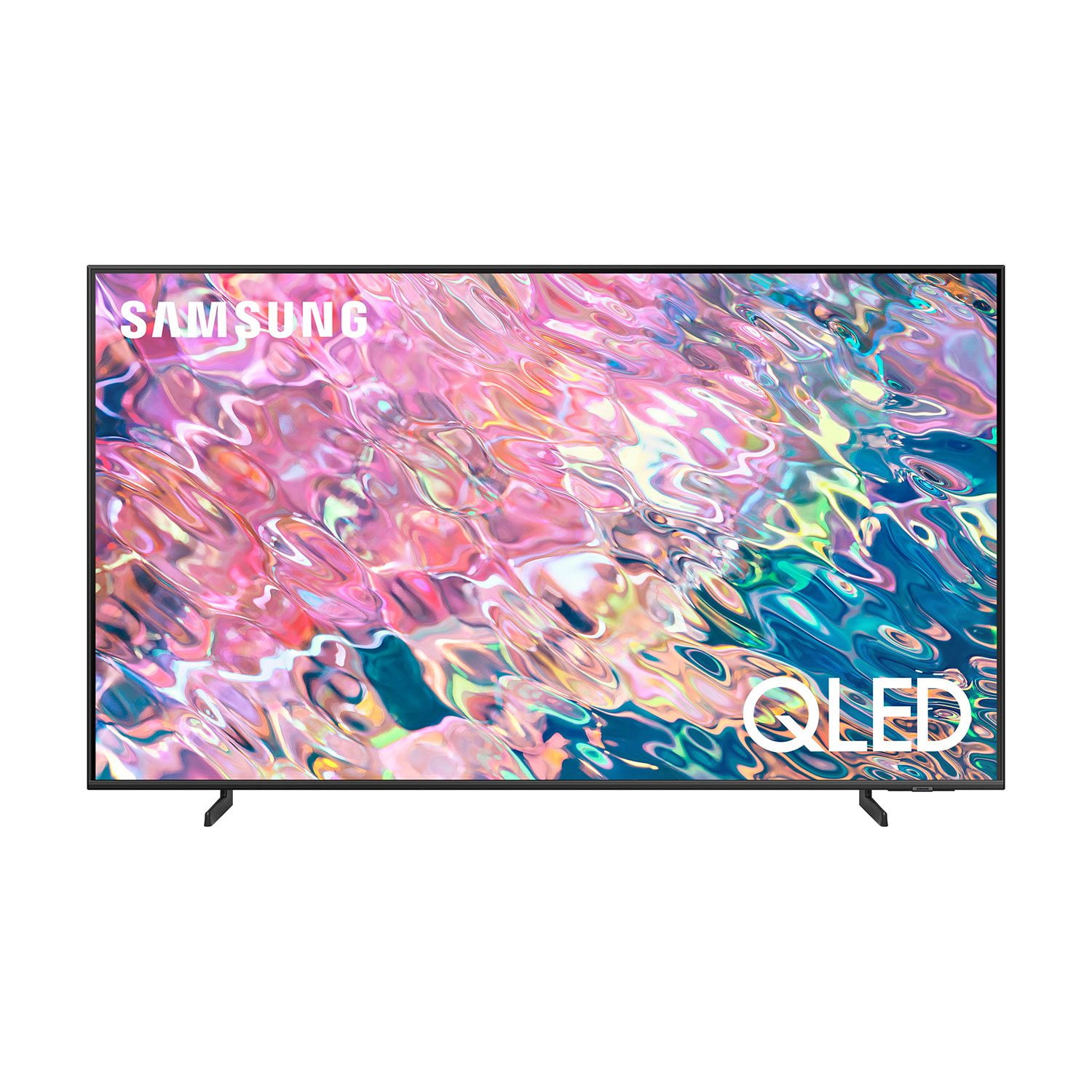
SAMSUNG 65" Class Q60B-Series QLED 4K Smart TV - QN65Q60BDFXZA
4.6 out of 5 stars
stars
1,228 ratings1,148 reviews
  1. 5 stars78% (956)
  2. 4 stars15% (181)
  3. 3 stars3% (40)
  4. 2 stars1% (15)
  5. 1 star3% (36)
Sort by |
Showing 61-70 of 1,148 reviews
Jan 24, 2023
Reviewer name: Chase
1 out of 5 stars
1 out of 5 stars review

Verified Purchase

Broken upon arrival

This tv was damaged. There is a vertical line on the screen. Disappointed

Helpful?7KQA9UZNE9C413866371804
reply from Samsung

Chase,We appreciate you sharing your delivery experience and having received a damaged unit. Please follow up directly with Sam's Club for assistance in correcting this situation. We hope your issue is resolved in a timely manner. Should you have questions regarding the usage or setup of your TV once your issue has been resolved, please contact Samsung Support at 1-800-SAMSUNG, 8AM - 12AM EST, 7 days a week. Or visit us on the Samsung website and click on the ‘Support’ link for:• LiveChat• Manuals, Software, & Warranty Info~ Samsung Specialist

Apr 1, 2023
Reviewer name: sleppy
5 out of 5 stars
5 out of 5 stars review

Verified Purchase

Happy Wife good life

Great TV Sams price very good

Helpful?7KQA9UZNE9C413866371804
Aug 27, 2022
Reviewer name: Barb
5 out of 5 stars
5 out of 5 stars review

Verified Purchase

Very happy with purchase.

Beautiful color and picture. Easy set up.

Helpful?7KQA9UZNE9C413866371804
Dec 20, 2022
Reviewer name: Arkie72401
5 out of 5 stars
5 out of 5 stars review

Verified Purchase

Best one ever

Great picture on a wonderful tv

Helpful?7KQA9UZNE9C413866371804
Oct 3, 2022
Reviewer name: rosey
5 out of 5 stars
5 out of 5 stars review

Verified Purchase

Samsung 65" Q60B-Series QLED 4K Smart TV

This is an amazing tv overall. Expensive but worth every penny!

Helpful?7KQA9UZNE9C413866371804
May 8, 2023
Reviewer name: dan
4 out of 5 stars
4 out of 5 stars review

Verified Purchase

very happy

great picture...love the ease of using the tv and a great price

Helpful?7KQA9UZNE9C413866371804
Dec 3, 2022
Reviewer name: Rick C
5 out of 5 stars
5 out of 5 stars review

Verified Purchase

Excellent picture

Excellent picture, easy set up. Love the remote.

Helpful?7KQA9UZNE9C413866371804
Oct 26, 2022
Reviewer name: Gracpep2
3 out of 5 stars
3 out of 5 stars review

Picture is beautiful

[This review was collected as part of a promotion.] I currently have a 10 year old Sony 55 inch smart tv in my den. I also have a Sharp and now the Samsung. They all have beautiful pictures. The Samsung speakers are not that great. I can hear my Sony on volume 3. I'm on 21 on my Samsung and barely have volume. The solar remote is a nice feature however why do manufacturers feel the need to remove what each function does? Have you ever had company? I have to give a tutorial to everyone! Especially my elderly parents. I don't need to exercise when they are here because all I do is run back and forth to change the channel. I AM the remote. It wouldn't hurt to label them. Also ever watch Tv in the dark? I guess gone are the days of glow in the dark buttons? Not everyone enjoys smooth plain remotes. This is my only smart Tv that I have trouble opening apps also. I am always turning it on and off. It's not my WiFi as I have zero issues on the other TV's. Yes picture is beautiful but I'm much more happy with my Sony

Review from Samsung US
Helpful?7KQA9UZNE9C413866371804
reply from Samsung Brand Ambassador

Gracpep2, Your feedback on the remote design is appreciated and will be shared with our product team. For optimal connectivity and app performance, we ask that you please ensure you've got the latest firmware version installed on your xxx TV. You can check this by going to: Home > Menu > Settings > Support > Software Update. You may also want to further optimize performance with the self-diagnostic tool, which checks memory, frees up unused cached memory, and closes background apps. Go to: Home > Menu > Settings > Support > Device Care > Start Device Care To improve your audio experience, there are several volume features you can enable/disable/adjust to your liking. – Auto Volume automatically adjusts the sound to a certain level when changing channels or switching to another external input. – Adaptive Volume automatically adjusts to a specific volume level while you are watching TV. The TV analyzes your volume usage history by time to automatically adjust the volume when you use an app or switch to an external input source. – Several Sound Modes are likewise available to meet your personal preferences: Menu > Settings > All Settings > Sound > Sound Mode Also, some sources have their own volume control which might be set too low. Please check the volume control of the external device (cable box or satellite box, DVD, Blu-ray, etc.) connected to your TV. Also, check the cable connection between an external device and the TV and then try cable connection again. You might also want to go through these steps to check your network connection: 1) Minimize interference by not using or turning off wireless devices. Also, verify that there are no obstacles between the TV and the modem or access point. (Wi-Fi strength can be decreased by appliances, cordless phones, stone walls/fireplaces, etc.) 2) If the wireless connection fails, connect the TV to the access point via a LAN cable. If the TV can connect to the Internet normally via the wired connection, there might be a problem with the access point. In this case, try using a different access point. 3) Perform a network test to check if there is a network problem. Press the Home button on your remote. Navigate to Settings > Support > Device Care > Self Diagnosis> Smart Hub Connection Test 4) Try a cold reboot of your TV by pressing and holding the power button for 5+ seconds until the TV turns off and on again. Should you need further help, please call Samsung Customer Support at 1-800-SAMSUNG, 8AM - 12AM EST, 7 days a week. Our LiveChat agents are also available by clicking on the ‘Support’ link on our website. ~ Samsung Specialist

Jul 27, 2022
Reviewer name: Lazy Bones
3 out of 5 stars
3 out of 5 stars review

Mixed - good and a little less than good

1. this replaced a 12-year-old samsung smart tv that was smart: it had a camera, voice recognition, motion recognition, a full-function remote, and a simple interface. this tv (qled55”) is not that smart, and opens in various source modes, the pattern of which i cannot determine. excellent picture, good sound. the remote -what can i say -it's not user friendly. there are four dedicated buttons on the lower part that move the source to special inputs, such as disney+, netfilix, and so on. almost every time that i pick up the remote, it switches to one of those inputs, losing what i was watching. i finally cut three of those buttons off the remote, and covered the holes with tape -problem solved. i miss my 12-year-old samsung.

Review from Samsung US
Helpful?7KQA9UZNE9C413866371804
reply from Samsung Brand Ambassador

Lazy Bones, We appreciate you sharing your experience with the remote, as well as source selection. To ensure your Q60B TV's performance is fully optimized, please be sure your TV's firmware is updated with version 1303. You can check this by going to: Home > Menu > Settings > Support > Software Update. Additionally, please know you can choose what your TV does when you turn it on by going to Menu > Settings > All Settings > General & Privacy > Start Screen Option > Autorun Smart Hub 1) Enabling Autorun Smart Hub automatically launches the Smart Hub when the TV is turned on. Navigate to this option to enable or disable the feature. 2) If Autorun Last App is set to on, the last used app is automatically run when you turn on the TV. You can turn this function on or off by pressing the Select button in the current menu. To assist you in the learning the various features, functions, and settings of the remote, you can download the Solar Cell Remote Guide directly from Samsung’s website under ‘Support’ (top right corner) > Manuals & Software > TVs & Home Theater. From there, you can select the Q60B under QLED 4K TVs > B Model Lineup. You can also find other guides and manuals to further assist you with your TV’s features. If we can help with anything else, please call us at 1-800-SAMSUNG, 8AM - 12AM EST, 7 days a week. LiveChat with an agent as well as manuals, software, and warranty info can be found at the ‘Support’ link on our Samsung website. ~ Samsung Specialist

Apr 28, 2023
Reviewer name: Anonymous
5 out of 5 stars
5 out of 5 stars review

Verified Purchase

set up

It was so easy to set up

Helpful?7KQA9UZNE9C413866371804