Good midrange TV
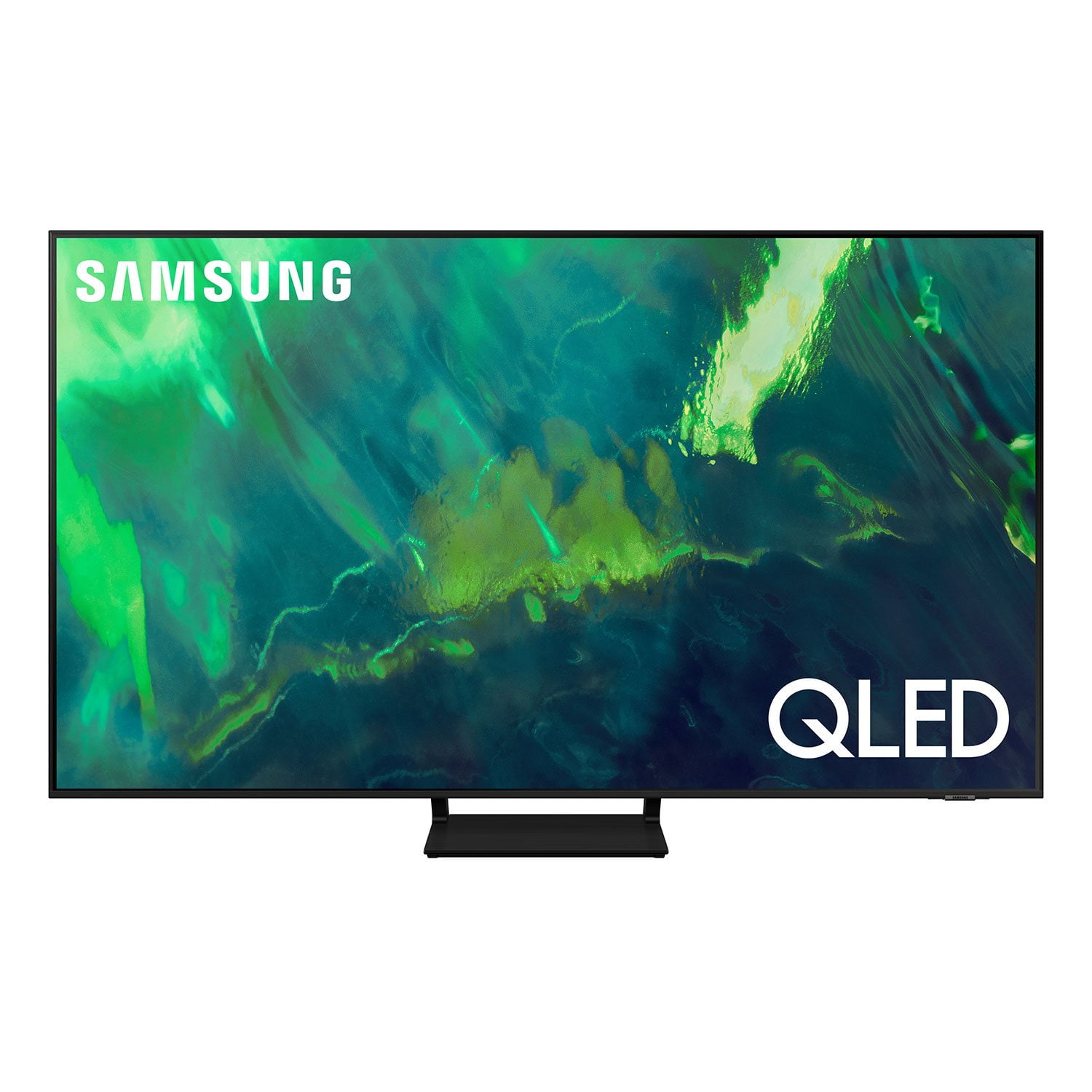
[This review was collected as part of a promotion.] I purchased this as the main television for the household, placing it on the living room. The colors needs to be calibrated, I went with an rtings guide to do so and the difference between out of box colors and the calibration is night and day.
The picture quality is amazing especially when you play 4k UHD content at 60fps and the upscaling of older content gets new life added to it by this TV, it may feel like you are watching it again for the first time.
Also glare isn't too bad, if it's directly hitting the tv you might have a problem but mostly it isn't an issue for me.
I have yet to figure out how to fix this particular problem but if a scene is very dark then the brightness will go down making it hard to read credits or any other wording over a black background. Also the built in speakers are lacking and requires a decent amount of tinkering to produce the right sound for what you may be watching. I need to do something different for Movies, Games, Sports and Music or else it won't sound right.
I ended up adding a sound bar for better sound, something to consider.
While not noticeable from the distance I sit from the TV, there is some sort of dust or lint under the screen. These specs are only noticeable when the TV is off and light is shined on it but for the price of the TV you would think there would be a little more QA or control here.
reply from Samsung Brand Ambassador
RqndyBobandy,
We appreciate you sharing your experience with the Q70A TV. To ensure your picture is fully optimized, please be sure you're running the latest firmware. You can check to see what software version your TV is using and if there is an available update through the settings on your TV. Go to: Settings > Support > Software Update.
You may want to try adjusting image settings to improve your picture. Go to Home > Settings > Picture > Picture Mode
1) Standard: Is the default mode suitable for general viewing environments.
2) Natural: Reduces eye strain for a comfortable viewing experience.
3) Movie: Is suitable for watching TV or movies in a dark room.
4) Dynamic: Makes the picture brighter and clearer in bright viewing environments.
5) Filmmaker Mode: You can watch the source content (e.g., movie) as it is. If the image is defined as Filmmaker Mode, it will automatically switch to Filmmaker Mode while watching.
You can also go to: Settings > Picture > Expert Settings > to manually fine tune your image.
The Q70A features SpaceFit Sound to optimize sound tailored to your environment and Active Voice Amplifier (AVA) which further detects disturbances and enhances the on-screen voices for clear dialogue.
Go to Home > Settings > General > Intelligent Mode Settings. Turn the options on or off to meet your needs:
- Active Voice Amplifier is available only when the sound sensor of the TV is active and the sound output is set to TV Speaker, or a Samsung Soundbar interlinked with Adaptive Picture is connected.
- Adaptive Sound+ provides optimized sound quality by analyzing the viewing space and the acoustic components of the content
- Adaptive Volume Automatically adjusts to a specific volume level while you are watching TV.
Several Sound Modes are likewise available to meet your personal preferences: Home > Settings > Sound > Sound Mode
You can also customize sound with Expert Settings.
Go to: Settings > Sound > Expert Settings
So that we can gather more information regarding the abnormalities you're noticing within your TV screen, please do give us a call at 1-800-SAMSUNG, 8AM - 12AM EST, 7 days a week. Or visit us on the Samsung website and click on the ‘Support’ link for:
1) LiveChat
2) Manuals, Software, & Warranty Info
~ Samsung Specialist

 Customer reviews for SAMSUNG 65" Class Q7-Series 4K Ultra HD Smart QLED TV QN65Q7DAAFXZA for