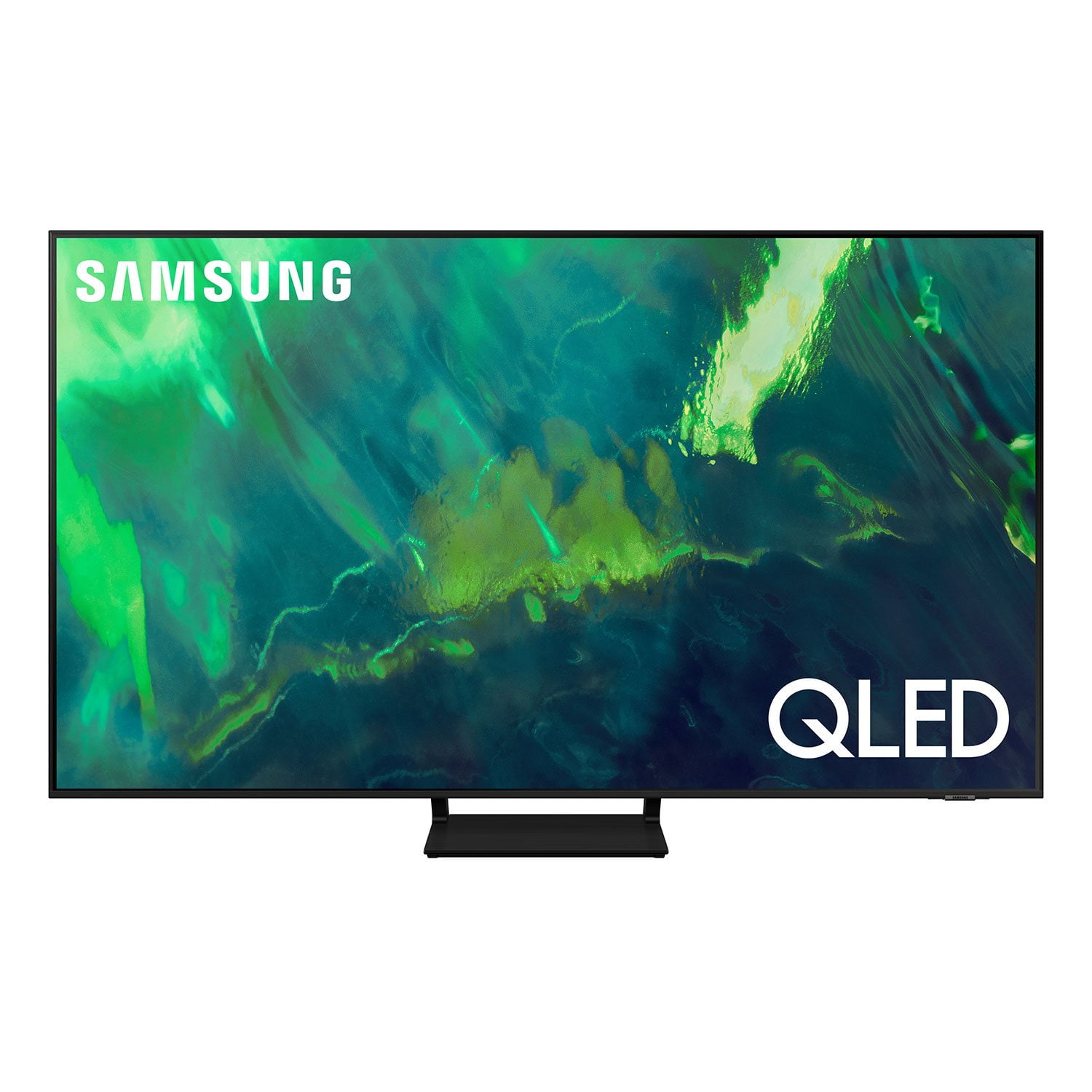
Customer reviews for SAMSUNG 65" Class Q7-Series 4K Ultra HD Smart QLED TV QN65Q7DAAFXZA forWell worth the buy!
[This review was collected as part of a promotion.] We had to get a replacement TV after our toddler accidentally broke our previous tv. When we got this one, we were all blown away by the picture quality! I feel like I am at the movie theater sometimes. The only thing I don't love is the sound. We have a sound bar and everything is perfect, but I definitely prefer the soundbar over the default sound. That is the only thing keeping it from 5 stars.
Good picture
[This review was collected as part of a promotion.] It's great for gaming and YouTube but in dark scenes for movies it's too dark sometimes and close caption when it comes on during dark scenes it creates this white halo which is distracting. Also make sure you turn off all lights around the screen because it will create a weird rainbow streak. It gets annoying. Other than that it does what it's supposed to.
This product has great features
[This review was collected as part of a promotion.] I utilize my television set for music, movies, streaming, exercise, socializing, games, centerpiece for get-togethers with friends and family. My television also becomes a wonderful tool for distraction when it comes to small children, who are within the young ages where growth and delevement are very important so when I need to have an education program, it's an amazing device.
Samsung 65" 4K is a great tv
[This review was collected as part of a promotion.] This Samsung tv has everything you need in a tv. The picture quality is awesome and better than i could imagine. It has all the features i want and need. I use this tv with wifi and stream Hulu live with it.
Beautiful picture quality
[This review was collected as part of a promotion.] I love the picture quality of this TV. It's like a 3D experience with depth of field view. I also like the feature of art display on the screen when the TV is not in use. I use it mostly for watching TV - haven't tried gaming on it.
Good Tv
[This review was collected as part of a promotion.] Covers my Tv needs. I'm quite pleased with my new TV. My prior television stopped working quite suddenly so I needed to make a quick purchase. I was able to compare some different models and brands online, and decided to switch to Samsung for my new TV. The sound quality of the TV is definitely superior to my prior one, and the overall use of the TV is easier. The picture quality is fantastic and the remote is appreciatively uncomplicated. Howeverm I also have some frustrations with it. I have had a lot of difficulty with the voice assistant, as it rarely comprehends what I say. I also have experienced difficulty with getting some apps to install and still have to rely on an external plug in device to use some as a result. I also would have appreciated an option to at least download an actual users manual, as finding things in the onscreen setup and manual is extremely difficult. I'm pretty technically proficient and used to manage a big box electronics store, so I'm not unfamiliar with how to operate modern TVs, so for someone with my background to feel the operational menu is not user friendly is pretty significant.
Hi Fersh, Thank you for purchasing Samsung's 85" Q70A QLED 4K Smart TV and for your review. We appreciate you sharing your experience with apps not loading and built-in voice assistant functionality. Voice commands may differ depending on the Voice Assistant. Refer to the command examples for each Voice Assistant. • Bixby: Press the microphone button on your remote > Explore Now • Amazon Alexa: Settings > General > Voice > Amazon Alexa Settings • Google Assistant: Settings > General > Voice > Google Assistant Settings When the TV is far from you or the ambient noise is too loud, the TV may be unable to recognize your voice. For the best results, you will need to be within 10 feet of your TV. Please look at your TV screen and speak. If you haven’t already, we recommend turning on the Voice Wake-up function as well. Press the microphone button on your remote, then go to: Explore Now > Settings > Voice Wake-up. You can also change the sensitivity from High, Medium, or Low. You may also want to try re-pairing your remote to your TV by doing the following: 1) Long press the RETURN key and ENTER key together for about 10 seconds. 2) The RETURN key is on the left side of your remote and looks like a curved, backwards pointing arrow. 3) The ENTER key is the button in the center of your directional ring. If you are still experiencing issues with voice commands, please check the remaining battery of the Smart Remote by going to Settings > General > Power and Energy Saving > Available Remote Battery. To assist you in learning the various functions, features, and settings of your new TV, you can download the Q70A TV's User Manual, e-Manual, Remote Control Leaflet, and Quick Setup Guide on Samsung's website by clicking "Support" > "Manuals & Software" > "TVs & Home Theater" > "TVs". From there, you can select the Q70A TV under "4K QLED TVs” > “A Model Lineup" and download the guides you would like. If your apps are freezing or not loading/installing, you can try cold booting your TV by holding down the power button on your remote for 5+ sec until the TV turns off and on again, deleting and downloading the apps again, and completing full reset of Smart Hub to correct the issue. Please also check that your TV is running the latest firmware version. Go to: Settings > Support > Software Update. You may also want to optimize the smart TV performance and address your issue with remote response time with the self-diagnostic tool. This service checks memory and frees up unused cached memory and closes background apps. Go to Settings > Support> Device Care > Start Device Care I hope these tips help. Should you ever have questions or need help, please call us at 1-800-SAMSUNG (ask for TVs), available 8AM -12AM EST M-F (9AM – 6PM EST Sat). Or text HELP to 62913. For additional support resources, visit us on the Samsung website and click on the ‘Support’ link in the upper right corner of the homepage for: 1) More ‘Contact Us’ options – LiveChat, Facebook, Twitter, Samsung Community, Samsung Members app 2) Manuals & Software 3) Warranty Info 4) Product Registration: For access to easy warranty support, convenient opt-in to special promos and offers, faster troubleshooting and service, and quick notification of system updates. ~ Samsung Specialist
Excellent television
[This review was collected as part of a promotion.] I love this Samsung 65'' Q70Aa QLED 4K UHD TV. The set up was very easy. This TV is almost ready when it comes out of the box. The smart things app walks you through the whole set up process. The picture quality is amazing. The colors are very vibrant, bright and crystal clear. The design of this TV is very sleek and looks great in our family room. The remote is easy to use and is lightweight. I love that you can talk to the TV with Alexa and how it responds with the proper prompts. There are so many options and apps available and the apps are very easy to download. It is easy to use the personalized recommendations like YouTube and other favorite apps with the Google Play Store and with Google Assistant it is easy to change the volume, choose your favorite channels or even control our other smart home devices. The settings are easy to understand and very accessible. Streaming works great and without interruptions. Watching movies and tv shows has become a whole new experience with this TV because of the clarity of the picture and the clear sound. This TV meets all our entertainment needs! I highly recommend it.
Amazing For Living Room
[This review was collected as part of a promotion.] I really didnt know what to expect when I first purchased this television. However, it has been about a year since I purchased my TV and I love it. I have watched so many movies on this, played games ranging from intense graphics to pretty simple ones (switch-ps4..etc.) and honestly I couldnt have made a better purchase. Only downside is that at times it lags , bit this is extremely rare. It has probably only lagged 3 times every in the course of a year that Ive had it (and yes I use my tv almost everyday). Overall amazing purchase and it is a very user friendly tv, it even changes the screen on its own depending on what devices you have connected to it. For example, if I turn on my ps4 the tv will automatically change to that hdmi port. AMAZING.
Minor issues/fixes
[This review was collected as part of a promotion.] First are you seriously the slowest SMARTTV internet conecction out there. From tje time i turn thr tv on it takes almost 2.5 mins for it to read the internet before you van select anything frim tje SMAR5 MENU. 2nd cant down load apps like VIZIO N LG
Hello Sandwoch2469, Thank you for choosing Samsung's Q70A TV and for your review. We appreciate your feedback regarding your TV's response time and apps. Please know Samsung offers hundreds of apps in our App Store that you can download, and we are continuously adding more premium content and new services to our Smart TV platform. In order to see our full offering of apps, you will need to be connected to the internet and logged into your Samsung.com account. To optimize the smart TV performance, please try Device Care option under the Support Menu. Go to Settings > Support> Device Care > Start Device Care This service checks memory and frees up unused cached memory and closes background apps. Please also be sure you are running the latest firmware. You can check to see what software version your TV is using and if there is an available update through the settings on your TV. Go to: Settings > Support > Software Update. You may also want to go through these steps to check your network connection: 1) Make sure that no items that can generate electromagnetic interferences are placed between the TV and the wireless/wired access point. 2) Check if the access point is turned on. If it is on, turn it off, wait 1 or 2 minutes, and then turn it on. Enter the correct password if required. 3) If the wireless connection fails, connect the TV to the access point via a LAN cable. If the TV can connect to the Internet normally via the wired connection, there might be a problem with the access point. In this case, try using a different access point. 4) Try a cold reboot of your TV by pressing and holding the power button for 5+ seconds until the TV turns off and on again. I hope these tips help! Should you ever have questions or need help, please call us at 1-800-SAMSUNG (ask for TVs), available 8AM -12AM EST M-F (9AM – 6PM EST Sat). Or text HELP to 62913. For additional support resources, visit us on the Samsung website and click on the ‘Support’ link in the upper right corner of the homepage for: 1) More ‘Contact Us’ options – LiveChat, Facebook, Twitter, Samsung Community, Samsung Members app 2) Manuals & Software 3) Warranty Info 4) Product Registration: For access to easy warranty support, convenient opt-in to special promos and offers, faster troubleshooting and service, and quick notification of system updates. We hope to hear from you. ~ Samsung Specialist
Excellent TV
[This review was collected as part of a promotion.] I enjoy watching my Samsung tv because it has the best image quality and I enjoy my daily relaxing time with my favorite series and news programas. My tv has an excellent resolution and amazing images. I love the Interconnectivity that let's you turn the TV into a entertainment system offering YouTube, Amazon movies, Netflix and many other apps.