Skip to Main Content
Sam's Club
Sam's Club
All Departments
All Services
Customer reviews for SAMSUNG 70" Class TU700D-Series Crystal Ultra HD 4K Smart TV UN70TU700DFXZA for
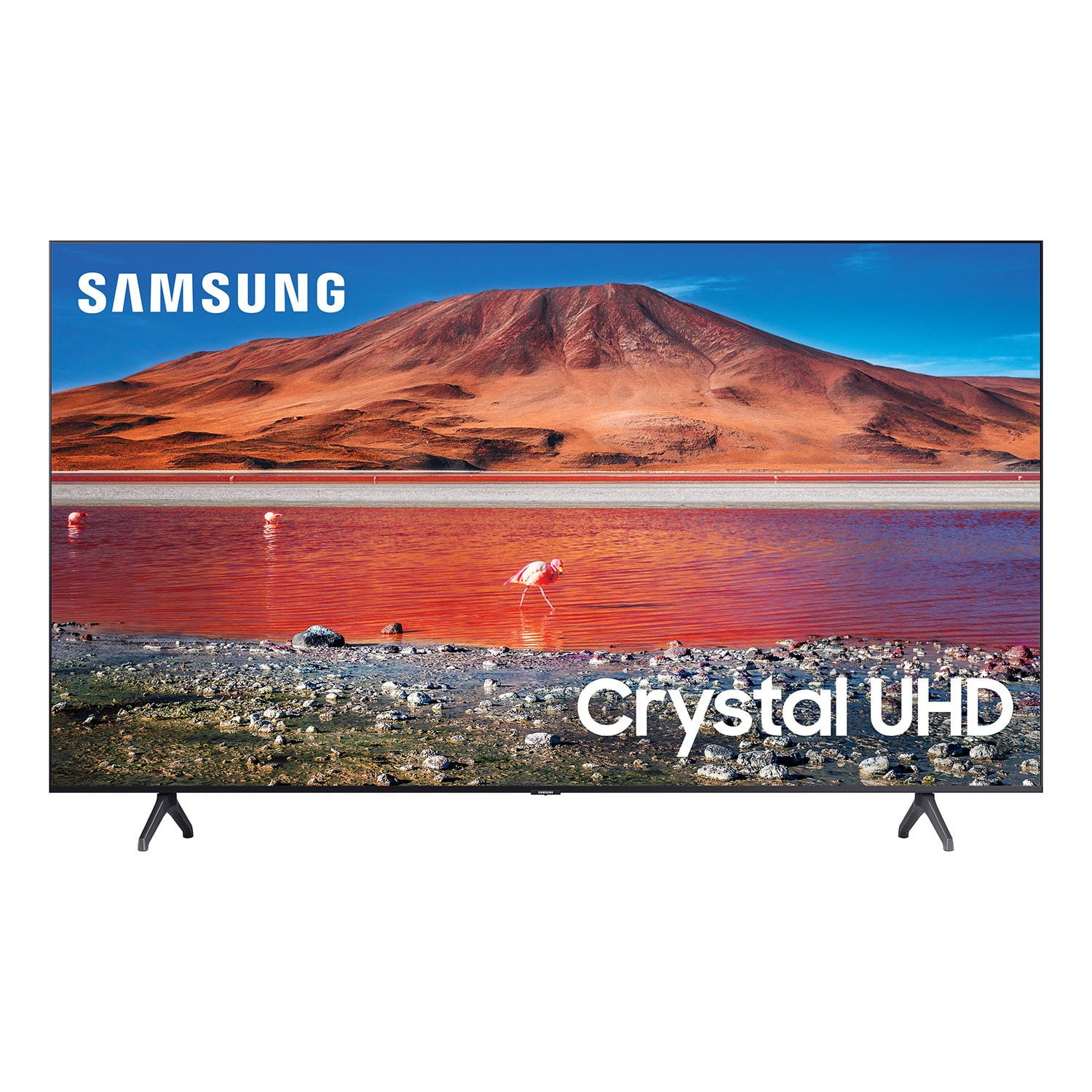
SAMSUNG 70" Class TU700D-Series Crystal Ultra HD 4K Smart TV UN70TU700DFXZA
4.4 out of 5 stars
stars
10.9K ratings10.2K reviews
  1. 5 stars69% (7,582)
  2. 4 stars18% (1,927)
  3. 3 stars5% (586)
  4. 2 stars3% (280)
  5. 1 star6% (605)
Sort by |
Showing 9,181-9,190 of 10,218 reviews
Apr 15, 2021
Reviewer name: Claudia
5 out of 5 stars
5 out of 5 stars review

Excellent picture

[This review was collected as part of a promotion.] I love my Samsung TV great features, and picture...

Review from Samsung US
Helpful?6GUNJZNN8V5013625507287
Sep 15, 2020
Reviewer name: Tmoney
5 out of 5 stars
5 out of 5 stars review

Awesome TV!

[This review was collected as part of a promotion.] Great TV for the price! Awesome features, clear image and easy navigation. Would recommend.

Review from Samsung US
Helpful?6GUNJZNN8V5013625507287
Dec 15, 2021
Reviewer name: mikie
5 out of 5 stars
5 out of 5 stars review

I am in love!

my 82 inch tv is amazing. it is huge and has a perfect picture. also, it was dirt cheap compared to competitors.

Review from Samsung US
Helpful?6GUNJZNN8V5013625507287
Sep 25, 2022
Reviewer name: Toes
1 out of 5 stars
1 out of 5 stars review

Disappointment

Worked for 2 years then screen went black waste of money samsung warranty is worthless avoid this model at all costs

Helpful?6GUNJZNN8V5013625507287
reply from Samsung

Hi, Toes, Thank you for your purchase and review of the TU700D TV. Please know we are here to help you. If your TV has a black screen even when it's on, it's entirely possible it could be your external device and not your TV. Please try these troubleshooting steps for your blank screen issue:1. Press the Home button on the remote.If the menu appears, the TV is powered on but is either not on the correct source or not receiving a signal. If the menu does not appear, the TV may have power issues.Check the red standby light, a little red light at the edge of the TV that you aim the remote at. In everyday use, the red standby light is on when the TV is off (indicating the TV is on standby), and the red standby light is off when the TV is in use (or doesn't have power).2. Confirm the TV is set to the same source as the external device.For instance, if your cable box is connected to HDMI 1, set the TV source to HDMI 1.If the TV is set to the correct source but there is still no image, unplug and reconnect the AV connections one cable at a time from both ends of each cable. If there's any damage to the cable, it will need to be replaced.After you've reconnected the external device, could you turn it off and back on?3. Test the HDMI cable.Some TVs have an HDMI cable test. Some models only have this test after a software update, and older models do not have it. If your model does not have this test or is not connected by HDMI, skip to the next step.The test is designed for HDMI cords less than 6 feet long and may not give accurate results on longer cords.To perform the test, make sure the TV's source is still on the HDMI setting for the cable you want to test, and then navigate to Settings > Support > Self Diagnosis > Signal Information > HDMI Cable Test > Start Test.If the test says, the cable is bad, replace the cable. Service is not required.4. Test different external devices.The final thing to rule out is the external device you're using. Try connecting a different device or using a different source port. If the TV can display a picture in any other setup, then you've ruled the TV out as the cause of the issue. Keep trying various setups until you identify the device or cable that is not working and troubleshoot or replace it.The TV will need service if the issue persists after these steps. Please get in touch with us so that we can better investigate your issue and assist you towards a solution or replacement. You can call us at 1-800-SAMSUNG, 8 AM - 12 AM EST, seven days a week. Or visit us on the Samsung website and click on the ‘Support’ link for:1) LiveChat with an agent2) Manuals, Software, & Warranty Info~ Samsung Advisor

Oct 21, 2020
Reviewer name: JGSamsung
5 out of 5 stars
5 out of 5 stars review

Love my Samsung products!

[This review was collected as part of a promotion.] No complaints with this TV. The picture is bright and clear. Sound is crisp. Very happy!

Review from Samsung US
Helpful?6GUNJZNN8V5013625507287
Nov 26, 2022
Reviewer name: fxywdw
4 out of 5 stars
4 out of 5 stars review

Love Samsung - this replaced my 32" . Only problem is the sound quality is not very good. May have to get a sound bar.

Review from Samsung US
Helpful?6GUNJZNN8V5013625507287
Aug 20, 2023
Reviewer name: Mary
1 out of 5 stars
1 out of 5 stars review

Already Broken

After a year and a half the tv is broken. No picture and the sound comes in and out. I would not buy this tv again.

Review from Samsung US
Helpful?6GUNJZNN8V5013625507287
Apr 4, 2021
Reviewer name: Pelito67
5 out of 5 stars
5 out of 5 stars review

Stunning picture

[This review was collected as part of a promotion.] Streaming. Great. Movie great. Excellent navigation.

Review from Samsung US
Helpful?6GUNJZNN8V5013625507287
Apr 29, 2022
Reviewer name: Tony
5 out of 5 stars
5 out of 5 stars review

Amazing!

bought this about a month ago , have to admit the tv is awesome no complaints at all. i looked for about 6 months before settling on this tv.

Review from Samsung US
Helpful?6GUNJZNN8V5013625507287
Sep 10, 2020
Reviewer name: Mike
1 out of 5 stars
1 out of 5 stars review

Very poor picture quality

Picture is garbage. Vertical bars across the screen make sports unwatchable. Trying to get fixed but the experience has been a nightmare.

Review from Samsung US
Helpful?6GUNJZNN8V5013625507287
reply from OBA

Mike: Thank you for purchasing the Samsung TU7000 TV. I am very sorry you are experiencing issues with your TV not displaying properly. Please try the following troubleshooting steps: 1) Check the antenna and input cable connections 2) Check the antenna and HDMI cable connections 3) If the issue persists, define exactly what is wrong with the display. For example, mosaics and blocks, multiple lines or white dots, fixed horizontal, or vertical lines 4) Try changing channels using the remote control. Is the issue the same on all channels? 5) Press the Home button (looks like a house), select Source, choose another input source. Is the issue the same on all sources? 6) If the same problem persists, run a diagnostic test. (Home > Settings > Support > Device Care > Self Diagnosis > Picture Test) 7) If the problem disappears during the test, check your TV signal (Home > Settings > Support > Device Care > Self Diagnosis > Signal Information) to check the signal strength. Signal strength must be more than 20 dB (more than 4 bars on the icon) for stable signal reception Should you need further assistance, please contact Samsung Customer Support. 1-800-SAMSUNG (8AM -12AM EST, 7 days a week) On the Samsung website and click on the SUPPORT link in the upper right corner for: 1) Contact Us Options (LiveChat, Remote Support, Facebook, Twitter) 2) Product Support 3) Manuals and Downloads 4) Warranty Info 5) Product Registration: Registering your product gives you access to easy warranty support, convenient opt-in to special promos and offers, faster troubleshooting and service, and quick notification of system updates 6) Samsung Community: A great resource for getting help from Samsung moderators and customers and more 7) …and more product, repair, order, and care options ~ Samsung Solutions