Join Now
Skip to Main Content
Sam's Club
Sam's Club
All Departments
All Services
Customer reviews for SAMSUNG 40” Class F6000F Series LED FHD Smart Tizen TV for
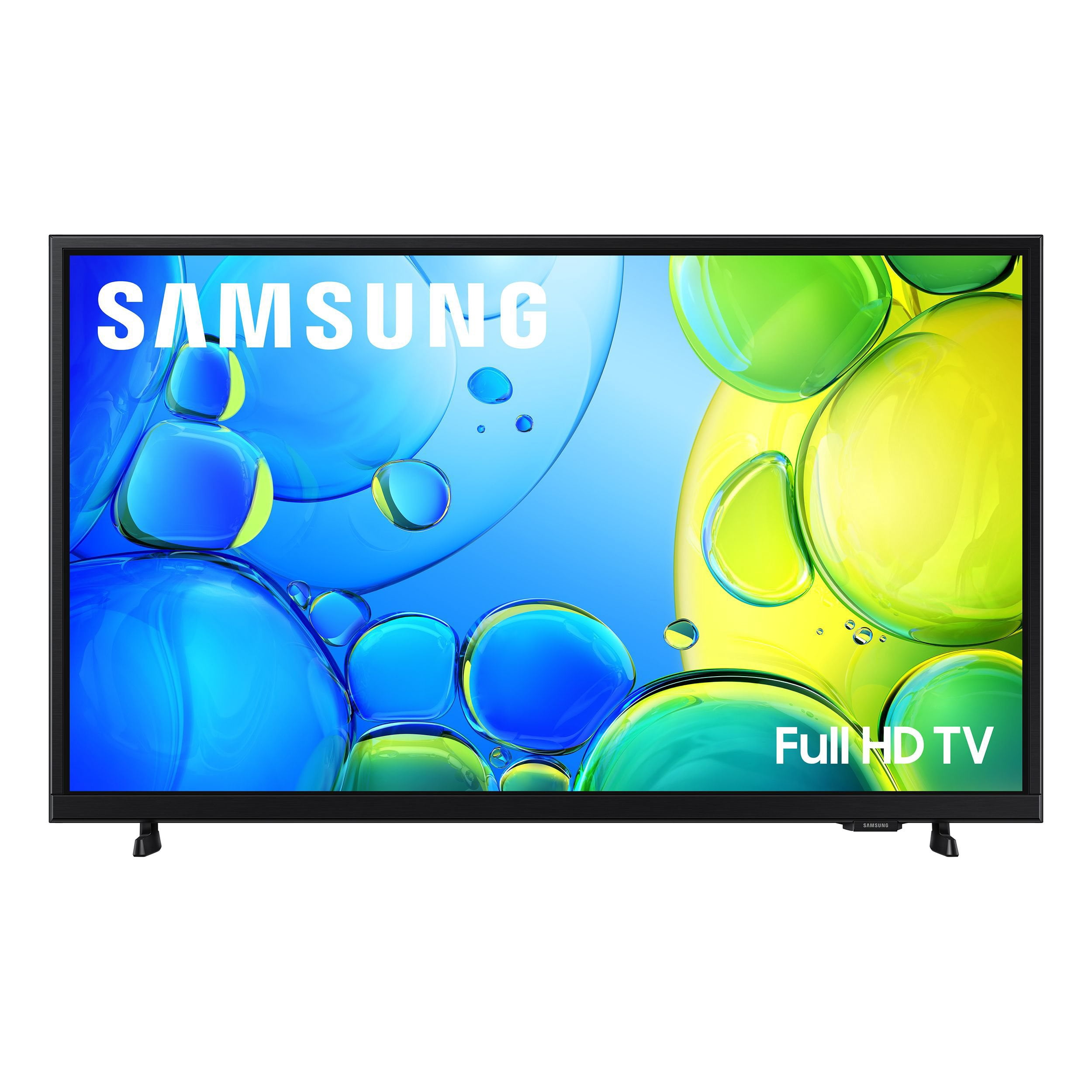
SAMSUNG 40” Class F6000F Series LED FHD Smart Tizen TV
4.2 out of 5 stars
stars
1,040 ratings1,040 reviews
  1. 5 stars60% (629)
  2. 4 stars19% (194)
  3. 3 stars10% (101)
  4. 2 stars5% (56)
  5. 1 star6% (60)
Sort by |
Showing 701-710 of 1,040 reviews
Aug 5, 2026
Reviewer name: Sarge
4 out of 5 stars
4 out of 5 stars review

Good

[This review was collected as part of a promotion.] Disappointed that the tv had no optical output for the tv. Unable to use my surround sound

Review from Samsung US
Helpful?3TL2I40PL99420390767500
Jul 5, 2026
Reviewer name: Joey0918
5 out of 5 stars
5 out of 5 stars review

Great TV!

[This review was collected as part of a promotion.] Great picture and sound quality! With the added soundbar shows and movies are viewed next level!

Review from Samsung US
Helpful?3TL2I40PL99420390767500
Aug 6, 2026
Reviewer name: Buy2much
5 out of 5 stars
5 out of 5 stars review

Simple setup

[This review was collected as part of a promotion.] Extremely nice clarity, sound is good. Easy setup with Samsung account

Review from Samsung US
Helpful?3TL2I40PL99420390767500
Jul 5, 2026
Reviewer name: Kathy
5 out of 5 stars
5 out of 5 stars review

Great tv for the bedroom!

[This review was collected as part of a promotion.] I will only buy Samsung tv's, they are the best in the market! Great product!!!

Review from Samsung US
Helpful?3TL2I40PL99420390767500
Jul 5, 2026
Reviewer name: Delia
1 out of 5 stars
1 out of 5 stars review

Review

[This review was collected as part of a promotion.] Won't stay connected to the internet I'm returning

Review from Samsung US
Helpful?3TL2I40PL99420390767500
reply from Samsung Advisor

Hi Delia, Thank you for reaching out to us. If your TV is having trouble maintaining a wireless connection, please try the following: 1. Distance matters – Keep your TV within 50 feet of your router. Avoid placing the router behind walls, furniture, or electronic devices. 2. Minimize interference – Turn off nearby wireless devices that may disrupt the signal. 3. Power cycle both devices – Unplug the TV and router for 30 seconds, then plug them back in. 4. Run diagnostics: o Settings > Support > Device Care > Self Diagnosis > Smart Hub Connection Test o Settings > Support > Device Care > Self Diagnosis > Wi-Fi 5. Update firmware: Settings > Support > Software Update > Update Now 6. Factory reset (if needed): Settings > All Settings > General & Privacy > Reset > Factory Data Reset If you continue to experience issues, please contact Samsung Support at 1-800-SAMSUNG (8AM – 9PM EST Mon – Fri, 8AM – 6PM Sat – Sun). You can also connect with a LiveChat agent through the ‘Support’ link on our website. ~ Samsung Advisor

Jul 27, 2026
Reviewer name: Raymond1639
5 out of 5 stars
5 out of 5 stars review

Great features!

[This review was collected as part of a promotion.] Love the clarity of the screen when watching movies and videos.

Review from Samsung US
Helpful?3TL2I40PL99420390767500
Jun 20, 2026
Reviewer name: none
4 out of 5 stars
4 out of 5 stars review

Remote

[This review was collected as part of a promotion.] I would love if the remote was backlit and if there was a sleep button on the remote.

Review from Samsung US
Helpful?3TL2I40PL99420390767500
Aug 5, 2026
Reviewer name: Paul
2 out of 5 stars
2 out of 5 stars review

Response

[This review was collected as part of a promotion.] Does not respond very well. Takes forever to come on. Hate the breaks music.

Review from Samsung US
Helpful?3TL2I40PL99420390767500
Jul 5, 2026
Reviewer name: Jackrabbit
5 out of 5 stars
5 out of 5 stars review

Good viewing for small room

[This review was collected as part of a promotion.] Low volume have to turn it up so I can hear but it has good contrast

Review from Samsung US
Helpful?3TL2I40PL99420390767500
Jun 21, 2026
Reviewer name: Schreck
3 out of 5 stars
3 out of 5 stars review

Tv

[This review was collected as part of a promotion.] Tv is very hard to operate can get apps on main screen

Review from Samsung US
Helpful?3TL2I40PL99420390767500
reply from Samsung Advisor

Hi Schreck, Thank you for sharing your experience. Please know that you can customize your Home screens by installing, removing or adding your favorite apps to Apps Home and/or For You Home screen. Here's how: Searching for & Installing Apps 1. From the Home screen, press up on the remote’s directional pad. 2. Navigate to and select Search. 3. Using the search bar, enter the content or app you’d like to find. 4. Navigate to and select the app you’d like to install, then select Install. Note: Previously installed apps can be accessed on the Settings screen. Adding & Managing Apps on Home Screen 1. Go to App Settings (these can be found at the bottom of the Apps screen) and select the app you want to move. The following options will be available: a. Add to Home: Move the app to your desired location on the Home screen. b. Delete: Delete app. c. Lock/Unlock: Lock the app with a PIN so only you can use it. When the app is selected again, you will be prompted to enter the PIN to unlock it. d. Reinstall: Reinstall the app. e. View Details: View the app’s information and details. If you need more help with app management, please don’t hesitate to reach Samsung Support at 1-800-SAMSUNG (8AM – 9PM EST Mon – Fri, 8AM –6 PM Sat – Sun), or reach us via text 24/7. You can also visit ‘Support’ on our website for: • Live Chat • Manuals, Software, & Warranty Info ~ Samsung Advisor