Skip to Main Content
Sam's Club
Sam's Club
All Departments
All Services
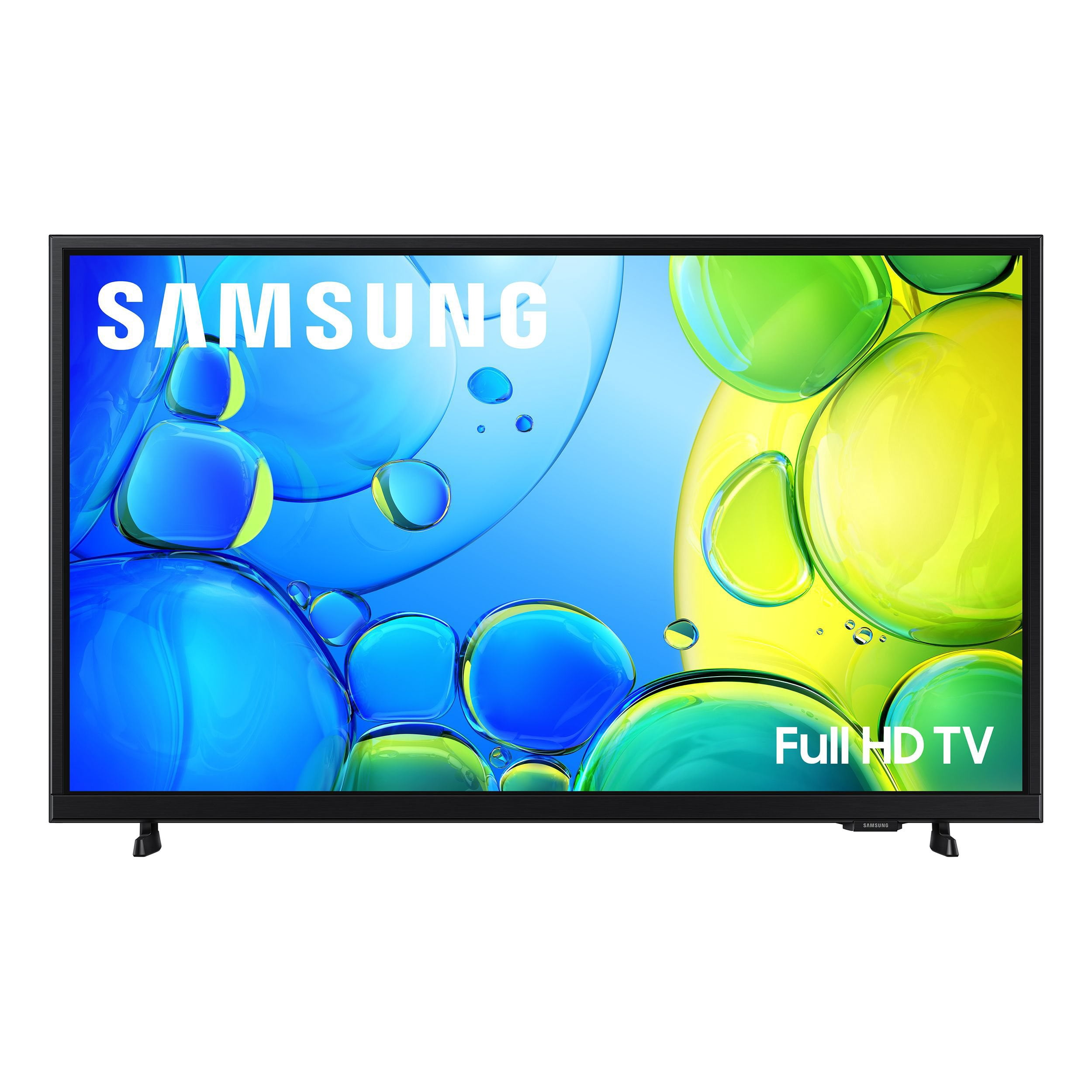
Customer reviews for SAMSUNG 40” Class F6000F Series LED FHD Smart Tizen TV for
SAMSUNG 40” Class F6000F Series LED FHD Smart Tizen TV
4.2 out of 5 stars
stars
1,040 ratings1,040 reviews
  1. 5 stars60% (629)
  2. 4 stars19% (194)
  3. 3 stars10% (101)
  4. 2 stars5% (56)
  5. 1 star6% (60)
Sort by |
Showing 631-640 of 1,040 reviews
May 11, 2026
Reviewer name: Steve
5 out of 5 stars
5 out of 5 stars review

Great picture

[This review was collected as part of a promotion.] Works great. Nice picture. It is very clear I use it with a sound bar so I can't really judge the sound

Review from Samsung US
Helpful?3TL2I40PL99420390767500
Jun 5, 2026
Reviewer name: TVstar
2 out of 5 stars
2 out of 5 stars review

Disappointing

[This review was collected as part of a promotion.] The sound is often out of sync with programs--even live ones. Also very slow to start and get to menu. I thought Samsung was the best but evidently not. Would not buy again.

Review from Samsung US
Helpful?3TL2I40PL99420390767500
reply from Samsung Advisor

Hi TVstar, Thank you for your feedback on the lip sync issues you're experiencing with your Samsung F6000F TV. This may be related to the content source, but if you're noticing the audio delay across all sources or channels, especially when using an external speaker setup (soundbar, receiver, etc.), there are a few settings that may help: 1. Adjust Digital Audio Delay. You can manually increase the audio delay to better match the video: Settings > All Settings > Sound > Expert Settings > Digital Output Audio Delay 2. Enable Audio Pass-Through. Samsung TVs include an audio pass-through option, which sends the audio signal directly to your connected soundbar or receiver without additional processing by the TV. This can reduce delay when using external audio devices: Settings > All Settings > Sound > Expert Settings > Digital Audio Output Format > Pass-Through 3. Check for Firmware Updates. Ensure your TV is running the latest software, which may include performance improvements related to sound or sync: Home > left directional key > Settings > Support > Software Update > Update Now If the issue continues after these steps, please contact Samsung Support for additional troubleshooting or assistance. We’re here to help at 1-800-SAMSUNG, 8AM – 12AM EST, 8AM – 9PM EST Mon – Fri, 8AM – 6PM Sat – Sun. LiveChat and additional support resources are also available through the Support link on our website. ~ Samsung Advisor

May 20, 2026
Reviewer name: David
3 out of 5 stars
3 out of 5 stars review

Two Samsung TVs problem

[This review was collected as part of a promotion.] The only problem I have right now is that I have two Samsung TVs in the same room and I can't access one at a time with the volume mute and on and off with one remote.

Review from Samsung US
Helpful?3TL2I40PL99420390767500
reply from Samsung Advisor

Hi David, Thank you for your feedback. We recommend utilizing the Samsung SmartThings app to control both of your TVs. If you need more help, please call us at 1-800-SAMSUNG, available daily from 8AM – 9PM EST Mon – Fri, 8AM – 6PM Sat – Sun. You can also visit the Samsung website and click on ‘Support’ for: • Live Chat • Manuals, Software, & Warranty Info ~ Samsung Advisor

May 20, 2026
Reviewer name: janecaboto
5 out of 5 stars
5 out of 5 stars review

Samsung 32 inch Smart TV

[This review was collected as part of a promotion.] My Samsung TV is everything I could have asked for. Clear picture, ease of navigating apps, a breeze to set up and so inexpensive!!

Review from Samsung US
Helpful?3TL2I40PL99420390767500
Jun 1, 2026
Reviewer name: JRAUB61
5 out of 5 stars
5 out of 5 stars review

Most then well satisfied

[This review was collected as part of a promotion.] I had this TV for a year. Never had any problems with it and mostly keep it on, and have my ONN ( Android box) box hooked up too.

Review from Samsung US
Helpful?3TL2I40PL99420390767500
Mar 5, 2026
Reviewer name: RTech
3 out of 5 stars
3 out of 5 stars review

Not the TV but Remote Issues

[This review was collected as part of a promotion.] This is not so much a rating on this tv as it is a multiple interface problem with 3 Samsung products in the same room. The remotes cause various issues.

Review from Samsung US
Helpful?3TL2I40PL99420390767500
reply from Samsung Advisor

Hi RTech, Thank you for your feedback. You may find using the Samsung SmartThings app beneficial if you have multiple TVs in the same room. If there’s anything we can assist with, please don’t hesitate to call us at 1-800-SAMSUNG, available daily from 8AM - 12AM EST. You can also visit the Samsung website and click on ‘Support’ for: • Live Chat • Manuals, Software, & Warranty Info ~ Samsung Advisor

Jun 6, 2026
Reviewer name: Cleech
5 out of 5 stars
5 out of 5 stars review

Great little tv

[This review was collected as part of a promotion.] Needed a smaller tv for my camper. This is perfect for the space. Whether its antenna or streaming the picture is great.

Review from Samsung US
Helpful?3TL2I40PL99420390767500
Jan 20, 2026
Reviewer name: joe488
1 out of 5 stars
1 out of 5 stars review

waste of time and effort

this tv was a waste of money, the picture was so dark you couldn't see anything if it was a scene at dusk or night. we returned it for a replacement, and the replacement was exactly the same. very disappointed in Samsung 40 inch tv.

Review from Samsung US
Helpful?3TL2I40PL99420390767500
reply from Samsung Specialist

joe488, Thank you for sharing your thoughts on the picture quality of Samsung’s F6000F TV. If the image doesn’t look quite right to you, there are several adjustments that can help optimize performance for your space and preferences. First, make sure your TV is up to date. Firmware updates often include picture quality enhancements. To check for the latest version, go to: Home > Left directional button > Settings > Support > Software Update > Update Now Next, explore available Picture Modes under: Settings > All Settings > Picture > Picture Mode Each mode is tailored to a different viewing style: • Standard – Balanced settings for everyday use • Dynamic – Brighter and sharper for brightly lit rooms • Movie – Softer tones ideal for low-light viewing • Eco – Reduces power consumption by adjusting brightness You can also customize the image further under: Settings > All Settings > Picture > Expert Settings, where you’ll find detailed controls for Brightness & Contrast, Color & Tint, Sharpness, and more. If you’d like help fine-tuning your display or exploring these settings, please call Samsung Customer Support at 1-800-SAMSUNG, available 8AM – 12AM EST, 7 days a week, or visit the ‘Support’ section on our website to LiveChat with an agent. ~ Samsung Specialist

Feb 5, 2026
Reviewer name: Jaime
5 out of 5 stars
5 out of 5 stars review

Slick TV

[This review was collected as part of a promotion.] It's a great tv, especially for the price. Picture is great, and the sound quality from the speakers, for me, is surprisingly good too. The menu is slick, the old tube style fade out when turning the tv off is a nice touch. Only thing I didn't care for was the initialization/start up. Kinda' like, let's go, I just want to watch tv. While the setup took place, the tv did automatically program the channels in, so that was nice.

Review from Samsung US
Helpful?3TL2I40PL99420390767500
Jan 5, 2026
Reviewer name: Debmb1
3 out of 5 stars
3 out of 5 stars review

You get what you pay for

The picture is very clear and the sound is great too. It took me awhile to be able to connect it to my m network. The menu is way different from my other three Samsung TV's, so there was a learning curve. The connection between the remote and the tv lags as do the apps. My internet provider says the connection is solid. So I get a little frustrating searching for my apps and then waiting for them to load.

Review from Samsung US
Helpful?3TL2I40PL99420390767500
reply from Samsung Specialist

Debmb1, Thank you for sharing your feedback with us. To help you get the most from your TV, you can download the full e-Manual and more by visiting Samsung’s website, then navigating to: Support > Manual & Software > TVs & Home Theater. From there, you can search for and select your F6000F TV model to view or download the available guides. The e-Manual & User Guide are also conveniently built into your TV: Settings > Support > Tips and User Guides. Your TV includes Learn Menu Screen, an accessibility feature that provides audio guidance for on-screen menus. When enabled, your TV will announce the name and function of each menu item as you scroll, without making any changes. This feature is particularly helpful for users who are visually impaired or new to Smart TV menus. To enable, go to: Settings > All Settings > General & Privacy > Accessibility > Learn Menu Screen. To exit, press the Return key twice. If you’d like more assistance with this feature, please reach Samsung Support at 1-800-SAMSUNG, available 8AM – 12AM EST, 7 days a week. LiveChat agents are also available through the ‘Support’ link on our website. ~ Samsung Specialist