Skip to Main Content
Sam's Club
Sam's Club
All Departments
All Services
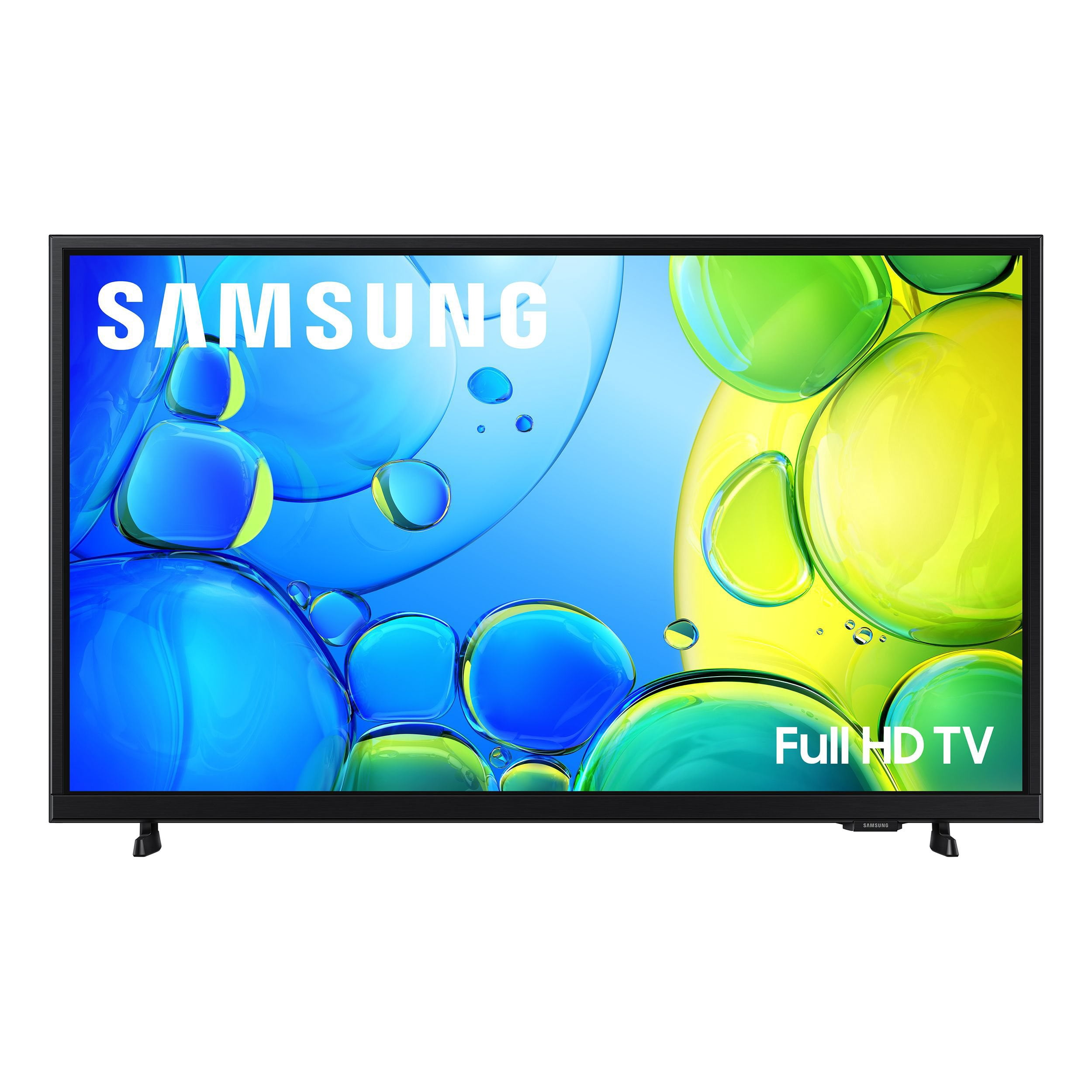
Customer reviews for SAMSUNG 40” Class F6000F Series LED FHD Smart Tizen TV for
SAMSUNG 40” Class F6000F Series LED FHD Smart Tizen TV
4.2 out of 5 stars
stars
836 ratings836 reviews
  1. 5 stars61% (508)
  2. 4 stars20% (164)
  3. 3 stars9% (72)
  4. 2 stars5% (43)
  5. 1 star6% (49)
Sort by |
Showing 271-280 of 836 reviews
Jun 24, 2026
Reviewer name: Luv Samsung
5 out of 5 stars
5 out of 5 stars review

Great product

[This review was collected as part of a promotion.] My husband says Samsung TVs are the best so we are purchasing them in each room. We have two now and we'll purchase another one to put in our new home. Great product thank you.

Review from Samsung US
Helpful?3TL2I40PL99420390767500
Jun 20, 2026
Reviewer name: None
3 out of 5 stars
3 out of 5 stars review

Mostly great tv for the price range.

[This review was collected as part of a promotion.] I love the picture and sound quality. Decent remote control. My complaint is that it is so slow with responding when the buttons are pushed.

Review from Samsung US
Helpful?3TL2I40PL99420390767500
reply from Samsung Advisor

Hi None, Thank you for your feedback. If your remote isn’t responding, here are a few quick steps to help determine if it’s working correctly: 1. Check the batteries: Remove the back cover of your remote and replace the batteries with a fresh set, ensuring they are inserted in the correct direction. 2. Test for infrared signal: Point the front of the remote at your smartphone camera. While holding down any button, you should see a flashing light through the camera screen. (For iPhone users, the front-facing camera works best.) If you see the light, your remote is working and may need to be re-paired with your TV. 3. Point the remote correctly: Try pointing the remote directly at the TV from about 5-6 feet away. This can help ensure a clearer signal between the remote and the TV. If you still need assistance, please contact Samsung Support at 1-800-SAMSUNG (8AM – 9PM EST Mon – Fri, 8AM – 6PM Sat – Sun), or visit the ‘Support’ link on our website to start a LiveChat session. ~ Samsung Advisor

Jun 20, 2026
Reviewer name: Jojo
4 out of 5 stars
4 out of 5 stars review

Remote has problems

[This review was collected as part of a promotion.] The remote is very hard to work doesn't always go to the spot you want I try to use my other tv in the other room more the remote is easier to work

Review from Samsung US
Helpful?3TL2I40PL99420390767500
Jun 20, 2026
Reviewer name: TN Ragdoll
5 out of 5 stars
5 out of 5 stars review

Excellent TV

[This review was collected as part of a promotion.] Beautiful, clear , vibrant color picture! This replaced a much older Samsung television, that was good, but this one is amazing.

Review from Samsung US
Helpful?3TL2I40PL99420390767500
Jul 5, 2026
Reviewer name: Movie Addict
4 out of 5 stars
4 out of 5 stars review

Decent

[This review was collected as part of a promotion.] The tv is good. I have no complaints except for the remote. The buttons are small and it is not user friendly. I dont kno that I will ever get used to it. Why so many tiny buttons?

Review from Samsung US
Helpful?3TL2I40PL99420390767500
Jan 20, 2026
Reviewer name: joe488
1 out of 5 stars
1 out of 5 stars review

waste of time and effort

this tv was a waste of money, the picture was so dark you couldn't see anything if it was a scene at dusk or night. we returned it for a replacement, and the replacement was exactly the same. very disappointed in Samsung 40 inch tv.

Review from Samsung US
Helpful?3TL2I40PL99420390767500
reply from Samsung Specialist

joe488, Thank you for sharing your thoughts on the picture quality of Samsung’s F6000F TV. If the image doesn’t look quite right to you, there are several adjustments that can help optimize performance for your space and preferences. First, make sure your TV is up to date. Firmware updates often include picture quality enhancements. To check for the latest version, go to: Home > Left directional button > Settings > Support > Software Update > Update Now Next, explore available Picture Modes under: Settings > All Settings > Picture > Picture Mode Each mode is tailored to a different viewing style: • Standard – Balanced settings for everyday use • Dynamic – Brighter and sharper for brightly lit rooms • Movie – Softer tones ideal for low-light viewing • Eco – Reduces power consumption by adjusting brightness You can also customize the image further under: Settings > All Settings > Picture > Expert Settings, where you’ll find detailed controls for Brightness & Contrast, Color & Tint, Sharpness, and more. If you’d like help fine-tuning your display or exploring these settings, please call Samsung Customer Support at 1-800-SAMSUNG, available 8AM – 12AM EST, 7 days a week, or visit the ‘Support’ section on our website to LiveChat with an agent. ~ Samsung Specialist

Jun 20, 2026
Reviewer name: Brian
5 out of 5 stars
5 out of 5 stars review

My Father's Day gift

[This review was collected as part of a promotion.] I love my new Father's Day present and the sound bar makes things so so clear that I just love every moment of it

Review from Samsung US
Helpful?3TL2I40PL99420390767500
Jul 5, 2026
Reviewer name: Mac D
5 out of 5 stars
5 out of 5 stars review

40" Samsung Smart TV

[This review was collected as part of a promotion.] The TV was easy to set up via the iPhone app and the picture quality and sound are great. Perfect size for my master bedroom.

Review from Samsung US
Helpful?3TL2I40PL99420390767500
Jul 2, 2026
Reviewer name: MelNDee
3 out of 5 stars
3 out of 5 stars review

Good TV

[This review was collected as part of a promotion.] Good but not great TV. Not great sound quality. Good picture quality. We are looking for a new Samsung TV with surround sound and excellent performance & picture quality.

Review from Samsung US
Helpful?3TL2I40PL99420390767500
reply from Samsung Advisor

Hi MelNDee, Thank you for your feedback on the sound quality of your Samsung F6000F TV. First, ensure your TV is running the latest firmware: Home > Settings > Support > Software Update To improve your sound, try different Sound Modes (Standard, Optimized, Amplify), or fine-tune your setup in Expert Settings under: Settings > All Settings > Sound Samsung Q- and S-Series Soundbars with Q-Symphony can also pair with your TV for enhanced audio. For further help adjusting your sound settings or finding the right soundbar for your space, feel free to reach Samsung Support at 1-800-SAMSUNG (8AM – 12AM EST, 7 days a week) or visit the Support link on our website. ~ Samsung Advisor

Jun 20, 2026
Reviewer name: Dondini
5 out of 5 stars
5 out of 5 stars review

Nice Upgrade

[This review was collected as part of a promotion.] Settings are all that you could want for multiple viewing options. The sound from just the TV is pretty good. I hooked it up to my SS System and it is very nice. Very Good for the money

Review from Samsung US
Helpful?3TL2I40PL99420390767500