Skip to Main Content
Sam's Club
Sam's Club
All Departments
All Services
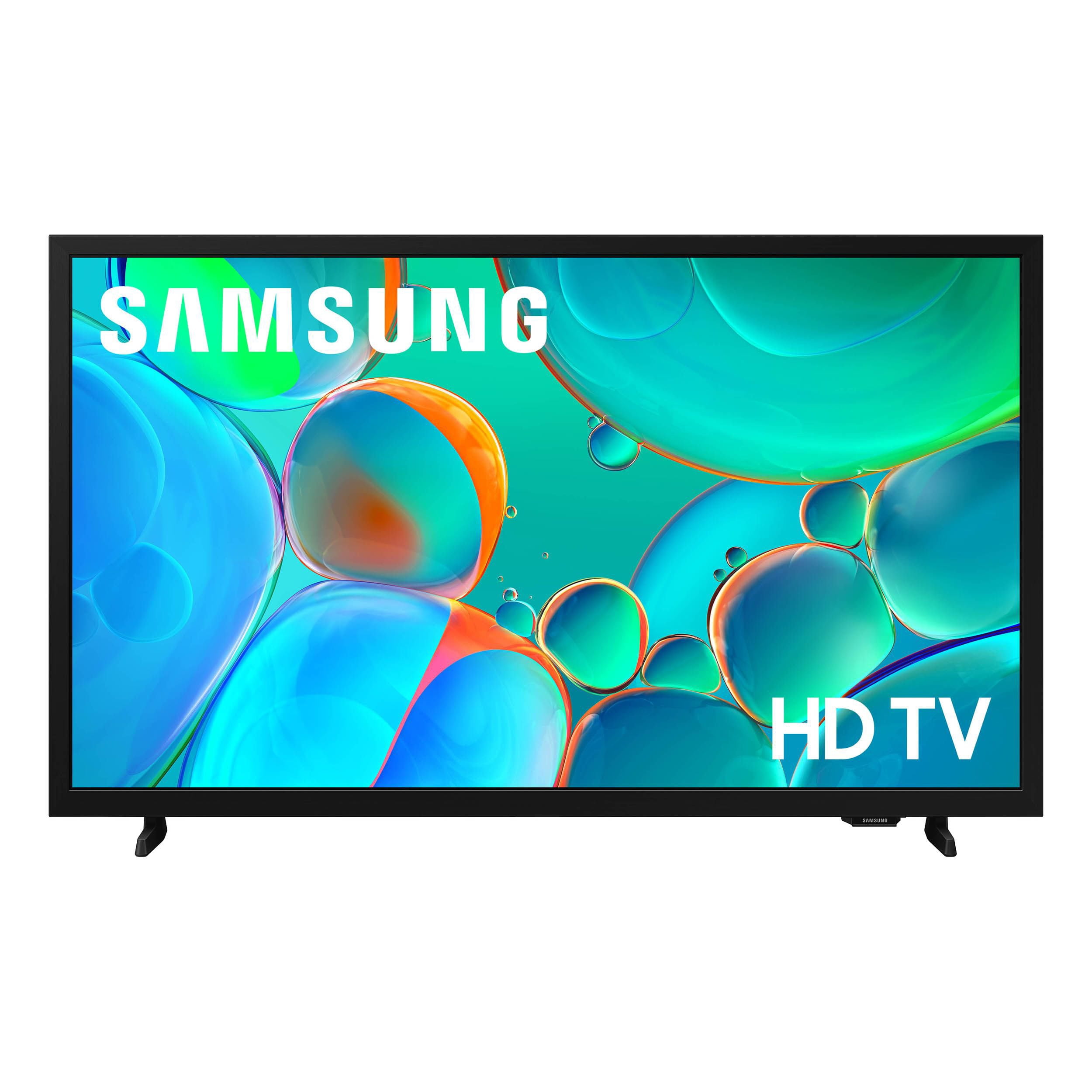
Customer reviews for SAMSUNG 32” Class H5000F Series LED HD Smart Tizen TV for
SAMSUNG 32” Class H5000F Series LED HD Smart Tizen TV
4.6 out of 5 stars
stars
3,092 ratings3,089 reviews
  1. 5 stars76% (2,344)
  2. 4 stars16% (501)
  3. 3 stars4% (126)
  4. 2 stars2% (53)
  5. 1 star2% (68)
Sort by |
Showing 1,261-1,270 of 3,089 reviews
Jul 5, 2026
Reviewer name: Day1
5 out of 5 stars
5 out of 5 stars review

All Around Fantastic Product

I can't say enough about the Samsung Frame TV. The art is spectacular. The interface is simple to navigate. The color is very good. Everyone who visits has raved about it. It's my favorite by far

Review from Samsung US
Helpful?3BXE5P3J9PH420390161112
Jun 22, 2026
Reviewer name: Eileen
5 out of 5 stars
5 out of 5 stars review

Love it!

[This review was collected as part of a promotion.] Absolutely love my tv! I love the quality of the picture and how bright it is. The sound is crystal clear and the settings are easy to maneuver.

Review from Samsung US
Helpful?3BXE5P3J9PH420390161112
Jul 7, 2026
Reviewer name: Frustrated
3 out of 5 stars
3 out of 5 stars review

So-so

[This review was collected as part of a promotion.] The TV is okay. The picture is stunning. Cannot find the apps, so until I hire someone to come program the set, I'm stuck with 10 year old reruns on Samsung TV. Cannot get any local channels.

Review from Samsung US
Helpful?3BXE5P3J9PH420390161112
reply from Samsung Advisor

Hi Frustrated, Thank you for sharing your experience. Please know that you can customize your Home screens by installing, removing or adding your favorite apps to Apps Home and/or For You Home screen. Here's how: Searching for & Installing Apps 1. From the Home screen, press left on the remote’s directional pad. 2. Navigate to and select Search. 3. Using the search bar, enter the content or app you’d like to find. 4. Navigate to and select the app you’d like to install, then select Install. Note: Previously installed apps can be accessed on the Settings screen. Adding & Managing Apps on Home Screen 1. Go to App Settings (these can be found at the bottom of the Apps screen) and select the app you want to move. The following options will be available: a. Add to Home: Move the app to your desired location on the Home screen. b. Delete: Delete app. c. Lock/Unlock: Lock the app with a PIN so only you can use it. When the app is selected again, you will be prompted to enter the PIN to unlock it. d. Reinstall: Reinstall the app. e. View Details: View the app’s information and details. If you need more help with app management, please don’t hesitate to reach Samsung Support at 1-800-SAMSUNG (8AM – 9PM EST Mon – Fri, 8AM – 6PM Sat – Sun), or reach us via text anytime. You can also visit ‘Support’ on our website for: • Live Chat • Manuals, Software, & Warranty Info ~ Samsung Advisor

Jun 1, 2026
Reviewer name: Mary
5 out of 5 stars
5 out of 5 stars review

Nothing like Samsung

[This review was collected as part of a promotion.] The brightness is very helpful and so adaptable. Is amazing the different funtions that I can access in this tv. The perfect size for me and my living room.

Review from Samsung US
Helpful?3BXE5P3J9PH420390161112
Jul 20, 2026
Reviewer name: KallMeDom
5 out of 5 stars
5 out of 5 stars review

Love my tv

[This review was collected as part of a promotion.] I have nothing but samsung products in my house but my favorite is my tv. The picture quality is unmatched

Review from Samsung US
Helpful?3BXE5P3J9PH420390161112
Jul 5, 2026
Reviewer name: Samsunggirl90
5 out of 5 stars
5 out of 5 stars review

Great features

[This review was collected as part of a promotion.] The picture and sound are incredible. I love that I can put parental locks on it. There's ao many setting I can make the TV screen Exactly how I want it.

Review from Samsung US
Helpful?3BXE5P3J9PH420390161112
Jun 22, 2026
Reviewer name: Philaz
5 out of 5 stars
5 out of 5 stars review

Great Product

[This review was collected as part of a promotion.] love this product would definitely recommend buying another one in the future or recommend it to others

Review from Samsung US
Helpful?3BXE5P3J9PH420390161112
Jun 21, 2026
Reviewer name: F B Y
5 out of 5 stars
5 out of 5 stars review

Great picture

[This review was collected as part of a promotion.] I'm so pleased my my Samsung tv. It has a great vivid picture and so easy to set up. Also has great selection of Samsung channels.

Review from Samsung US
Helpful?3BXE5P3J9PH420390161112
Jul 20, 2026
Reviewer name: Trish
5 out of 5 stars
5 out of 5 stars review

Great everything😁

[This review was collected as part of a promotion.] This Awesome smart TV is an update from my Samsung model UN32J400D . The Samsung Plus is a great extra, Thank you Samsung.

Review from Samsung US
Helpful?3BXE5P3J9PH420390161112
Jul 21, 2026
Reviewer name: GranBee
5 out of 5 stars
5 out of 5 stars review

Easy On Old Eyes

[This review was collected as part of a promotion.] Very clear pictures color and contrast are great with great viewing of programs. Easy to maneuver through programs and different apps. No delays in going from one streaming to another.

Review from Samsung US
Helpful?3BXE5P3J9PH420390161112