Skip to Main Content
Sam's Club
Sam's Club
All Departments
All Services
Customer reviews for SAMSUNG 75” Class M70H Series Mini LED 4K UHD Vision AI Companion Smart Tizen TV for
SAMSUNG 75” Class M70H Series Mini LED 4K UHD Vision AI Companion Smart Tizen TV
4.5 out of 5 stars
stars
324 ratings314 reviews
  1. 5 stars70% (227)
  2. 4 stars15% (50)
  3. 3 stars7% (23)
  4. 2 stars5% (17)
  5. 1 star2% (7)

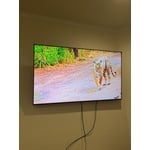
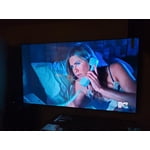
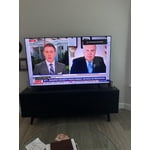
Member photos

  • +81 images
Sort by |
Showing 271-280 of 314 reviews
Jun 24, 2026
Reviewer name: Wicckkid
4 out of 5 stars
4 out of 5 stars review

Great picture and stable viewing

[This review was collected as part of a promotion.] Colol is great sounds clear and long life expectancy

Review from Samsung US
Helpful?5O410ST4GD5019920056303
Jun 22, 2026
Reviewer name: DracArrow
5 out of 5 stars
5 out of 5 stars review

Great feature

[This review was collected as part of a promotion.] Great everything. New feature, hope it will help to guide

Review from Samsung US
Helpful?5O410ST4GD5019920056303
Aug 5, 2026
Reviewer name: None
5 out of 5 stars
5 out of 5 stars review

Great features

[This review was collected as part of a promotion.] This is my 6th Samsung tv never a problem always plats beautifully

Review from Samsung US
Helpful?5O410ST4GD5019920056303
Jun 20, 2026
Reviewer name: Eddieg
5 out of 5 stars
5 out of 5 stars review

65 inch samsung tv

[This review was collected as part of a promotion.] Am very pleased with tv color and smart features on tv

Review from Samsung US
Helpful?5O410ST4GD5019920056303
Jul 20, 2026
Reviewer name: Ali mo
5 out of 5 stars
5 out of 5 stars review

Color

[This review was collected as part of a promotion.] Nice Tv but the remote control quality is not good

Review from Samsung US
Helpful?5O410ST4GD5019920056303
Jul 20, 2026
Reviewer name: none
3 out of 5 stars
3 out of 5 stars review

none

[This review was collected as part of a promotion.] The printing on the remote is VERY DIFFICULT to read, due to the small print.

Review from Samsung US
Helpful?5O410ST4GD5019920056303
reply from Samsung Advisor

Hi, Thank you for sharing your experience. Samsung remotes are designed to offer convenient control, but we understand if you’d prefer to use a universal remote. Many third-party remotes work well with Samsung TVs, though setup steps may vary by brand and model. To get started, we recommend checking the manufacturer’s instructions for programming codes and pairing methods. If you run into any trouble or have compatibility questions, Samsung Support is happy to help. You can reach us at 1-800-SAMSUNG (8AM – 9PM EST Mon – Fri, 8AM – 6PM Sat – Sun). LiveChat agents are also available at the ‘Support’ link on our website. ~ Samsung Advisor

Aug 5, 2026
Reviewer name: nina
4 out of 5 stars
4 out of 5 stars review

features: cannot silence voice when turning tv on

[This review was collected as part of a promotion.] cannot silence tv speakers when connected to my spectrum cable box and exterior speakers

Review from Samsung US
Helpful?5O410ST4GD5019920056303
Jul 5, 2026
Reviewer name: Ehan
2 out of 5 stars
2 out of 5 stars review

Accessibility

[This review was collected as part of a promotion.] Remote control not a good design TV apps and download not easy to do

Review from Samsung US
Helpful?5O410ST4GD5019920056303
reply from Samsung Advisor

Hi Ehan, Thank you for your feedback on the M70HD TV. While the Solar Cell Remote may appear minimal, many buttons offer multiple or long-press functions to help simplify the design without sacrificing functionality. For example: • Settings/Number/Color: Allows you to easily access your TV's Quick Settings and input channel numbers. • Volume rocker: Push up/down to adjust volume. Press and release quickly to mute. • Long-press Volume button: Hold for more than 1 second to open Accessibility Shortcuts. • RETURN button: Press to go back to the previous menu or screen. While watching TV, it takes you back to the previous channel. These functions allow for a more streamlined experience without adding extra buttons. Regarding app management on your TV, please know that you can customize your Home screens by installing, removing or adding your favorite apps to Apps Home and/or For You Home screen. Here's how: Searching for & Installing Apps 1. From the Home screen, press up on the remote’s directional pad. 2. Navigate to and select Search. 3. Using the search bar, enter the content or app you’d like to find. 4. Navigate to and select the app you’d like to install, then select Install. Note: Previously installed apps can be accessed on the Settings screen. Adding & Managing Apps on Home Screen 1. Go to App Settings (these can be found at the bottom of the Apps screen) and select the app you want to move. The following options will be available: a. Add to Home: Move the app to your desired location on the Home screen. b. Delete: Delete app. c. Lock/Unlock: Lock the app with a PIN so only you can use it. When the app is selected again, you will be prompted to enter the PIN to unlock it. d. Reinstall: Reinstall the app. e. View Details: View the app’s information and details. If you need more help with app management, please don’t hesitate to reach Samsung Support at 1-800-SAMSUNG (8AM – 9PM EST Mon – Fri, 8AM – 6PM Sat – Sun), or reach us via text anytime. You can also visit ‘Support’ on our website for: • Live Chat • Manuals, Software, & Warranty Info ~ Samsung Advisor

Jul 27, 2026
Reviewer name: Jp262
5 out of 5 stars
5 out of 5 stars review

Great tv

[This review was collected as part of a promotion.] Its a great tv. Very vivid picture and easy set up

Review from Samsung US
Helpful?5O410ST4GD5019920056303
Jun 20, 2026
Reviewer name: Tony
5 out of 5 stars
5 out of 5 stars review

Great tv

[This review was collected as part of a promotion.] Easy setup and great picture. Love the free Samsung+ channels!

Review from Samsung US
Helpful?5O410ST4GD5019920056303