Join Now
Skip to Main Content
Sam's Club
Sam's Club
All Departments
All Services
Customer reviews for SAMSUNG 42” Class S90H Series OLED 4K UHD Vision AI Smart Tizen TV for
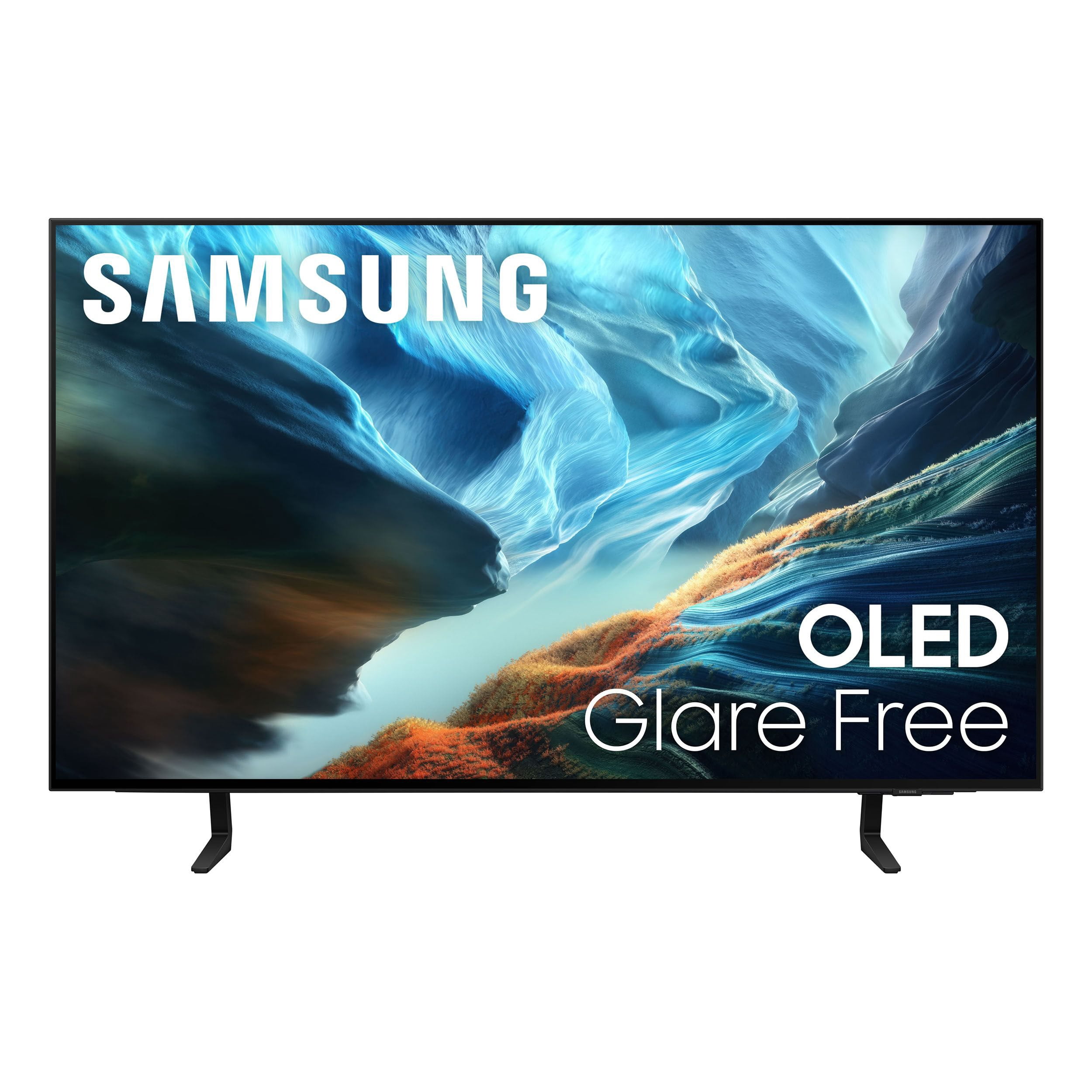
SAMSUNG 42” Class S90H Series OLED 4K UHD Vision AI Smart Tizen TV
4.8 out of 5 stars
stars
163 ratings163 reviews
  1. 5 stars86% (140)
  2. 4 stars8% (13)
  3. 3 stars4% (7)
  4. 2 stars1% (1)
  5. 1 star1% (2)

Member photos

  • +29 images
Sort by |
Showing 51-60 of 163 reviews
Nov 20, 2026
Reviewer name: Terry
5 out of 5 stars
5 out of 5 stars review

Great pictures

[This review was collected as part of a promotion.] After 20 years of having only Sony Bravia tvs we purchased 3 Samsung S90H tvs . 2 - 55 inch and 1 - 65 inch . Thank you for providing a great product .

Review from Samsung US
Helpful?3YH4RYSHV2A819904818175
Nov 20, 2026
Reviewer name: bill
1 out of 5 stars
1 out of 5 stars review

wont work

[This review was collected as part of a promotion.] i'm having trouble everytime i turn tv on i have to unplug and wait a minute and plug back in to get it to connect to youtube tv i bought 2 the 65" and same type in 48" same trouble weith both

Review from Samsung US
Helpful?3YH4RYSHV2A819904818175
Nov 20, 2026
Reviewer name: Sksb
5 out of 5 stars
5 out of 5 stars review

Great picture!

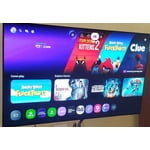
[This review was collected as part of a promotion.] Wonderful picture! Colors are bright and the screen is glare free! We really like the Home Screen, much easier to use than our old TV. So glad we got this TV verses others we looked at

Review from Samsung US
Helpful?3YH4RYSHV2A819904818175
Nov 20, 2026
Reviewer name: Ritz
5 out of 5 stars
5 out of 5 stars review

Love the picture

[This review was collected as part of a promotion.] I had a Samsung 65 inch but this 77 inch OLED is amazing. I definitely love the non glare feature. I am so impressed with this tv that i can't wait for the next great tv.😊😊👍🏾

Review from Samsung US
Helpful?3YH4RYSHV2A819904818175
Nov 20, 2026
Reviewer name: Joe T
5 out of 5 stars
5 out of 5 stars review

Sharp picture and user friendly

[This review was collected as part of a promotion.] User friendly, I just opened the box, set up was so easy. The picture and sound are great. We are going to enjoy this tv for a very long time. I'm turning off my cable subscription.

Review from Samsung US
Helpful?3YH4RYSHV2A819904818175
Nov 20, 2026
Reviewer name: Jim S
5 out of 5 stars
5 out of 5 stars review

The Best

[This review was collected as part of a promotion.] Best television I have ever owned Quality and picture are fantastic Also glare free is great I would recommend this Television to anyone that is interested in upgrading

Review from Samsung US
Helpful?3YH4RYSHV2A819904818175
Aug 16, 2026
Reviewer name: Abby
2 out of 5 stars
2 out of 5 stars review

If you're not a "techie" don't buy this!

[This review was collected as part of a promotion.] I am 82 years old and not a "techie". This "smart" tv makes me feel stupid. How can you sell an advance item like this with NO Manual. I am stumbling through and trying to figure things out but am increasingly frustrated. Why is there no simple manual telling buyers how to add simple programs--e.g. "Good Morning America". How to "subscribe" to NFL games? etc!

Review from Samsung US
Helpful?3YH4RYSHV2A819904818175
reply from Samsung Specialist

Abby, Thank you for sharing your feedback with us. To help you get the most from your TV, you can download the full e-Manual and more by visiting Samsung’s website, then navigating to: Support > Manual & Software > TVs & Home Theater. From there, you can search for and select your S90HD TV model to view or download the available guides. The e-Manual & User Guide are also conveniently built into your TV: Settings > Support > Tips and User Guides. Your TV includes Learn Menu Screen, an accessibility feature that provides audio guidance for on-screen menus. When enabled, your TV will announce the name and function of each menu item as you scroll, without making any changes. This feature is particularly helpful for users who are visually impaired or new to Smart TV menus. To enable, go to: Settings > All Settings > General & Privacy > Accessibility > Learn Menu Screen. To exit, press the Return key twice. If you’d like more assistance with this feature, please reach Samsung Support at 1-800-SAMSUNG (8AM – 9PM EST Mon – Fri, 8AM – 6PM Sat – Sun). LiveChat agents are also available through the ‘Support’ link on our website. ~ Samsung Specialist

Sep 21, 2026
Reviewer name: Alyfern
5 out of 5 stars
5 out of 5 stars review

Best display!

[This review was collected as part of a promotion.] I love my samsung TV! I have the Galaxy Fold & I have had the galaxy series for years now so I had a feeling I would like their TVs. The display is beautiful! The picture is so clear. Movies are a whole different experience. The OLED really makes a difference. I would recommend to everyone, especially if you like having company over. You will get compliments!

Review from Samsung US
Helpful?3YH4RYSHV2A819904818175
Sep 13, 2026
Reviewer name: ezgrider
3 out of 5 stars
3 out of 5 stars review

Great picture BUT

[This review was collected as part of a promotion.] The picture is beautiful, the color and contrast are out standing. However, it has a very hard time keeping in contact with the internet. I have to wait frequently for the TV to connect to the internet and a couple of times I have had to move the TV to unplug it so it would reset.

Review from Samsung US
Helpful?3YH4RYSHV2A819904818175
reply from Samsung Ambassador

Hi ezgrider, Thank you for sharing your experience with the internet connection on your Samsung S90HD TV. Whether you're using Wi-Fi or a wired (LAN) connection, there are a few steps you can take to help resolve the issue: 1. Power Cycle Your Equipment. Unplug both your TV and router/modem from the wall outlet. Wait at least 30 seconds, then plug them back in and allow both devices to fully restart. 2. Check the Network Status. On your TV, go to: Home > top directional key > Settings > All Settings > Connection > Network > Network Status. This will help determine if the issue lies with the network or the TV. 3. Try a Different Connection Type. If you're using Wi-Fi, try connecting an Ethernet (LAN) cable directly from your router to the TV to test the connection. If you're using a wired connection, try switching to Wi-Fi to see if the issue persists. 4. Reestablish the Network Connection. Go to: Settings > All Settings > Connection > Network > Open Network Settings, and follow the prompts to reconnect to your Wi-Fi or wired network. 5. Update Firmware. Software updates can often resolve network bugs. To check for the latest version: Settings > Support > Software Update > Update Now If these steps don't resolve the issue, we’d be happy to provide further assistance. Please call Samsung Support at 1-800-SAMSUNG, (8AM – 9PM EST Mon – Fri, 8AM – 6PM Sat – Sun). LiveChat is also available at the ‘Support’ link on our website. ~ Samsung Ambassador

Sep 5, 2026
Reviewer name: wkande
3 out of 5 stars
3 out of 5 stars review

A nice TV with AI issues

[This review was collected as part of a promotion.] It really is a nice TV with a good picture and for the most part the good picture is enhanced by it AI capabilities. We use it with premium Netflix for better definition. But I did notice something that forces me to give 3 starts. If yo are going to market the AI part heavily it needs to work better. When watching shows that have situation where the lighting of the scene has certain unusual tome, say the CIC room on a US naval ship, the skin color of sailors can have a nasty purple color due to the lighting of the room. Also you will notice fuzzy ski on people in rooms when 60-70% of the background is brown and tan like inside a barn with a lot of straw. The AI processing seems to get confused. Out door scenes look great and sports are great. I know nothing can be perfect but for this money I say it needs to be better.

Review from Samsung US
Helpful?3YH4RYSHV2A819904818175
reply from Samsung Ambassador

Hey wkande, Thank you for sharing your feedback on the picture quality of your Samsung S90HD TV. AI Mode is designed to adapt your TV’s image based on ambient lighting, content type, and your personal viewing habits. To adjust these features, navigate to: Settings > All Settings > Advanced Features > AI Mode Settings > AI Mode Features that can help with picture quality include: • Adaptive Picture > AI Optimized: Automatically adjusts picture settings based on lighting and what you're watching. • EyeComfort Mode: Reduces brightness and adds warmer tones based on time of day and room lighting. • AI Customization Mode: Allows the TV to recognize content types (like sports or movies) and apply your preferred picture settings for each. If you need additional assistance, we're here for you. Please call Samsung Support at 1-800-SAMSUNG (8AM – 9PM EST Mon – Fri, 8AM – 6PM Sat – Sun). You can also LiveChat with an agent or find helpful guides by visiting the ‘Support’ section of our website. ~ Samsung Ambassador