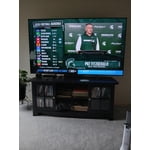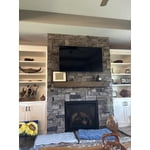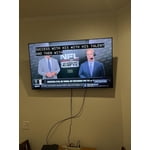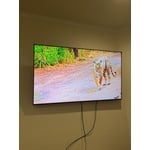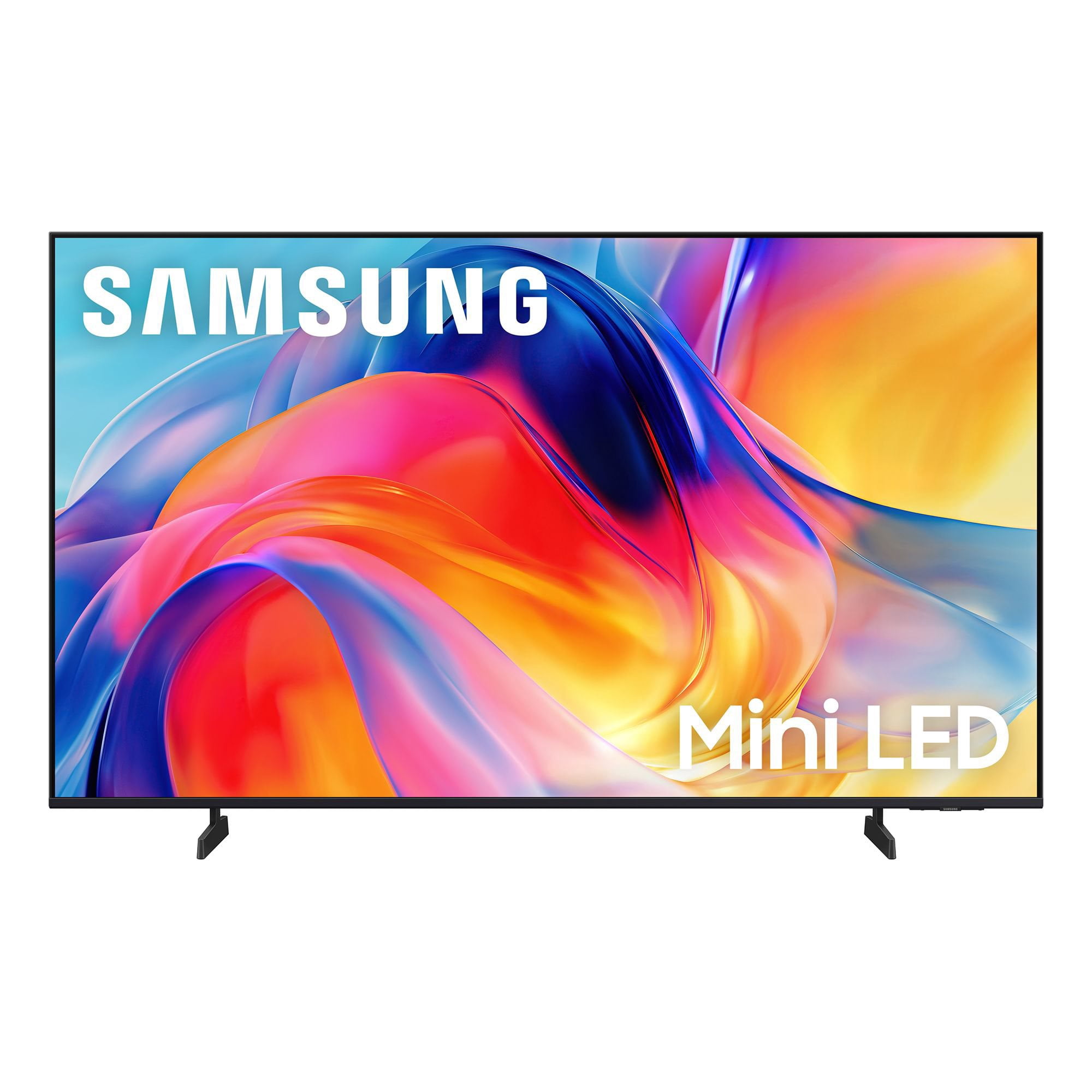
Customer reviews for SAMSUNG 50” Class M70H Series Mini LED 4K UHD Vision AI Companion Smart Tizen TV forMember photos
Excellent TV Sharp color and picture
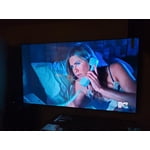
[This review was collected as part of a promotion.] This TV has an exceptional picture clarity and brightness in all types of room lighting. The color is crisp. Resolution is exceptional. There is no need to adjust the contrast. The internal speakers are weak, I recommend the Samsung sound bar and theater sound which functions perfectly with the TV and compliments the system perfectly.
Exactly what I needed
[This review was collected as part of a promotion.] This TV has been amazing. Everybody mentions how good the picture looks when they come over. Makes you feel good about hosting parties. Sports look clear and everything pops with bright colors. Happy with this purchase as a lifelong Samsung purchaser.
Best TV I've ever owned
[This review was collected as part of a promotion.] Best TV I've ever owned. The brightness is very Dynamic ranging from a dark room to being able to see it in a bright room and direct sunlight the color is really rich and the picture is crystal clear. Works great for high resolution as a monitor.
Real life in a box on my wall!
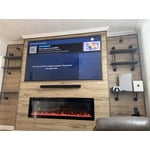
[This review was collected as part of a promotion.] Needed a smaller TV for my kids room and they absolutely love it. Just because it's smaller doesn't mean it lacks in quality or features! My kids are obsessed with it and I can't get them off the dang Xbox! The picture looks crazy, like real life is shining through the screen. The color is so vibrant and bright that you wouldn't know it's a movie if it didn't have a tiny black frame around it. Me and my family love Samsung and all our products! Thank you!
I like the picture great colors.
[This review was collected as part of a promotion.] Has great pictures, very good sound. It was very easy to setup. The black color was great. I would buy again.
Another awesome product
[This review was collected as part of a promotion.] My only complaint was it won't let me register my TV. Kept saying my product number was incorrect.
Good TV for the Price
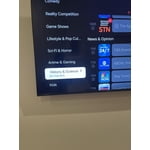
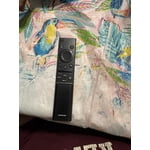
[This review was collected as part of a promotion.] The screen size and picture quality are very good. The sound is just average. The remote work well but it lacks audio input even though the TV has Bixby. Had to buy another remote with audio input button to be able to use verbal commands. I do not know if it is the third party remote or the TV but the verbal commands do not always work. When moving the curser or loading an app the TV is a little slow. Trying to find and use the settings is not very clear cut.
So so
[This review was collected as part of a promotion.] Tv is beautiful, as far as picture and all that stuff. The remote control is terrible!. Volume is hard to work and channel selection is very slow! Can’t get my fingers to move the remote. I should have opted for the Visio instead!
Hi Frank, Thank you for sharing your experience. While it's great to hear you’re enjoying the Mini LED Processor 4K on your Samsung M70HD TV, please know we are here to support you with any issues you are encountering. If your remote isn’t responding, here are a few quick steps to help determine if it’s working correctly: 1. Check the batteries: Remove the back cover of your remote and replace the batteries with a fresh set, ensuring they are inserted in the correct direction. 2. Test for infrared signal: Point the front of the remote at your smartphone camera. While holding down any button, you should see a flashing light through the camera screen. (For iPhone users, the front-facing camera works best.) If you see the light, your remote is working and may need to be re-paired with your TV. 3. Point the remote correctly: Try pointing the remote directly at the TV from about 5-6 feet away. This can help ensure a clearer signal between the remote and the TV. 4. Reset the remote: Press and hold the Return and Enter (center of navigation pad) buttons for more than 10 seconds. 5. Re-pair the remote: After resetting, stand within 1 foot of your TV and press Return and Play/Pause simultaneously for at least 5 seconds, or until a pairing message appears on your TV. 6. Check for firmware updates, as these can include both TV and remote optimizations: Settings > Support > Software Update > Update Now If you still need assistance, please contact Samsung Support at 1-800-SAMSUNG (8AM – 9PM EST Mon – Fri, 8AM – 6PM Sat – Sun), or visit the ‘Support’ link on our website to start a LiveChat session. ~Samsung Advisor
Needs a better sleep timer setting
[This review was collected as part of a promotion.] This TV is the only Samsung that I have in my home. We have a TV in every bedroom so whenever we have family/ guests visit, they will have a TV in their personal space. Of all the TV’s we have the Samsung is by far the least responsive to commands. I enjoy falling asleep to the TV in the background, but don’t like to wake to it at 3:00 AM, so I use the sleep timer every night. Some of our TV’s have the convenience of a verbal command setting that allows you to verbally set the timer. Samsung should look into this and add it.
Hi SB52, We appreciate your feedback on the M70HD TV. For optimal performance, please ensure your TV is running the latest firmware. You can check this by going to: Home > left directional key > Settings > Support > Software Update To further optimize performance, try running Device Care, which checks memory, clears unused cached data, and closes background apps: Home > left directional key > Settings > Support > Device Care > Start Device Care. Please know that although your TV does not have a built-in voice assistant, it does work With Alexa, meaning you’ll need to connect a standalone Alexa device such as an Echo speaker, to control compatible smart home devices and some experiences on your TV. You can also use the Samsung SmartThings app on your mobile device to set up a daily routine, such as turning off the TV at a certain time each night. To set up a routine, please follow the below instructions: Step 1. On your phone, navigate to and open the SmartThings app. Tap the Home icon and select the location with the device you want to use in the Routine. Step 2. Tap Add (the plus sign), and then tap Routine. Step 3. Tap + under "If" to set your desired conditions for the routine, such as the time it will trigger. After tapping +, follow the on-screen instructions for your chosen condition. Step 4. Tap + under "Then" to add an action to the routine. If needed, you can assign an offline device to an routine. If the device says (Offline) next to it, you can still select it and then choose your desired action. Step 5. Read the on-screen instructions to finish the setup, and then tap Save. Step 6. Assign a name to the routine, and then tap OK. When the conditions are met, the device will automatically perform that action! We hope these tips are helpful. If you need any further assistance, please don’t hesitate to call us at 1-800-SAMSUNG (8AM – 9PM EST Mon – Fri, 8AM – 6PM Sat – Sun), or reach us via text anytime. You can also visit ‘Support’ on our website for:. You can also chat with one of our agents by clicking the ‘Support’ link on our website for: • Live Chat • Manuals, Software, & Warranty Info ~ Samsung Advisor
Verified Purchase
Samsung tv is garbage!!
The picture quality is amazing but the speakers even when really low volume makes an awful noise but only on certain movies. I’m really unpleased with the tv , and probably going to return it .
Hi James,<br /><br />We appreciate you sharing your experience regarding an unusual sound coming from your TV. The cause may vary depending on where the sound is coming from and how your system is set up.<br /><br />• If the sound is coming from your TV speakers, or if you're using an external audio device like a soundbar, please double-check that the audio cable is securely connected to the correct audio output on the external device.<br />• If you're using an antenna or cable connection, a weak signal may result in sound distortion. You can check your broadcast signal level by going to: Settings > Support > Device Care > Self Diagnosis > Broadcast Signal<br />• If the sound seems to come from the back of the TV, it may be the result of thermal expansion or contraction of the outer casing. This can cause a soft popping noise and is considered normal - it does not indicate a malfunction, and your TV remains safe to use.<br /><br />We also recommend running a Sound Test to check for audio issues: Home > left directional key > Settings > Support > Device Care > Self Diagnosis > Sound Test. <br /><br />If the issue continues or you’d like assistance, feel free to contact Samsung Support at 1-800-SAMSUNG (8AM – 9PM EST Mon – Fri, 8AM – 6PM Sat – Sun), or reach us via text anytime. You can also visit ‘Support’ on our website for:<br />• Live Chat<br />• Manuals, Software, & Warranty Info<br /><br />~Samsung Advisor