Join Now
Skip to Main Content
Sam's Club
Sam's Club
All Departments
All Services
Customer reviews for SAMSUNG 65” Class M70H Series Mini LED 4K UHD Vision AI Companion Smart Tizen TV for
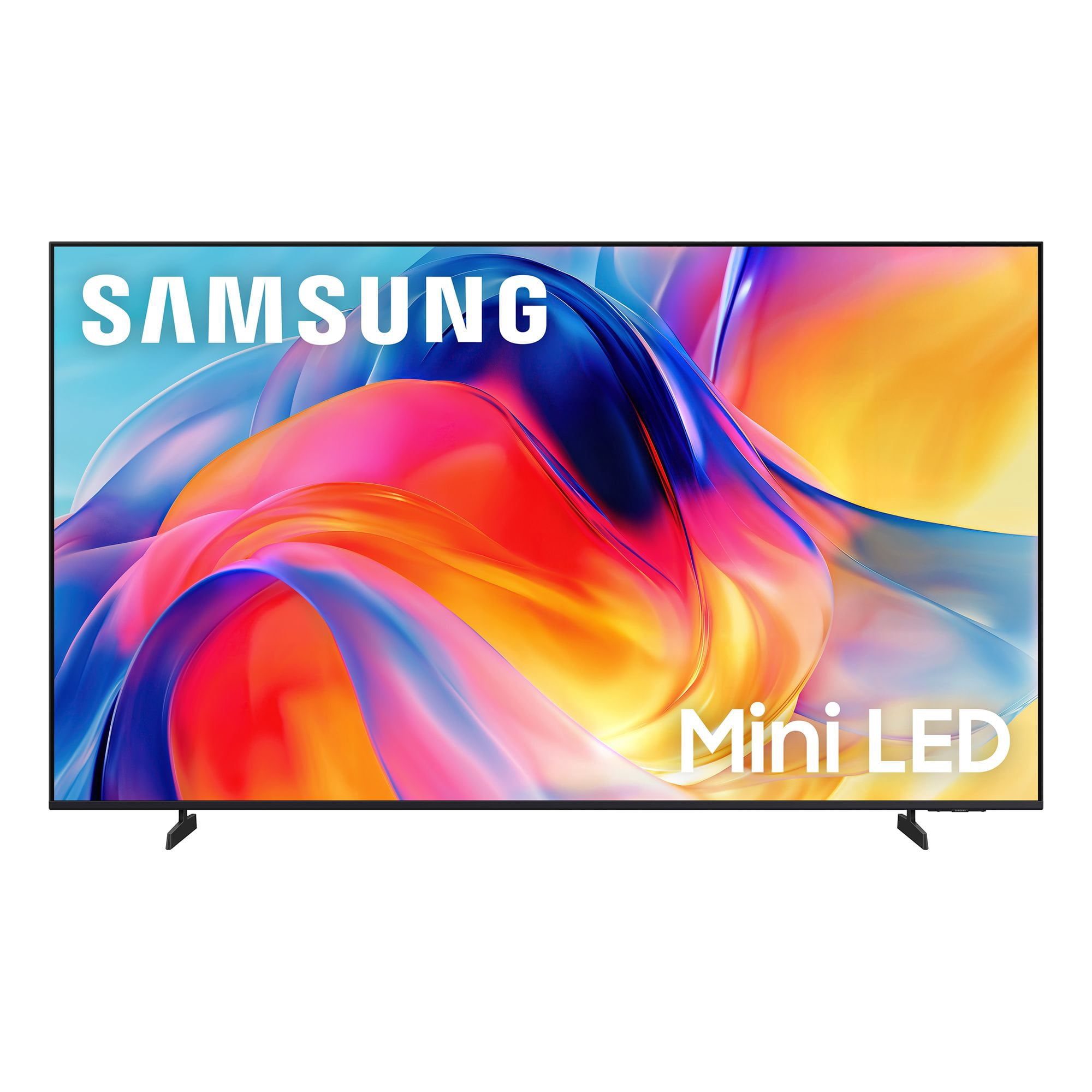
SAMSUNG 65” Class M70H Series Mini LED 4K UHD Vision AI Companion Smart Tizen TV
4.5 out of 5 stars
stars
470 ratings446 reviews
  1. 5 stars71% (336)
  2. 4 stars15% (70)
  3. 3 stars7% (32)
  4. 2 stars5% (23)
  5. 1 star2% (9)

Member photos

  • +122 images
Sort by |
Showing 391-400 of 446 reviews
Aug 20, 2026
Reviewer name: Retired505
5 out of 5 stars
5 out of 5 stars review

Great TV

[This review was collected as part of a promotion.] Another great TV from Samsung. Easy setup and great picture.

Review from Samsung US
Helpful?0XWIJWU36LZK19823766916
Aug 5, 2026
Reviewer name: Modesto
4 out of 5 stars
4 out of 5 stars review

Good TV

[This review was collected as part of a promotion.] It's a good TV. Not the best but for the price, good

Review from Samsung US
Helpful?0XWIJWU36LZK19823766916
Aug 10, 2026
Reviewer name: Maka
5 out of 5 stars
5 out of 5 stars review

Great features
[This review was collected as part of a promotion.] Very nice picture and features. Very good apps and picture quality.

Review from Samsung US
Helpful?0XWIJWU36LZK19823766916
Aug 5, 2026
Reviewer name: Todd H
2 out of 5 stars
2 out of 5 stars review

color quality

[This review was collected as part of a promotion.] Very poor picture color quality with reds and greens.

Review from Samsung US
Helpful?0XWIJWU36LZK19823766916
reply from Samsung Advisor

Hi Todd H, We appreciate your feedback on the picture quality of Samsung’s M70HD TV. If the image doesn’t quite match your preferences, there are several adjustments you can make to better suit your viewing environment and content type. First, please ensure your TV is running the latest firmware, as updates may include important picture quality enhancements. Go to: Home > Left directional button > Settings > Support > Software Update > Update Now To explore picture mode options, navigate to: Home > Left directional button > Settings > All Settings > Picture > Picture Mode. Options include: • Standard – Ideal for general viewing • Dynamic – Brighter and more vibrant for well-lit spaces • Eco – Optimized for energy efficiency • Movie – Best for viewing in low light • Filmmaker Mode – Preserves the content creator’s intent and disables motion smoothing for supported content You can further customize your image by going to: Settings > All Settings > Picture > Expert Settings, where you can adjust Brightness, Contrast, Color Tone, Sharpness, Contrast Enhancer and more. If you’d like help finding the best picture settings for your preferences, please don’t hesitate to contact Samsung Support at 1-800-SAMSUNG (8AM – 9PM EST Mon – Fri, 8AM – 6PM Sat – Sun). You can also LiveChat with an agent or explore additional resources on our website by clicking the ‘Support’ link. ~ Samsung Advisor

Jul 27, 2026
Reviewer name: D A Jones
5 out of 5 stars
5 out of 5 stars review

buy me!

[This review was collected as part of a promotion.] Bright and the contrast is amazing. The color accuracy seems to be on point!

Review from Samsung US
Helpful?0XWIJWU36LZK19823766916
Aug 20, 2026
Reviewer name: KenJ
4 out of 5 stars
4 out of 5 stars review

55 in Samsung TV

[This review was collected as part of a promotion.] Sound is not very.good ! Need to turn up the volume a lot to hear it like my other Samsung TV's.

Review from Samsung US
Helpful?0XWIJWU36LZK19823766916
Aug 6, 2026
Reviewer name: Eschermom
3 out of 5 stars
3 out of 5 stars review

Just OK

[This review was collected as part of a promotion.] I had hoped for a brighter picture. Considered returning it, but too much trouble

Review from Samsung US
Helpful?0XWIJWU36LZK19823766916
reply from Samsung Advisor

Hi Eschermom, We’re sorry to hear you’re not fully satisfied with the picture quality on your Samsung M70HD TV. If the image appears too dark, we suggest disabling certain energy-saving features, which can automatically adjust brightness and affect how the screen looks. Go to: Settings > All Settings > General & Privacy > Power and Energy Saving, then turn off Brightness Optimization, Energy Saving Solution, Motion Lighting, and/or Contrast Enhancer. You can also adjust the Picture Mode to better suit your environment: Settings > All Settings > Picture > Picture Mode • Standard – Default mode for general viewing • Dynamic – Brighter and clearer, ideal for well-lit rooms • Movie – Best for dark room viewing • Eco – Energy-saving mode • Filmmaker Mode – Preserves content as intended by creators To fine-tune brightness, go to: Home > left directional key > Settings > All Settings > Picture > Expert Settings, then adjust the Brightness level (0–50) to your preference. Lastly, please make sure your TV is running the latest firmware: Home > Home > left directional key > Settings > Support > Software Update > Update Now We hope these tips help improve your viewing experience. If you need further support, feel free to contact us at 1-800-SAMSUNG (8AM – 9PM EST Mon – Fri, 8AM – 6PM Sat – Sun). LiveChat is also available via the ‘Support’ link on our website. ~ Samsung Advisor

Aug 5, 2026
Reviewer name: None
5 out of 5 stars
5 out of 5 stars review

Great features

[This review was collected as part of a promotion.] This is my 6th Samsung tv never a problem always plats beautifully

Review from Samsung US
Helpful?0XWIJWU36LZK19823766916
Jul 5, 2026
Reviewer name: jersey813
5 out of 5 stars
5 out of 5 stars review

Samsung 55" TV Good value

[This review was collected as part of a promotion.] great tv, i am very pleased with my purchase of this Samsung TV. Only problem is the sound.

Review from Samsung US
Helpful?0XWIJWU36LZK19823766916
Jul 5, 2026
Reviewer name: Rene9marine
5 out of 5 stars
5 out of 5 stars review

Great

[This review was collected as part of a promotion.] All the tv that I own are Samsung total of 5 I think that will said a lot. Very happy 😃

Review from Samsung US
Helpful?0XWIJWU36LZK19823766916