
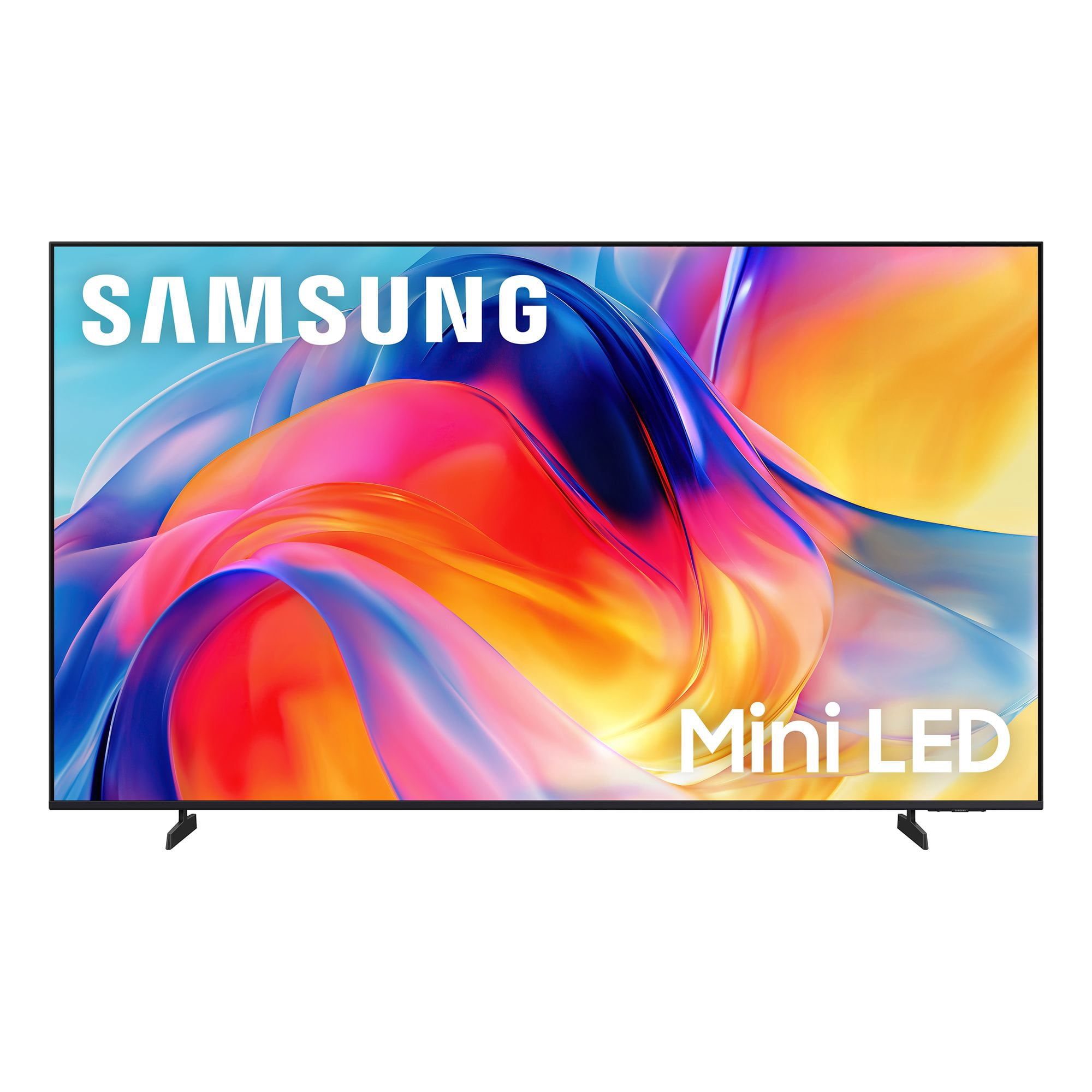
 Customer reviews for SAMSUNG 65” Class M70H Series Mini LED 4K UHD Vision AI Companion Smart Tizen TV for
Member photos


 +122 images
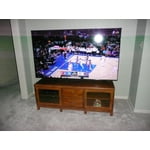
BEAUTIFUL DISPLAY
[This review was collected as part of a promotion.] At first I was a little skeptical it wasn't as clear as my 4K curve But as time went on and we got our updates and then adjusted to my room it just turned into a fantastic television that I can read the subtitles without glasses it is pretty amazing thank you and very happy with it Samsung
Great screen & features
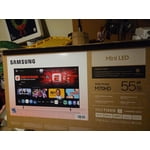
[This review was collected as part of a promotion.] This mini-LED 55" TV is a wonderful value with beautiful screen quality & features. The brightness and color are top notch. Only negative is Samsung's log-on process to receive free Samsung Plus channels as it was very cumbersome.
Awesome TV
[This review was collected as part of a promotion.] The TV is better then the Sony that I had. The color, sound, and the brightness. When you click to turn it on it comes up so fast and turns off fast. I have eye problems and the TV is so clear and don't hurt my eyes when I watch it like the Sony. I can't say anything wrong with it.
Disappointed.
[This review was collected as part of a promotion.] I was excited to purchase this tv. To my disappointment I had to return it because, now Samsung only uses their own propriety operating system. Many things I can't download, then if you need purchase a firestick. More money. I just returned it and got a different brand that is more android friendly.
Hi Fabiolous, Thank you for your feedback. Samsung does use its own Operating System. Tizen is designed to work seamlessly with Samsung features like Multi View, Game Bar, and Samsung TV Plus (free live TV). It also gives you a clean, customizable interface with fast app switching and SmartThings built right in. We hope you’ll consider Samsung again in the future. If you do, we’re always here to help with setup and support. Reach us at 1-800-SAMSUNG (8AM – 9PM EST Mon – Fri, 8AM – 6PM Sat – Sun)or visit our website to chat live and access manuals or software. ~ Samsung Advisor
75in upgrade to 85in great decision
[This review was collected as part of a promotion.] Great TV and so much more. Colors brilliant and bright sound is great. Images are beautifully defined. Samsung TV is great with so much to watch with out streaming services. AI technology and easy wireless connectivity makes respone time very fast.
Highly Satisfied! Perfect Visuals and Sound!
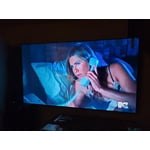
[This review was collected as part of a promotion.] Aloha‼︎ Living in Hawaii, Samsung is always my top choice due to their excellent delivery options and reliable after-purchase support. Unfortunately, my previous 55" Class Q7 Series QLED TV suddenly blacked out after about four and a half years. Thankfully, it was covered by a 5-year warranty, and Samsung responded quickly! This allowed us to upgrade to the Samsung 65" Class M70H Series 4K Mini LED Smart TV. Thanks to the Mini LED technology, the weak points of our previous model seem resolved, and this new one feels incredibly stable. It seems to be a very popular model, so delivery took some time, but we had fun rearranging our living room while anticipating its arrival. When it finally arrived, we were thrilled! While it is significantly larger, it doesn't feel overwhelming at all—in fact, the size is a perfect fit for our room. My husband, who wears hearing aids, was absolutely delighted. Not only is the picture quality amazing, but the sound is beautifully mellow. He noticed no harsh high frequencies, making it much easier for him to catch clear dialogue while watching movies. The picture quality is exceptionally smooth and gentle on the eyes. While the images are crystal clear, our very first impression was how soothing and natural the colors felt, just like the audio. I occasionally suffer from migraines with aura when watching TV in a dark room for too long, but this display causes zero eye strain, and I haven't had any issues at all. My husband is already counting down the days until football season! Since we've only had it for a short time, this might not be a definitive long-term review, but we can confidently say we are absolutely thrilled with this purchase. TV trends are moving toward massive, ultra-thin screens with blinding brightness, but for us, this size and quality are the perfect sweet spot. It offers incredible value for the price!
Very unhappy.
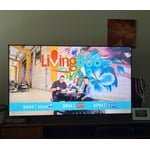
[This review was collected as part of a promotion.] The tv looks great when on, if I can get it to cooperate with me on the streaming service I want. I set up the tv, set up all my streaming services and for two weeks I could get it to go to the service i wanted. Now it will only go to the ROKU channel no matter what I select. Unusable at this point. Very unhappy.
Hi, Thank you for your review. If you've successfully logged in to your Samsung Account but Smart Hub isn’t loading or functioning correctly, try the following steps: 1. Check your internet connection: Go to Settings > Network > Network Status to confirm the TV is connected to a stable network. 2. Cold boot your TV: With the TV on, press and hold the Power button on your remote until the TV turns off and back on. This can help clear temporary glitches. 3. Reset Smart Hub: Go to Settings > Support > Device Care > Self Diagnosis > Reset Smart Hub. This will reset Smart Hub apps and settings (you may need to log back into your apps). 4. Check for firmware updates: Go to Settings > Support > Software Update > Update Now to ensure you’re running the latest version. If Smart Hub still doesn’t load after these steps, we’re happy to assist further. Please contact Samsung Support at 1-800-SAMSUNG (8AM – 9PM EST Mon – Fri, 8AM – 6PM Sat – Sun). LiveChat and additional support resources are also available through the Support link on our website. ~ Samsung Advisor
Insufficient Remote Control "how to" information
[This review was collected as part of a promotion.] I like my TV, but I was shocked about how little information Samsung provided me. All I received in the box were simple instructions on how to install the legs. The remote was simply a circular button. Most of the time, new remotes are fairly intuitive. This one was not and I couldn't find any information on line, unless I wanted to pay for it. Please give your new TV owners a fighting chance to set up their new TV properly.
C man, We appreciate you sharing your experience with the included remote. To help you get the most from your TV and remote functions, you can download the full e-Manual and more by visiting Samsung’s website then navigating to: Support > Manual & Software > TVs & Home Theater. From there, you can search for and select your M70HD TV model to view or download the available guides. The e-Manual & Remote Control Guide are also conveniently built into your TV: Settings > Support > Tips and User Guides Learn TV Remote is another feature designed to help users become familiar with the layout and function of each button on the Samsung remote. When enabled, pressing any button (except the Power button, which will still turn off the TV) will prompt the TV to announce the button’s name and its purpose – without affecting TV operation. This teaching mode is especially useful for users who are visually impaired or new to Samsung remotes. To enable this feature, go to: Settings > All Settings > General & Privacy > Accessibility > Learn TV Remote. To exit, simply press the Return key twice. If you’d like more assistance with this feature, please reach Samsung Support at 1-800-SAMSUNG (8AM – 9PM EST Mon – Fri, 8AM – 6PM Sat – Sun). LiveChat agents are also available through the ‘Support’ link on our website. ~ Samsung Specialist
NOT USER FRIENDLY
[This review was collected as part of a promotion.] Very complicated TV. Nothing easy about it. I have a Toshiba smart tv and much easier to use. Never even got a tv manual. Everyone does not have a smart phone to ask questions. Picture is beautiful. Sound is ok at times. I would never recommend this tv to any of my friends. IT IS NOT USER FRIENDLY WHY DOES MY SAMSUNG TV GO BY ITSELF IN THE MIDDLE IF THE NIGHT. VERY COSTLY AND VERY ANNOYING
Hi Helen, Thank you for your feedback. If your TV is powering on by itself, there are a few settings and external triggers to review: 1. Power On with Mobile – Your TV may be connected to the SmartThings app or other networked devices. To stop wake signals, turn this feature off: Settings > All Settings > Connection > Network > Expert Settings > Power On with Mobile = Off 2. Check for Active Timers – Go to Settings > All Settings > General & Privacy > System Manager > Time > Timer Settings, then disable any On Timers or Sleep Timers 3. Anynet+ (HDMI-CEC) – If your TV is connected to external HDMI devices, one of them may be triggering power-on behavior. To disable this feature: Settings > All Settings > General & Privacy > External Device Manager > Anynet+ (HDMI-CEC) = Off 4. Software Update – Make sure your TV is up to date: Settings > Support > Software Update > Update Now To help you get the most from your TV, you can download the full e-Manual and more by visiting Samsung’s website then navigating to: Support > Manual & Software > TVs & Home Theater. From there, you can search for and select your M70HD TV model to view or download the available guides. The e-Manual and Remote Control Guide are also conveniently built into your TV: Settings > Support > Tips and User Guides If you need additional help, please contact Samsung Support at 1-800-SAMSUNG (8AM – 9PM EST Mon – Fri, 8AM – 6PM Sat – Sun). LiveChat agents are also available through the ‘Support’ link on our website. ~Samsung Advisor
Amazing quality tv
[This review was collected as part of a promotion.] Picture quality both movie and game console is amazing. The Amazon app luma tha tcan be downloaded is absolutely awesome so you don't have to physically have any console connected to play games. Sound is amazing as well.