Good experience but it does not work very well
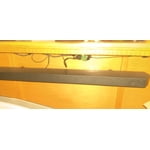
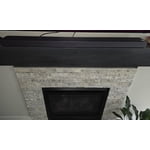
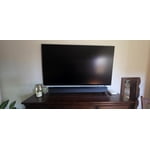
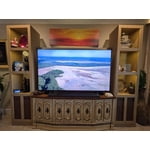
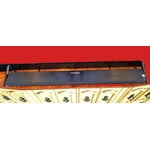
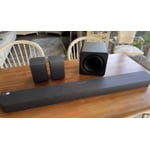
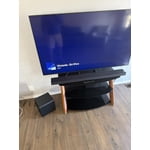
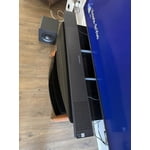
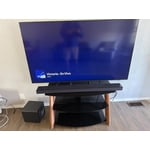
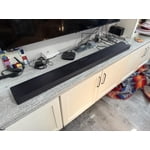
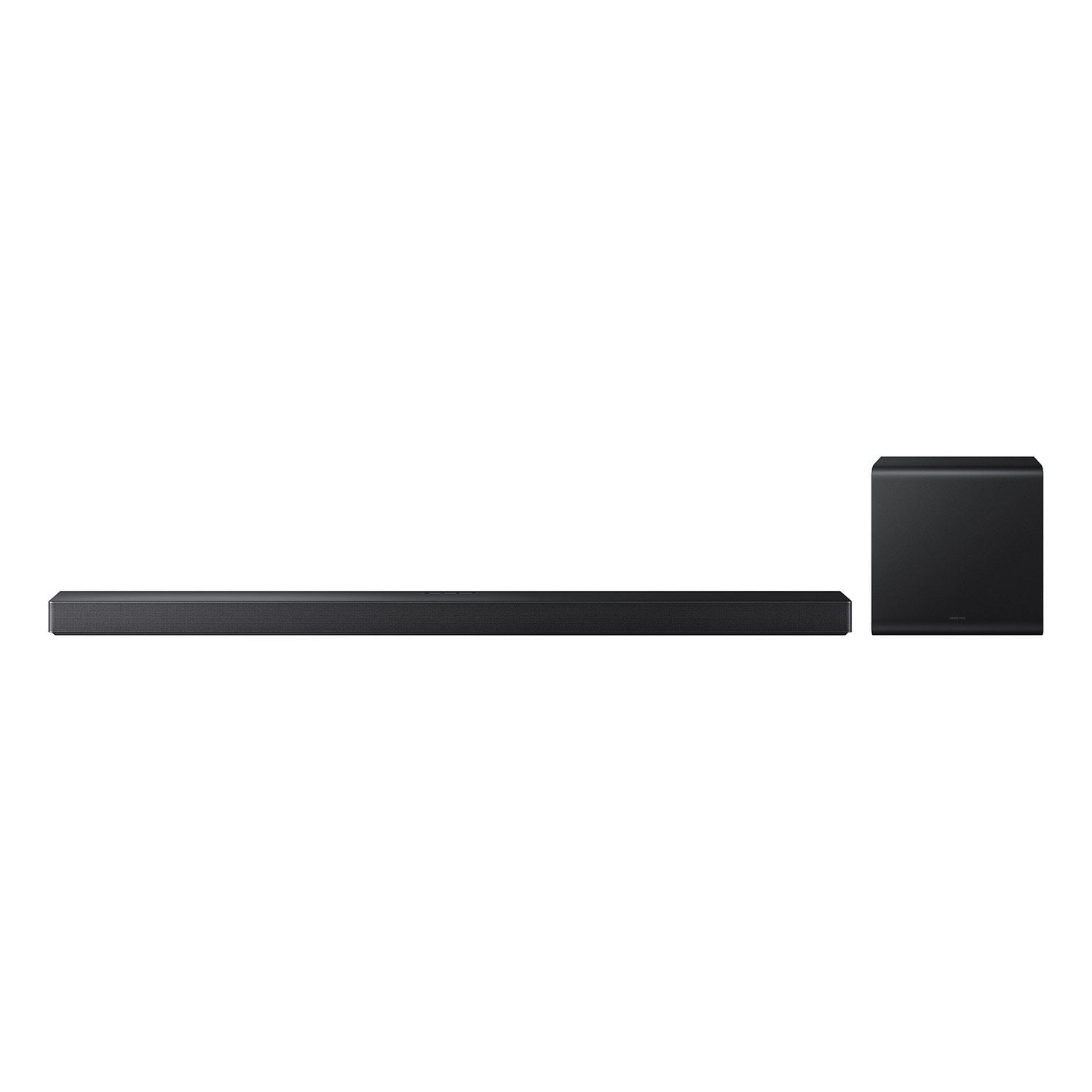
[This review was collected as part of a promotion.] The Samsung soundbar looks great and sounds good overall, but it didn’t quite live up to my expectations. I really like the sleek, minimalist design — it fits perfectly under my TV and gives a nice premium touch to the setup. The sound quality itself is clean and clear, with good balance between bass and treble. Movies and music sound nice, and it definitely improves the experience compared to most built-in TV speakers.
The problem is with Q-Symphony, which was one of the main reasons I chose this model. On paper, it’s supposed to combine the TV speakers and soundbar for a richer, more immersive sound. In practice, it doesn’t really do much. Whether Q-Symphony is on or off, the audio sounds basically the same. Sometimes it even feels slightly out of sync, which defeats the whole purpose of the feature. I tested it several times and honestly couldn’t tell when it was active.
So while the soundbar itself is fine, the advertised Q-Symphony feature feels more like a gimmick than a real improvement. If you just want a stylish soundbar with decent audio, this one works well. But if you’re expecting Q-Symphony to make a big difference, you’ll probably be disappointed. For that reason, I’m giving it 3 stars — good product overall, but not great value for what it promises.
reply from Samsung Solutions
Hello TheUser,
Thank you for taking a few moments to review the Samsung HW-QS700F Soundbar.
You can try optimizing audio performance for your specific content by pressing the SOUND MODE button on your remote and then selecting the desired sound effect by choosing STANDARD, SURROUND SOUND, GAME PRO, VOICE ENHANCE, NIGHT MODE, or ADAPTIVE SOUND
You can further adjust TREBLE and BASS via the TONE CONTROL button by pressing the UP/DOWN button on your soundbar remote.
Press and hold the SOUND CONTROL button for about 5 seconds to adjust the sound for each frequency band. 150Hz, 300Hz, 600Hz, 1.2kHz, 2.5kHz, 5kHz, and 10kHz are selectable using the Left/Right buttons and each can be adjusted to a setting between -6 to +6 using the Up/Down buttons. (Make sure the Sound mode is set to “STANDARD”.)
To control the volume of each speaker, select CENTER LEVEL or TOP LEVEL in Sound Settings, and then adjust the volume between -6 to +6 by using the Up/Down buttons.
With the optional SWA-9500S Wireless Rear Speakers connected you can adjust the volume by using the provided Soundbar remote. Press CH LEVEL and select REAR LEVEL or REAR TOP LEVEL, then use the Up/Down buttons to adjust the volume within a -6 to +6 range.
If the video on the TV and audio from the Soundbar are not synchronized, select SYNC in Sound Control, and then set the audio delay between 0~300 milliseconds by using the Up/Down buttons.
Alternatively, you can adjust all of these same settings and more within the SmartThings app. Download the app for your iOS or Android device and then connect your Soundbar to Wi-Fi. From here, you will be able to adjust all of the same settings as the provided remote, but with the added benefit of being able to see the changes on your smart device.
I hope these tips help improve your enjoyment. For more help, please call us at 1-800-SAMSUNG (Ask for Soundbars), 8 AM – 12 AM EST, 7 days a week. Live Chat with an agent as well as manuals, software, creating a service ticket, and warranty info can be found at the ‘Support’ link on our Samsung website.
~ Samsung Solutions