Skip to Main Content
Sam's Club
Sam's Club
All Departments
All Services
Customer reviews for SAMSUNG 70" Class U7900F Series 4K Crystal UHD Smart TV for
SAMSUNG 70" Class U7900F Series 4K Crystal UHD Smart TV
4.5 out of 5 stars
stars
3,963 ratings3,956 reviews
  1. 5 stars73% (2,905)
  2. 4 stars15% (601)
  3. 3 stars6% (242)
  4. 2 stars2% (94)
  5. 1 star3% (121)

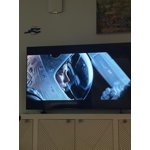
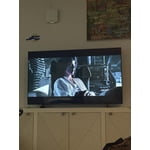
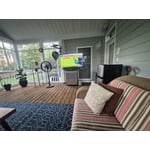
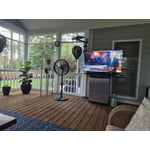
Member photos

  • +1545 images
Sort by |
Showing 1,571-1,580 of 3,956 reviews
Jun 5, 2026
Reviewer name: Grandma Becky
5 out of 5 stars
5 out of 5 stars review

Samsung TV Rave 🙌🏻
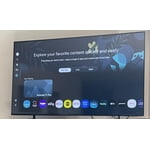
[This review was collected as part of a promotion.] I'm very pleased with my Samsung TV purchase. Very clear picture and sound. Easy to set up 🙌🏻 and use the features! 😊 I actually referred this tv to my best friend who also purchased one!

Review from Samsung US
Helpful?519VMKO7QPOP17358505999
Jun 22, 2026
Reviewer name: MAGALLAN
5 out of 5 stars
5 out of 5 stars review

Perfect picture

[This review was collected as part of a promotion.] This is the best TV amazing. The picture is perfect. The volume is awesome. The contrast is amazing

Review from Samsung US
Helpful?519VMKO7QPOP17358505999
Jul 5, 2026
Reviewer name: Mholloway10
5 out of 5 stars
5 out of 5 stars review

Samsung

[This review was collected as part of a promotion.] The product does not disappoint in any fashion. Superior quality and resolution that I would recommend to tv and movie watchers.

Review from Samsung US
Helpful?519VMKO7QPOP17358505999
Jul 20, 2026
Reviewer name: McStank88
5 out of 5 stars
5 out of 5 stars review

Great contrast
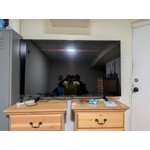
[This review was collected as part of a promotion.] Enjoy the clarity and smooth motion of picture. Great color contrast in live action and C.G. animated movies.

Review from Samsung US
Helpful?519VMKO7QPOP17358505999
Jul 21, 2026
Reviewer name: Sosa
5 out of 5 stars
5 out of 5 stars review

Love the screen clarity!

[This review was collected as part of a promotion.] Really satisfied with the multiple options for screen color, brightness, and the response time I get from my Samsung tv! 100% entertainment!

Review from Samsung US
Helpful?519VMKO7QPOP17358505999
Jun 22, 2026
Reviewer name: Samsung Lover
5 out of 5 stars
5 out of 5 stars review

Fabulous TV.

[This review was collected as part of a promotion.] Absolutely beautiful. Looks like you could step right into the picture. Colors are vibrant and bright. We love it.

Review from Samsung US
Helpful?519VMKO7QPOP17358505999
Jul 5, 2026
Reviewer name: Poofb
3 out of 5 stars
3 out of 5 stars review

You asked

[This review was collected as part of a promotion.] Honestly for sports quality seems low. Picture distorted and doesn't look HR. Cant seem to pin common apps like Fubo and always have to go to recent searches to pull them up.

Review from Samsung US
Helpful?519VMKO7QPOP17358505999
reply from Samsung Advisor

Hi Poofb, Thank you for sharing your experience with us. To add downloaded apps to your U7900F, go to App Settings (these can be found at the bottom of the Apps screen) and select the app you want to move. The following options will be available: a. Add to Home: Move the app to your desired location on the Home screen. b. Delete: Delete app. c. Lock/Unlock: Lock the app with a PIN so only you can use it. When the app is selected again, you will be prompted to enter the PIN to unlock it. d. Reinstall: Reinstall the app. e. View Details: View the app’s information and details. If your picture appears blurry or unnatural during high-speed scenes, there are several settings you can adjust to improve motion clarity. Go to: Home > left directional key > Settings > All Settings > Picture > Expert Settings, and review these key settings: Picture Clarity Settings • Off: Disables all motion enhancement • Auto: Automatically adjusts motion clarity based on content • Custom: Enables manual control of: o Judder Reduction: Smooths motion in film-based content o LED Clear Motion: Increases sharpness during fast movement o Noise Reduction: Helps reduce distortion in lower-quality sources Additional Picture Controls • Brightness – Adjust overall image brightness • Contrast – Controls the difference between light and dark areas • Sharpness – Enhances the definition of object edges • Color – Adjusts color intensity for more natural or vivid tones We hope these settings help improve your viewing experience, especially with fast-moving content. If you'd like further assistance, feel free to reach out to Samsung Support at 1-800-SAMSUNG, (8AM – 9PM EST Mon – Fri, 8AM – 6PM Sat – Sun), or reach us via text anytime. You can also visit ‘Support’ on our website for: • Live Chat • Manuals, Software, & Warranty Info ~ Samsung Advisor

Jul 5, 2026
Reviewer name: Anonymous
4 out of 5 stars
4 out of 5 stars review

65

[This review was collected as part of a promotion.] The remote is very poor. We have a hard time changing Chanel's. Maybe that's because we're old T

Review from Samsung US
Helpful?519VMKO7QPOP17358505999
Jul 20, 2026
Reviewer name: Sheebs
3 out of 5 stars
3 out of 5 stars review

Some remote problems but otherwise we like the TV

[This review was collected as part of a promotion.] The TV picture is fine but the remote is difficult to use and flip from HDMI1 to 2, and we get frustrated. Got to figure out one remote for all.

Review from Samsung US
Helpful?519VMKO7QPOP17358505999
reply from Samsung Advisor

Hi Sheebs, Thank you for sharing your review. Please know you can control your connected devices (like cable boxes, Blu-ray players, or game consoles) using your U7900FD TV’s remote by following these steps: 1. Connect & Power On the Device Connect the external device to one of your TV’s HDMI ports and power it on. Your TV may automatically detect the device and switch inputs. If it doesn’t, continue with the steps below. 2. Launch Universal Remote Setup. On your TV, navigate to: Home > left directional key > Connected Devices > Universal Remote Setup. When the connected device appears, select it to begin setup. 3. Start the Setup. Select Universal Remote on the Home screen, choose Start, and ensure your device is powered on. When your desired device appears, select it and follow the on-screen instructions. Setup may vary slightly based on device type. 4. Finalize and Test. Once complete, your Samsung TV and remote will remember the connected device and its HDMI port. If the device doesn’t respond after setup, you may need to re-register it or adjust its position for better signal reception. Helpful Tips: • If your external device is a Samsung product, Anynet+ (HDMI-CEC) may let you control it automatically using your TV remote with no extra setup. • Make sure nothing blocks the IR signal between your TV and external devices. • If you’re having difficulty, try adjusting the device’s position for better remote signal reception. • This feature may not be supported on all external devices or setups. For further support with setup or compatibility questions, please don’t hesitate to contact Samsung Customer Support at 1-800-SAMSUNG (8AM – 9PM EST Mon – Fri, 8AM – 6PM Sat – Sun). LiveChat agents are also available at the ‘Support’ link on our website. ~ Samsung Advisor

Jul 6, 2026
Reviewer name: Jazzysan
4 out of 5 stars
4 out of 5 stars review

Great Upgrade

[This review was collected as part of a promotion.] I updated my bedroom TV with this Samsung 55" , I'm really loving it. The only negative thing is that most movies are showing so dark that I'm constantly having to adjust the brightness.

Review from Samsung US
Helpful?519VMKO7QPOP17358505999