
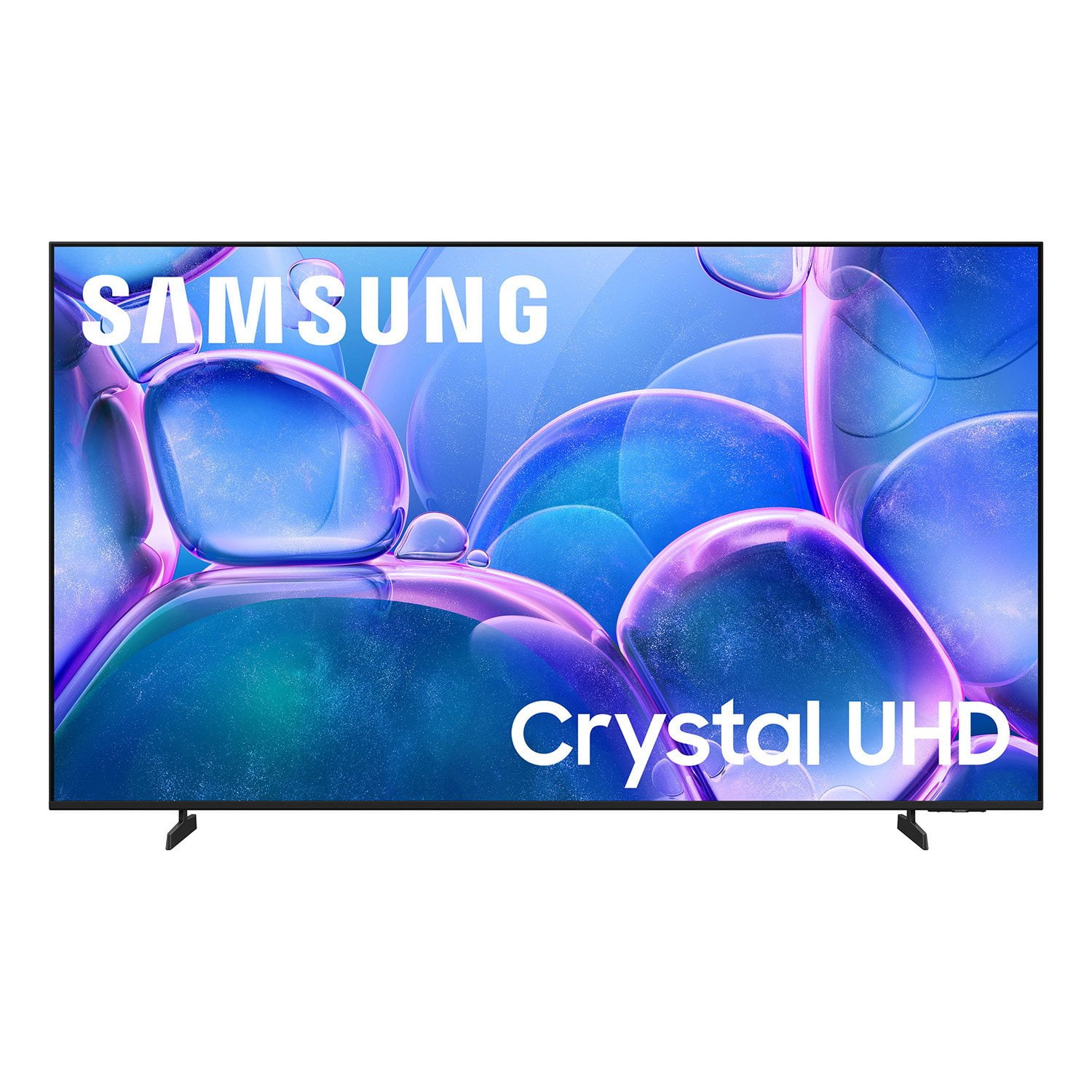
 Customer reviews for SAMSUNG 70" Class U7900F Series 4K Crystal UHD Smart TV for
Member photos





 +1527 images
Horrible remote
Bought this TV. It came with no user manual. The remote is horrible. They took away most of the functions. Can't figure out how to use it. Can't put in a specific channel, no previous channel button. Trying to find a user manual here. Not too easy. We are using a remote from another Samsung TV. Only way we can make it work. Very hard to navigate once you are in.
Hi Ginat, We appreciate you sharing your experience. To help you get the most from your TV and remote functions, you can download the full e-Manual and more by visiting Samsung’s website then navigating to: Support > Manual & Software > TVs & Home Theater. From there, you can search for and select your U7900F TV model to view or download the available guides. The e-Manual & Remote Control Guide are also conveniently built into your TV: Settings > Support > Tips and User Guides. For additional guidance, your TV also includes Accessibility features designed to assist with navigation and remote use. • Learn Menu Screen provides audio guidance for on-screen menus by announcing the name and function of each item as you scroll – without making any changes. This is especially helpful for users who are visually impaired or new to Smart TV menus. Enable via: Settings > All Settings > General & Privacy > Accessibility > Learn Menu Screen. To exit, press the Return key twice. • Learn TV Remote helps users become familiar with the layout and function of each button on the Samsung remote. Pressing a button (other than Power) will prompt the TV to announce its name and purpose, again without affecting TV operation. Enable via: Settings > All Settings > General & Privacy > Accessibility > Learn TV Remote. To exit, press the Return key twice. If you’d like more assistance with these features, please reach Samsung Support at 1-800-SAMSUNG, available 8AM – 12AM EST, 7 days a week. LiveChat agents are also available through the ‘Support’ link on our website. ~ Samsung Specialist
NO HOOK UP FOR HEARING AIDS
is there any way to hook up my hearing aids to this TV it has no digital audio connection has no connection for cable wires has no connection for headphones how can I connect my hearing aids to this TV
Hi RALPH, Thank you for reaching out to us. You can connect the U7900F TV to external audio devices via HDMI, Bluetooth, or Wi-Fi connection. Specifically, hearing aids can be connected via Bluetooth. We recommend reaching out to your specific hearing aid manufacturer to confirm compatibility. If you need an optical output to connect your external device, we recommend the QN70H TV Series and above. Should you have any questions, please do not hesitate to reach out to us. Call us at 1-800-SAMSUNG (8AM – 9PM EST Mon – Fri, 8AM – 6PM Sat – Sun), or reach us via text anytime. You can also visit ‘Support’ on our website for: • LiveChat with an agent • Manuals, Software, and Warranty Info • Creating a Service ticket ~ Samsung Solutions
Remote needs to be updated with numbers
[This review was collected as part of a promotion.] The TV itself has a sharp picture and works great. The remote is why I rated it 3 stars. It does not have numbers which is needed to use with my satellite. I constantly have to go back and forth between two remotes.
Hi Nene, Thank you for sharing your experience. Please know you can easily access your Samsung TV’s Quick Settings by pressing the Settings/Number/Color button located just below the power button on your remote. Each time you press this button, it will toggle between: • Quick Settings menu • Virtual number pad • Color pad options To use Quick Settings: 1. Press the Settings/Number/Color button on your remote 2. When the Quick Settings menu appears, you can adjust commonly used options quickly 3. For more advanced adjustments, scroll to and select All Settings This shortcut helps you access essential features without navigating through the full menu. I hope this helps. For further assistance, please contact Samsung Customer Support at 1-800-SAMSUNG, 8AM – 12AM EST, 7 days a week. LiveChat and additional support resources are also available through the Support link on our website. ~ Samsung Advisor
Amazing value
[This review was collected as part of a promotion.] The graphics are nice and I also like that the remote is very responsive, with other 65 inch + TVs there remotes usually have trouble responding if you are not directly pointing at the receptor, for this price point you can’t beat. it only flaw is it only have two HDMI ports but other than that 10/10.
Great Tv
[This review was collected as part of a promotion.] ⭐⭐⭐⭐⭐ I’m extremely happy with my 65” Samsung TV! The picture quality is absolutely amazing—crisp, clear, and the colors really stand out. The screen size is perfect for movies, sports, and gaming, and the smart features make it incredibly easy to stream all my favorite apps. Samsung really nailed the combination of picture quality, sound, and ease of use. It looks great in the room and feels like a true upgrade to the home entertainment experience. If you’re looking for a great 65” TV, I highly recommend Samsung. Great quality and definitely worth the money!
can't believe samsung made a tv this bad
This is a TV for people who have never had a better TV or don't know/don't care about TV. I own a QLED, this U series was given as a house warming gift and it is quite possibly the worst TV I've ever owned. The software is slow as molasses - always a 2 second delay after any button press. The software is constantly shoving certain content in your face (why is Fox News a permanent tile on the home page?). Twitch app can only be used from the asinine gaming page, and cannot be added to the list of apps on the home page. So every time I want to watch Twitch the quickest way is to go to recent searches and open it there. Horrid UX. Absolutely hate this TV and can't wait to replace it. So in short, if you're looking for an absolute piece of trash then look no further.
Hi Frosty68, Thank you for sharing your experience. Please know that you can customize your Home screens by installing, removing or adding your favorite apps to Apps Home and/or For You Home screen. Here's how: Searching for & Installing Apps 1. From the Home screen, press left on the remote’s directional pad. 2. Navigate to and select Search. 3. Using the search bar, enter the content or app you’d like to find. 4. Navigate to and select the app you’d like to install, then select Install. Note: Previously installed apps can be accessed on the Settings screen. Adding & Managing Apps on Home Screen 1. Go to App Settings (these can be found at the bottom of the Apps screen) and select the app you want to move. The following options will be available: a. Add to Home: Move the app to your desired location on the Home screen. b. Delete: Delete app. c. Lock/Unlock: Lock the app with a PIN so only you can use it. When the app is selected again, you will be prompted to enter the PIN to unlock it. d. Reinstall: Reinstall the app. e. View Details: View the app’s information and details. If you need more help with app management, please don’t hesitate to reach Samsung Support at 1-800-SAMSUNG (8AM – 9PM EST Mon – Fri, 8AM – 6PM Sat – Sun). LiveChat agents are also available through the ‘Support’ link on our website. ~ Samsung Advisor
Good tv. Not great. But still good.
[This review was collected as part of a promotion.] I don't mind the TV and it's smart features but I am disappointed that it doesn't have Digital Optic Output. Other than that. It does the job and has a great picture with vivid color and sharp image. Never any issues with the response to apps loading or buffering. And the sound from the TV speakers is pretty good.
Hi Dustinjames88, Thank you for sharing your thoughts on the available inputs for the U7900FD. If an Optical port is a crucial part of your setup needs, you’ll find that connection starting with our QN70F Series and above. For future purchases, we recommend double-checking the product specs on Samsung's site to ensure the model you choose has the ports you need. You can find this by clicking on “Specs” (just beneath the Product Title), then "See All Specs" for the full list of available inputs and more. Should you ever need assistance with your TV, Samsung is here for you. Reach out by calling 1-800-SAMSUNG (8AM – 9PM EST Mon – Fri, 8AM – 6PM Sat – Sun). You can also chat with us online by visiting the ‘Support’ section of our website. ~ Samsung Advisor
Great Performance
[This review was collected as part of a promotion.] The picture performance is great, if I have any complaints, it's with the remote control. I do not need presets in the remote control. For pay-per-view services, the remote control should simply operate the television. If I wish to use a paper site I can apply for it Myself the current remote control doesn't even have a volume control on it. But it sure has netflix's button on it.
Not user friendly
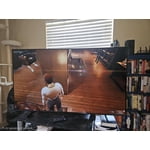
I had a Vizio for years and years and had to leave it behind when I moved. I settled on this tv due to price difference. And, I guess you get what you pay for. I do t like the remote, I was disappointed that I could not use voice command with remote without purchasing a sound bar and I find using the Samsung system is cumbersome and not user friendly. The picture itself is satisfactory.
Hi Polarwear, Thank you for sharing your review. Your TV Works With Alexa, meaning you’ll need to connect a standalone Alexa device such as an Echo speaker, to control compatible smart home devices and some experiences on your TV. Here are the steps: 1. Download both the Amazon Alexa and Samsung SmartThings apps, if you don't already have them. Both are available for iOS or Android devices. 2. Make sure your Alexa device and TV are both connected to the same Wi-Fi network. 3. Your TV must be enabled within the SmartThings app. If not, make sure you are signed in with your Samsung account on the TV: Settings > All Settings > Samsung Account 4. Log in to the SmartThings app with the same Samsung account. Tap Devices, and if your TV isn’t already shown, tap + to add it to the app. 5. In the Alexa app, enable the SmartThings skill and sign into your Samsung account. This will automatically connect your Samsung TV to Alexa and let you use voice commands to control your television. If you need more help, we’re here. Give us a call at 1-800-SAMSUNG (8AM – 9PM EST Mon – Fri, 8AM – 6PM Sat – Sun). You can also connect with a LiveChat agent through the Support link on our website. ~ Samsung Advisor
Grandchildren Approved
[This review was collected as part of a promotion.] We've been very happy with our Samsung TV. It delivers impressive brightness, vibrant color, sharp clarity, the remote responsiveness for changing channels is great and strong contrast, all at an excellent value for the price. The picture quality has exceeded our expectations and makes family movie nights with the grandchildren even more enjoyable, so it is definitely upscale.