Skip to Main Content
Sam's Club
Sam's Club
All Departments
All Services
Customer reviews for SAMSUNG 75” Class U7900F Series 4K Crystal UHD Smart TV for
SAMSUNG 75” Class U7900F Series 4K Crystal UHD Smart TV
4.5 out of 5 stars
stars
3,940 ratings3,913 reviews
  1. 5 stars73% (2,890)
  2. 4 stars15% (599)
  3. 3 stars6% (238)
  4. 2 stars2% (92)
  5. 1 star3% (121)

Member photos

  • +1528 images
Sort by |
Showing 831-840 of 3,913 reviews
Jul 27, 2026
Reviewer name: Movienerd
5 out of 5 stars
5 out of 5 stars review

Perfect picture

[This review was collected as part of a promotion.] Amazing, I love the clear picture it gives. At times makes me feel like im at a movie theater. Responds quickly when it comes to me searching for what I want to watch.

Review from Samsung US
Helpful?5E42PT4DC65117304274207
Jul 20, 2026
Reviewer name: Sheebs
3 out of 5 stars
3 out of 5 stars review

Some remote problems but otherwise we like the TV

[This review was collected as part of a promotion.] The TV picture is fine but the remote is difficult to use and flip from HDMI1 to 2, and we get frustrated. Got to figure out one remote for all.

Review from Samsung US
Helpful?5E42PT4DC65117304274207
reply from Samsung Advisor

Hi Sheebs, Thank you for sharing your review. Please know you can control your connected devices (like cable boxes, Blu-ray players, or game consoles) using your U7900FD TV’s remote by following these steps: 1. Connect & Power On the Device Connect the external device to one of your TV’s HDMI ports and power it on. Your TV may automatically detect the device and switch inputs. If it doesn’t, continue with the steps below. 2. Launch Universal Remote Setup. On your TV, navigate to: Home > left directional key > Connected Devices > Universal Remote Setup. When the connected device appears, select it to begin setup. 3. Start the Setup. Select Universal Remote on the Home screen, choose Start, and ensure your device is powered on. When your desired device appears, select it and follow the on-screen instructions. Setup may vary slightly based on device type. 4. Finalize and Test. Once complete, your Samsung TV and remote will remember the connected device and its HDMI port. If the device doesn’t respond after setup, you may need to re-register it or adjust its position for better signal reception. Helpful Tips: • If your external device is a Samsung product, Anynet+ (HDMI-CEC) may let you control it automatically using your TV remote with no extra setup. • Make sure nothing blocks the IR signal between your TV and external devices. • If you’re having difficulty, try adjusting the device’s position for better remote signal reception. • This feature may not be supported on all external devices or setups. For further support with setup or compatibility questions, please don’t hesitate to contact Samsung Customer Support at 1-800-SAMSUNG (8AM – 9PM EST Mon – Fri, 8AM – 6PM Sat – Sun). LiveChat agents are also available at the ‘Support’ link on our website. ~ Samsung Advisor

Jul 28, 2026
Reviewer name: Loly55
5 out of 5 stars
5 out of 5 stars review

Best TVs Ever

[This review was collected as part of a promotion.] I love Samsung TVs, we had one in every room. This one is in the living room it's perfect. The size is great , the bright colors, the picture is very clear, easy to setup.

Review from Samsung US
Helpful?5E42PT4DC65117304274207
Jul 21, 2026
Reviewer name: Sosa
5 out of 5 stars
5 out of 5 stars review

Love the screen clarity!

[This review was collected as part of a promotion.] Really satisfied with the multiple options for screen color, brightness, and the response time I get from my Samsung tv! 100% entertainment!

Review from Samsung US
Helpful?5E42PT4DC65117304274207
Jul 27, 2026
Reviewer name: Mama B
5 out of 5 stars
5 out of 5 stars review

Great tv even better price

[This review was collected as part of a promotion.] Bright picture easy to set up lightwieght for easy hanging on the wall. Great price for the quality of picture your getting. 2nd Samsung tv and will buy samsung in the furture

Review from Samsung US
Helpful?5E42PT4DC65117304274207
Jul 27, 2026
Reviewer name: Ash81
5 out of 5 stars
5 out of 5 stars review

Great picture

[This review was collected as part of a promotion.] Great picture, have to turn up sound a bit higher though than my Samsung 55 in. , could be its placement in my home. But great over all

Review from Samsung US
Helpful?5E42PT4DC65117304274207
Jul 27, 2026
Reviewer name: Dominic
5 out of 5 stars
5 out of 5 stars review

Great features!

[This review was collected as part of a promotion.] Love this T.V. Great graphics! Great responsiveness! Contrast is great asking with brightness, uniformity, and upscaling!

Review from Samsung US
Helpful?5E42PT4DC65117304274207
Jul 28, 2026
Reviewer name: Queenag826
4 out of 5 stars
4 out of 5 stars review

Everything is great but the sound could be better.

[This review was collected as part of a promotion.] Need a better sound system but it has great color and the right amount of brightness. Responsiveness is good as well as the upscaling.

Review from Samsung US
Helpful?5E42PT4DC65117304274207
Jul 28, 2026
Reviewer name: Debbie
3 out of 5 stars
3 out of 5 stars review

Issues went.

[This review was collected as part of a promotion.] TV is having issues of giving us a black screen while watching shows every once in a while. Mot sure what to do to get this fixed. We have a 3 year warranty on it.

Review from Samsung US
Helpful?5E42PT4DC65117304274207
reply from Samsung Advisor

Hi Debbie, Thanks for reaching out about the intermittent black screen issue. If you're not using any external devices and the TV randomly cuts to black, it’s usually related to settings, signal, or internal software. Here are a few steps to help narrow it down and get things stable again. 1. Start with Power & Source Checks • Confirm the source: Even without external devices, it's worth confirming the TV is on the correct internal source (like TV/Live TV or a streaming app). Go to: Home > Connected Devices > Sources • Power cycle the TV: Unplug the TV from the power outlet for at least 60 seconds, then plug it back in. This can help reset any temporary glitches. • Check the power outlet: If you're using a power strip or surge protector, try plugging the TV directly into the wall to rule out inconsistent power delivery. 2. Update Your TV Software: Software updates often resolve bugs that can cause screen flickers or blackouts • Make sure the TV has the latest firmware version installed: Home > Settings > Support > Software Update 3. Run Built-In Diagnostics • Perform a Picture Test: Home > Settings > Support > Device Care > Self Diagnosis > Picture Test. This helps determine if the issue is hardware- or software-related. • Run the HDMI Test (optional): Even without HDMI devices connected, this can help verify that internal ports are functioning properly: Home > Settings > Support > Device Care > Self Diagnosis > HDMI Test 4. Review Energy & Picture Settings • Turn off Power Saving Mode or Eco Solution settings—they can dim or turn off the screen during periods of inactivity: Settings > All Settings > General & Privacy > Power & Energy Saving • Turn off Auto Power Off (if enabled): Settings > All Settings > General & Privacy > System Manager > Auto Power Off • Adjust Picture Mode settings: If the current mode is overly dynamic (like “Dynamic” or “Vivid”), try switching to “Standard” or “Movie” and observe if the screen behavior changes. 5. Factory Reset (if needed): If the problem persists after all checks, consider resetting the TV to default settings. (Heads-up: this will erase your installed apps and personal settings.) If none of these steps resolve the intermittent blackout, please reach out to Samsung Support for further troubleshooting or possible service options at 1-800-SAMSUNG (8AM – 9PM EST Mon – Fri, 8AM – 6PM Sat – Sun), or reach us via text anytime. You can also visit ‘Support’ on our website for: • Live Chat • Manuals, Software, & Warranty Info ~ Samsung Advisor

Jul 20, 2026
Reviewer name: TVLover
5 out of 5 stars
5 out of 5 stars review

Excellent Features/Operation
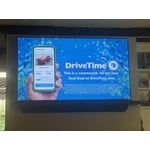
[This review was collected as part of a promotion.] This Smart TV has provided great features that makes streaming enjoyable. I find it easy and intuitive to operate and the picture is excellent.

Review from Samsung US
Helpful?5E42PT4DC65117304274207