Skip to Main Content
Sam's Club
Sam's Club
All Departments
All Services
Customer reviews for SAMSUNG 75” Class U7900F Series 4K Crystal UHD Smart TV for
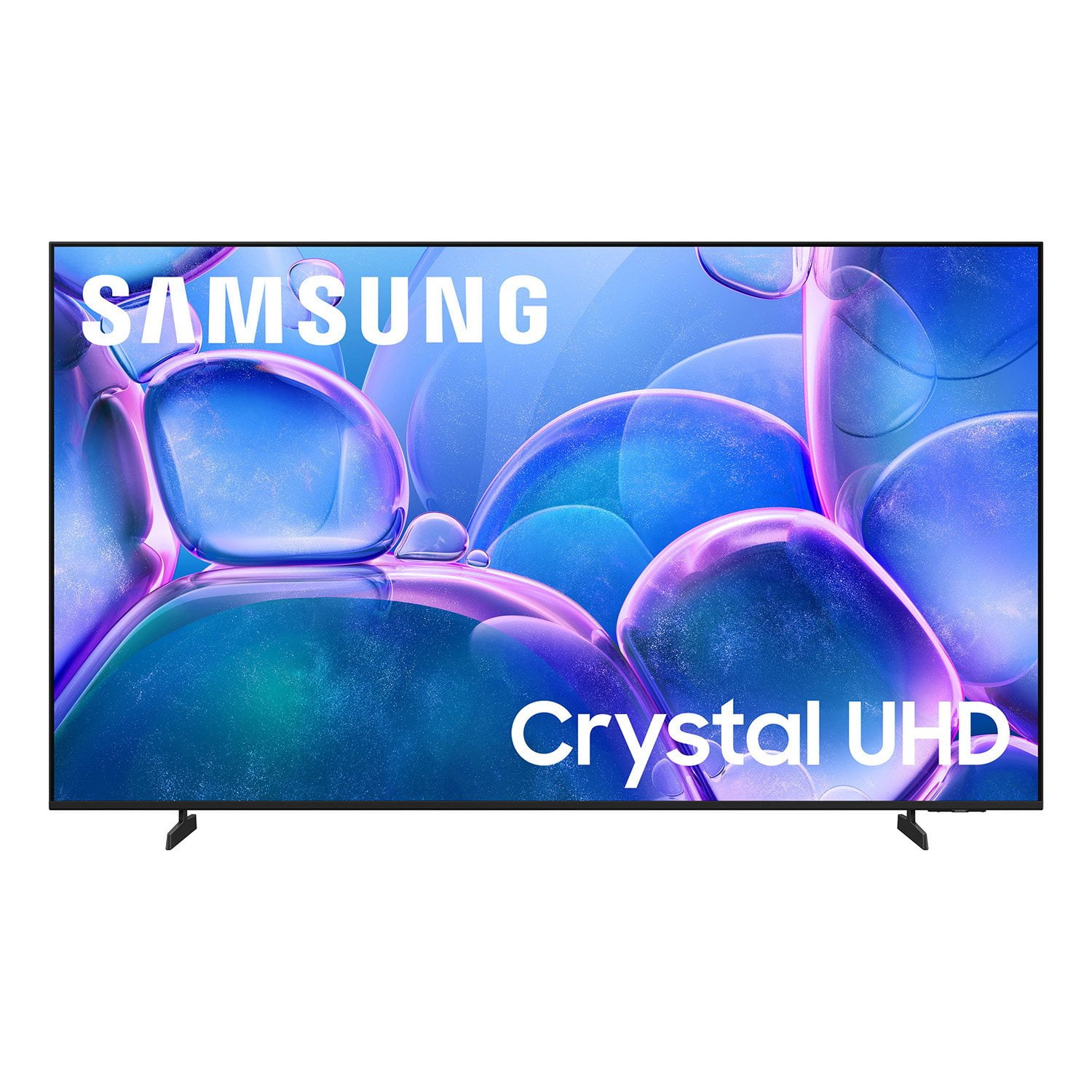
SAMSUNG 75” Class U7900F Series 4K Crystal UHD Smart TV
4.6 out of 5 stars
stars
3,311 ratings3,284 reviews
  1. 5 stars75% (2,472)
  2. 4 stars15% (501)
  3. 3 stars5% (179)
  4. 2 stars2% (66)
  5. 1 star3% (93)

Member photos

  • +1328 images
Sort by |
Showing 2,281-2,290 of 3,284 reviews
May 11, 2026
CT82
5 out of 5 stars review

Great Features

[This review was collected as part of a promotion.] I love the vibrancy and resolution of all of my Samsung products

Review from Samsung US
Helpful?5E42PT4DC65117304274207
Jun 1, 2026
Toni
4 out of 5 stars review

Great TV
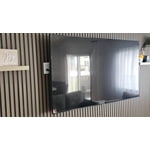
[This review was collected as part of a promotion.] The brightness works well, have not had issues. I would recommend this tv.

Review from Samsung US
Helpful?5E42PT4DC65117304274207
May 11, 2026
Scorpio 78 cali girl
5 out of 5 stars review

Great features, great quality & wonderful picture

[This review was collected as part of a promotion.] Screen size, picture quality is wonderful, smart features I wanted and accessibility features.

Review from Samsung US
Helpful?5E42PT4DC65117304274207
May 21, 2026
Rocketman1965
1 out of 5 stars review

Less than expected

[This review was collected as part of a promotion.] Screen “freezes” for no apparent reason and lack of input ports.

Review from Samsung US
Helpful?5E42PT4DC65117304274207
reply from Samsung Advisor

Hi Rocketman1965, We appreciate your feedback regarding your U7900FD TV’s performance. If you're experiencing slow apps, freezing, or lag in general response time, try the following steps: 1. Check for firmware updates – Keeping your TV up to date can resolve many performance issues: Home > left directional key > Settings > Support > Software Update > Update Now 2. Run Device Care – This tool checks system memory, frees up cached data, and closes background apps that could be slowing things down: Home > left directional key > Settings > Support > Device Care > Start Device Care 3. Cold boot your TV – With the TV powered on, press and hold the Power button on your remote for 5+ seconds until the TV restarts. This helps refresh the system. If you're still noticing performance issues after these steps, please contact Samsung Support at 1-800-SAMSUNG, available from 8AM – 9PM EST Mon – Fri, 8AM – 6PM Sat – Sun. You can also visit the Samsung website and click on ‘Support’ for: • Live Chat • Manuals, Software, & Warranty Info ~ Samsung Advisor

May 20, 2026
Pradip
5 out of 5 stars review

Great result

[This review was collected as part of a promotion.] Wonderful result I like and suggest to any other one

Review from Samsung US
Helpful?5E42PT4DC65117304274207
May 11, 2026
Vampiro
5 out of 5 stars review

Samsung

[This review was collected as part of a promotion.] Excellent product and quality, give a 5 star rating

Review from Samsung US
Helpful?5E42PT4DC65117304274207
Jun 1, 2026
Holley
5 out of 5 stars review

Great features! Easy to set up and use

[This review was collected as part of a promotion.] great features and easy to use. Set up was easy too.

Review from Samsung US
Helpful?5E42PT4DC65117304274207
Jun 1, 2026
Your mom
5 out of 5 stars review

Great tv

[This review was collected as part of a promotion.] Good tv to buy. Great picture and sound. Fun to play games on.

Review from Samsung US
Helpful?5E42PT4DC65117304274207
May 20, 2026
Mike
2 out of 5 stars review

Not a clear picture & sound not good

[This review was collected as part of a promotion.] The TV does not have a clear sharp picture. The speaker is also very week.

Review from Samsung US
Helpful?5E42PT4DC65117304274207
reply from Samsung Advisor

Hi Mike, Thank you for your feedback on the Samsung U7900F TV. If the picture appears unclear, dull, or lacks definition, there are several settings you can adjust to improve clarity and overall image quality. Go to: Settings > All Settings > Picture > Expert Settings, and review these key settings: Picture Clarity Settings: While originally intended for motion handling, these can also impact overall clarity • Off: Disables motion enhancements • Auto: Automatically adjusts based on content • Custom: Lets you fine-tune: o Judder Reduction – Helps smooth out uneven motion o LED Clear Motion – Boosts sharpness in fast-moving content o Noise Reduction – Reduces distortion and enhances detail in lower-resolution sources Core Picture Settings • Brightness – Controls overall screen brightness • Contrast – Enhances the difference between bright and dark areas • Sharpness – Adjusts edge definition; closer to 20 increases detail • Color – Enhances depth and intensity of colors And don’t forget to check for the latest firmware, which may improve performance: Settings > Support > Software Update > Update Now Regarding the sound on your TV, we recommend adjusting these settings: Sound Mode: Navigate to: Settings > All Settings > Sound > Sound Mode Auto Volume: This feature helps maintain consistent volume levels across content and input sources. Turn it on under: Settings > All Settings > Sound > Expert Settings > Auto Volume = On For personalized support with these settings or selecting a soundbar to complement your setup, contact Samsung Support at 1-800-SAMSUNG (8AM – 9PM EST Mon – Fri, 8AM – 6PM Sat – Sun) or use LiveChat via the ‘Support’ link on our website. ~Samsung Advisor

May 20, 2026
Timstv
5 out of 5 stars review

Superb picture and color resolution

[This review was collected as part of a promotion.] Vivid picture, sharp and clear! Absolutely the best TV we've ever had! Thanks Samsung!!

Review from Samsung US
Helpful?5E42PT4DC65117304274207