Skip to Main Content
Sam's Club
Sam's Club
All Departments
All Services
Customer reviews for SAMSUNG 75” Class U7900F Series 4K Crystal UHD Smart TV for
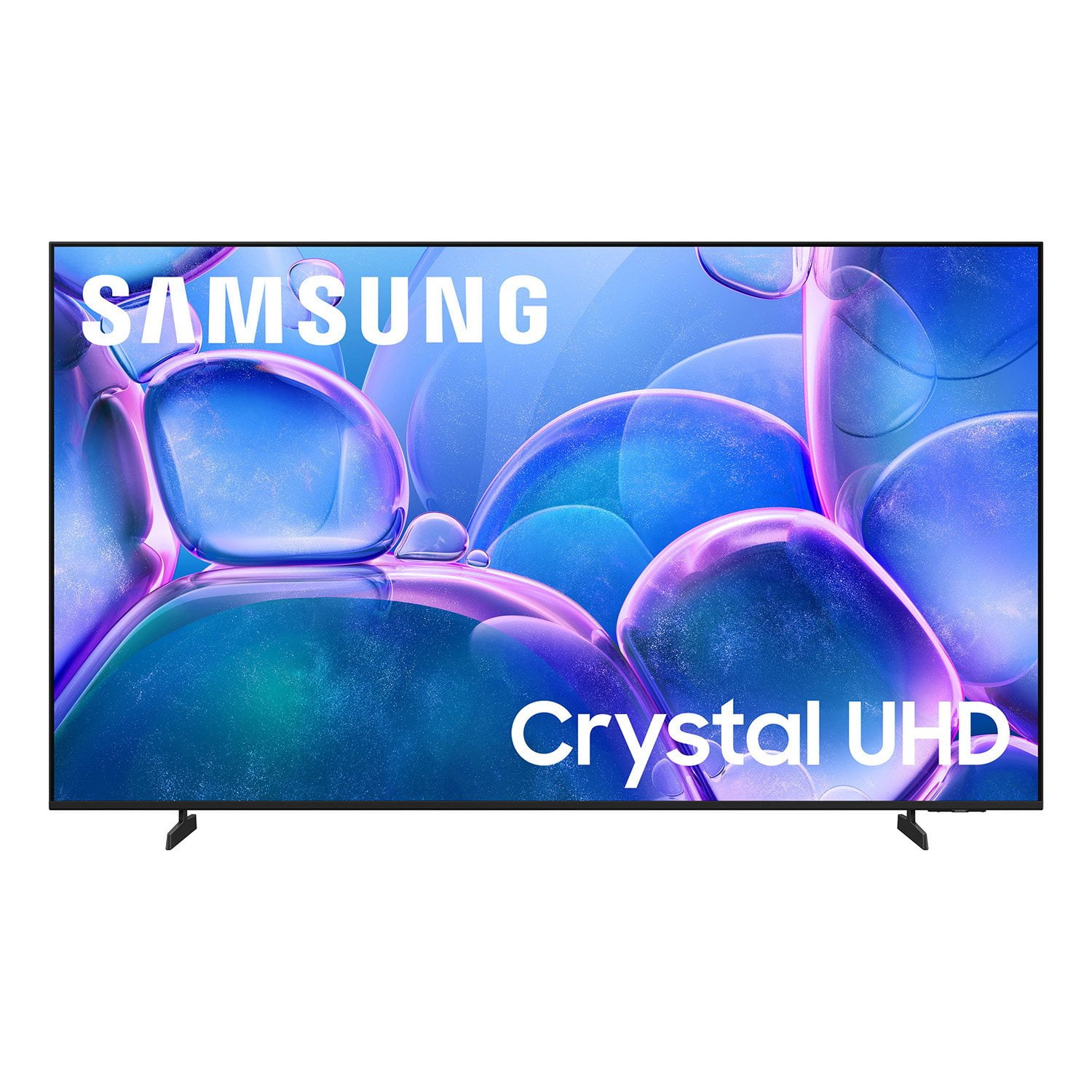
SAMSUNG 75” Class U7900F Series 4K Crystal UHD Smart TV
4.6 out of 5 stars
stars
3,321 ratings3,294 reviews
  1. 5 stars75% (2,476)
  2. 4 stars15% (503)
  3. 3 stars5% (180)
  4. 2 stars2% (68)
  5. 1 star3% (94)

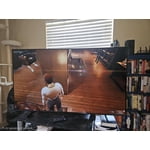
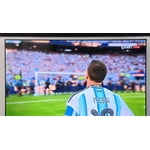
Member photos

  • +1333 images
Sort by |
Showing 1,281-1,290 of 3,294 reviews
Jun 5, 2026
LAS9
3 out of 5 stars review

Complicated

[This review was collected as part of a promotion.] To me it's too difficult to operate and I wanted to return it, but my husband wants to figure it out.

Review from Samsung US
Helpful?5E42PT4DC65117304274207
reply from Samsung Advisor

Hi LAS9, Thank you for sharing your feedback with us. To help you get the most from your TV, you can download the full e-Manual and more by visiting Samsung’s website, then navigating to: Support > Manual & Software > TVs & Home Theater. From there, you can search for and select your U7900F TV model to view or download the available guides. The e-Manual & User Guide are also conveniently built into your TV: Settings > Support > Tips and User Guides. Your TV includes Learn Menu Screen, an accessibility feature that provides audio guidance for on-screen menus. When enabled, your TV will announce the name and function of each menu item as you scroll, without making any changes. This feature is particularly helpful for users who are visually impaired or new to Smart TV menus. To enable, go to: Settings > All Settings > General & Privacy > Accessibility > Learn Menu Screen. To exit, press the Return key twice. If you’d like more assistance with this feature, please reach Samsung Support at 1-800-SAMSUNG (8AM – 9PM EST Mon – Fri, 8AM – 6PM Sat – Sun). LiveChat agents are also available through the ‘Support’ link on our website. ~ Samsung Advisor

May 11, 2026
JayJay
3 out of 5 stars review

I love the app feature.

[This review was collected as part of a promotion.] The sound quality is low sometimes. If you are watching a movie or TV show. The sound go up and down.

Review from Samsung US
Helpful?5E42PT4DC65117304274207
reply from Samsung Advisor

Hi JayJay, Thank you for sharing your experience with volume fluctuations on your Samsung U7900F TV. Sudden changes in volume can often be related to audio settings or content differences between sources or apps. Please try the following adjustments to help stabilize your TV's audio: 1. Enable Auto Volume. Go to: Settings > All Settings > Sound > Expert Settings > Auto Volume. This feature helps maintain a consistent volume level when switching channels or apps. 2. Change Sound Mode. Try a different sound mode to see if one offers a more stable output: Settings > All Settings > Sound > Sound Mode (We recommend Standard or Amplify for more even performance.) 3. Check External Devices. If you're using a soundbar, receiver, or other audio device, check that its volume leveling or dynamic range settings aren’t interfering with the TV’s audio. 4. Update Firmware. Ensure your TV is running the latest software, as updates may include audio improvements: Settings > Support > Software Update > Update Now If the issue persists after these steps, please don’t hesitate to reach Samsung Customer Support at 1-800-SAMSUNG, 8AM – 9PM EST Mon – Fri, 8AM – 6PM Sat – Sun. LiveChat is also available via the ‘Support’ link on our website. ~ Samsung Advisor

May 20, 2026
Nene
5 out of 5 stars review

Said it loud: "Samsung owner and I am proud"

[This review was collected as part of a promotion.] I am enjoying this TV very much. The pictures are clear; the channels are very easy to read. I'm loving it!

Review from Samsung US
Helpful?5E42PT4DC65117304274207
May 20, 2026
KenB
5 out of 5 stars review

79" Samsung Smart Television

[This review was collected as part of a promotion.] This television has a wonderful picture. Like having all the apps on the television. Especially the samsung tv app. Lots of great shows to watch and no fees.

Review from Samsung US
Helpful?5E42PT4DC65117304274207
May 5, 2026
Judanator
4 out of 5 stars review

Large and Alive

[This review was collected as part of a promotion.] We love our new TV, however sometimes the sound will go out, and then an hour later it is back on and perfect again.

Review from Samsung US
Helpful?5E42PT4DC65117304274207
Jun 5, 2026
Anonymous
5 out of 5 stars review

Great product and very good promotions
[This review was collected as part of a promotion.] I love this television, it's spectacular to watch movies or play for a while on the PS5 and I'm looking forward to seeing the World Cup in the

Review from Samsung US
Helpful?5E42PT4DC65117304274207
Jun 1, 2026
Lucy
5 out of 5 stars review

Best tv i ever owned

[This review was collected as part of a promotion.] TV works great i love watching movies the best tv I ever bought im actually going to buy another one for kids room and great price

Review from Samsung US
Helpful?5E42PT4DC65117304274207
May 20, 2026
Tanny
2 out of 5 stars review

Very Dark colors and bad resolution

[This review was collected as part of a promotion.] The tv image is very dark and not a good resolution, even in Dynamic settings is very dark, with other settings is worst.

Review from Samsung US
Helpful?5E42PT4DC65117304274207
reply from Samsung Advisor

Hi Tanny, We’re sorry to hear that the picture on your Samsung U7900F TV appears too dark. If this isn’t meeting your expectations, there are several settings you can adjust to improve the overall brightness and clarity of your screen. First, try disabling certain energy-saving features that may be dimming the screen automatically. Go to: Settings > All Settings > General & Privacy > Power and Energy Saving, then turn off Brightness Optimization, Energy Saving Solution, Motion Lighting, and/or Contrast Enhancer. Next, adjust the Picture Mode to better match your viewing environment: Settings > All Settings > Picture > Picture Mode and choose from the following: • Dynamic – Brighter and clearer for well-lit rooms • Standard – Balanced for most environments • Movie – Ideal for watching in a dark room • Eco – Designed for energy savings • Filmmaker Mode – Preserves the creator’s original intent You can also manually adjust brightness by going to: Settings > All Settings > Picture > Expert Settings > Brightness. Use the slider to set a level that suits your preferences (0–50). Finally, we recommend making sure your TV has the latest software installed: Settings > Support > Software Update > Update Now We hope these tips help improve your viewing experience. If you need further assistance with setup or adjustments, feel free to contact Samsung Customer Support at 1-800-SAMSUNG (8AM – 9PM EST Mon – Fri, 8AM – 6PM Sat – Sun), or reach us via text anytime. You can also visit ‘Support’ on our website for: • Live Chat • Manuals, Software, & Warranty Info ~Samsung Advisor

Jun 1, 2026
MARTINUCCH
5 out of 5 stars review

SAMSUNG IS THE BEST HANDS DOWN!!!

[This review was collected as part of a promotion.] I LOVE anything SAMSUNG😍😍 but the TV Picture color and overall quality(doesn't feel cheaply made) Also Streams without issues. Upgrade soon!!! #TEAMSAMSUNG

Review from Samsung US
Helpful?5E42PT4DC65117304274207
Apr 20, 2026
Cocoloco
5 out of 5 stars review

Great picture

[This review was collected as part of a promotion.] It's been a great addition to our living room. The picture is very crisp and the sound is very good also. Overall, very satisfied

Review from Samsung US
Helpful?5E42PT4DC65117304274207