Skip to Main Content
Sam's Club
Sam's Club
All Departments
All Services
Customer reviews for SAMSUNG 50" Class U7900F Series 4K Crystal UHD Smart TV for
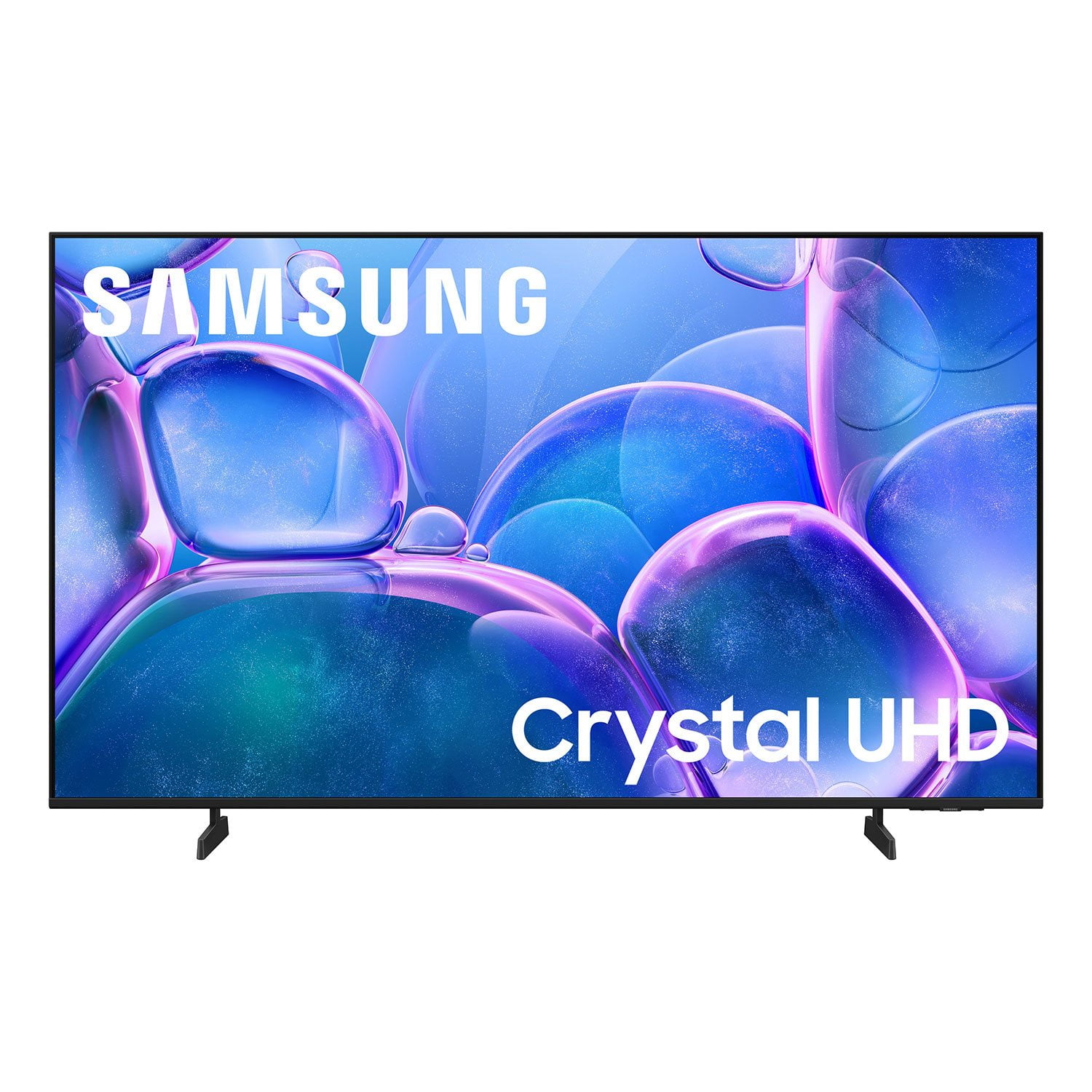
SAMSUNG 50" Class U7900F Series 4K Crystal UHD Smart TV
4.6 out of 5 stars
stars
3,418 ratings3,354 reviews
  1. 5 stars74% (2,533)
  2. 4 stars15% (525)
  3. 3 stars5% (186)
  4. 2 stars2% (71)
  5. 1 star3% (103)

Member photos

  • +1324 images
Sort by |
Showing 1,601-1,610 of 3,354 reviews
Jul 27, 2026
Buzz2287
5 out of 5 stars
5 out of 5 stars review

Great features!

Good product, easy to use UI, good features, it will change the input because of which remote we use for our streaming services.

Review from Samsung US
Helpful?5C20ZRAZZ46Q16498555478
Jul 20, 2026
Negrito
5 out of 5 stars
5 out of 5 stars review

Excellent TV, I love it.

The Samsung TV is one of the best television for anyone to have in they home. I’m very please with my Samsung TV.

Review from Samsung US
Helpful?5C20ZRAZZ46Q16498555478
Aug 5, 2026
camo63
2 out of 5 stars
2 out of 5 stars review

Horrible

It’s slow, and it is not user friendly! To add or delete apps is almost impossible! I will NEVER buy another Samsung tv!

Review from Samsung US
Helpful?5C20ZRAZZ46Q16498555478
reply from Samsung Advisor

Hi camo63, Thank you for your feedback. To manage the apps on your screen, please follow the below instructions: Searching for & Installing Apps 1. Press Home on your remote > left directional key, then scroll up to the magnifying (search) icon at the top of the screen. 2. Using the search bar, enter the content or app you’d like to find. 3. Navigate to and select the app you’d like to install, then select Install. Note: Previously installed apps can be accessed on the Settings screen. Moving Apps Already on Home Screen 1. From the For You Home Screen’s App List, scroll to the end of the list and select List Edit. 2. Find the app you’d like to relocate, then press select. 3. You can now use the left or right directional keys to reposition the app, then press select. Managing & Adding Apps on Home Screen 1. Go to App Settings (these can be found at the bottom of the Apps screen) and select the app you want to move. The following options will be available: a. Add to Home: Move the app to your desired location on the Home screen. b. Delete: Delete app (applicable for manually installed apps only) c. Lock/Unlock: Lock the app with a PIN so only you can use it. When the app is selected again, you will be prompted to enter the PIN to unlock it. d. Reinstall: Reinstall the app. e. View Details: View the app’s information and details. If you need more help with app management, please don’t hesitate to reach Samsung Support at 1-800-SAMSUNG (8AM – 9PM EST Mon – Fri, 8AM – 6PM Sat – Sun). LiveChat agents are also available through the ‘Support’ link on our website. ~ Samsung Advisor

Jul 20, 2026
Sheebs
3 out of 5 stars
3 out of 5 stars review

Some remote problems but otherwise we like the TV

The TV picture is fine but the remote is difficult to use and flip from HDMI1 to 2, and we get frustrated. Got to figure out one remote for all.

Review from Samsung US
Helpful?5C20ZRAZZ46Q16498555478
reply from Samsung Advisor

Hi Sheebs, Thank you for sharing your review. Please know you can control your connected devices (like cable boxes, Blu-ray players, or game consoles) using your U7900FD TV’s remote by following these steps: 1. Connect & Power On the Device Connect the external device to one of your TV’s HDMI ports and power it on. Your TV may automatically detect the device and switch inputs. If it doesn’t, continue with the steps below. 2. Launch Universal Remote Setup. On your TV, navigate to: Home > left directional key > Connected Devices > Universal Remote Setup. When the connected device appears, select it to begin setup. 3. Start the Setup. Select Universal Remote on the Home screen, choose Start, and ensure your device is powered on. When your desired device appears, select it and follow the on-screen instructions. Setup may vary slightly based on device type. 4. Finalize and Test. Once complete, your Samsung TV and remote will remember the connected device and its HDMI port. If the device doesn’t respond after setup, you may need to re-register it or adjust its position for better signal reception. Helpful Tips: • If your external device is a Samsung product, Anynet+ (HDMI-CEC) may let you control it automatically using your TV remote with no extra setup. • Make sure nothing blocks the IR signal between your TV and external devices. • If you’re having difficulty, try adjusting the device’s position for better remote signal reception. • This feature may not be supported on all external devices or setups. For further support with setup or compatibility questions, please don’t hesitate to contact Samsung Customer Support at 1-800-SAMSUNG (8AM – 9PM EST Mon – Fri, 8AM – 6PM Sat – Sun). LiveChat agents are also available at the ‘Support’ link on our website. ~ Samsung Advisor

Jul 10, 2026
Tasg
5 out of 5 stars
5 out of 5 stars review

Great tv

Great picture. Easy to use great viewing options and sound quality. Goes very well with the samsung sound bar and sub woofer.

Review from Samsung US
Helpful?5C20ZRAZZ46Q16498555478
Jul 20, 2026
Woke
4 out of 5 stars
4 out of 5 stars review

Nice picture!

Product is decent I will purchase. The contrast could be a little better, but other than that, the product is good.

Review from Samsung US
Helpful?5C20ZRAZZ46Q16498555478
Jul 20, 2026
Anonymous
5 out of 5 stars
5 out of 5 stars review

Best Christmas Gift EVA!
[This review was collected as part of a promotion.] I absolutely adore my big screen television best purchase I’ve made in YEARS!

Review from Samsung US
Helpful?5C20ZRAZZ46Q16498555478
Jul 27, 2026
Raosirus75
5 out of 5 stars
5 out of 5 stars review

Love my Samsung TV

Best smart TV I've ever had! Couple it with my S26 Ultra and my Samsung laptop they all work nicely together. Best purchased I ever made!

Review from Samsung US
Helpful?5C20ZRAZZ46Q16498555478
Jul 21, 2026
Nikk
5 out of 5 stars
5 out of 5 stars review

Great view

[This review was collected as part of a promotion.] Solid TV love how crisp every show looks 100% would recommend to anyone looking to buy a TV

Review from Samsung US
Helpful?5C20ZRAZZ46Q16498555478
Jul 20, 2026
Momo
5 out of 5 stars
5 out of 5 stars review

Highly recommended
I really like it The brightness sound everything is perfect Specially for the kids who loves to play games

Review from Samsung US
Helpful?5C20ZRAZZ46Q16498555478