Skip to Main Content
Sam's Club
Sam's Club
All Departments
All Services
Customer reviews for SAMSUNG 55" Class U7900F Series 4K Crystal UHD Smart TV for
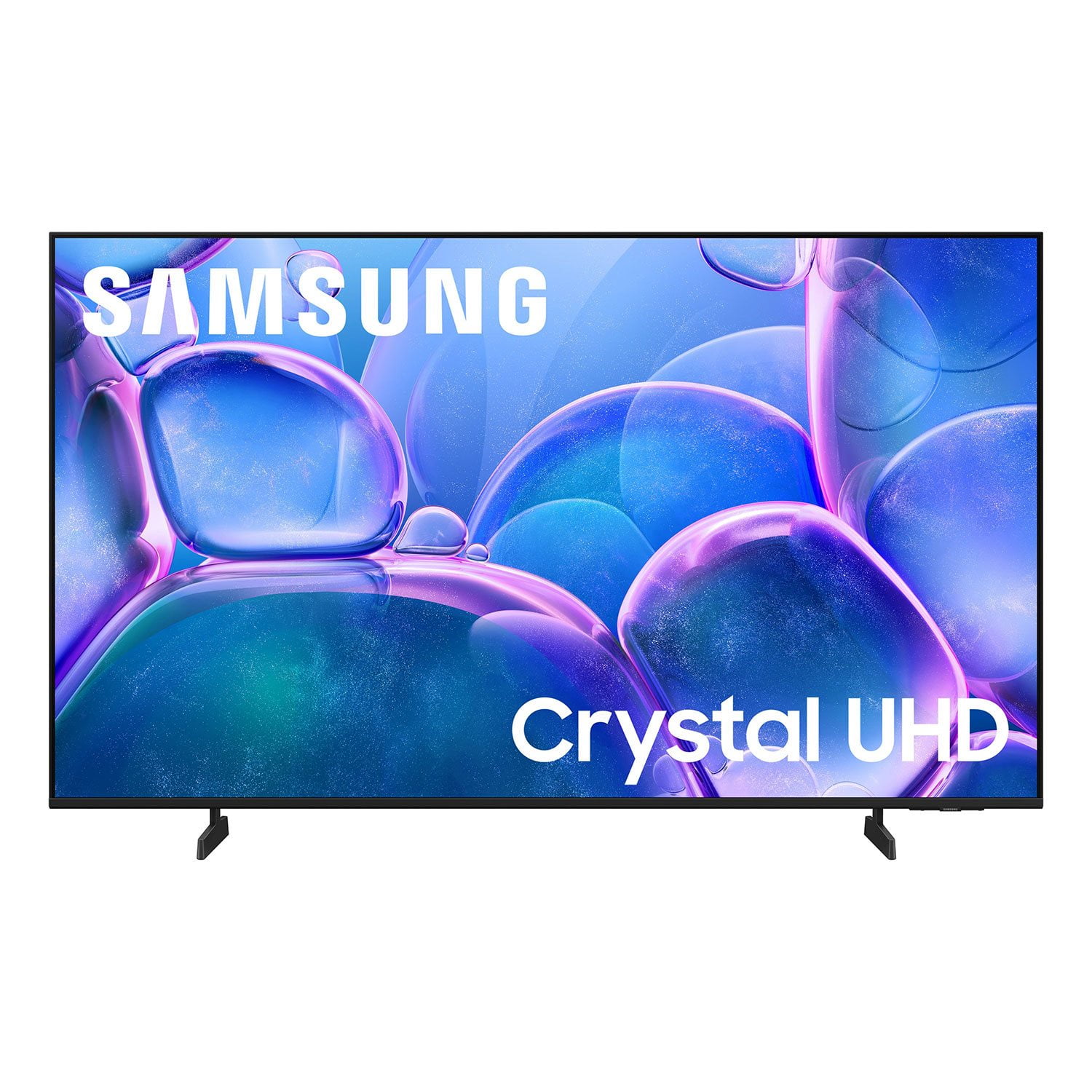
SAMSUNG 55" Class U7900F Series 4K Crystal UHD Smart TV
4.5 out of 5 stars
stars
3,830 ratings3,730 reviews
  1. 5 stars74% (2,820)
  2. 4 stars15% (576)
  3. 3 stars6% (228)
  4. 2 stars2% (89)
  5. 1 star3% (117)

Member photos

  • +1467 images
Sort by |
Showing 3,591-3,600 of 3,730 reviews
Aug 16, 2025
Reviewer name: GardenGal
5 out of 5 stars
5 out of 5 stars review

Great TV! Love it!

[This review was collected as part of a promotion.] I love my Samsung TV.The color and the pitcher are beautiful.Clear and just nice, no spots or any problems with the television. One thing is I need replacement remote because I have 3 of the same mono.And we only have one remote working. Other than that I will be buying samsung tellies from now on! I love all my Samsung products 😍 they're GREAT!!

Review from Samsung US
Helpful?3X98WOQFG1UG16471557124
Jul 20, 2025
Reviewer name: Jimbeauxh1
4 out of 5 stars
4 out of 5 stars review

Great tv. Slower than some.

[This review was collected as part of a promotion.] This is a great television for the price point. The sound is fantastic and the display is amazing. Does not respond as quickly as some other brands but again for the price point, this is a amazing TV.

Review from Samsung US
Helpful?3X98WOQFG1UG16471557124
Jun 21, 2025
Reviewer name: VisPerR
5 out of 5 stars
5 out of 5 stars review

Samsung TVs - Are My Fave
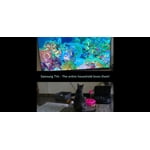
[This review was collected as part of a promotion.] Samsung TV - This is my 3rd - different sizes - for different rooms. My favorite tv's ever and love all the features, especially having channels and music, including the ocean channels for relaxing background ambiance.

Review from Samsung US
Helpful?3X98WOQFG1UG16471557124
Aug 20, 2025
Reviewer name: Teachit
1 out of 5 stars
1 out of 5 stars review

Not the Samsung I’m used to!

Bought this tv yesterday. Did the setup and it was confusing to say the least. I’ve set up many TVs and most are straightforward and intuitive. I’ve even set up other Samsungs and this was by far the worst for set up. Now for the actual picture. Right out of the box the picture was not very good. Picture was “washed out” and just didn’t look right compared to our other TVs. Tried online suggestions for correcting colors and sharpness of image. Nothing improves the picture. So disappointed in this Samsung!!! Our cheapy TV, all our other TVs (all 6) are so much better. Our other Samsung (older set) is fine. Plus it has a mind of its own. After turning it off and then returning to watch tv it goes into Samsung plus instead of our satellite provider. This issue just started. At first at least when set was turned on we had our satellite on. And I HATE the remote. Even had our son over to help with adjustments and settings with no luck. Very disappointing product!

Review from Samsung US
Helpful?3X98WOQFG1UG16471557124
reply from Samsung Advisor

Hi Teachit, We appreciate your feedback and are glad you reached out to us. There are a few adjustments you can make that may improve your experience. First, let's ensure you are running the latest Firmware. Go to Settings> Support> Software Update. If the picture appears unclear, dull, or lacks definition, there are several settings you can adjust to improve clarity and overall image quality. Go to: Settings > All Settings > Picture > Expert Settings, and review these key settings: Picture Clarity Settings: While originally intended for motion handling, these can also impact overall clarity • Off: Disables motion enhancements • Auto: Automatically adjusts based on content • Custom: Lets you fine-tune: o Judder Reduction – Helps smooth out uneven motion o LED Clear Motion – Boosts sharpness in fast-moving content o Noise Reduction – Reduces distortion and enhances detail in lower-resolution sources Core Picture Settings • Brightness – Controls overall screen brightness • Contrast – Enhances the difference between bright and dark areas • Sharpness – Adjusts edge definition; closer to 20 increases detail • Color – Enhances depth and intensity of colors Finally, while your TV may currently default to Samsung TV Plus when powered on, you can customize what your TV does at startup by adjusting the Start Screen Options. To do this, navigate to: Settings > All Settings > Advanced Features > Start Screen Option and choose from the following: 1. Start with Smart Hub Home – Automatically launches Smart Hub when the TV is turned on. You can enable or disable this option based on your preference. 2. Autorun Multi View Casting – If you cast YouTube content from your mobile device, the TV will automatically display the content using Multi View. 3. Autorun Multi View Mirroring – When you screen mirror your mobile device, Multi View will automatically open to show your device’s screen. If you need help adjusting these settings or have any other questions, please contact Samsung Support at 1-800-SAMSUNG, 8AM – 12AM EST, 7 days a week. LiveChat agents are also available by clicking on the ‘Support’ link on our website. ~ Samsung Advisor

Jun 20, 2025
Reviewer name: NYSicilian
5 out of 5 stars
5 out of 5 stars review

Awesome Picture

[This review was collected as part of a promotion.] I'm really happy with my new TV! The picture quality is crystal clear, and the setup process was super easy. It was up and running in no time, with no hassle at all. The image is vibrant and sharp, perfect for watching sports. Great price Highly recommend.

Review from Samsung US
Helpful?3X98WOQFG1UG16471557124
Jul 5, 2025
Reviewer name: ja4atlanta
5 out of 5 stars
5 out of 5 stars review

I've Missed Samsung TVs

[This review was collected as part of a promotion.] It's been awhile since I treated myself to Samsung TV and they're better than ever. Set up is basically automated - although, there were a lot of times I had the new remote, my TV AND my Samsung tablet in my hands as I had to get through the various checks, even though I have a Samsung account. But - it worked, I got through it, and it's easy to use. I had trouble figuring out the app selection/deletion - but basically I already had a FireTV Stick and decided to just use that, so there was little set-up beyond the basics.

Review from Samsung US
Helpful?3X98WOQFG1UG16471557124
Jul 22, 2025
Reviewer name: Stanlovesmedia
5 out of 5 stars
5 out of 5 stars review

Clear picture, responds well to most remote comman

[This review was collected as part of a promotion.] This is my first 55 inch smart TV from Samsung. I'm quite pleased with the clarity, the selection of TV , news, movie choices , because I have chosen a variety of apps. Most of the time the TV responds quickly to my remote commands other than Netflix delays.

Review from Samsung US
Helpful?3X98WOQFG1UG16471557124
Aug 28, 2025
Reviewer name: Tigerfan
3 out of 5 stars
3 out of 5 stars review

It’s just ok

[This review was collected as part of a promotion.] I have an older Samsung TV that is great. This one is just ok. Color is not that good and it is hard to navigate. It takes a while to come on and when it does it comes on whatever you were watching last.

Review from Samsung US
Helpful?3X98WOQFG1UG16471557124
reply from Samsung Specialist

Tigerfan, We appreciate your feedback on the picture quality of Samsung’s 2025 U7900F TV. If the image doesn’t quite match your preferences, there are several adjustments you can make to better suit your viewing environment and content type. First, please ensure your TV is running the latest firmware, as updates may include important picture quality and performance enhancements. Go to: Home > Left directional button > Settings > Support > Software Update > Update Now To explore picture mode options, navigate to: Home > Left directional button > Settings > All Settings > Picture > Picture Mode. Options include: • Standard – Ideal for general viewing • Dynamic – Brighter and more vibrant for well-lit spaces • Eco – Optimized for energy efficiency • Movie – Best for viewing in low light • Filmmaker Mode – Preserves the content creator’s intent and disables motion smoothing for supported content You can further customize your image by going to: Settings > All Settings > Picture > Expert Settings, where you can adjust Brightness, Contrast, Color Tone, Sharpness, Contrast Enhancer and more. To help you get the most from your TV, you can download the full e-Manual and more by visiting Samsung’s website then navigating to: Support > Manual & Software > TVs & Home Theater. From there, you can search for and select your U7900F TV model to view or download the available guides. The e-Manual and Remote Control Guide are also conveniently built into your TV: Settings > Support > Tips and User Guides If you need additional help, please contact Samsung Support at 1-800-SAMSUNG, 8AM – 12AM EST, 7 days a week. LiveChat agents are also available through the ‘Support’ link on our website. ~ Samsung Specialist

Jul 30, 2025
Reviewer name: Rickie
5 out of 5 stars
5 out of 5 stars review

Many features & great picture

[This review was collected as part of a promotion.] This Samsung TV offers so many options and features. It was easy to set up and customize. I appreciate all the free apps available for music and entertainment. 50” tv was plenty good for me and was quite affordable. Really enjoy this television. A good purchase.

Review from Samsung US
Helpful?3X98WOQFG1UG16471557124
Aug 24, 2025
Reviewer name: Samsungbro
5 out of 5 stars
5 out of 5 stars review

Been a great purchase!

[This review was collected as part of a promotion.] At first I was a little worried because it is so large, but the crystal clear picture makes it so after a while, you want to go bigger! The picture along with my Samsung sound bar and subwoofer are an incredible pairing!!

Review from Samsung US
Helpful?3X98WOQFG1UG16471557124