Skip to Main Content
Sam's Club
Sam's Club
All Departments
All Services
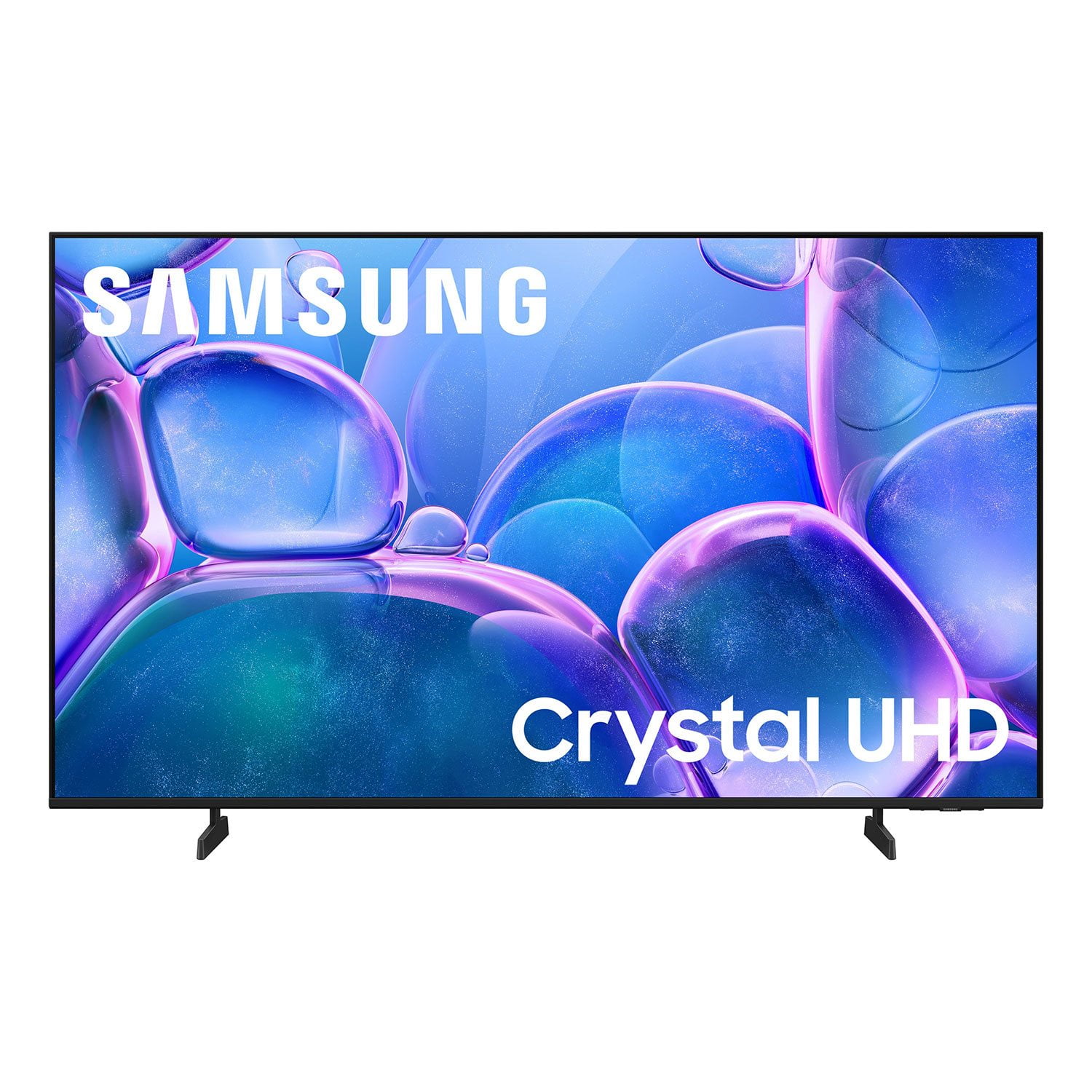
Customer reviews for SAMSUNG 58” Class U7900F Series 4K Crystal UHD Smart TV for
SAMSUNG 58” Class U7900F Series 4K Crystal UHD Smart TV
4.5 out of 5 stars
stars
3,734 ratings3,676 reviews
  1. 5 stars74% (2,747)
  2. 4 stars15% (572)
  3. 3 stars6% (219)
  4. 2 stars2% (88)
  5. 1 star3% (108)

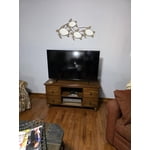
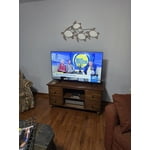
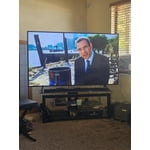
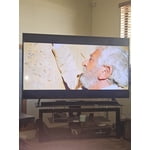
Member photos

  • +1445 images
Sort by |
Showing 2,891-2,900 of 3,676 reviews
May 5, 2026
Reviewer name: GD420
5 out of 5 stars
5 out of 5 stars review

Samsung u7 900f tv

[This review was collected as part of a promotion.] Great tv for a Great Price. Samsung is the best. Would definitely recommend

Review from Samsung US
Helpful?18J4E5E7OZVG16422722568
Jun 21, 2026
Reviewer name: Cheryl
2 out of 5 stars
2 out of 5 stars review

Download Apps

[This review was collected as part of a promotion.] I Don't like that I have to go on my laptop to download apps, very inconvenient.

Review from Samsung US
Helpful?18J4E5E7OZVG16422722568
reply from Samsung Advisor

Hi Cheryl, Thank you for your feedback. Please know you can download apps from your TV via the built-in app store. Here's how: Searching for & Installing Apps 1. From the Home screen, press up on the remote’s directional pad. 2. Navigate to and select Search. 3. Using the search bar, enter the content or app you’d like to find. 4. Navigate to and select the app you’d like to install, then select Install. Note: Previously installed apps can be accessed on the Settings screen. Adding & Managing Apps on Home Screen 1. Go to App Settings (these can be found at the bottom of the Apps screen) and select the app you want to move. The following options will be available: a. Add to Home: Move the app to your desired location on the Home screen. b. Delete: Delete app. c. Lock/Unlock: Lock the app with a PIN so only you can use it. When the app is selected again, you will be prompted to enter the PIN to unlock it. d. Reinstall: Reinstall the app. e. View Details: View the app’s information and details. If you need more help with app management, please don’t hesitate to reach Samsung Support at 1-800-SAMSUNG (8AM – 9PM EST Mon – Fri, 8AM – 6PM Sat – Sun), or reach us via text anytime. You can also visit ‘Support’ on our website for: You can also chat with one of our agents by clicking the ‘Support’ link on our website for: • Live Chat • Manuals, Software, & Warranty Info ~ Samsung Advisor

Jun 1, 2026
Reviewer name: Ready for it
5 out of 5 stars
5 out of 5 stars review

Samsung love

[This review was collected as part of a promotion.] I love the vibrant colors and resolution on this tv. The sound is perfect 👌

Review from Samsung US
Helpful?18J4E5E7OZVG16422722568
May 6, 2026
Reviewer name: Afelix
5 out of 5 stars
5 out of 5 stars review

Great tv

[This review was collected as part of a promotion.] Great TV thats very vibrant and snappy esay to set up and connect to internet

Review from Samsung US
Helpful?18J4E5E7OZVG16422722568
Jun 5, 2026
Reviewer name: Andrew
4 out of 5 stars
4 out of 5 stars review

Samsung TV

[This review was collected as part of a promotion.] the screen is beautiful the picture is really nice the only problem is it should have more inputs

Review from Samsung US
Helpful?18J4E5E7OZVG16422722568
Jun 7, 2026
Reviewer name: Kayy
5 out of 5 stars
5 out of 5 stars review

Samsung TV

[This review was collected as part of a promotion.] Absolutely love our new Samsung. The picture quality is amazing!!

Review from Samsung US
Helpful?18J4E5E7OZVG16422722568
Jun 20, 2026
Reviewer name: Ojay
2 out of 5 stars
2 out of 5 stars review

Bad buy

[This review was collected as part of a promotion.] Volume is super low tv Also freezes from time to time

Review from Samsung US
Helpful?18J4E5E7OZVG16422722568
reply from Samsung Advisor

Hi Ojay, Thank you for your feedback. TV freezes or becomes unresponsive: 1. Cold boot – Hold the Power button on your remote for 5+ seconds until the TV restarts. 2. Update firmware – Home > left directional key > Settings > Support > Software Update > Update Now 3. Run Device Care – Home > left directional key > Settings > Support > Device Care > Start Device Care If the volume on your TV seems too low, we recommend checking for firmware updates: Settings > Support > Software Update > Update Now Then, go to: Settings > All Settings > Sound > Sound Mode and try Amplify to boost dialogue and upper tones. To maintain consistent volume across channels and apps, enable Auto Volume under: Settings > All Settings > Sound > Expert Settings > Auto Volume = On We hope these tips are helpful. If you need any further assistance, please don’t hesitate to call us at 1-800-SAMSUNG (8AM – 9PM EST Mon – Fri, 8AM – 6PM Sat – Sun), or reach us via text anytime. You can also visit ‘Support’ on our website for: You can also chat with one of our agents by clicking the ‘Support’ link on our website for: • Live Chat • Manuals, Software, & Warranty Info ~ Samsung Advisor

Jun 8, 2026
Reviewer name: Rooster
5 out of 5 stars
5 out of 5 stars review

Samsung TV

[This review was collected as part of a promotion.] I'm very pleased with the TV and the Samsung Channels

Review from Samsung US
Helpful?18J4E5E7OZVG16422722568
May 11, 2026
Reviewer name: SmokeySalmon
5 out of 5 stars
5 out of 5 stars review

Amazing TV

[This review was collected as part of a promotion.] Easy to use and it feels like an actual samsung product.

Review from Samsung US
Helpful?18J4E5E7OZVG16422722568
Jun 7, 2026
Reviewer name: Wd95
5 out of 5 stars
5 out of 5 stars review

Awesome deal and love all the features it has .

[This review was collected as part of a promotion.] I love the tv and quality also all the features it has great value for the money.

Review from Samsung US
Helpful?18J4E5E7OZVG16422722568