Skip to Main Content
Sam's Club
Sam's Club
All Departments
All Services
Customer reviews for SAMSUNG 58” Class U7900F Series 4K Crystal UHD Smart TV for
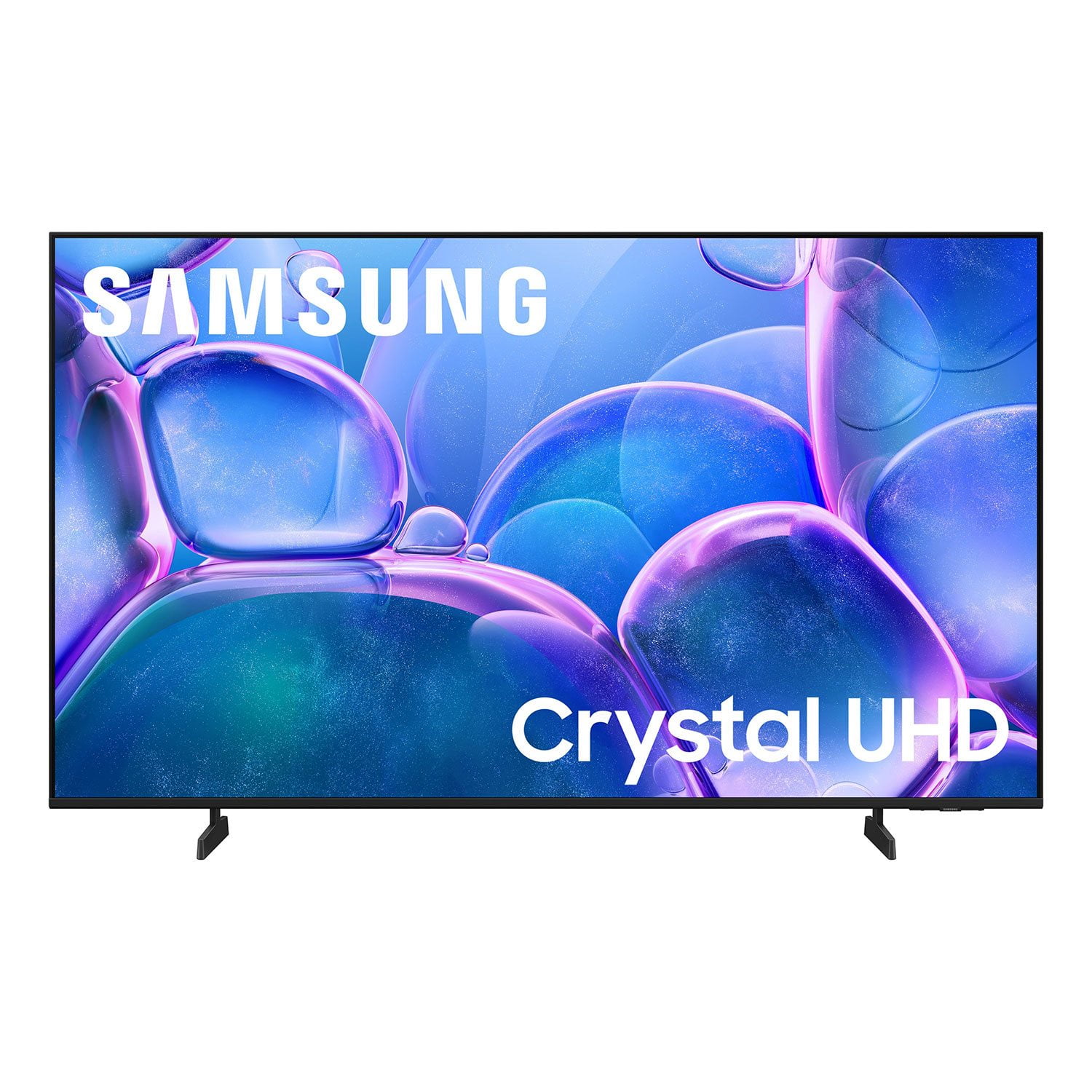
SAMSUNG 58” Class U7900F Series 4K Crystal UHD Smart TV
4.5 out of 5 stars
stars
3,734 ratings3,676 reviews
  1. 5 stars74% (2,747)
  2. 4 stars15% (572)
  3. 3 stars6% (219)
  4. 2 stars2% (88)
  5. 1 star3% (108)

Member photos

  • +1445 images
Sort by |
Showing 2,141-2,150 of 3,676 reviews
Apr 20, 2026
Reviewer name: AudiSQ5
5 out of 5 stars
5 out of 5 stars review

Great TV

[This review was collected as part of a promotion.] TV does everything I was looking for and needed. Screen size is great along with brightness and colors. Connectivity was easy to setup and works great. The resolution is awesome. Great TV

Review from Samsung US
Helpful?18J4E5E7OZVG16422722568
Mar 24, 2026
Reviewer name: InMyVolpinion
4 out of 5 stars
4 out of 5 stars review

Overall Review

[This review was collected as part of a promotion.] This is good looking television, the screen image is crisp. The picture images seem flawless. The backlight is bright. Overall a excellent television for its price point. Well done Samsung.

Review from Samsung US
Helpful?18J4E5E7OZVG16422722568
Feb 17, 2026
Reviewer name: Aklife
5 out of 5 stars
5 out of 5 stars review

Unmatched

[This review was collected as part of a promotion.] Beautiful display, full control with easy quick settings. Great live options and guide. The ability to sync with my other devices is a game changer with options like "call my phone"

Review from Samsung US
Helpful?18J4E5E7OZVG16422722568
Feb 17, 2026
Reviewer name: Anonymous
5 out of 5 stars
5 out of 5 stars review

Love Samsung products

[This review was collected as part of a promotion.] Samsung tvs are the easiest to use and integrate with other Samsung devices. The color is always on point with great resolution.

Review from Samsung US
Helpful?18J4E5E7OZVG16422722568
Feb 17, 2026
Reviewer name: The Griz
5 out of 5 stars
5 out of 5 stars review

Cool tv

[This review was collected as part of a promotion.] It's a cool TV. Watch TV, cast from my tablet or phone always worked good. Would be nice if I could take the games off.

Review from Samsung US
Helpful?18J4E5E7OZVG16422722568
Apr 18, 2026
Reviewer name: Karsten
5 out of 5 stars
5 out of 5 stars review

Great functionality.
[This review was collected as part of a promotion.] Picture quality is crisp, colors are sharp. Functionality is simple and easy. There is a clear distinction between gaming modes and movie viewing modes.

Review from Samsung US
Helpful?18J4E5E7OZVG16422722568
Apr 19, 2026
Reviewer name: Shopaholic23
5 out of 5 stars
5 out of 5 stars review

Awesome television!

[This review was collected as part of a promotion.] Wonderful television! Crystal clear picture! Light weight and very thin! The picture is very crisp! Security is great! The color is very nice! The resolution is simple!

Review from Samsung US
Helpful?18J4E5E7OZVG16422722568
Feb 17, 2026
Reviewer name: Kendo
3 out of 5 stars
3 out of 5 stars review

Screen share

[This review was collected as part of a promotion.] Sometime the screen looks low quality mostly when watching lets say cable tv, but brightness is really good but color fades away when its too bright.

Review from Samsung US
Helpful?18J4E5E7OZVG16422722568
reply from Samsung Advisor

Hi Kendo, Thank you for your feedback on the Samsung U7900F TV. If the picture appears unclear, dull, or lacks definition, there are several settings you can adjust to improve clarity and overall image quality. Go to: Settings > All Settings > Picture > Expert Settings, and review these key settings: Picture Clarity Settings: While originally intended for motion handling, these can also impact overall clarity • Off: Disables motion enhancements • Auto: Automatically adjusts based on content • Custom: Lets you fine-tune: o Judder Reduction – Helps smooth out uneven motion o LED Clear Motion – Boosts sharpness in fast-moving content o Noise Reduction – Reduces distortion and enhances detail in lower-resolution sources Core Picture Settings • Brightness – Controls overall screen brightness • Contrast – Enhances the difference between bright and dark areas • Sharpness – Adjusts edge definition; closer to 20 increases detail • Color – Enhances depth and intensity of colors And don’t forget to check for the latest firmware, which may improve performance: Settings > Support > Software Update > Update Now You may also want to consider a higher-quality HDMI Cable if the issue is only present while watching cable. These adjustments can make a noticeable difference in overall clarity. If you need further help tailoring the settings to your preferences or environment, please contact Samsung Support at 1-800-SAMSUNG, 8AM – 12AM EST, 7 days a week. LiveChat is also available via the ‘Support’ link on our website. ~ Samsung Advisor

Mar 23, 2026
Reviewer name: GMan
3 out of 5 stars
3 out of 5 stars review

Remote is hard to work when pushing buttons.

[This review was collected as part of a promotion.] the legs on my TV is not sturdy and the remote is hard to work when pushing buttons and the sound is not very loud, you have to turn the volume up too 24 +.

Review from Samsung US
Helpful?18J4E5E7OZVG16422722568
reply from Samsung Advisor

Hi GMan, Thank you for sharing your concerns. Please know that the TV stand was solidly designed and extensively tested for stability. If your stand seems wobbly or looks crooked, please ensure the legs are installed correctly: “R” on the right, “L” on the left. The legs should slant outward toward the edges of the TV, and you should hear a “click” once they’re fully inserted. Also, make sure the TV is placed on a flat, level surface to avoid tilt or instability. For step-by-step setup, refer to the Installation Guide included in the box, or download it at: https://www.samsung.com/us/support/downloads/ If your TV volume is too low, please review the below troubleshooting steps. To start, we recommend making sure your TV is running the latest firmware, as updates can include improvements to sound performance: Home > left directional key > Settings > Support > Software Update If volume levels still seem too low, you can improve sound performance by adjusting a few key settings: Sound Mode: Navigate to: Settings > All Settings > Sound > Sound Mode Auto Volume: This feature helps maintain consistent volume levels across content and input sources. Turn it on under: Settings > All Settings > Sound > Expert Settings > Auto Volume = On You can also explore Expert Settings to fine-tune sound output with adjustments for Balance, Equalizer, and more. For personalized support with these settings or selecting a soundbar to complement your setup, contact Samsung Support at 1-800-SAMSUNG (8AM – 12AM EST, 7 days a week) or use LiveChat via the ‘Support’ link on our website. ~Samsung Advisor

Feb 26, 2026
Reviewer name: DRJr
5 out of 5 stars
5 out of 5 stars review

Great product

[This review was collected as part of a promotion.] This TV is a great addition to my home, picture is amazing, also just in general a great purchase.

Review from Samsung US
Helpful?18J4E5E7OZVG16422722568