Skip to Main Content
Sam's Club
Sam's Club
All Departments
All Services
Customer reviews for SAMSUNG 58” Class U7900F Series 4K Crystal UHD Smart TV for
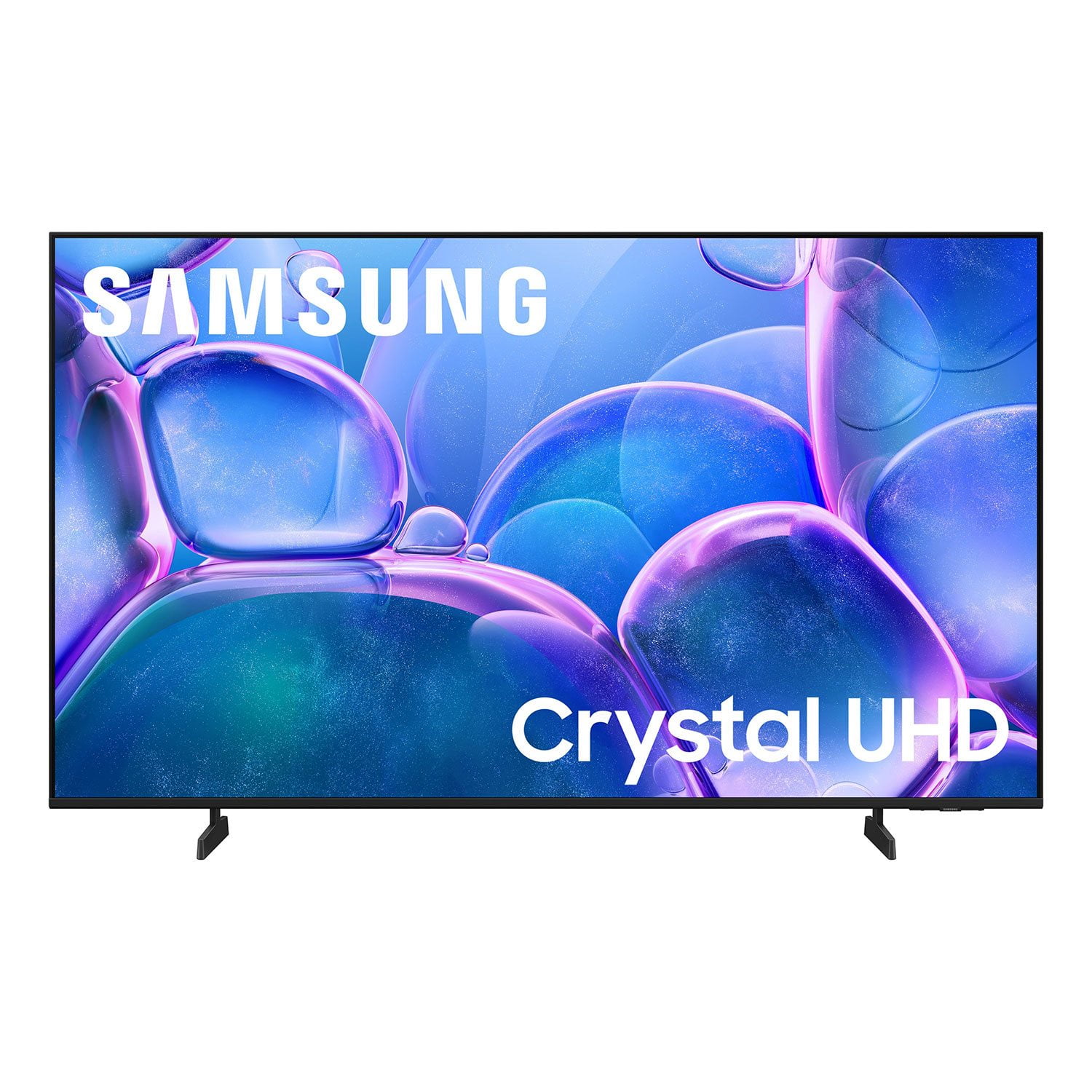
SAMSUNG 58” Class U7900F Series 4K Crystal UHD Smart TV
4.5 out of 5 stars
stars
3,734 ratings3,676 reviews
  1. 5 stars74% (2,747)
  2. 4 stars15% (572)
  3. 3 stars6% (219)
  4. 2 stars2% (88)
  5. 1 star3% (108)

Member photos

  • +1445 images
Sort by |
Showing 1,801-1,810 of 3,676 reviews
Jul 6, 2026
Reviewer name: None
5 out of 5 stars
5 out of 5 stars review

Samsung is a Great Quality Television

[This review was collected as part of a promotion.] Best quality view I have ever seen on any television

Review from Samsung US
Helpful?18J4E5E7OZVG16422722568
Jul 20, 2026
Reviewer name: John lobo
4 out of 5 stars
4 out of 5 stars review

Some problems with Samsung 55"

[This review was collected as part of a promotion.] picture sometime blurry and take about minute to get sharp and we loose connection at times...

Review from Samsung US
Helpful?18J4E5E7OZVG16422722568
Jul 5, 2026
Reviewer name: Luv2Luv
4 out of 5 stars
4 out of 5 stars review

Ok!

[This review was collected as part of a promotion.] The twelve shows well, but there is a delay a lot of times when powering off and or on.

Review from Samsung US
Helpful?18J4E5E7OZVG16422722568
Jul 20, 2026
Reviewer name: EDiT
3 out of 5 stars
3 out of 5 stars review

Remote sucks !!!!!!!!!! navagating instructions

[This review was collected as part of a promotion.] Remote hard to learn and use, picture seems good !

Review from Samsung US
Helpful?18J4E5E7OZVG16422722568
reply from Samsung Advisor

Hi EDiT, Thank you for your feedback. To get the most out of your TV, we offer built-in e-manuals. Learn TV Remote is a feature designed to help users become familiar with the layout and function of each button on the Samsung remote. When enabled, pressing any button (except the Power button, which will still turn off the TV) will prompt the TV to announce the button’s name and its purpose – without affecting TV operation. This teaching mode is especially useful for users who are visually impaired or new to Samsung remotes. To enable this feature, go to: Settings > All Settings > General & Privacy > Accessibility > Learn TV Remote. To exit, simply press the Return key twice. If you’d like more assistance with this feature, please reach Samsung Support at 1-800-SAMSUNG (8AM – 9PM EST Mon – Fri, 8AM – 6PM Sat – Sun) or chat with an agent via the ‘Support’ link on our website. ~ Samsung Advisor

Jul 3, 2026
Reviewer name: New2tv
4 out of 5 stars
4 out of 5 stars review

Mighty fine television

[This review was collected as part of a promotion.] It's a fine television for the price. I can use the streaming apps with ease.

Review from Samsung US
Helpful?18J4E5E7OZVG16422722568
Jul 20, 2026
Reviewer name: Bjohnson
5 out of 5 stars
5 out of 5 stars review

Great Tv

[This review was collected as part of a promotion.] I love the product wouldn’t have it any other way great product

Review from Samsung US
Helpful?18J4E5E7OZVG16422722568
Jul 3, 2026
Reviewer name: Peluchitote
5 out of 5 stars
5 out of 5 stars review

Bestest!!!!

[This review was collected as part of a promotion.] Best TV ever, highly recommended!!! Seriously, run out and get one, maybe 2!!!!!

Review from Samsung US
Helpful?18J4E5E7OZVG16422722568
Jul 5, 2026
Reviewer name: bell
2 out of 5 stars
2 out of 5 stars review

bad features

[This review was collected as part of a promotion.] The brightness and color are bad with this tv. Do not buy!

Review from Samsung US
Helpful?18J4E5E7OZVG16422722568
reply from Samsung Advisor

Hi bell, We’re sorry to hear you’re not fully satisfied with the picture quality on your Samsung U7900F TV. If the image appears too dark, we suggest disabling certain energy-saving features, which can automatically adjust brightness and affect how the screen looks. Go to: Settings > All Settings > General & Privacy > Power and Energy Saving, then turn off Brightness Optimization, Energy Saving Solution, Motion Lighting, and/or Contrast Enhancer. You can also adjust the Picture Mode to better suit your environment: Settings > All Settings > Picture > Picture Mode • Standard – Default mode for general viewing • Dynamic – Brighter and clearer, ideal for well-lit rooms • Movie – Best for dark room viewing • Eco – Energy-saving mode • Filmmaker Mode – Preserves content as intended by creators To fine-tune brightness, go to: Home > left directional key > Settings > All Settings > Picture > Expert Settings, then adjust the Brightness level (0–50) to your preference. Lastly, please make sure your TV is running the latest firmware: Home > Home > left directional key > Settings > Support > Software Update > Update Now We hope these tips help improve your viewing experience. If you need further support, feel free to contact us at 1-800-SAMSUNG, 8AM – 12AM EST, 7 days a week. LiveChat is also available via the ‘Support’ link on our website. ~ Samsung Advisor

Jul 7, 2026
Reviewer name: RadMan
2 out of 5 stars
2 out of 5 stars review

TV sucks

[This review was collected as part of a promotion.] I cannot get the close caption to turn off on my 55 inch TV. What the heck?!

Review from Samsung US
Helpful?18J4E5E7OZVG16422722568
reply from Samsung Advisor

Hi RadMan, You can turn your U7900F TV’s Closed Captions on/off and change the settings such as separating it from the broadcast screen, font color, background color, size, position, language, etc. by going to: Settings > All Settings > General & Privacy > Accessibility > Caption Settings. If we can help with anything else, please call us at 1-800-SAMSUNG, (8AM – 9PM EST Mon – Fri, 8AM – 6PM Sat – Sun). LiveChat with an agent as well as manuals, software, and warranty info can be found at the ‘Support’ link on our Samsung website. ~ Samsung Advisor

Jul 20, 2026
Reviewer name: Nurse514
1 out of 5 stars
1 out of 5 stars review

Poor connection

[This review was collected as part of a promotion.] TV continues to disconnect. Router is next to tv and have frequent tv outages.

Review from Samsung US
Helpful?18J4E5E7OZVG16422722568
reply from Samsung Advisor

Hi Nurse514, Thank you for sharing your experience. If your TV is having trouble connecting to Wi-Fi, try the following steps: 1. Keep the TV within 50 feet of your modem or router and reduce interference from other devices or walls. 2. Power cycle your TV and router by unplugging both for 30 seconds, then plugging them back in. 3. If you're using an Ethernet cable, verify it's functional. If using Wi-Fi, move the router closer to the TV. 4. Run a Smart Hub Connection Test: Settings > Support > Device Care > Self Diagnosis > Smart Hub Connection Test 5. Also check: Settings > Support > Device Care > Self Diagnosis > Wi-Fi 6. If the issue persists, consider a factory reset: Settings > All Settings > General & Privacy > Reset > Factory Data Reset If you still need help, please contact Samsung Support at 1-800-SAMSUNG (8AM – 9PM EST Mon – Fri, 8AM – 6PM Sat – Sun), or reach us via text anytime. You can also visit ‘Support’ on our website for: • Live Chat • Manuals, Software, & Warranty Info ~ Samsung Advisor