Skip to Main Content
Sam's Club
Sam's Club
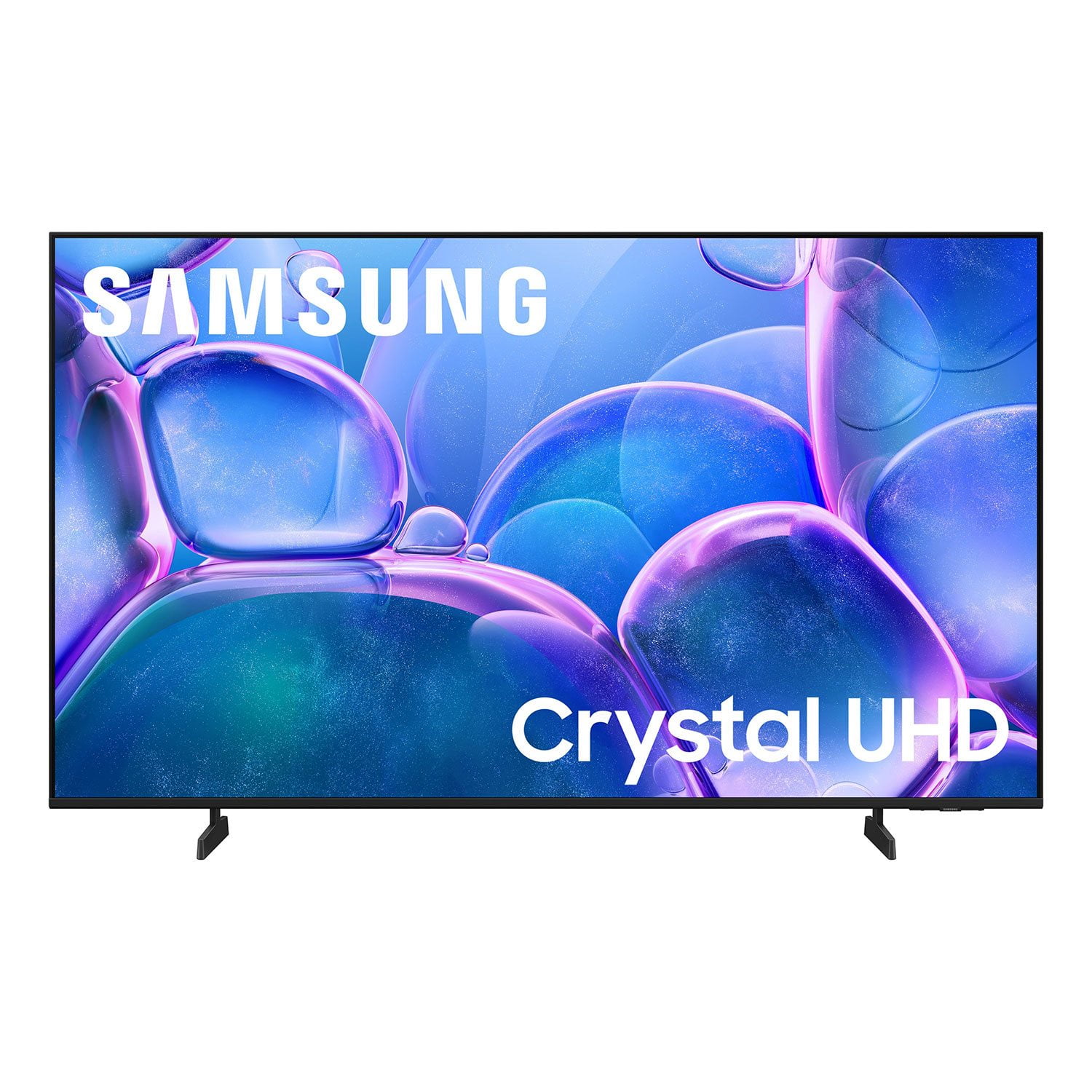
Customer reviews for SAMSUNG 58” Class U7900F Series 4K Crystal UHD Smart TV for
SAMSUNG 58” Class U7900F Series 4K Crystal UHD Smart TV
4.6 out of 5 stars
stars1,996 ratings1,938 reviews
  1. 5 stars78% (1,547)
  2. 4 stars14% (282)
  3. 3 stars4% (89)
  4. 2 stars2% (33)
  5. 1 star2% (45)

Member photos

  • +753 images
Sort by |
Showing 1,751-1,760 of 1,938 reviews
Feb 17, 2026
TanL
3 out of 5 stars review

Good price

[This review was collected as part of a promotion.] It is good for the price, but it is not that good of the quality though

Review from Samsung US
Helpful?18J4E5E7OZVG16422722568
reply from Samsung Advisor

Hi TanL, We appreciate your feedback on the picture quality of Samsung’s U7900F TV. If the image doesn’t quite match your preferences, there are several adjustments you can make to better suit your viewing environment and content type. First, please ensure your TV is running the latest firmware, as updates may include important picture quality enhancements. Go to: Home > Left directional button > Settings > Support > Software Update > Update Now To explore picture mode options, navigate to: Home > Left directional button > Settings > All Settings > Picture > Picture Mode. Options include: • Standard – Ideal for general viewing • Dynamic – Brighter and more vibrant for well-lit spaces • Eco – Optimized for energy efficiency • Movie – Best for viewing in low light • Filmmaker Mode – Preserves the content creator’s intent and disables motion smoothing for supported content You can further customize your image by going to: Settings > All Settings > Picture > Expert Settings, where you can adjust Brightness, Contrast, Color Tone, Sharpness, Contrast Enhancer and more. If you’d like help finding the best picture settings for your preferences, please don’t hesitate to contact Samsung Support at 1-800-SAMSUNG, available 8AM – 12AM EST, 7 days a week. You can also LiveChat with an agent or explore additional resources on our website by clicking the ‘Support’ link. ~ Samsung Advisor

Feb 18, 2026
Garry
5 out of 5 stars review

Nice unit

[This review was collected as part of a promotion.] This is good tv. Its bright. Nice colors and good sound

Review from Samsung US
Helpful?18J4E5E7OZVG16422722568
Feb 17, 2026
Carlos
5 out of 5 stars review

Great features

[This review was collected as part of a promotion.] great picture great TV built very durable lots of channels available I love my TV

Review from Samsung US
Helpful?18J4E5E7OZVG16422722568
Feb 17, 2026
Marina
5 out of 5 stars review

Great color picture

[This review was collected as part of a promotion.] Vivid, bright, and sharp. Modern, slim, and lightweight.

Review from Samsung US
Helpful?18J4E5E7OZVG16422722568
Mar 1, 2026
Ji97
5 out of 5 stars review

Great Purchase

[This review was collected as part of a promotion.] This a really good quality tv, i realy enjoy the colors and the definition.

Review from Samsung US
Helpful?18J4E5E7OZVG16422722568
Feb 28, 2026
James
5 out of 5 stars review

Beautiful

[This review was collected as part of a promotion.] Very Happy with this purchase. The slim lines make it look like a piece of art on my wall!!

Review from Samsung US
Helpful?18J4E5E7OZVG16422722568
Feb 5, 2026
STRIKER4832
3 out of 5 stars review

It's doable

[This review was collected as part of a promotion.] The The color is just a little bit and the volume sticks

Review from Samsung US
Helpful?18J4E5E7OZVG16422722568
reply from Samsung Advisor

Hi STRIKER4832, Thank you for your feedback. If the product’s colors or absolute whites/blacks seem to be off, run a Picture Test: Home > Menu > Support > Device Care > Self Diagnosis > Picture Test. Check whether Grayscale is set to On: Home > Menu > Settings > All Settings > General & Privacy > Accessibility > Grayscale. If the volume on your TV is low please follow the below instructions: To start, we recommend making sure your TV is running the latest firmware, as updates can include improvements to sound performance: Home > left directional key > Settings > Support > Software Update If volume levels still seem too low, you can improve sound performance by adjusting a few key settings: Sound Mode: Navigate to: Settings > All Settings > Sound > Sound Mode Auto Volume: This feature helps maintain consistent volume levels across content and input sources. Turn it on under: Settings > All Settings > Sound > Expert Settings > Auto Volume = On You can also explore Expert Settings to fine-tune sound output with adjustments for Balance, Equalizer, and more. If you’re considering enhancing your setup, Samsung’s Q- and S-Series Soundbars feature Q-Symphony, which syncs your TV and soundbar speakers for a fuller, more immersive sound experience. For personalized support with these settings or selecting a soundbar to complement your setup, contact Samsung Support at 1-800-SAMSUNG (8AM – 12AM EST, 7 days a week) or use LiveChat via the ‘Support’ link on our website. ~Samsung Advisor

Mar 24, 2026
Watcher
1 out of 5 stars review

Dark screen

[This review was collected as part of a promotion.] Half of the screen went dark and I have 3 like this

Review from Samsung US
Helpful?18J4E5E7OZVG16422722568
reply from Samsung Advisor

Hi Watcher, Thank you for your feedback regarding the screen abnormalities you're seeing on your TV. To help determine if the issue is related to the panel itself, we recommend starting with a Picture Test, which displays a high-definition image you can examine for flaws: Settings > Support > Device Care > Self Diagnosis > Picture Test If the issue appears during the test and across all sources (built-in apps, HDMI devices, etc.), it may indicate a panel-related concern. You can also try displaying solid-color test videos (red, green, blue, black, white) from a USB drive or YouTube. This can help you identify whether any pixels are stuck or not functioning properly. In some cases, unplugging the TV for a few minutes and rebooting it can help resolve stuck pixels caused by temporary display behavior. If the problem persists after these steps, the TV may require service. To set up a service appointment, please contact Samsung Support at 1-800-SAMSUNG, 8AM – 12AM EST, 7 days a week. LiveChat and additional support resources are also available through the Support link on our website. ~ Samsung Advisor

Mar 6, 2026
Everett
5 out of 5 stars review

Great

[This review was collected as part of a promotion.] Volume sometimes have to go to highest setting to hear

Review from Samsung US
Helpful?18J4E5E7OZVG16422722568
Feb 17, 2026
Happy 420
5 out of 5 stars review

Beautiful glossy TV

[This review was collected as part of a promotion.] Love the resolution on it the HD looks so awesome love watching movies with my kids on it

Review from Samsung US
Helpful?18J4E5E7OZVG16422722568