Skip to Main Content
Sams Club
Sams Club
Customer reviews for SAMSUNG 85" Class U8000F Series 4K Crystal UHD Smart TV for
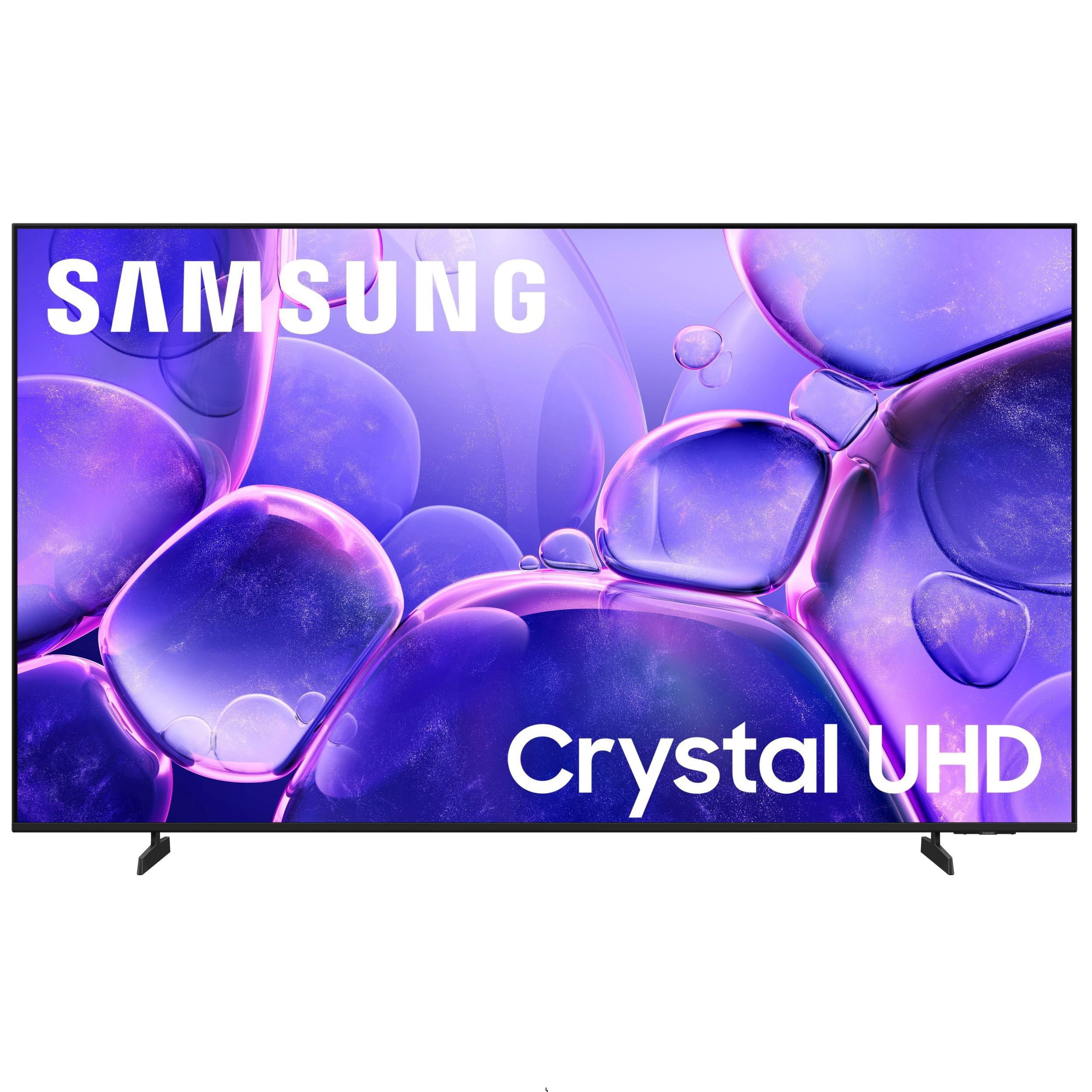
SAMSUNG 85" Class U8000F Series 4K Crystal UHD Smart TV
4.7 out of 5 stars
stars1,088 ratings1,067 reviews
  1. 5 stars78% (852)
  2. 4 stars14% (154)
  3. 3 stars4% (42)
  4. 2 stars2% (20)
  5. 1 star2% (20)

Member photos

  • +337 images
Sort by |
Showing 851-860 of 1,067 reviews
Feb 17, 2026
Lolo3020
5 out of 5 stars review

Great product

[This review was collected as part of a promotion.] There are the best product there are the gratis resolution

Review from Samsung US
Helpful?3CTS2O15ZY1416007408101
Feb 8, 2026
Ashball890
5 out of 5 stars review

Great Quality !

[This review was collected as part of a promotion.] Service and features all around the BEST ALWAYS 5 OUT OF 5. BEST PRIUDUCTS GOTTA LOVE SAMSUNG.

Review from Samsung US
Helpful?3CTS2O15ZY1416007408101
Mar 1, 2026
Mark
3 out of 5 stars review

Bad veiwing at time do to the contrast.

[This review was collected as part of a promotion.] Maybe màke the 65 inches 65 instead of 58 would probraly help more.

Review from Samsung US
Helpful?3CTS2O15ZY1416007408101
reply from Samsung Advisor

Hi Mark, Thank you for your feedback. If your Samsung U8000F TV’s picture looks soft or lacks detail, try adjusting settings under: Settings > Picture > Expert Settings Key options include Sharpness, Contrast, and Color, plus Picture Clarity Settings for enhanced definition. For added optimization, turn on AI Mode and check for the latest firmware: Settings > Support > Software Update > Update Now These adjustments can make a noticeable difference in overall clarity. If you need further help tailoring the settings to your preferences or environment, please contact Samsung Support at 1-800-SAMSUNG, available daily from 8AM - 12AM EST. You can also visit the Samsung website and click on ‘Support’ for: • Live Chat • Manuals, Software, & Warranty Info ~ Samsung Advisor

Feb 16, 2026
Vodysir
5 out of 5 stars review

Unbelievable

[This review was collected as part of a promotion.] Absolutely gorgeous amazing stunning nothing beats Samsung

Review from Samsung US
Helpful?3CTS2O15ZY1416007408101
Feb 17, 2026
Zenseal62
5 out of 5 stars review

Great features!

[This review was collected as part of a promotion.] Great picture Amazing brightness Unmatched reolution

Review from Samsung US
Helpful?3CTS2O15ZY1416007408101
Feb 17, 2026
Jacx385
5 out of 5 stars review

Great office/ small room tv

[This review was collected as part of a promotion.] Wonderful tv. Great for a small room or office space

Review from Samsung US
Helpful?3CTS2O15ZY1416007408101
Feb 18, 2026
Arturo C
5 out of 5 stars review

Love the quality. And how smooth it runs

[This review was collected as part of a promotion.] Great product. And arrived perfectly Continues to fascinate me

Review from Samsung US
Helpful?3CTS2O15ZY1416007408101
Mar 6, 2026
Jeff
5 out of 5 stars review

Nice picture

[This review was collected as part of a promotion.] Was a great choice for a new TV. I have used Samsung in the past and was pleased

Review from Samsung US
Helpful?3CTS2O15ZY1416007408101
Feb 27, 2026
Koko
5 out of 5 stars review

Samsung products

[This review was collected as part of a promotion.] I love samsung products. That are always reliable and top notch

Review from Samsung US
Helpful?3CTS2O15ZY1416007408101
Mar 1, 2026
Tvbuff
2 out of 5 stars review

Too dark

[This review was collected as part of a promotion.] screen is too dark any scenes that take place at night or in the dark are not really viewable

Review from Samsung US
Helpful?3CTS2O15ZY1416007408101
reply from Samsung Advisor

Hi Tvbuff, We’re sorry to hear you’re not fully satisfied with the picture quality on your Samsung U8000F TV. If the image appears too dark, we suggest disabling certain energy-saving features, which can automatically adjust brightness and affect how the screen looks. Go to: Settings > All Settings > General & Privacy > Power and Energy Saving, then turn off Brightness Optimization, Energy Saving Solution, Motion Lighting, and/or Contrast Enhancer. You can also adjust the Picture Mode to better suit your environment: Settings > All Settings > Picture > Picture Mode • Standard – Default mode for general viewing • Dynamic – Brighter and clearer, ideal for well-lit rooms • Movie – Best for dark room viewing • Eco – Energy-saving mode • Filmmaker Mode – Preserves content as intended by creators To fine-tune brightness, go to: Home > left directional key > Settings > All Settings > Picture > Expert Settings, then adjust the Brightness level (0–50) to your preference. Lastly, please make sure your TV is running the latest firmware: Home > Home > left directional key > Settings > Support > Software Update > Update Now We hope these tips help improve your viewing experience. If you need further support, feel free to contact us at 1-800-SAMSUNG, 8AM – 12AM EST, 7 days a week. LiveChat is also available via the ‘Support’ link on our website. ~ Samsung Advisor