Skip to Main Content
Sam's Club
Sam's Club
All Departments
All Services
Customer reviews for SAMSUNG 85" Class U8000F Series 4K Crystal UHD Smart TV for
SAMSUNG 85" Class U8000F Series 4K Crystal UHD Smart TV
4.5 out of 5 stars
stars
3,309 ratings3,277 reviews
  1. 5 stars71% (2,355)
  2. 4 stars16% (517)
  3. 3 stars7% (218)
  4. 2 stars3% (100)
  5. 1 star4% (119)

Member photos

  • +1031 images
Sort by |
Showing 2,371-2,380 of 3,277 reviews
May 20, 2026
Reviewer name: Tricia
5 out of 5 stars
5 out of 5 stars review

Allover a great TV

[This review was collected as part of a promotion.] its very good, the resolution is bright and crisp. the configurations are easy to follow

Review from Samsung US
Helpful?3CTS2O15ZY1416007408101
May 25, 2026
Reviewer name: Fblue7
5 out of 5 stars
5 out of 5 stars review

Awesome Tv

[This review was collected as part of a promotion.] Excellent image quality and awesome big screen super happy with the new Tv

Review from Samsung US
Helpful?3CTS2O15ZY1416007408101
May 16, 2026
Reviewer name: Anonymous
5 out of 5 stars
5 out of 5 stars review

Great features love this t v

[This review was collected as part of a promotion.] This t v is awesome. Love all the features and the resolution

Review from Samsung US
Helpful?3CTS2O15ZY1416007408101
Apr 9, 2026
Reviewer name: Tony
4 out of 5 stars
4 out of 5 stars review

Samsung makes good products

[This review was collected as part of a promotion.] Basically a giant computer screen for me but Samsung products are just fire

Review from Samsung US
Helpful?3CTS2O15ZY1416007408101
Feb 18, 2026
Reviewer name: Mastermind260
5 out of 5 stars
5 out of 5 stars review

Good picture

[This review was collected as part of a promotion.] I love the picture and sound on my television. Best thing I've bought in awhile

Review from Samsung US
Helpful?3CTS2O15ZY1416007408101
Mar 23, 2026
Reviewer name: Chrissy
5 out of 5 stars
5 out of 5 stars review

Samsung 65 in tv

[This review was collected as part of a promotion.] Bright.picture sharp resolution easy to operate love this tv!

Review from Samsung US
Helpful?3CTS2O15ZY1416007408101
Mar 31, 2026
Reviewer name: Tadpoles
5 out of 5 stars
5 out of 5 stars review

Best TV!!

[This review was collected as part of a promotion.] Loving the picture quality!!! Added a soundbar and now I'm in my own personal theater everyday!!

Review from Samsung US
Helpful?3CTS2O15ZY1416007408101
Feb 17, 2026
Reviewer name: Palermo
5 out of 5 stars
5 out of 5 stars review

Televicion

[This review was collected as part of a promotion.] My TV is one of the best products I have bought, even with constant use.

Review from Samsung US
Helpful?3CTS2O15ZY1416007408101
Mar 23, 2026
Reviewer name: Anonymous
5 out of 5 stars
5 out of 5 stars review

Great way to stay connected
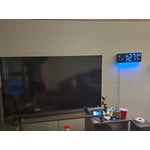
[This review was collected as part of a promotion.] Great TV for the bedroom, can also use as a monitor with ease. Great buy

Review from Samsung US
Helpful?3CTS2O15ZY1416007408101
Mar 23, 2026
Reviewer name: My 50 inch
2 out of 5 stars
2 out of 5 stars review

It out didn't with

[This review was collected as part of a promotion.] Well every time it turns on ½ the time it the clor aree all messed up

Review from Samsung US
Helpful?3CTS2O15ZY1416007408101
reply from Samsung Advisor

Hi there, We're sorry to hear about the color issues you are experiencing on your TV. Please ensure your TV is running the latest Firmware, version 1132.0. Go to Settings> Support> Software Update. If this firmware version is not yet available on your TV, you can download the update on a USB drive and manually update your TV: 1. On Samsung's website (upper right corner), go to: Support > Manual & Software > Find your TV model, and click on the Firmware – Upgrade File. 2. When the file has finished downloading, locate it and then unzip it. There is normally one folder inside but there may be multiple files. 3. Copy or move all of the files that were included in the zip file to a USB flash drive, but do not place them inside any other folders. If you place the software folders inside a folder on the USB flash drive, the TV or monitor will not find them. 4. Connect the USB drive containing the software upgrade into a USB port on your device. 5. Using your device's remote, navigate to and select Settings, then select All Settings, and then select Support. Select Software Update, select Update Now, and then select Yes if prompted. Your device will search the USB drive for update files. Follow the on-screen instructions to install the updated software. Updates usually take a few minutes; please do not turn off the TV until the update is complete. When the update is finished, it will restart automatically. If you need additional support, Samsung is here to help. Please call us at 1-800-SAMSUNG, available daily from 8AM - 12AM EST. You can also chat with a LiveChat agent by clicking the ‘Support’ link on our website. ~ Samsung Advisor