Skip to Main Content
Sam's Club
Sam's Club
All Departments
All Services
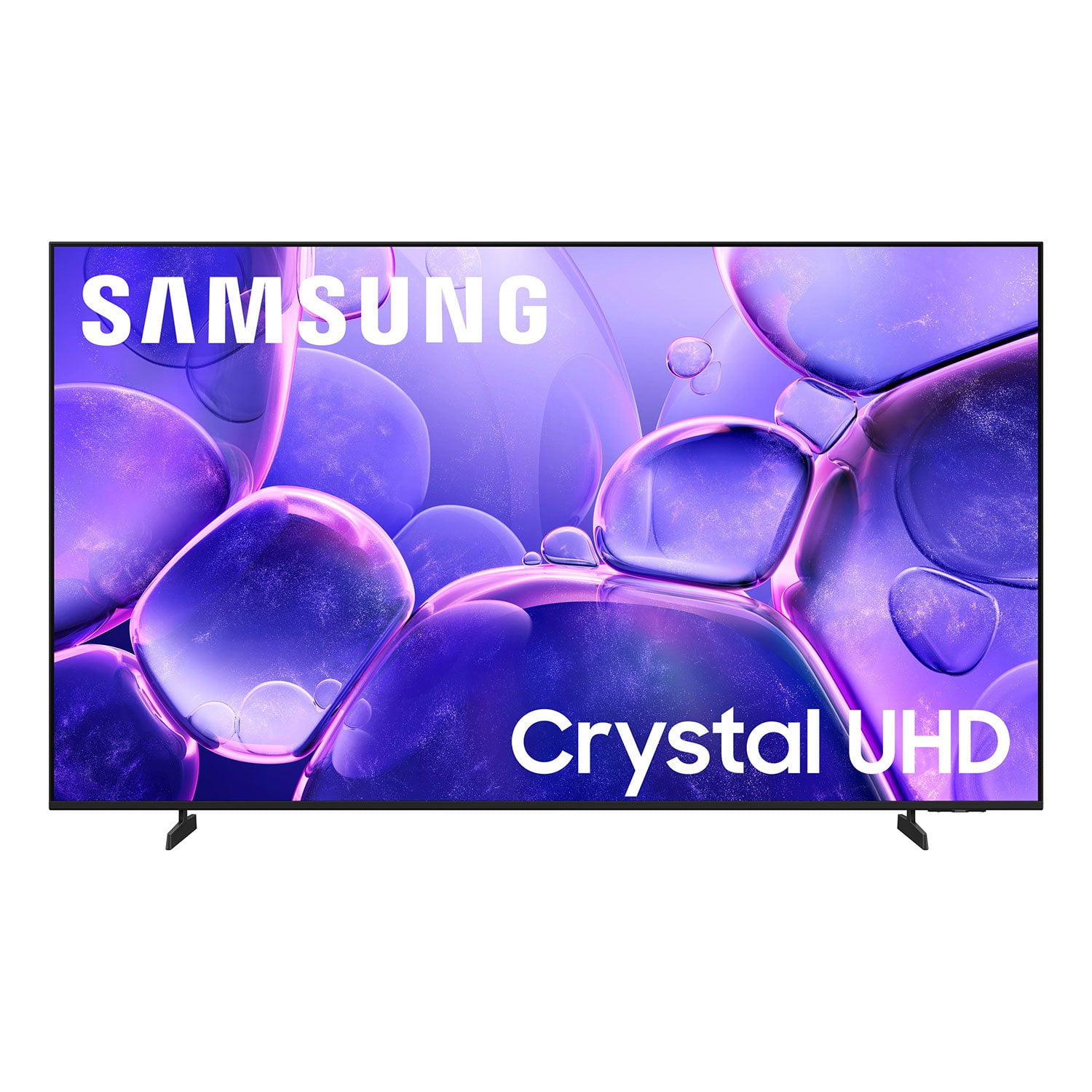
Customer reviews for SAMSUNG 65" Class U8000F Series 4K Crystal UHD Smart TV for
SAMSUNG 65" Class U8000F Series 4K Crystal UHD Smart TV
4.5 out of 5 stars
stars
1,470 ratings1,413 reviews
  1. 5 stars74% (1,086)
  2. 4 stars15% (218)
  3. 3 stars5% (76)
  4. 2 stars3% (47)
  5. 1 star3% (43)

Member photos

  • +376 images
Sort by |
Showing 891-900 of 1,413 reviews
Jul 5, 2026
Jackie
2 out of 5 stars review

Too hard to figure out. Why the ads???

The TV is TOO hard to figure out. I also HATE that the TV is loaded with advertisements.

Review from Samsung US
Helpful?23IWKCJCPHCF15992409490
Jul 10, 2026
SML11
5 out of 5 stars review

Nice
Nice TV. Picture is fine. Sound is good but needs to be turned all the way up to hear.

Review from Samsung US
Helpful?23IWKCJCPHCF15992409490
May 8, 2026
Albert
5 out of 5 stars review

The best TV ever!!

[This review was collected as part of a promotion.] Very cool tv all tv’s at our house we’re Samsung. Excellent TV

Review from Samsung US
Helpful?23IWKCJCPHCF15992409490
May 20, 2026
Doc Wizard
1 out of 5 stars review

SUCKS

[This review was collected as part of a promotion.] I want a TV that I don’t need a 4 year degree in engineering to work

Review from Samsung US
Helpful?23IWKCJCPHCF15992409490
reply from Samsung Advisor

Hi Doc Wizard, We're sorry to hear you are having trouble navigating the U8000FD TV. To help you get the most from your TV, you can download the full e-Manual and more by visiting Samsung’s website then navigating to: Support > Manual & Software > TVs & Home Theater. From there, you can search for and select your U8000F TV model to view or download the available guides. The e-Manual and Remote Control Guide are also conveniently built into your TV: Settings > Support > Tips and User Guides If you need additional help, please contact Samsung Support at 1-800-SAMSUNG, 8AM – 9PM EST Mon – Fri, 8AM – 6PM Sat – Sun. You can also visit the Samsung website and click on ‘Support’ for: • Live Chat • Manuals, Software, & Warranty Info ~ Samsung Advisor

May 11, 2026
Mike
5 out of 5 stars review

Great tv

[This review was collected as part of a promotion.] TV shows good it's a nice size fits perfect and it's clean picture

Review from Samsung US
Helpful?23IWKCJCPHCF15992409490
May 11, 2026
Anonymous
5 out of 5 stars review

Great

[This review was collected as part of a promotion.] Great Resolution And Audiovisual, I Truthfully Recommend It...,

Review from Samsung US
Helpful?23IWKCJCPHCF15992409490
May 12, 2026
Jncopipe3
5 out of 5 stars review

Easy setup with a great picture

[This review was collected as part of a promotion.] Great 70 inch TV for its price. It's bright, has a shap image, great for some gaming

Review from Samsung US
Helpful?23IWKCJCPHCF15992409490
Apr 5, 2026
BLG22
5 out of 5 stars review

Great picture

[This review was collected as part of a promotion.] Replaced a Vizio with a new Samsung and love it. Will not go back to Vizio anytime soon.

Review from Samsung US
Helpful?23IWKCJCPHCF15992409490
May 11, 2026
Inga
5 out of 5 stars review

Great TV for the price. Great color.

[This review was collected as part of a promotion.] Great tv for the price. Great picture and the brightness is real good. Refresh rate is great.

Review from Samsung US
Helpful?23IWKCJCPHCF15992409490
Apr 22, 2026
Andy
1 out of 5 stars review

Great TV

[This review was collected as part of a promotion.] Everything is fine except the internet not working in this TV!?

Review from Samsung US
Helpful?23IWKCJCPHCF15992409490
reply from Samsung Advisor

Hi Andy, Thank you for sharing your experience with the internet connection on your Samsung U8000F TV. Whether you're using Wi-Fi or a wired (LAN) connection, there are a few steps you can take to help resolve the issue: 1. Power Cycle Your Equipment. Unplug both your TV and router/modem from the wall outlet. Wait at least 30 seconds, then plug them back in and allow both devices to fully restart. 2. Check the Network Status. On your TV, go to: Home > left directional key > Settings > All Settings > Connection > Network > Network Status. This will help determine if the issue lies with the network or the TV. 3. Try a Different Connection Type. If you're using Wi-Fi, try connecting an Ethernet (LAN) cable directly from your router to the TV to test the connection. If you're using a wired connection, try switching to Wi-Fi to see if the issue persists. 4. Reestablish the Network Connection. Go to: Settings > All Settings > Connection > Network > Open Network Settings, and follow the prompts to reconnect to your Wi-Fi or wired network. 5. Update Firmware. Software updates can often resolve network bugs. To check for the latest version: Settings > Support > Software Update > Update Now If these steps don't resolve the issue, we’d be happy to provide further assistance. Please call Samsung Support at 1-800-SAMSUNG, 8AM – 9PM EST Mon – Fri, 8AM – 6PM Sat – Sun. LiveChat is also available at the ‘Support’ link on our website. ~ Samsung Advisor