
 Customer reviews for SAMSUNG 75” Class U8000F Series 4K Crystal UHD Smart TV for
Member photos
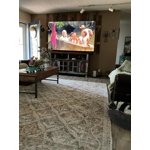
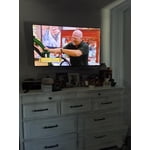
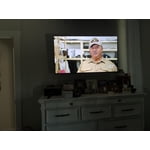
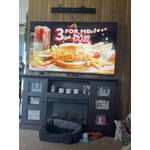
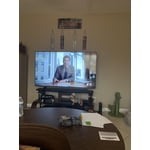
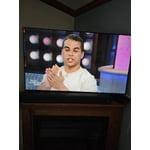
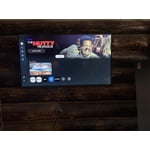
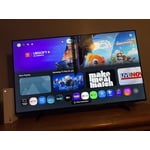
Excellent features
[This review was collected as part of a promotion.] Great Large, beautiful screen totally worth the money. Resolution is wonderful color is perfect. Brightness is perfect. Contracts is excellent refreshing to view programs and movies. refresh as needed.
Greatest Televison Ever
[This review was collected as part of a promotion.] The brightness is top tier. The contrast and refresh rate is top tier also. The resolution and viewing aspect of the tv is world class. We need more tv like Samsung has. I've heard they now have see through capability.
Not up to Samsung quality.
[This review was collected as part of a promotion.] my biggest complaint is that it comes on in the Samsung TV and it takes two or three minutes to be able to switch it my cable my old one came on in the cable . my second complaint is that it routinely shuts off the sound. The only way I can get it to come back on is to unplug it from the wall it is extremely difficult because I am somewhat disabled so no I am not happy with this TV and I also cannot add apps to it. I pay for subscription to Angel Network was not able to download the app.
Hi Granny P, Thank you for reaching out to us regarding the sound issues you are experiencing. If you're experiencing sound dropouts, the steps below are designed to help you troubleshoot across different connection types. HDMI ARC / eARC Connection 1. Use a certified High-Speed HDMI cable with Ethernet and ensure it's firmly connected to the HDMI eARC ports on both the TV and soundbar/receiver. 2. Enable ARC/eARC settings on your TV: o Settings > All Settings > Sound > Expert Settings > HDMI eARC Mode = Auto o Settings > All Settings > General & Privacy > External Device Manager > Anynet+ (HDMI-CEC) = On 3. Adjust Digital Output Audio Format: o Settings > All Settings > Sound > Expert Settings > Digital Output Audio Format o Set this to Auto unless you're using a device that specifically requires Pass-Through. 4. Cold boot your TV by holding the power button on your remote for 5+ seconds. Bluetooth Connection 1. Bluetooth connections can be sensitive to distance and interference. Keep the Bluetooth device close to the TV, and remove nearby sources of interference (e.g., wireless routers or other Bluetooth devices). 2. For improved stability, use a 5GHz Wi-Fi network if available. 3. If issues persist, we recommend switching to a wired connection (HDMI ARC or Optical) for a more reliable audio experience. Wi-Fi / Wireless Speaker Connections 1. Make sure both your TV and audio device are on the same network band (5GHz is ideal for stability). 2. If you're using Samsung’s Wireless Audio features (e.g., Wi-Fi Speaker Surround Setup), ensure your speaker system is properly added in: Settings > All Settings > Sound > Sound Output > Wi-Fi Speaker Surround Setup 3. If signal issues continue, disconnect and reconnect the speaker from the network and re-add it to the TV. Also Try: • Update your TV's firmware: Settings > Support > Software Update > Update Now • Run a Sound Test to verify internal sound functions: Settings > Support > Device Care > Self Diagnosis > Sound Test If you continue to have issues, please call us at 1-800-SAMSUNG, available daily from 8AM – 9PM EST Mon – Fri, 8AM – 6PM Sat – Sun. You can also visit the Samsung website and click on ‘Support’ for: • Live Chat • Manuals, Software, & Warranty Info ~ Samsung Advisor
Love my tvs
[This review was collected as part of a promotion.] the TVs are absolutely amazing I love that I can talk to my remote and have it do what I need those are simple the very versatile the features that has being able to connect into all my devices and then also having Samsung TV is it's like having TV without having to purchase it I love it nothing about these TV that I don't love
Outstanding Television!
[This review was collected as part of a promotion.] Great television! I am a 60 year old man I was able to move the television in the box by myself. I was able to place the footings on the tv, and set it in place by myself. I plugged it in and away I went. I was able to connect the tv to my wireless internet and from there the television blossomed. I was amazed at how many free things were already programmed and available for viewing. The colors were crisp, picture extends to the full perimeter of the screen, and the sound is very good too, my wife says it’s a little too good as she tells me to turn down the volume. The pictures are clear and sharp as well. Programing my extra channels was super easy as well, but most everything I had was already programmed into the television, all I had to do was log in to that particular channel and away it went. But as soon as I introduced a new program to the television, it added the app icon right away to my channel lineup; and you are able to rearrange the app lineup to fit your needs. It was a little daunting at first, because I am one of those people who looks at the instruction manual and tosses it aside. Samsung really did make everything simple to understand and actually use. There are literally hundreds of free channels for you to watch. Navigating to these channels was a bit tricky at first, but once I mastered the remote; I was happy as can be. I am pretty satisfied with the brightness and resolution of the picture on the television but I have yet to figure that part out by myself yet; I guess I am actually going to have to look at the manual after all. And I have had no issues navigating from one program to another and the new program starts within a few seconds of navigating to it. All in all, I love this television, the technology built into it is wonderfully amazing to an old man like me. Just one thing, the remote is reeeeallly small compared to the other remotes I have used in the past. Once I got used to it, it was really quite simple. But don’t misplace it. With its size…you’re going to be hunting. And now a heartfelt Thank You Samsung for a wonderful product.
All in one brand "SAMSUNG", Quality and lower pric
[This review was collected as part of a promotion.] My samsung crystal u800 has amazing image, bright, colorful contrast, each resolution image is easy to determine or change, i hope in a few month get the new samsung tv 65" or 70", I really love the satisfaction viewing. y favorite programs with beautiful colors from this samsung y5" tv, thanks
Awesome television
[This review was collected as part of a promotion.] Resolution, brightness and contrast all good in a variety of of different lighting situations. No issues with refresh. Interface is still a learning process for this human. I have no found a way to set a fixed, over the air antenna channel when first turning the device on.
Easy to use
[This review was collected as part of a promotion.] Setting up this product was easy for not even the very tech savvy people being one myself, not very tech. Savvy was able to set it up with ease and get with all the functions using the manual. The viewing the picture is crystal clear. It is beautiful.
TV has issues connecting to network
[This review was collected as part of a promotion.] I've had this TV for one month. Three times it has not been able to connect to my network so I have had to (per instructions) unplug my at&t fiber box & TV for a minute each & then plug them both back in for the TV to connect. Doing one or the other wouldn't do the trick, I had to do them both together. This was in no way do to my at&t. Returning this TV.
Hi Purrr, Thank you for your feedback. Please ensure your TV is running the latest Firmware, version 1132.0. Go to Settings> Support> Software Update. If this firmware version is not yet available on your TV, you can download the update on a USB drive and manually update your TV: 1. On Samsung's website (upper right corner), go to: Support > Manual & Software > Find your TV model, and click on the Firmware – Upgrade File. 2. When the file has finished downloading, locate it and then unzip it. There is normally one folder inside but there may be multiple files. 3. Copy or move all of the files that were included in the zip file to a USB flash drive, but do not place them inside any other folders. If you place the software folders inside a folder on the USB flash drive, the TV or monitor will not find them. 4. Connect the USB drive containing the software upgrade into a USB port on your device. 5. Using your device's remote, navigate to and select Settings, then select All Settings, and then select Support. Select Software Update, select Update Now, and then select Yes if prompted. Your device will search the USB drive for update files. Follow the on-screen instructions to install the updated software. Updates usually take a few minutes; please do not turn off the TV until the update is complete. When the update is finished, it will restart automatically. If you need additional support, Samsung is here to help. Please call us at 1-800-SAMSUNG, available 8AM – 9PM EST Mon – Fri, 8AM – 6PM Sat – Sun. You can also chat with a LiveChat agent by clicking the ‘Support’ link on our website. ~ Samsung Advisor
Easy Setup for your Smart TV
[This review was collected as part of a promotion.] The set up process is simple and the connect ability of multiple apps onto the TV makes it easy to watch your favorite shows. Only issue is finding new apps to download can be a pain to find, but once you know what to do its easy. The free TV channels are pretty good and only a few software updates.