Skip to Main Content
Sam's Club
Sam's Club
All Departments
All Services
Customer reviews for SAMSUNG 58” Class U8000F Series 4K Crystal UHD Smart TV for
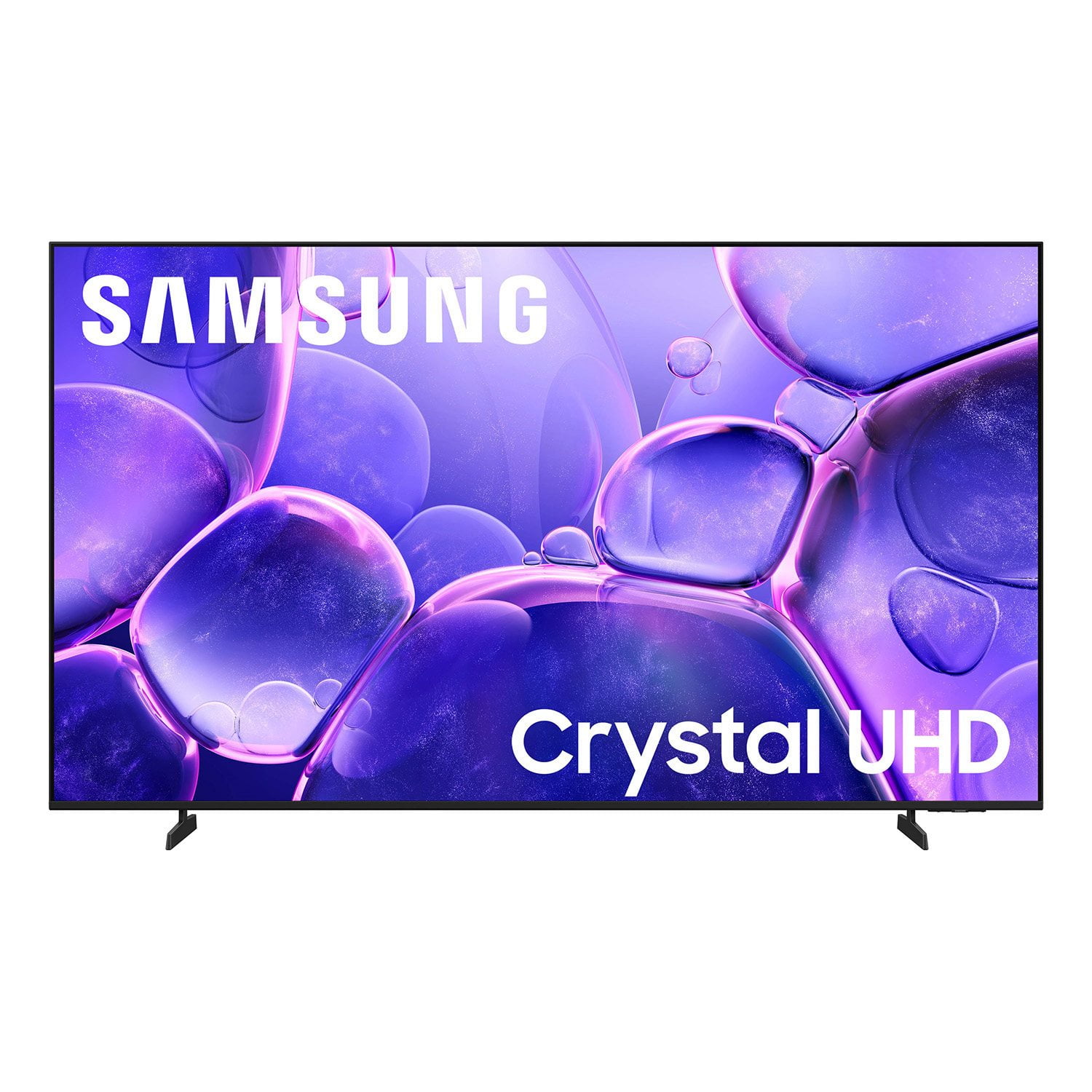
SAMSUNG 58” Class U8000F Series 4K Crystal UHD Smart TV
4.5 out of 5 stars
stars
2,527 ratings2,521 reviews
  1. 5 stars72% (1,823)
  2. 4 stars16% (399)
  3. 3 stars6% (156)
  4. 2 stars3% (70)
  5. 1 star3% (79)

Member photos

  • +766 images
Sort by |
Showing 921-930 of 2,521 reviews
Apr 1, 2026
Anonymous
5 out of 5 stars review

Great device

[This review was collected as part of a promotion.] This is a massive TV we use on regular basis to have executive meetings virtually and presentations. I am very happy with the performance.

Review from Samsung US
Helpful?1U5QA8D4IAB615677157353
Apr 5, 2026
treypok
3 out of 5 stars review

Great Picture Quality

[This review was collected as part of a promotion.] The TV has great picture quality, however, it's missing the Google Play Store to download more apps.

Review from Samsung US
Helpful?1U5QA8D4IAB615677157353
reply from Samsung Advisor

Hi treypok, Thank you for sharing your experience. Please know that you can customize your Home screen by installing, removing or adding your favorite apps to the Home screen. Here's how: Searching for & Installing Apps 1. From the Home screen, press left on the remote’s directional pad. 2. Navigate to and select Search. 3. Using the search bar, enter the content or app you’d like to find. 4. Navigate to and select the app you’d like to install, then select Install. Note: Previously installed apps can be accessed on the Settings screen. Adding & Managing Apps on Home Screen 1. Go to App Settings (these can be found at the bottom of the Apps screen) and select the app you want to move. The following options will be available: a. Add to Home: Move the app to your desired location on the Home screen. b. Delete: Delete app. c. Lock/Unlock: Lock the app with a PIN so only you can use it. When the app is selected again, you will be prompted to enter the PIN to unlock it. d. Reinstall: Reinstall the app. e. View Details: View the app’s information and details. If you need more help with app management, please don’t hesitate to reach Samsung Support at -800-SAMSUNG, available daily 8AM – 9PM EST Mon – Fri, 8AM – 6PM Sat – Sun. You can also chat with a LiveChat agent by clicking the ‘Support’ link on our website. ~ Samsung Advisor

Apr 20, 2026
CW88
4 out of 5 stars review

Great Bang for your Buck

[This review was collected as part of a promotion.] This TV has many Advanced features. Using your phone for a remote is helpful. The one downfall would be it's refresh rate. Takes longer than other TVs to upload video and sound m

Review from Samsung US
Helpful?1U5QA8D4IAB615677157353
May 23, 2026
Noonecares
1 out of 5 stars review

Hate it. Wish i had my lg back

[This review was collected as part of a promotion.] Will not stay connected to the internet, jumps in and out of game mode while playing a game (screen goes black in the middle of games and come back on brighter than before.

Review from Samsung US
Helpful?1U5QA8D4IAB615677157353
reply from Samsung Advisor

Hi Noonecares, Thank you for sharing your experience with the internet connection on your Samsung U8000F TV. Whether you're using Wi-Fi or a wired (LAN) connection, there are a few steps you can take to help resolve the issue: 1. Power Cycle Your Equipment. Unplug both your TV and router/modem from the wall outlet. Wait at least 30 seconds, then plug them back in and allow both devices to fully restart. 2. Check the Network Status. On your TV, go to: Home > left directional key > Settings > All Settings > Connection > Network > Network Status. This will help determine if the issue lies with the network or the TV. 3. Try a Different Connection Type. If you're using Wi-Fi, try connecting an Ethernet (LAN) cable directly from your router to the TV to test the connection. If you're using a wired connection, try switching to Wi-Fi to see if the issue persists. 4. Reestablish the Network Connection. Go to: Settings > All Settings > Connection > Network > Open Network Settings, and follow the prompts to reconnect to your Wi-Fi or wired network. 5. Update Firmware. Software updates can often resolve network bugs. To check for the latest version: Settings > Support > Software Update > Update Now If these steps don't resolve the issue, we’d be happy to provide further assistance. Please call Samsung Support at 1-800-SAMSUNG, (8AM – 9PM EST Mon – Fri, 8AM – 6PM Sat – Sun). LiveChat is also available at the ‘Support’ link on our website. ~Samsung Advisor

May 20, 2026
Pakat
3 out of 5 stars review

No Voice Commands

[This review was collected as part of a promotion.] The TV clarity is superb. I would not have purchased it if I knew it did not have voice command options.

Review from Samsung US
Helpful?1U5QA8D4IAB615677157353
reply from Samsung Advisor

Hi Pakat, Thank you for sharing your review. Your TV does not have a built-in voice assistant, but it does work with Alexa, meaning you’ll need to connect a standalone Alexa device, such as an Echo speaker, to control compatible smart home devices and some experiences on your TV. Here are the steps: 1. Download both the Amazon Alexa and Samsung SmartThings apps, if you don't already have them. Both are available for iOS or Android devices. 2. Make sure your Alexa device and TV are both connected to the same Wi-Fi network. 3. Your TV must be enabled within the SmartThings app. If not, make sure you are signed in with your Samsung account on the TV: Settings > All Settings > Samsung Account 4. Log in to the SmartThings app with the same Samsung account. Tap Devices, and if your TV isn’t already shown, tap + to add it to the app. 5. In the Alexa app, enable the SmartThings skill and sign into your Samsung account. This will automatically connect your Samsung TV to Alexa and let you use voice commands to control your television. If you need more help, we’re here. Give us a call at 1-800-SAMSUNG (8AM – 9PM EST Mon – Fri, 8AM – 6PM Sat – Sun). You can also connect with a LiveChat agent through the Support link on our website. ~ Samsung Advisor

Apr 21, 2026
Oliver
3 out of 5 stars review

no microphone or voice activation..

[This review was collected as part of a promotion.] have called, no satisfaction. Wanted voice/microphone, told yes this model has it. NOPE it does not, even though your info on model number says it does. Very disapointing.

Review from Samsung US
Helpful?1U5QA8D4IAB615677157353
reply from Samsung Advisor

Hi Oliver, Thank you for your feedback. We apologize for any confusion. Your TV Works With Alexa, meaning you’ll need to connect a standalone Alexa device such as an Echo speaker, to control compatible smart home devices and some experiences on your TV. Here are the steps: 1. Download both the Amazon Alexa and Samsung SmartThings apps, if you don't already have them. Both are available for iOS or Android devices. 2. Make sure your Alexa device and TV are both connected to the same Wi-Fi network. 3. Your TV must be enabled within the SmartThings app. If not, make sure you are signed in with your Samsung account on the TV: Settings > All Settings > Samsung Account 4. Log in to the SmartThings app with the same Samsung account. Tap Devices, and if your TV isn’t already shown, tap + to add it to the app. 5. In the Alexa app, enable the SmartThings skill and sign into your Samsung account. This will automatically connect your Samsung TV to Alexa and let you use voice commands to control your television. If you need more help, we’re here. You can reach us at 1-800-SAMSUNG (8AM – 9PM EST Mon – Fri, 8AM – 6PM Sat – Sun), or connect with a LiveChat agent by selecting ‘Support’ on our website. ~ Samsung Advisor

May 11, 2026
Javi
5 out of 5 stars review

Very good

[This review was collected as part of a promotion.] I always using Samsung products and everything like phone home teathers and everything I need always I go for Samsung

Review from Samsung US
Helpful?1U5QA8D4IAB615677157353
May 23, 2026
Phatface82
5 out of 5 stars review

Love the crystal clear pictures

[This review was collected as part of a promotion.] Love the way the pictures are crystal clear Everything is in one setting you never have to look for anything

Review from Samsung US
Helpful?1U5QA8D4IAB615677157353
Apr 20, 2026
John
5 out of 5 stars review

Love all the features easy to use

[This review was collected as part of a promotion.] Best TV I've ever had. like that one so much I put one in my room too and in my kids room and the dining room.

Review from Samsung US
Helpful?1U5QA8D4IAB615677157353
May 11, 2026
BrianS
5 out of 5 stars review

Great Purchase

[This review was collected as part of a promotion.] Overall the tv is great. works with older remotes, integrated with samsung phone. identifies game consoles, has amazon built in.

Review from Samsung US
Helpful?1U5QA8D4IAB615677157353