Skip to Main Content
Sams Club
Sams Club
Customer reviews for SAMSUNG 58” Class U8000F Series 4K Crystal UHD Smart TV for
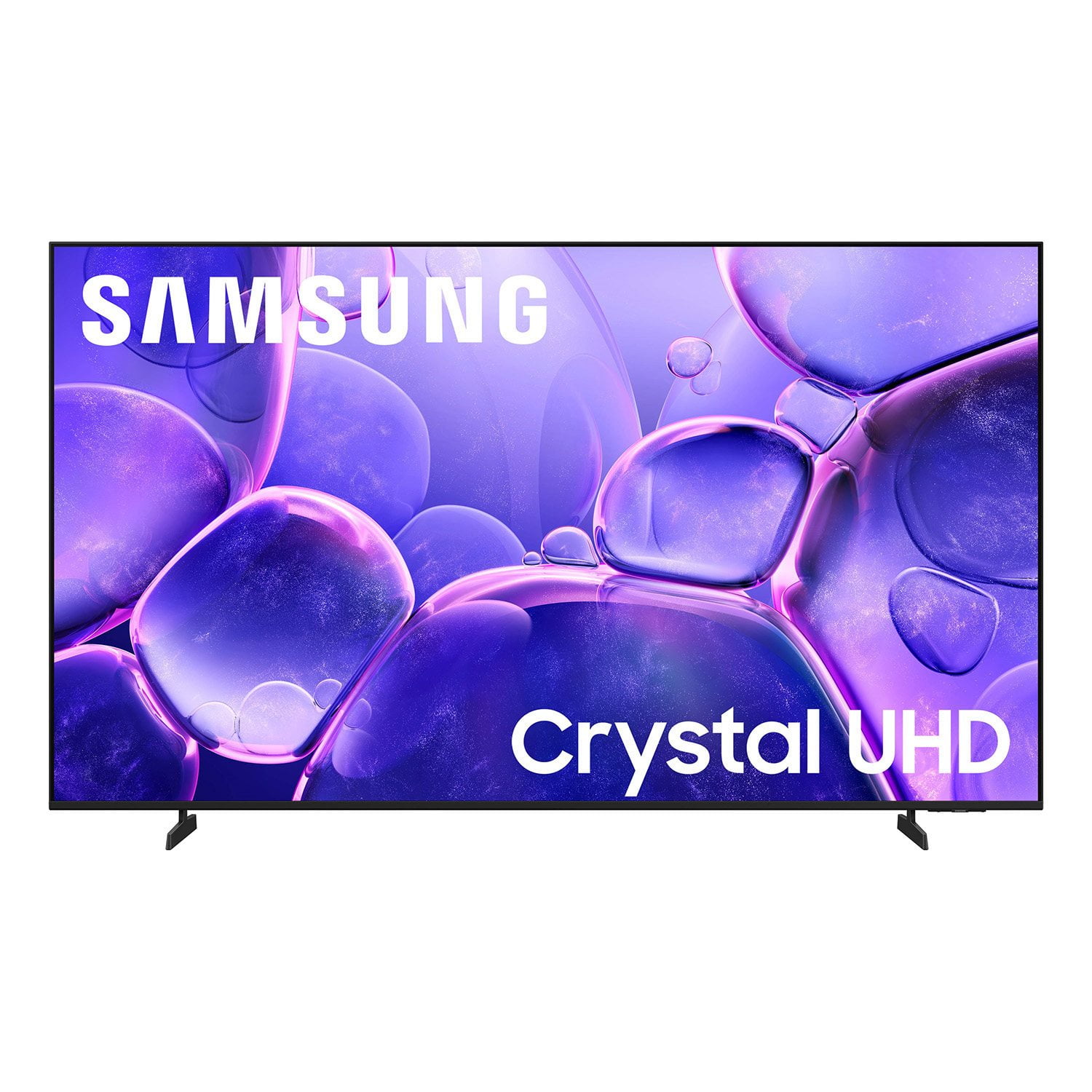
SAMSUNG 58” Class U8000F Series 4K Crystal UHD Smart TV
4.6 out of 5 stars
stars1,270 ratings1,264 reviews
  1. 5 stars77% (973)
  2. 4 stars14% (181)
  3. 3 stars4% (56)
  4. 2 stars2% (28)
  5. 1 star3% (32)

Member photos

  • +371 images
Sort by |
Showing 731-740 of 1,264 reviews
Mar 23, 2026
Mpops618
5 out of 5 stars review

85 in TV review

[This review was collected as part of a promotion.] Picture is crystal clear and sound is great, I like the ease of finding what each feature does. Great system

Review from Samsung US
Helpful?1U5QA8D4IAB615677157353
Mar 3, 2026
Keith
5 out of 5 stars review

Great Picture and Features

[This review was collected as part of a promotion.] great picture, features, sound and easy to set up even with your fire stick. I like how it so updates itself.

Review from Samsung US
Helpful?1U5QA8D4IAB615677157353
Feb 28, 2026
Foxy
5 out of 5 stars review

High quality pictures crystal clear amazing pixel

[This review was collected as part of a promotion.] high quality pictures crystal clear. I love Samsung products and always end up buying them. they have the best pictures out of any brand.

Review from Samsung US
Helpful?1U5QA8D4IAB615677157353
Mar 24, 2026
HooYah
5 out of 5 stars review

Awesome ....apps and work ability.

[This review was collected as part of a promotion.] it's awesome to have the quality control the TV that goes up the brightness control in the sound control

Review from Samsung US
Helpful?1U5QA8D4IAB615677157353
Mar 23, 2026
Eclypse
4 out of 5 stars review

My Samsung TV

[This review was collected as part of a promotion.] viewing this Samsung TV was especially good because of the brightness and contrast as well as the refresh rate it delivered a high resolution picture

Review from Samsung US
Helpful?1U5QA8D4IAB615677157353
Mar 2, 2026
Matthew
5 out of 5 stars review

Awesome and big!!

[This review was collected as part of a promotion.] Its been a great TV. I watch a good deal of shows and plau vido games. Everything works great and the built in speakers are better than expexted.

Review from Samsung US
Helpful?1U5QA8D4IAB615677157353
Feb 17, 2026
Randy
2 out of 5 stars review

Bad audio

[This review was collected as part of a promotion.] Tv is great... but audio is very not good by any means.. it keeps going out. And you have to unplug the TV and plug it back.. or factory reset it 50 times a day

Review from Samsung US
Helpful?1U5QA8D4IAB615677157353
reply from Samsung Advisor

Hi Randy, We're sorry to hear about the audio issues you are experiencing. To best assist you, please contact us at 1-800-SAMSUNG, available 8AM – 12AM EST, 7 days a week. LiveChat is also available via the ‘Support’ link on our website. ~ Samsung Advisor

Mar 5, 2026
cktv
3 out of 5 stars review

New TV

[This review was collected as part of a promotion.] Fine that app-lications difficult to organize and use.. doesn't allow new or updating app installation date easily... used to a Roku TV system which is way more straight forward...

Review from Samsung US
Helpful?1U5QA8D4IAB615677157353
reply from Samsung Advisor

Hi cktv, Thank you for sharing your experience. Please know that you can customize your Home screen by installing, removing or adding your favorite apps to the Home screen. Here's how: Searching for & Installing Apps 1. From the Home screen, press left on the remote’s directional pad. 2. Navigate to and select Search. 3. Using the search bar, enter the content or app you’d like to find. 4. Navigate to and select the app you’d like to install, then select Install. Note: Previously installed apps can be accessed on the Settings screen. Adding & Managing Apps on Home Screen 1. Go to App Settings (these can be found at the bottom of the Apps screen) and select the app you want to move. The following options will be available: a. Add to Home: Move the app to your desired location on the Home screen. b. Delete: Delete app. c. Lock/Unlock: Lock the app with a PIN so only you can use it. When the app is selected again, you will be prompted to enter the PIN to unlock it. d. Reinstall: Reinstall the app. e. View Details: View the app’s information and details. If you need more help with app management, please don’t hesitate to reach Samsung Support at 1-800-SAMSUNG (8AM – 12AM EST, 7 days a week) or use LiveChat under Support on our website. ~ Samsung Advisor

Feb 20, 2026
Lola
5 out of 5 stars review

TV 43

[This review was collected as part of a promotion.] Love this TV Its perfect for my monitor for work. Thank you Samsung. I'm trying to find a 75 inch tho

Review from Samsung US
Helpful?1U5QA8D4IAB615677157353
Mar 5, 2026
Mima
2 out of 5 stars review

Dark picture

[This review was collected as part of a promotion.] the picture is dark and I cannot adjust it. The bright and picture features are at the maximum and still the picture is always dark.

Review from Samsung US
Helpful?1U5QA8D4IAB615677157353
reply from Samsung Advisor

Hi Mima, We’re sorry to hear you’re not fully satisfied with the picture quality on your Samsung U8000F TV. If the image appears too dark, we suggest disabling certain energy-saving features, which can automatically adjust brightness and affect how the screen looks. Go to: Settings > All Settings > General & Privacy > Power and Energy Saving, then turn off Brightness Optimization, Energy Saving Solution, Motion Lighting, and/or Contrast Enhancer. You can also adjust the Picture Mode to better suit your environment: Settings > All Settings > Picture > Picture Mode • Standard – Default mode for general viewing • Dynamic – Brighter and clearer, ideal for well-lit rooms • Movie – Best for dark room viewing • Eco – Energy-saving mode • Filmmaker Mode – Preserves content as intended by creators To fine-tune brightness, go to: Home > left directional key > Settings > All Settings > Picture > Expert Settings, then adjust the Brightness level (0–50) to your preference. Lastly, please make sure your TV is running the latest firmware: Home > Home > left directional key > Settings > Support > Software Update > Update Now We hope these tips help improve your viewing experience. If you need further support, feel free to contact us at 1-800-SAMSUNG, 8AM – 12AM EST, 7 days a week. LiveChat is also available via the ‘Support’ link on our website. ~ Samsung Advisor