Skip to Main Content
Sam's Club
Sam's Club
All Departments
All Services
Customer reviews for SAMSUNG 58” Class U8000F Series 4K Crystal UHD Smart TV for
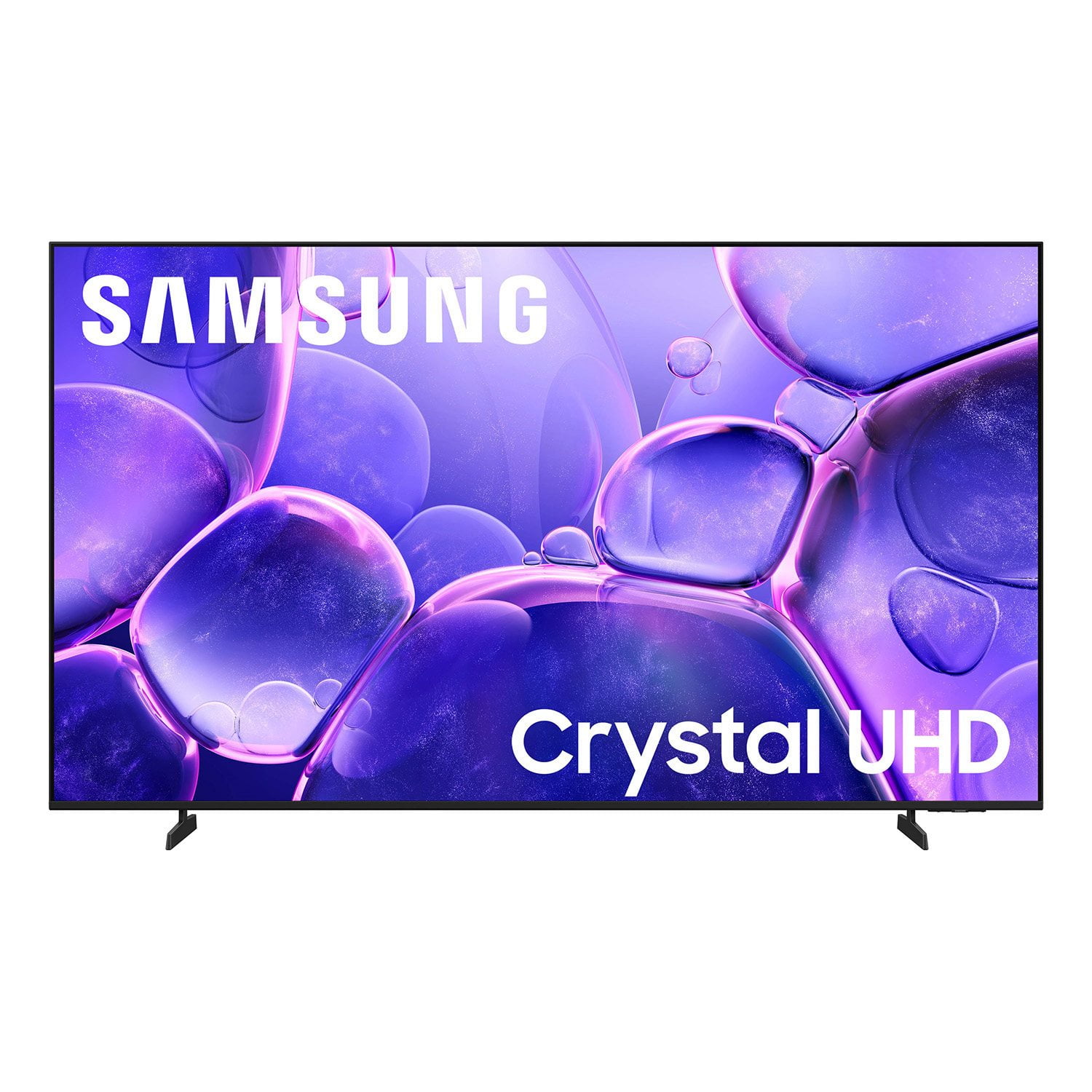
SAMSUNG 58” Class U8000F Series 4K Crystal UHD Smart TV
4.5 out of 5 stars
stars
2,525 ratings2,519 reviews
  1. 5 stars72% (1,822)
  2. 4 stars16% (398)
  3. 3 stars6% (156)
  4. 2 stars3% (70)
  5. 1 star3% (79)

Member photos

  • +766 images
Sort by |
Showing 2,461-2,470 of 2,519 reviews
Jun 20, 2025
ChrisW
5 out of 5 stars review

Another Great TV by Samsung

[This review was collected as part of a promotion.] I've always preferred Samsung TVs and was not disappointed when I receive this one. The images colors and sound is great on this TV. would recommend.

Review from Samsung US
Helpful?1U5QA8D4IAB615677157353
May 14, 2025
SamsungLove
5 out of 5 stars review

Great TV!!

[This review was collected as part of a promotion.] Never had any issues with my Samsung Crystal. Great picture quality and always streams everything with ease. Definitely worth every penny!

Review from Samsung US
Helpful?1U5QA8D4IAB615677157353
May 2, 2025
Lovesam
5 out of 5 stars review

This product is great

[This review was collected as part of a promotion.] This product has great features. It's easy to use. The Picture is very clear and we enjoy enjoying watching all of our favorite streaming services on it as well as Samsung live TV

Review from Samsung US
Helpful?1U5QA8D4IAB615677157353
Jun 14, 2025
Zanthus
1 out of 5 stars review

Bad Keyboard. Not full features.

Excitedly bought this last night. Turned it oh to go through setup. Got to WiFi code, brought up keyboard for WiFi password and NO HYPHEN ON KEYBOARD. HAD 2 UNDERLINES. The password for the WiFi system required a Hyphen. No work around. Being a senior, very, I took Samsungs AD of easy set up. May be, but need full keyboard. Had a couple of other seniors check. TV may be rear but can't tell because can't log into WiFi.

Review from Samsung US
Helpful?1U5QA8D4IAB615677157353
reply from Samsung Advisor

Hi Zanthus, Thank you for your feedback on the U8000F setup. To find the hyphen on your keyboard, go to the special characters on the right-hand side of the keyboard on your screen (It should be !#1), then on the third row from the top, one character in, you should see the hyphen. It is right below the @ symbol. You can also connect your phone via the SmartThings app, which has a keyboard as well. Or if you'd rather have a full keyboard on your remote, you can utilize other Samsung IR remotes, or a third-party remote is also an option. I hope this helps. If you need additional support, Samsung is here to help. Please call us at 1-800-SAMSUNG, available daily from 8AM - 12AM EST. You can also chat with a LiveChat agent by clicking the ‘Support’ link on our website. ~ Samsung Advisor

Apr 29, 2025
SammyNerd83
4 out of 5 stars review

Beautiful TV

[This review was collected as part of a promotion.] This is a beautiful tv with an AMAZING picture. The screen is bright (even with the anti-reflective coating) vivid, and has an amazing picture quality. Where i have some issues is that whether it's the processor or the ram, the smart functionality is slow (a lot) and sometimes even stutters a little in it's response to my inputs. Also I'm kinda annoyed that the smart remote this year is larger and takes batteries instead of being rechargeable. I understand it was probably a cost savings measure, I just don't like it. I really like the game mode. It's a great idea, it's implemented quite well. And the streaming games, although have occasional pretty bad latency (lag) issues, works great. Other then the issues I mentioned previously (which to be fair and completely honest are actually very minor) this is an exceptionally great tv for the price. This is an ABSOLUTELY amazing midrange tv. I just wish i could have afforded a neo-qled.

Review from Samsung US
Helpful?1U5QA8D4IAB615677157353
reply from Samsung Advisor

Hi Sammynerd83, We appreciate your feedback regarding your U8000F TV’s performance. If you're experiencing slow apps, freezing, or lag in general response time, try the following steps: 1. Check for firmware updates – Keeping your TV up to date can resolve many performance issues: Home > left directional key > Settings > Support > Software Update > Update Now 2. Run Device Care – This tool checks system memory, frees up cached data, and closes background apps that could be slowing things down: Home > left directional key > Settings > Support > Device Care > Start Device Care 3. Cold boot your TV – With the TV powered on, press and hold the Power button on your remote for 5+ seconds until the TV restarts. This helps refresh the system. If you're still noticing performance issues after these steps, please contact Samsung Support at 1-800-SAMSUNG, 8AM – 12AM EST, 7 days a week. You can also connect with a LiveChat agent via the ‘Support’ link on our website. ~ Samsung Advisor

Jul 5, 2025
AlexMiami
3 out of 5 stars review

Good TV but very basic!

[This review was collected as part of a promotion.] We bought this TV to replace an old one in our bedroom. As much as I'm a big Samsung family fan, this TV is a basic as it gets. The interface software is lagging, colors are not that sharp, and no voice control. You could do better Samsung!

Review from Samsung US
Helpful?1U5QA8D4IAB615677157353
reply from Samsung Advisor

Hi AlexMiami, Thank you for your feedback on the Samsung U8000F TV. If the picture appears unclear, dull, or lacks definition, there are several settings you can adjust to improve clarity and overall image quality. Go to: Settings > All Settings > Picture > Expert Settings, and review these key settings: Picture Clarity Settings: While originally intended for motion handling, these can also impact overall clarity • Off: Disables motion enhancements • Auto: Automatically adjusts based on content • Custom: Lets you fine-tune: o Judder Reduction – Helps smooth out uneven motion o LED Clear Motion – Boosts sharpness in fast-moving content o Noise Reduction – Reduces distortion and enhances detail in lower-resolution sources Core Picture Settings • Brightness – Controls overall screen brightness • Contrast – Enhances the difference between bright and dark areas • Sharpness – Adjusts edge definition; closer to 20 increases detail • Color – Enhances depth and intensity of colors And don’t forget to check for the latest firmware, which may improve performance: Settings > Support > Software Update > Update Now. Finally, please know your TV does come with built-in voice assistants, however you will need to utilize the SmartThings app or a voice-command remote control. ~Samsung Advisor

Apr 21, 2025
CS1005
3 out of 5 stars review

Picture Quality

75" Class Crystal UHD U8000F 4K Smart TV bought a week ago and not pleased with it. The picture quality is terrible. We even upgraded our cable box and that did not help. I have learned a lesson not to believe that the picture in the store will actually look that way at home. If I still had the box, I would return it. The only good thing was the price but what good is that if you are not happy with the product. Our last Samsung only lasted 7 years before the sides of the screen started to go dark and would need repaired. My husband wanted to change brands but I convinced him to stay with Samsung. I should have listened to him.

Review from Samsung US
Helpful?1U5QA8D4IAB615677157353
reply from Samsung Advisor

We’re sorry to hear you’re not fully satisfied with the picture quality on your Samsung U8000F TV. If the image appears too dark, we suggest disabling certain energy-saving features, which can automatically adjust brightness and affect how the screen looks. Go to: Settings > All Settings > General & Privacy > Power and Energy Saving, then turn off Brightness Optimization, Energy Saving Solution, Motion Lighting, and/or Contrast Enhancer. You can also adjust the Picture Mode to better suit your environment: Settings > All Settings > Picture > Picture Mode. • Standard – Default mode for general viewing • Dynamic – Brighter and clearer, ideal for well-lit rooms • Movie – Best for dark room viewing • Eco – Energy-saving mode • Filmmaker Mode – Preserves content as intended by creators To fine-tune brightness, go to: Home > left directional key > Settings > All Settings > Picture > Expert Settings, then adjust the Brightness level (0–50) to your preference. Lastly, please make sure your TV is running the latest firmware: Home > Home > left directional key > Settings > Support > Software Update > Update Now We hope these tips help improve your viewing experience. If you need further support, feel free to contact us at 1-800-SAMSUNG, 8AM – 12AM EST, 7 days a week. LiveChat is also available via the ‘Support’ link on our website. ~ Samsung Advisor

Jun 21, 2025
HouseOfSamsung
4 out of 5 stars review

Samsung did not disappoint!

[This review was collected as part of a promotion.] I am a long-time fan of Samsung phones but this is the first TV that I purchased. The picture is clear and the sound is crisp. There have been a few glitches in the middle of programming and on start-up but a power off to reset usually does the trick. I really like the thinness of this model; fits great on a swivel, corner mount for the bedroom. I would purchase the Frame TV next time or this model again. If you are considering this one, it is a good buy, go for it!

Review from Samsung US
Helpful?1U5QA8D4IAB615677157353
May 9, 2025
Lovetwatchyou
5 out of 5 stars review

One of the great features about the television is

[This review was collected as part of a promotion.] Televisions mainly used for streaming as well as watching regular television and sometimes sports

Review from Samsung US
Helpful?1U5QA8D4IAB615677157353
May 5, 2025
Mrspontaneous
4 out of 5 stars review

Great Tv overall has some hiccups from time to tim

[This review was collected as part of a promotion.] Over all good sometimes takes longer to load apps but overall great experience

Review from Samsung US
Helpful?1U5QA8D4IAB615677157353