Skip to Main Content
Sam's Club
Sam's Club
All Departments
All Services
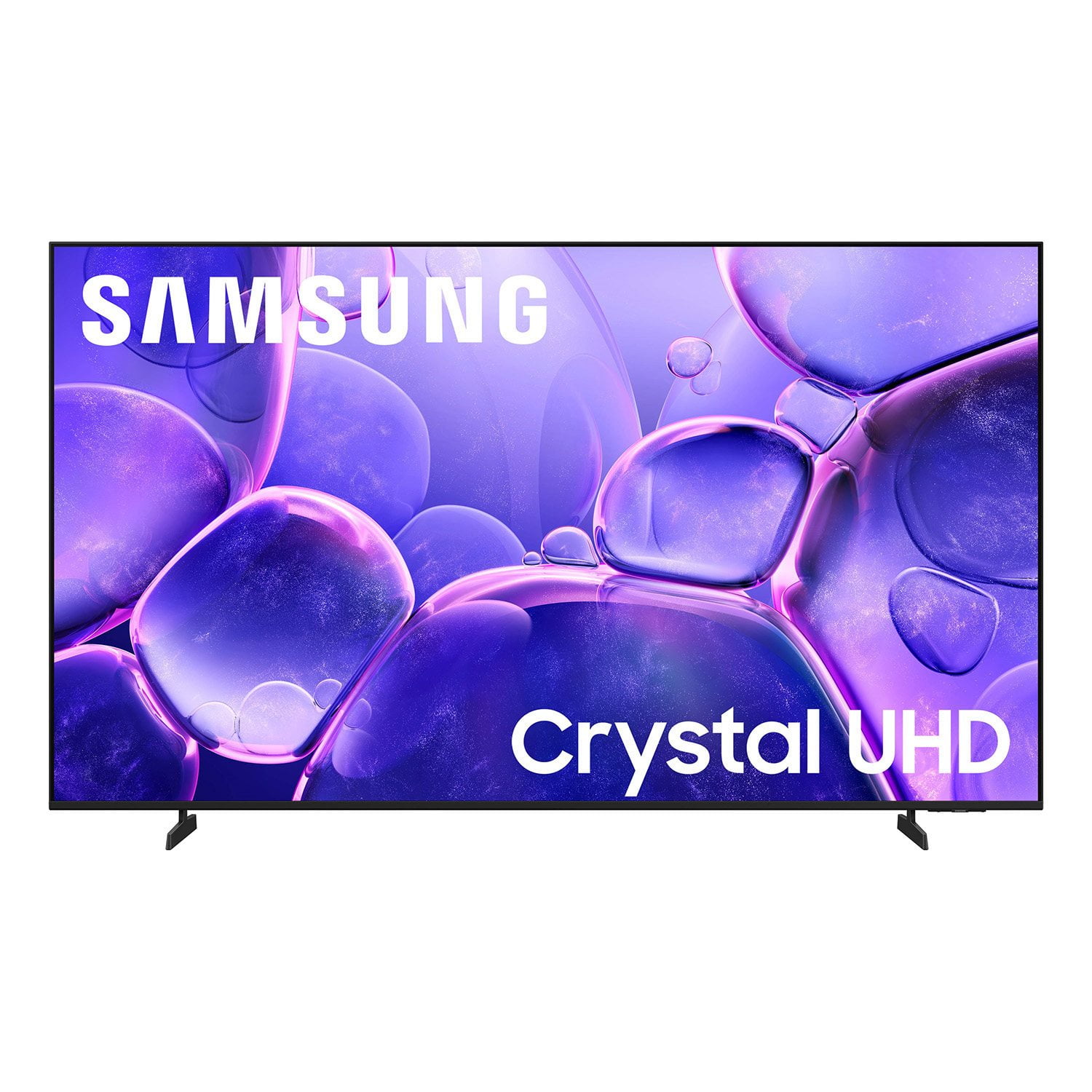
Customer reviews for SAMSUNG 58” Class U8000F Series 4K Crystal UHD Smart TV for
SAMSUNG 58” Class U8000F Series 4K Crystal UHD Smart TV
4.5 out of 5 stars
stars
2,527 ratings2,521 reviews
  1. 5 stars72% (1,823)
  2. 4 stars16% (399)
  3. 3 stars6% (156)
  4. 2 stars3% (70)
  5. 1 star3% (79)

Member photos

  • +766 images
Sort by |
Showing 1,761-1,770 of 2,521 reviews
May 21, 2026
RicQ70
4 out of 5 stars review

Good tv

[This review was collected as part of a promotion.] Good picture. Little slow though The brightness, color, and resolution are great

Review from Samsung US
Helpful?1U5QA8D4IAB615677157353
Apr 20, 2026
Ryan
5 out of 5 stars review

Best tv i have

[This review was collected as part of a promotion.] best TV I've had so far very clear sharp picture I would recommend it to anyone

Review from Samsung US
Helpful?1U5QA8D4IAB615677157353
May 11, 2026
Mahbub
5 out of 5 stars review

Great
[This review was collected as part of a promotion.] Excellent!!!!!!!!!!!!!!!!!!!!!!!!!!!!!!!!!!!!!!!!!!

Review from Samsung US
Helpful?1U5QA8D4IAB615677157353
Apr 20, 2026
Jay E
4 out of 5 stars review

The brand that matters

[This review was collected as part of a promotion.] Its nice for the most part I like the style and quality. It's very bright I can see very well.

Review from Samsung US
Helpful?1U5QA8D4IAB615677157353
May 20, 2026
robert
1 out of 5 stars review

none

[This review was collected as part of a promotion.] speaker already crackles and tv freeze up would not but again

Review from Samsung US
Helpful?1U5QA8D4IAB615677157353
reply from Samsung Advisor

Hi Robert, Thank you for sharing your experience with your U8000F TV. If you are hearing abnormal sounds coming from your TV, please try the following: 1. Check volume and mute settings, and make sure the Sound Output is set to TV Speaker: Settings > All Settings > Sound > Sound Output > TV Speaker 2. Run a Sound Test to help diagnose the issue: Settings > Support > Device Care > Self Diagnosis > Sound Test 3. Cold boot your TV by holding the power button on the remote until the TV turns off and back on (Or unplug the TV from power for 30 seconds, then plug it back in) 4. Reset sound settings to default: Settings > All Settings > Sound > Expert Settings > Reset Sound 5. Update your TV’s software in case a firmware issue is affecting audio: Settings > Support > Software Update > Update Now If none of these steps resolve your issues, please contact us for further assistance. You can reach Samsung Support at 1-800-SAMSUNG, 8AM – 9PM EST Mon – Fri, 8AM – 6PM Sat – Sun. LiveChat is also available via the ‘Support’ link on our website. ~ Samsung Advisor

May 21, 2026
San19
5 out of 5 stars review

Love it!!

[This review was collected as part of a promotion.] I love watching my favorite shows on this TV! The picture is clear and vibrant!

Review from Samsung US
Helpful?1U5QA8D4IAB615677157353
May 11, 2026
Inga
5 out of 5 stars review

Great TV for the price. Great color.

[This review was collected as part of a promotion.] Great tv for the price. Great picture and the brightness is real good. Refresh rate is great.

Review from Samsung US
Helpful?1U5QA8D4IAB615677157353
May 20, 2026
Doc Wilds
3 out of 5 stars review

Serious flaws.

[This review was collected as part of a promotion.] The remote doesn't allow voice control log the tv. The volume must be at 50% to be audible.

Review from Samsung US
Helpful?1U5QA8D4IAB615677157353
reply from Samsung Advisor

Hi Doc Wilds, Thanks for your feedback on the U8000F TV. Please know we are here to help. First, please ensure you are running the latest Firmware Update. Go to Settings> Support> Software Update. In regards to your remote control, we apologize for any confusion, however the U8000F does not come with a built-in voice assistant or microphone. It is however compatible with external Alexa devices. If volume levels seem too low, you can improve sound performance by adjusting a few key settings: Sound Mode: Navigate to: Settings > All Settings > Sound > Sound Mode Auto Volume: This feature helps maintain consistent volume levels across content and input sources. Turn it on under: Settings > All Settings > Sound > Expert Settings > Auto Volume = On You can also explore Expert Settings to fine-tune sound output with adjustments for Balance, Equalizer, and more. If you’re considering enhancing your setup, Samsung’s Q- and S-Series Soundbars feature Q-Symphony, which syncs your TV and soundbar speakers for a fuller, more immersive sound experience. For personalized support with these settings or selecting a soundbar to complement your setup, contact Samsung Support at 1-800-SAMSUNG (8AM – 9PM EST Mon – Fri, 8AM – 6PM Sat – Sun) or use LiveChat via the ‘Support’ link on our website. ~ Samsung Advisor

May 20, 2026
Chuck99
5 out of 5 stars review

Great TV

[This review was collected as part of a promotion.] Great TV at a great price. Intuitive interface. Nice picture and sound.

Review from Samsung US
Helpful?1U5QA8D4IAB615677157353
Mar 30, 2026
Tony
5 out of 5 stars review

65" Samsung UHD 4K

[This review was collected as part of a promotion.] Amazing TV, though I wish one would add the Adudible app.

Review from Samsung US
Helpful?1U5QA8D4IAB615677157353