Skip to Main Content
Sam's Club
Sam's Club
All Departments
All Services
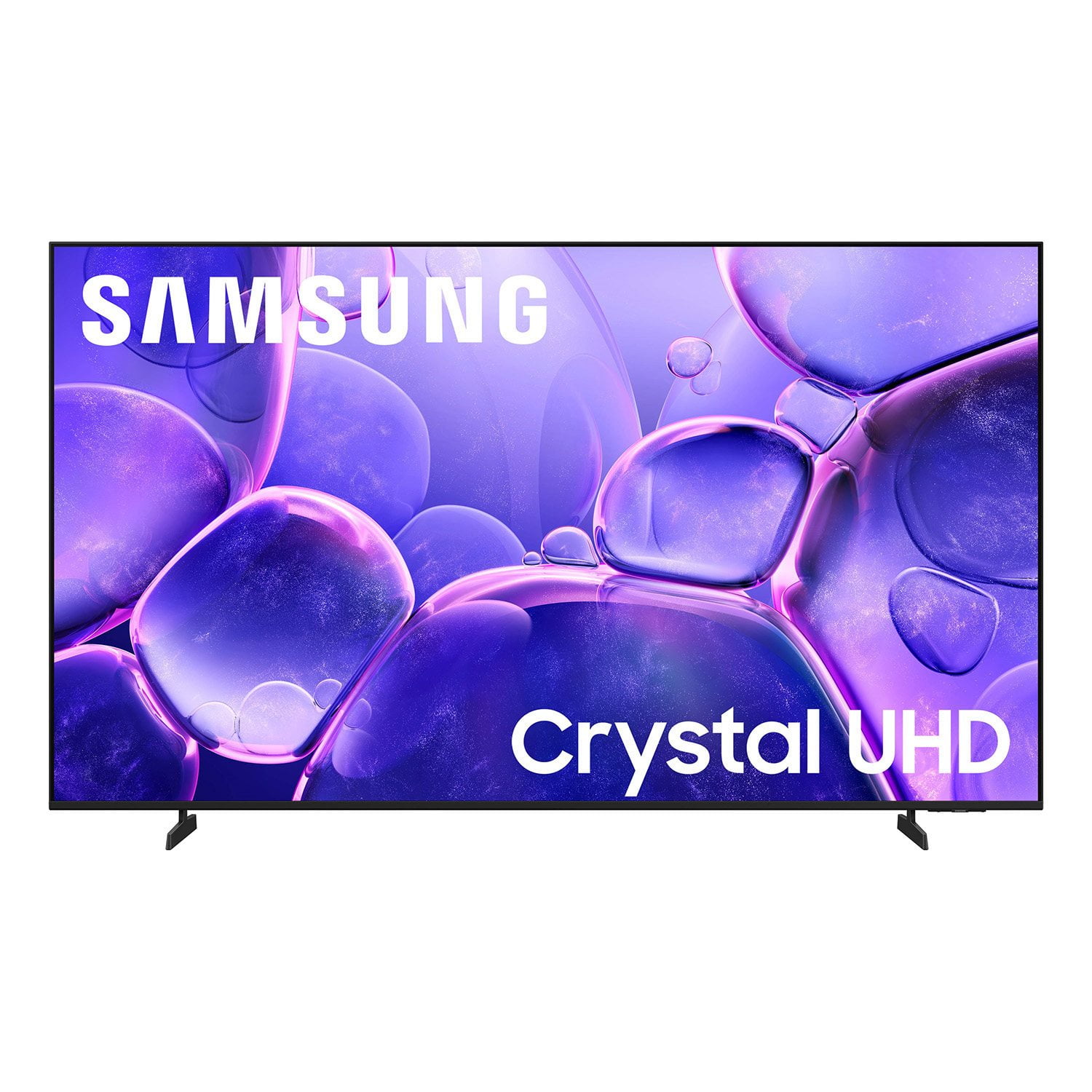
Customer reviews for SAMSUNG 58” Class U8000F Series 4K Crystal UHD Smart TV for
SAMSUNG 58” Class U8000F Series 4K Crystal UHD Smart TV
4.5 out of 5 stars
stars
2,527 ratings2,521 reviews
  1. 5 stars72% (1,823)
  2. 4 stars16% (399)
  3. 3 stars6% (156)
  4. 2 stars3% (70)
  5. 1 star3% (79)

Member photos

  • +766 images
Sort by |
Showing 1,721-1,730 of 2,521 reviews
Apr 15, 2026
Slick
5 out of 5 stars review

NATURALZ

[This review was collected as part of a promotion.] I am definitely honored to be a Proud owner of one of the best Products on the Market!

Review from Samsung US
Helpful?1U5QA8D4IAB615677157353
Apr 20, 2026
Good stuff
5 out of 5 stars review

Great features

[This review was collected as part of a promotion.] Nothing to complain about Good over all items established name helps

Review from Samsung US
Helpful?1U5QA8D4IAB615677157353
Apr 20, 2026
Curve
5 out of 5 stars review

Samsung tv

[This review was collected as part of a promotion.] High quality Perfect size Great picture Many options

Review from Samsung US
Helpful?1U5QA8D4IAB615677157353
May 21, 2026
Sasha
5 out of 5 stars review

S h how's amazing

[This review was collected as part of a promotion.] I just love how the volume is the picture everything

Review from Samsung US
Helpful?1U5QA8D4IAB615677157353
Apr 22, 2026
Andy
1 out of 5 stars review

Great TV

[This review was collected as part of a promotion.] Everything is fine except the internet not working in this TV!?

Review from Samsung US
Helpful?1U5QA8D4IAB615677157353
reply from Samsung Advisor

Hi Andy, Thank you for sharing your experience with the internet connection on your Samsung U8000F TV. Whether you're using Wi-Fi or a wired (LAN) connection, there are a few steps you can take to help resolve the issue: 1. Power Cycle Your Equipment. Unplug both your TV and router/modem from the wall outlet. Wait at least 30 seconds, then plug them back in and allow both devices to fully restart. 2. Check the Network Status. On your TV, go to: Home > left directional key > Settings > All Settings > Connection > Network > Network Status. This will help determine if the issue lies with the network or the TV. 3. Try a Different Connection Type. If you're using Wi-Fi, try connecting an Ethernet (LAN) cable directly from your router to the TV to test the connection. If you're using a wired connection, try switching to Wi-Fi to see if the issue persists. 4. Reestablish the Network Connection. Go to: Settings > All Settings > Connection > Network > Open Network Settings, and follow the prompts to reconnect to your Wi-Fi or wired network. 5. Update Firmware. Software updates can often resolve network bugs. To check for the latest version: Settings > Support > Software Update > Update Now If these steps don't resolve the issue, we’d be happy to provide further assistance. Please call Samsung Support at 1-800-SAMSUNG, 8AM – 9PM EST Mon – Fri, 8AM – 6PM Sat – Sun. LiveChat is also available at the ‘Support’ link on our website. ~ Samsung Advisor

Apr 20, 2026
Miky
5 out of 5 stars review

The best ever

[This review was collected as part of a promotion.] This is by far the best tv I have ever owned and im the only one to turn it on mine all mine

Review from Samsung US
Helpful?1U5QA8D4IAB615677157353
May 20, 2026
Doc Wilds
3 out of 5 stars review

Serious flaws.

[This review was collected as part of a promotion.] The remote doesn't allow voice control log the tv. The volume must be at 50% to be audible.

Review from Samsung US
Helpful?1U5QA8D4IAB615677157353
reply from Samsung Advisor

Hi Doc Wilds, Thanks for your feedback on the U8000F TV. Please know we are here to help. First, please ensure you are running the latest Firmware Update. Go to Settings> Support> Software Update. In regards to your remote control, we apologize for any confusion, however the U8000F does not come with a built-in voice assistant or microphone. It is however compatible with external Alexa devices. If volume levels seem too low, you can improve sound performance by adjusting a few key settings: Sound Mode: Navigate to: Settings > All Settings > Sound > Sound Mode Auto Volume: This feature helps maintain consistent volume levels across content and input sources. Turn it on under: Settings > All Settings > Sound > Expert Settings > Auto Volume = On You can also explore Expert Settings to fine-tune sound output with adjustments for Balance, Equalizer, and more. If you’re considering enhancing your setup, Samsung’s Q- and S-Series Soundbars feature Q-Symphony, which syncs your TV and soundbar speakers for a fuller, more immersive sound experience. For personalized support with these settings or selecting a soundbar to complement your setup, contact Samsung Support at 1-800-SAMSUNG (8AM – 9PM EST Mon – Fri, 8AM – 6PM Sat – Sun) or use LiveChat via the ‘Support’ link on our website. ~ Samsung Advisor

May 20, 2026
Dabe
5 out of 5 stars review

Great features

[This review was collected as part of a promotion.] Great picture and Bluetooth works with 2 speakers or headphones. Many channels to watch.

Review from Samsung US
Helpful?1U5QA8D4IAB615677157353
Apr 20, 2026
ElvisR
5 out of 5 stars review

Amazing picture

[This review was collected as part of a promotion.] product overall quality and everything it's amazing

Review from Samsung US
Helpful?1U5QA8D4IAB615677157353
May 20, 2026
Anonymous
5 out of 5 stars review

Samsung

[This review was collected as part of a promotion.] I'm really happy with the purchase.it works so good the kids love it

Review from Samsung US
Helpful?1U5QA8D4IAB615677157353